> ## Documentation Index
> Fetch the complete documentation index at: https://docs.goguardian.com/llms.txt
> Use this file to discover all available pages before exploring further.
# Create a New Pear Deck Lesson
> Set up a Pear Deck account, build interactive slides in Google Slides or PowerPoint Online, and present a live session to students
Pear Deck lessons are created in Google Slides or PowerPoint Online, so teachers can combine the editing power of those tools with Pear Deck's interactive engagement features.
## Set up a Pear Deck Account
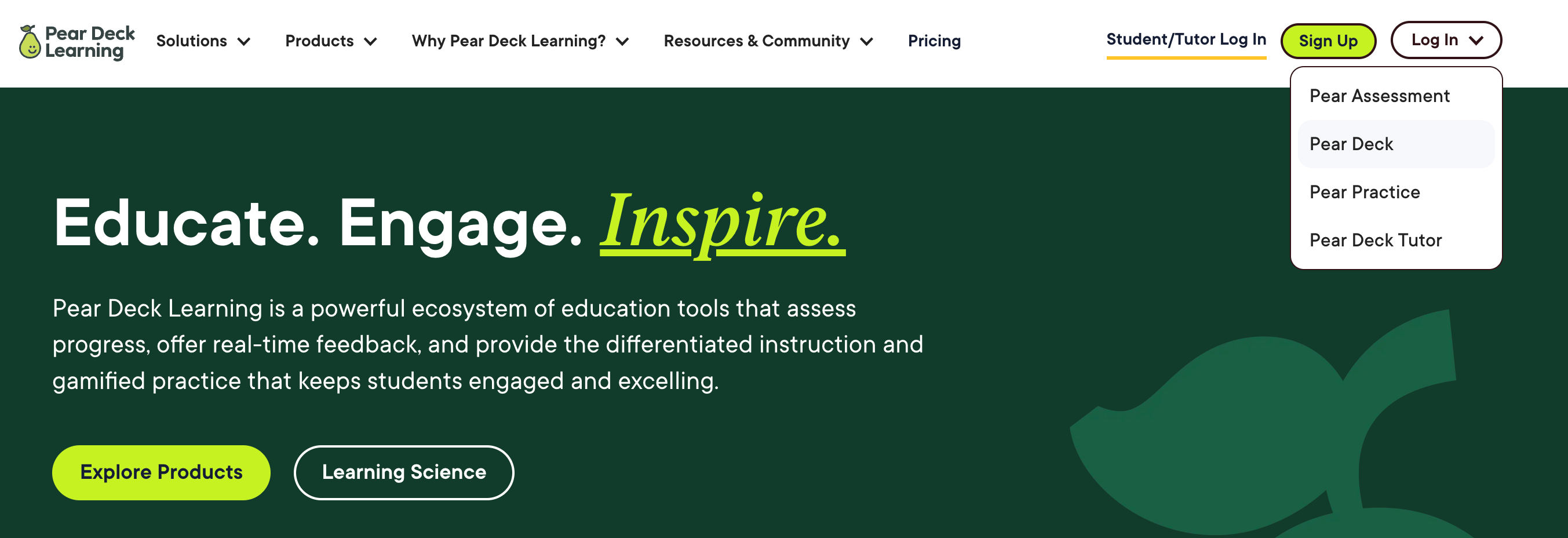
1. Go to [peardeck.com](https://www.peardeck.com/).
2. Click **Sign in** and select **Pear Deck**. If this is your first time, [create a Pear Deck account](/products/pear-deck/create-a-pear-deck-account) before continuing.
3. Follow the on-screen prompts to give Pear Deck access to your files. See [Why Pear Deck Needs Access to Your Files](/products/pear-deck/why-pear-deck-needs-access-to-files) for details on the required permissions.
4. On your [Pear Deck Home screen](https://app.peardeck.com/home), click **Create a Lesson** to start from scratch or **Open existing file** to use a previously created deck.
 ## Create Slides
All Pear Deck lessons are built in Google Slides or PowerPoint Online. When you click **Create a new lesson** on your [Pear Deck Home screen](https://app.peardeck.com/home), you land in the editor that matches your account type. From there you can build interactive slides from scratch or add pre-made Slide Templates to your presentation.
You can also add Pear Deck Interactive Slides and Slide Templates to any existing Google Slides or PowerPoint Online presentation.
Pear Deck's team of educators has created pre-made Formative Assessment Slide Templates to help students warm up, develop critical thinking skills, reflect on lessons, and more. These templates are free and available in the Pear Deck Sidebar Template Library. Standards-aligned decks are also available in the [Content Orchard](https://app.peardeck.com/home/content-orchard).
## Google Slides
1. Open any deck. Add the content, prompt, question, or image you want students to see on the main body of the slide.
2. Go to **Extensions** > **Pear Deck for Google Slides Add-on** > **Open Pear Deck Add-on** to open the Pear Deck Sidebar. If you have not installed the Add-on, go to **Extensions** > **Add-ons** > **Get add-ons** to install Pear Deck.
3. In the Pear Deck Sidebar, go to the **Ask Students a Question** section to add an [Interactive Response](/products/pear-deck/interactive-question-types) to the slide.
4. Open the Template Library to insert pre-made [Interactive Slide Templates](/products/pear-deck/add-premade-slide-templates) into your presentation.
## PowerPoint Online
1. Open a PowerPoint presentation. Add the prompt, question, image, or content you want students to see on the main body of the slide.
2. Click **Home** > **More Options** (three-dots menu) > **Pear Deck**. To install the Add-in, click **File** > **Get Add-ins** > **More Add-ins**, search for Pear Deck, then click **Add** > **Continue**.
## Create Slides
All Pear Deck lessons are built in Google Slides or PowerPoint Online. When you click **Create a new lesson** on your [Pear Deck Home screen](https://app.peardeck.com/home), you land in the editor that matches your account type. From there you can build interactive slides from scratch or add pre-made Slide Templates to your presentation.
You can also add Pear Deck Interactive Slides and Slide Templates to any existing Google Slides or PowerPoint Online presentation.
Pear Deck's team of educators has created pre-made Formative Assessment Slide Templates to help students warm up, develop critical thinking skills, reflect on lessons, and more. These templates are free and available in the Pear Deck Sidebar Template Library. Standards-aligned decks are also available in the [Content Orchard](https://app.peardeck.com/home/content-orchard).
## Google Slides
1. Open any deck. Add the content, prompt, question, or image you want students to see on the main body of the slide.
2. Go to **Extensions** > **Pear Deck for Google Slides Add-on** > **Open Pear Deck Add-on** to open the Pear Deck Sidebar. If you have not installed the Add-on, go to **Extensions** > **Add-ons** > **Get add-ons** to install Pear Deck.
3. In the Pear Deck Sidebar, go to the **Ask Students a Question** section to add an [Interactive Response](/products/pear-deck/interactive-question-types) to the slide.
4. Open the Template Library to insert pre-made [Interactive Slide Templates](/products/pear-deck/add-premade-slide-templates) into your presentation.
## PowerPoint Online
1. Open a PowerPoint presentation. Add the prompt, question, image, or content you want students to see on the main body of the slide.
2. Click **Home** > **More Options** (three-dots menu) > **Pear Deck**. To install the Add-in, click **File** > **Get Add-ins** > **More Add-ins**, search for Pear Deck, then click **Add** > **Continue**.
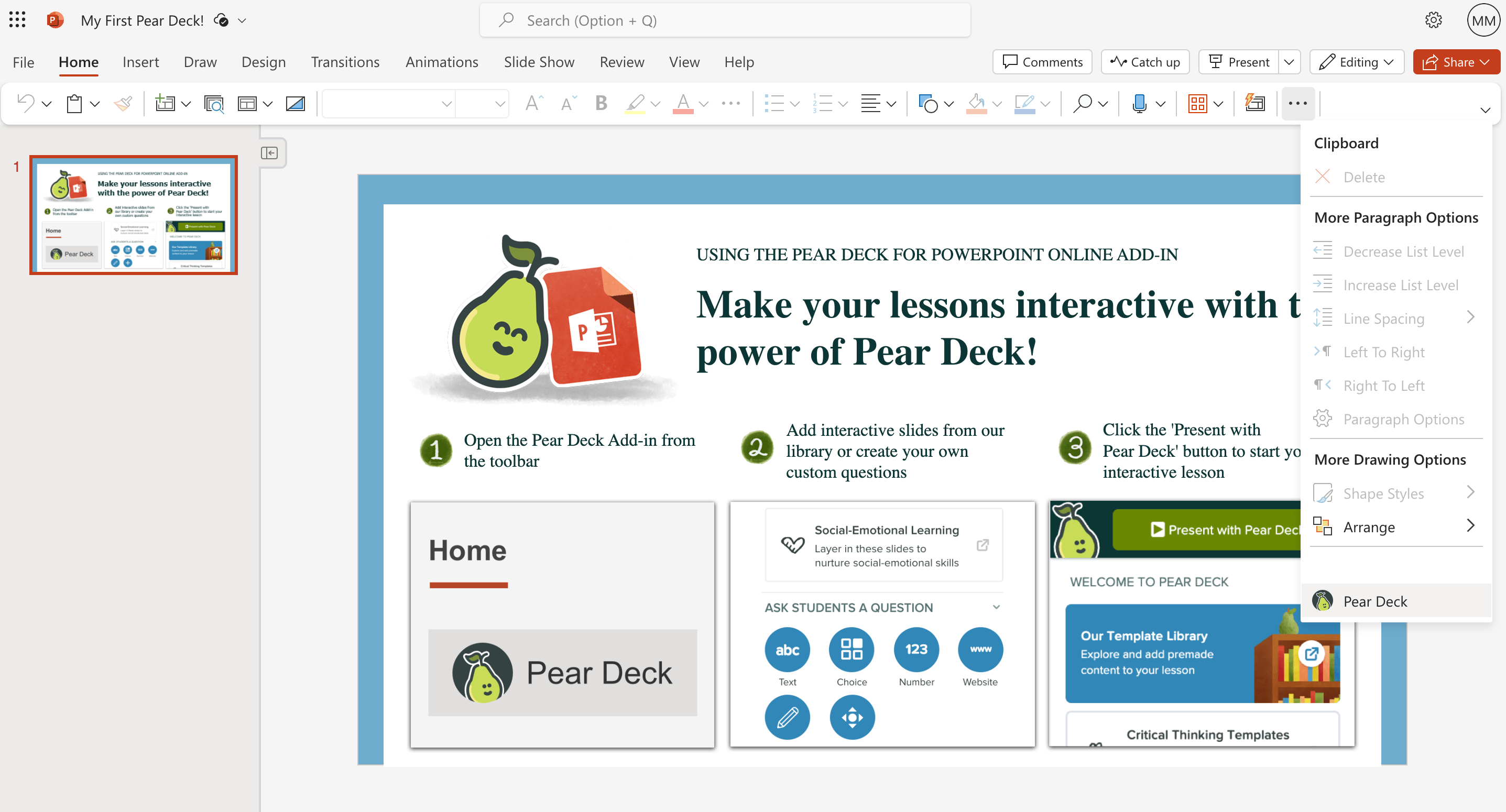 3. In the Pear Deck Sidebar, go to the **Ask Students a Question** section and add an [Interactive Response](https://help.peardeck.com/the-five-interactive-question-types) option to the slide.
4. Go to the Template Library, download [pre-made Slide Templates](https://help.peardeck.com/add-premade-slide-templates-to-your-presentation), and upload them for your own use.
## Reopen Auto-Saved Pear Decks
* Pear Deck for Google Slides presentations are saved in [Google Drive](https://drive.google.com/drive/). If you launched your presentation from Pear Deck Home, it is saved in **Google Drive** > **Pear Deck**, a folder created automatically when you installed Pear Deck. You can find all Pear Deck presentations in the [Google Slides app](https://docs.google.com/presentation/), as they are built within Google Slides.
* Pear Deck for PowerPoint Online presentations are saved in [OneDrive](https://onedrive.live.com/about/en-us/). Go to **Files** to find your Pear Deck files there.
* You can also access recent files on your [Pear Deck Home](https://app.peardeck.com/home/) page for quick access.
## Present the Lesson
Students must [join a Pear Deck session](https://help.peardeck.com/how-students-join-a-pear-deck-session) to engage with and respond to your interactive slides.
1. Open the Pear Deck Sidebar and click **Present with Pear Deck** (PowerPoint Online Add-in) or **Start Lesson** (Google Slides Add-on).
3. In the Pear Deck Sidebar, go to the **Ask Students a Question** section and add an [Interactive Response](https://help.peardeck.com/the-five-interactive-question-types) option to the slide.
4. Go to the Template Library, download [pre-made Slide Templates](https://help.peardeck.com/add-premade-slide-templates-to-your-presentation), and upload them for your own use.
## Reopen Auto-Saved Pear Decks
* Pear Deck for Google Slides presentations are saved in [Google Drive](https://drive.google.com/drive/). If you launched your presentation from Pear Deck Home, it is saved in **Google Drive** > **Pear Deck**, a folder created automatically when you installed Pear Deck. You can find all Pear Deck presentations in the [Google Slides app](https://docs.google.com/presentation/), as they are built within Google Slides.
* Pear Deck for PowerPoint Online presentations are saved in [OneDrive](https://onedrive.live.com/about/en-us/). Go to **Files** to find your Pear Deck files there.
* You can also access recent files on your [Pear Deck Home](https://app.peardeck.com/home/) page for quick access.
## Present the Lesson
Students must [join a Pear Deck session](https://help.peardeck.com/how-students-join-a-pear-deck-session) to engage with and respond to your interactive slides.
1. Open the Pear Deck Sidebar and click **Present with Pear Deck** (PowerPoint Online Add-in) or **Start Lesson** (Google Slides Add-on).
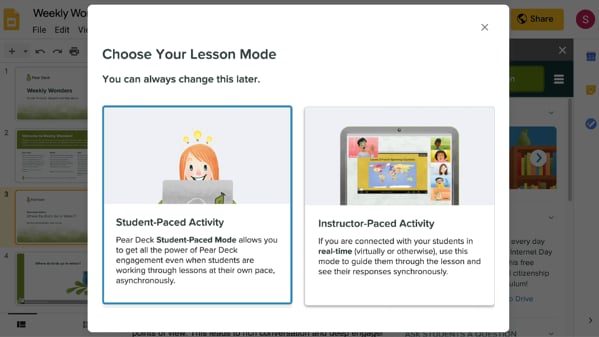
 2. If you select **Instructor-Paced Mode**, the Projector View opens for you. If you select **Student-Paced Mode** (requires a [Premium](https://www.peardeck.com/pricing/) account), the [Dashboard View](https://help.peardeck.com/the-teacher-dashboard) opens automatically.
3. Give students the Join Code or Join Link from your Projector View or Dashboard View to enter the session and leave responses. Learn more about [how to run your presentation](https://help.peardeck.com/how-to-present-a-pear-deck).
2. If you select **Instructor-Paced Mode**, the Projector View opens for you. If you select **Student-Paced Mode** (requires a [Premium](https://www.peardeck.com/pricing/) account), the [Dashboard View](https://help.peardeck.com/the-teacher-dashboard) opens automatically.
3. Give students the Join Code or Join Link from your Projector View or Dashboard View to enter the session and leave responses. Learn more about [how to run your presentation](https://help.peardeck.com/how-to-present-a-pear-deck).
 ## Resources
Learn about the five interactive response types you can add to your slides.
Browse and insert ready-made Formative Assessment templates from the Pear Deck Sidebar.
## Resources
Learn about the five interactive response types you can add to your slides.
Browse and insert ready-made Formative Assessment templates from the Pear Deck Sidebar.