> ## Documentation Index
> Fetch the complete documentation index at: https://docs.goguardian.com/llms.txt
> Use this file to discover all available pages before exploring further.
# Create an Instant Pear Deck
> Use Instant Lesson Packages to generate a standards-aligned Pear Deck lesson, Pear Practice Set, or Pear Assessment Test in a few clicks
Instant Lesson Packages let you generate a standards-aligned Pear Deck lesson, Pear Practice Set, or Pear Assessment Test from a topic, an uploaded file, a website link, or a standard, without building the deck yourself.
## Create an Instant Pear Deck
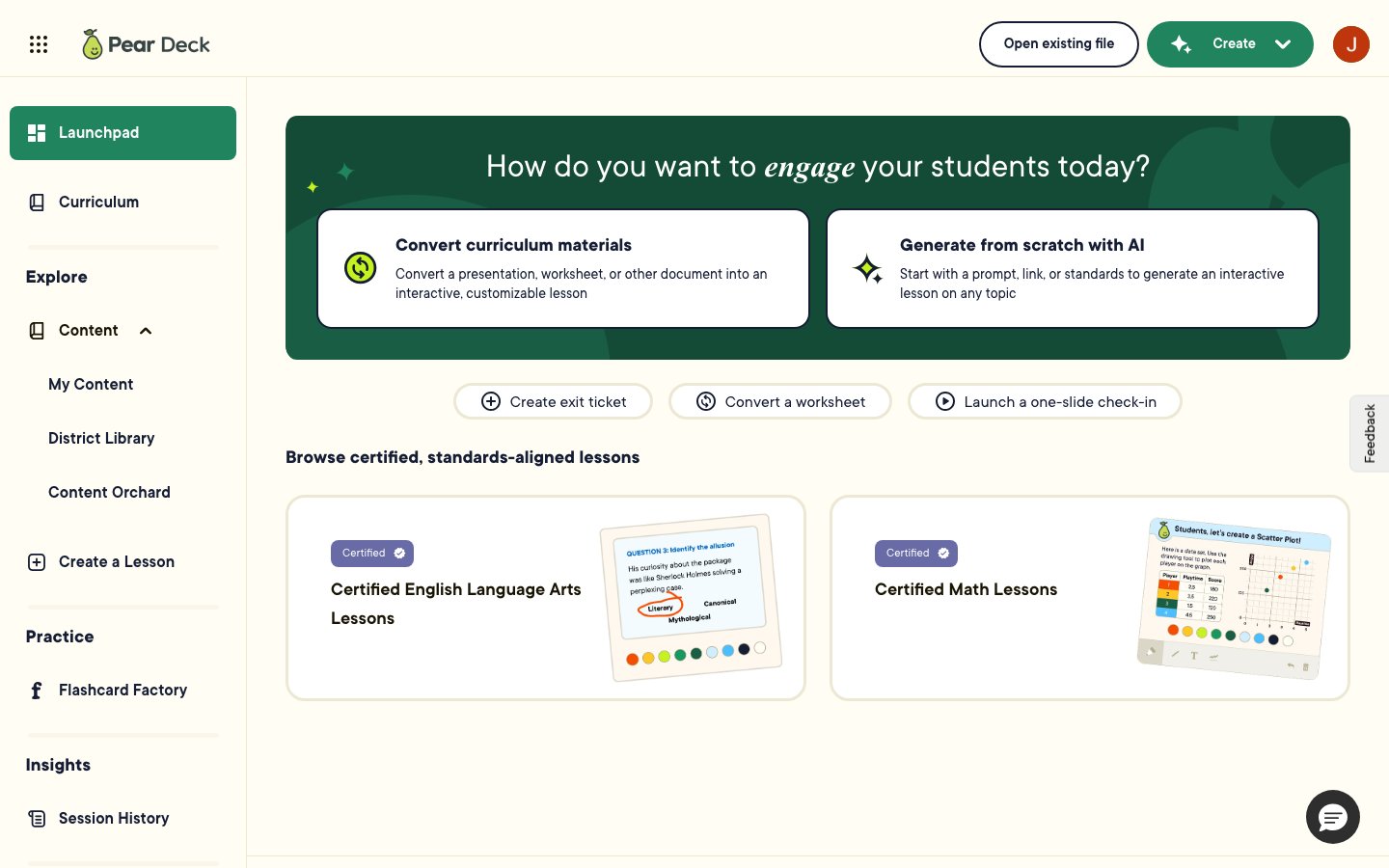
1. Sign in to your [Pear Deck account](https://app.peardeck.com/home?action=signin) and select **Generate from Scratch with AI** on your Launchpad.
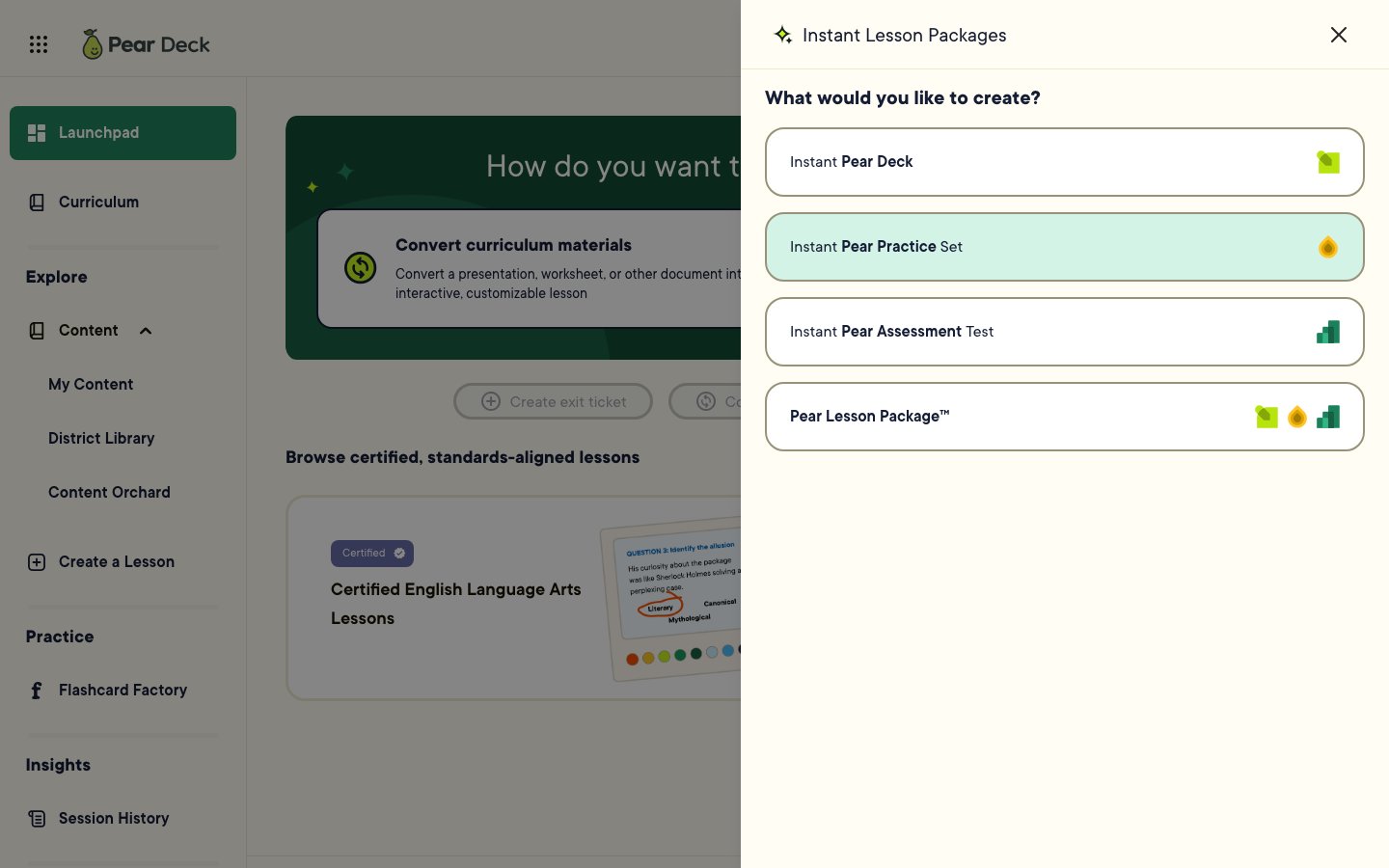
 2. In the Instant Lesson Packages panel, choose **Instant Pear Deck**, or select **Pear Lesson Package** to generate a combination of a lesson, practice set, and test together.
 3. Under **What are you teaching?**, choose the content source for the deck. Use one or a combination:
* Enter a topic, specific objective, or skill directly in the text field.
* Click **Attach** to upload a saved file (.png, .gif, .jpg, .jpeg, .docx, .pdf, .html, .htm, or .txt), or a Material generated in [Pear Start](https://start.peardeck.com/tools). See [Use Pear Start with Pear Deck](/products/pear-start/use-pear-start-with-pear-deck) for details.
* Click **Link Website** to enter the URL of an article or website. Instant Pear Decks can't be generated from YouTube videos.
* Click **Select Standards** to find and choose a standard by Standard ID, State/District, Subject, Grade Level, or Standard Set.
3. Under **What are you teaching?**, choose the content source for the deck. Use one or a combination:
* Enter a topic, specific objective, or skill directly in the text field.
* Click **Attach** to upload a saved file (.png, .gif, .jpg, .jpeg, .docx, .pdf, .html, .htm, or .txt), or a Material generated in [Pear Start](https://start.peardeck.com/tools). See [Use Pear Start with Pear Deck](/products/pear-start/use-pear-start-with-pear-deck) for details.
* Click **Link Website** to enter the URL of an article or website. Instant Pear Decks can't be generated from YouTube videos.
* Click **Select Standards** to find and choose a standard by Standard ID, State/District, Subject, Grade Level, or Standard Set.
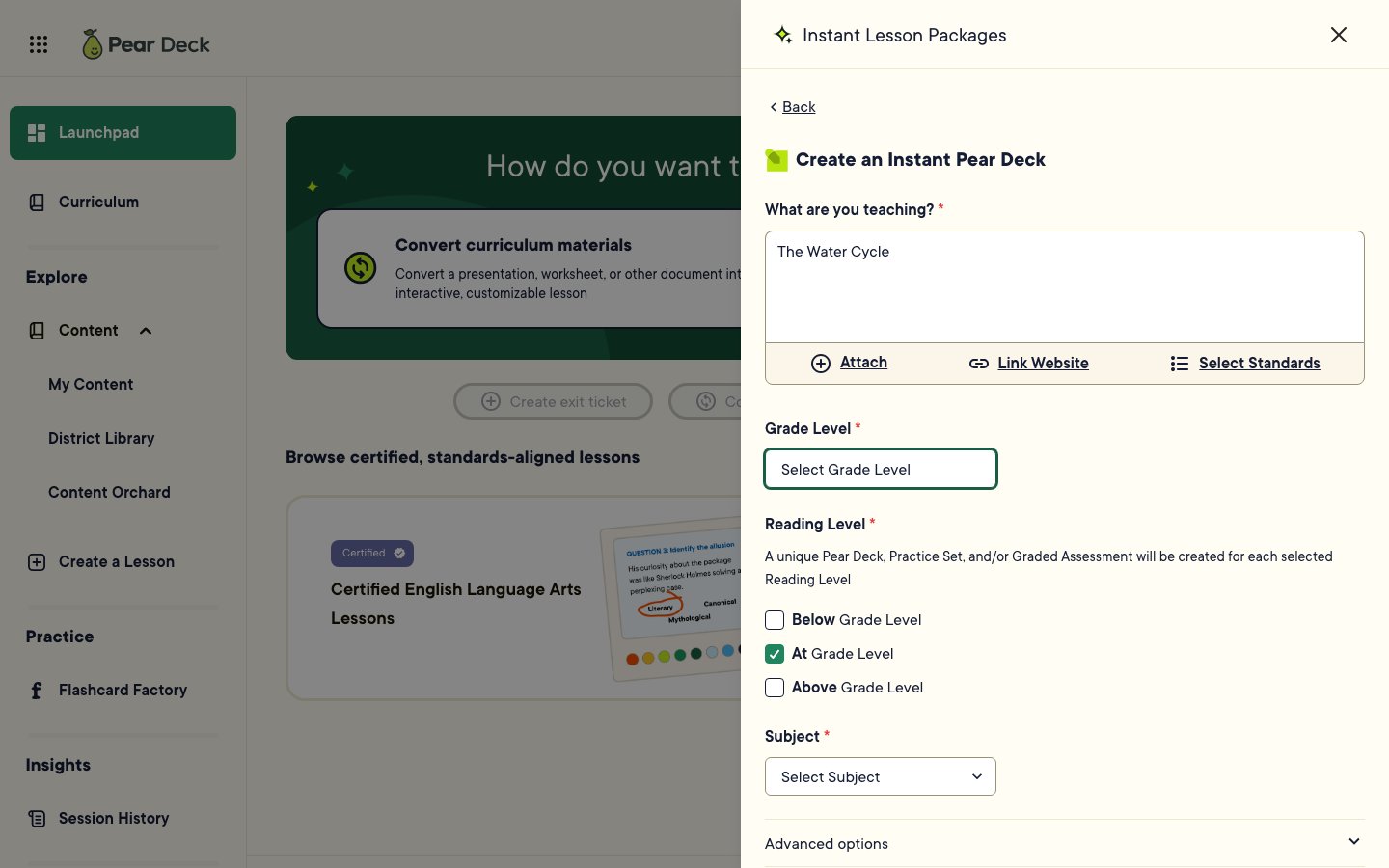 4. Select a **Grade Level** and **Subject**. Under **Reading Level**, choose **Below**, **At**, or **Above** grade level. Pear Deck creates a unique deck for each reading level you select.
5. Open **Advanced options** to further refine the deck by Lesson Type and Content Intent, then click **Create**. Generation takes a few moments.
6. Click **View Lesson** to open the lesson preview. Review the summary of the deck and all of its slides.
Bookmark or save the Share link to return to this lesson preview later. Instant Pear Decks aren't saved to your Pear Deck account or District Library.
## Edit and Present the Deck
1. From the lesson preview, click **Copy to Google Drive** or **Copy to OneDrive**.
2. For Google accounts, click **Make a Copy**. A copy of the deck opens in Google Slides or PowerPoint Online, where you can customize it like any other Pear Deck lesson.
3. To edit the slide layout in Google Slides, click **Slide** > **Apply Layout** and select a layout.
4. To edit the deck theme, click **Slide** > **Edit Theme**, edit the master slide, then click the **X** next to the Format options to apply your changes.
5. To add or edit Pear Deck Interactive Questions, open the Pear Deck Sidebar and select a question type under **Make Your Lesson Interactive**.
6. Click **Start Lesson** in the Pear Deck Sidebar to [present the lesson](/products/pear-deck/create-a-new-lesson#present-the-lesson).
## FAQ
**Why does my Instant Pear Deck show firewall or security information instead of the content I linked?**
Some websites block tools from reading their content. Pages that require sign-in, use a CAPTCHA, or ask you to confirm you're not a robot won't generate a deck. Use a different source, or save a screenshot or print preview of the content and attach it instead. This tool can't access content from private networks or an organization's internal websites.
## Resources
Build interactive slides from scratch in Google Slides or PowerPoint Online and present a live session.
Learn how content is used in Pear Deck and the rights that apply to it.
4. Select a **Grade Level** and **Subject**. Under **Reading Level**, choose **Below**, **At**, or **Above** grade level. Pear Deck creates a unique deck for each reading level you select.
5. Open **Advanced options** to further refine the deck by Lesson Type and Content Intent, then click **Create**. Generation takes a few moments.
6. Click **View Lesson** to open the lesson preview. Review the summary of the deck and all of its slides.
Bookmark or save the Share link to return to this lesson preview later. Instant Pear Decks aren't saved to your Pear Deck account or District Library.
## Edit and Present the Deck
1. From the lesson preview, click **Copy to Google Drive** or **Copy to OneDrive**.
2. For Google accounts, click **Make a Copy**. A copy of the deck opens in Google Slides or PowerPoint Online, where you can customize it like any other Pear Deck lesson.
3. To edit the slide layout in Google Slides, click **Slide** > **Apply Layout** and select a layout.
4. To edit the deck theme, click **Slide** > **Edit Theme**, edit the master slide, then click the **X** next to the Format options to apply your changes.
5. To add or edit Pear Deck Interactive Questions, open the Pear Deck Sidebar and select a question type under **Make Your Lesson Interactive**.
6. Click **Start Lesson** in the Pear Deck Sidebar to [present the lesson](/products/pear-deck/create-a-new-lesson#present-the-lesson).
## FAQ
**Why does my Instant Pear Deck show firewall or security information instead of the content I linked?**
Some websites block tools from reading their content. Pages that require sign-in, use a CAPTCHA, or ask you to confirm you're not a robot won't generate a deck. Use a different source, or save a screenshot or print preview of the content and attach it instead. This tool can't access content from private networks or an organization's internal websites.
## Resources
Build interactive slides from scratch in Google Slides or PowerPoint Online and present a live session.
Learn how content is used in Pear Deck and the rights that apply to it.