> ## Documentation Index
> Fetch the complete documentation index at: https://docs.goguardian.com/llms.txt
> Use this file to discover all available pages before exploring further.
# Create a Vocabulary List
> Create a new Pear Deck Vocabulary List by entering terms manually or importing from a spreadsheet
GoGuardian Pear Deck Vocabulary lets you build word lists that power the Flashcard Factory game. You can add terms one by one in the Vocabulary Editor or paste in a list from a spreadsheet. Pear Deck Vocabulary and the Flashcard Factory are available only for users who sign in with Google.
## Get Started
1. Sign in to Pear Deck with your Google account.
2. Click **Flashcard Factory** on the left side of your screen.
From here, choose one of two ways to add terms to your list:
* Enter your own terms and definitions
* Paste in a list from somewhere else
## Enter Your Own Terms and Definitions
1. In the Vocabulary Editor, type your term in the **Term** field.
2. Press **Enter** on your keyboard to move to the **Definition** field.
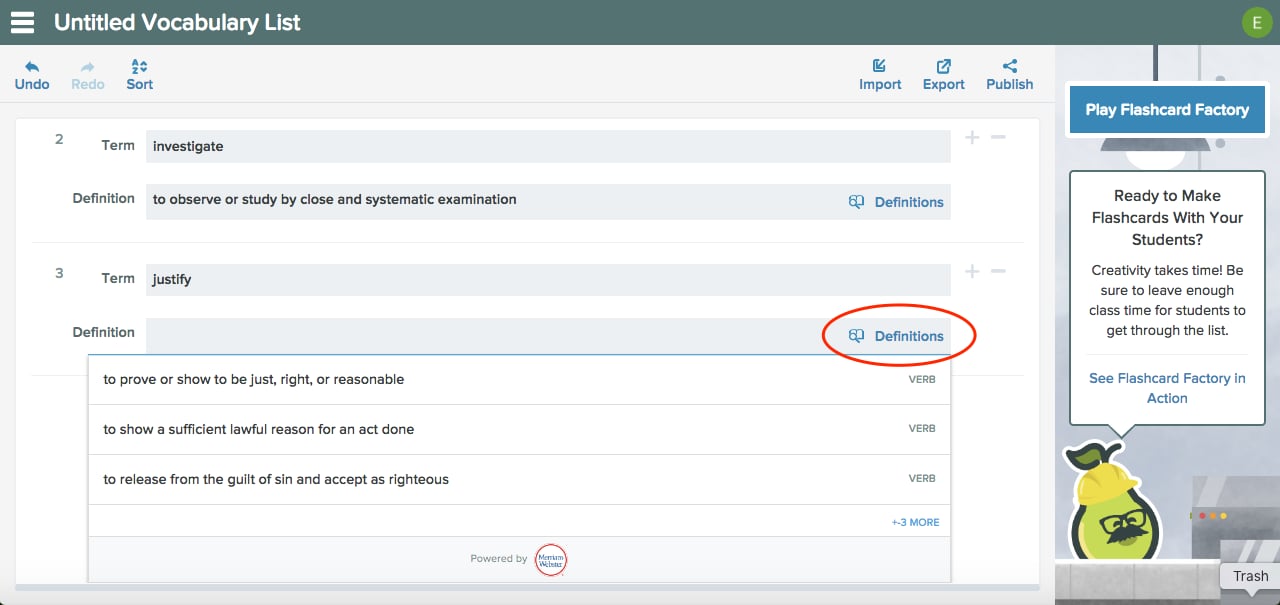
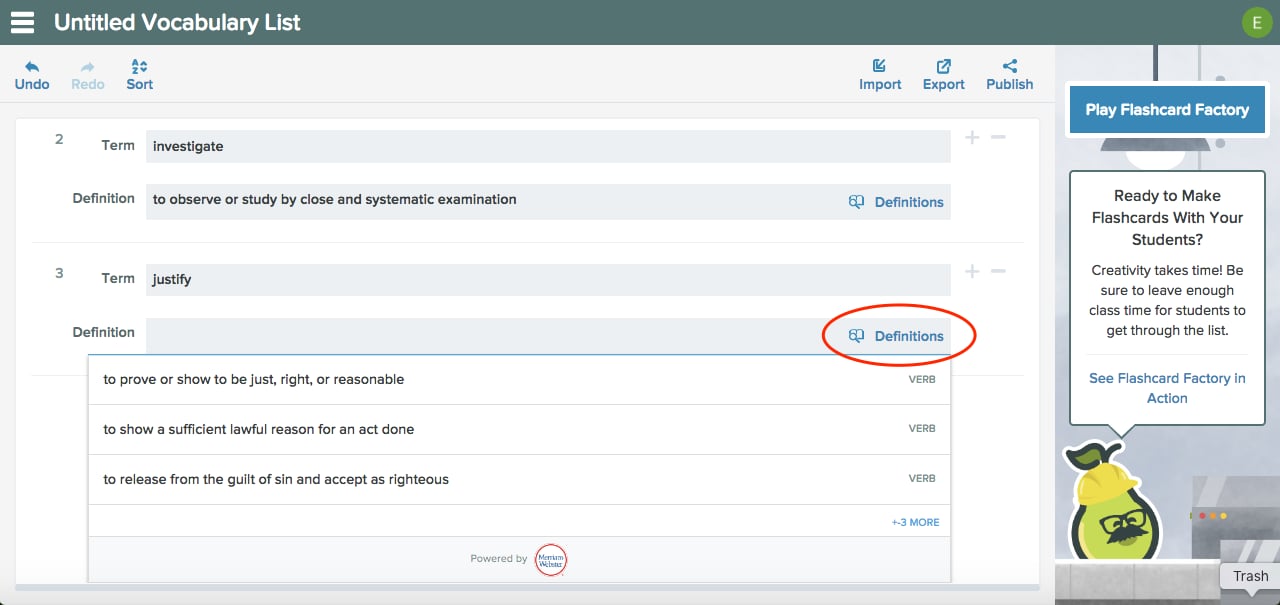
3. Type your definition. Or, click **Definitions** to search Merriam-Webster. You can also leave the **Definition** field blank if you want students to define the term in their own words.
 Students are always prompted to write an example sentence during the Flashcard Factory game, regardless of whether you include a definition.
## Paste in a List From a Spreadsheet
If you have terms and definitions in a spreadsheet, you can copy and paste them directly into the Vocabulary Editor.
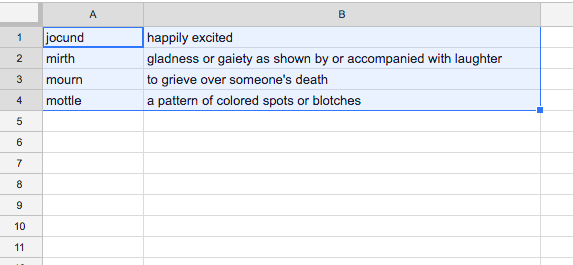
1. In your spreadsheet, select terms and definitions from two separate columns, then copy them.
Students are always prompted to write an example sentence during the Flashcard Factory game, regardless of whether you include a definition.
## Paste in a List From a Spreadsheet
If you have terms and definitions in a spreadsheet, you can copy and paste them directly into the Vocabulary Editor.
1. In your spreadsheet, select terms and definitions from two separate columns, then copy them.
 2. Open the [Pear Deck Vocabulary List Editor](https://app.peardeck.com/vocab/editor) and click **Import**.
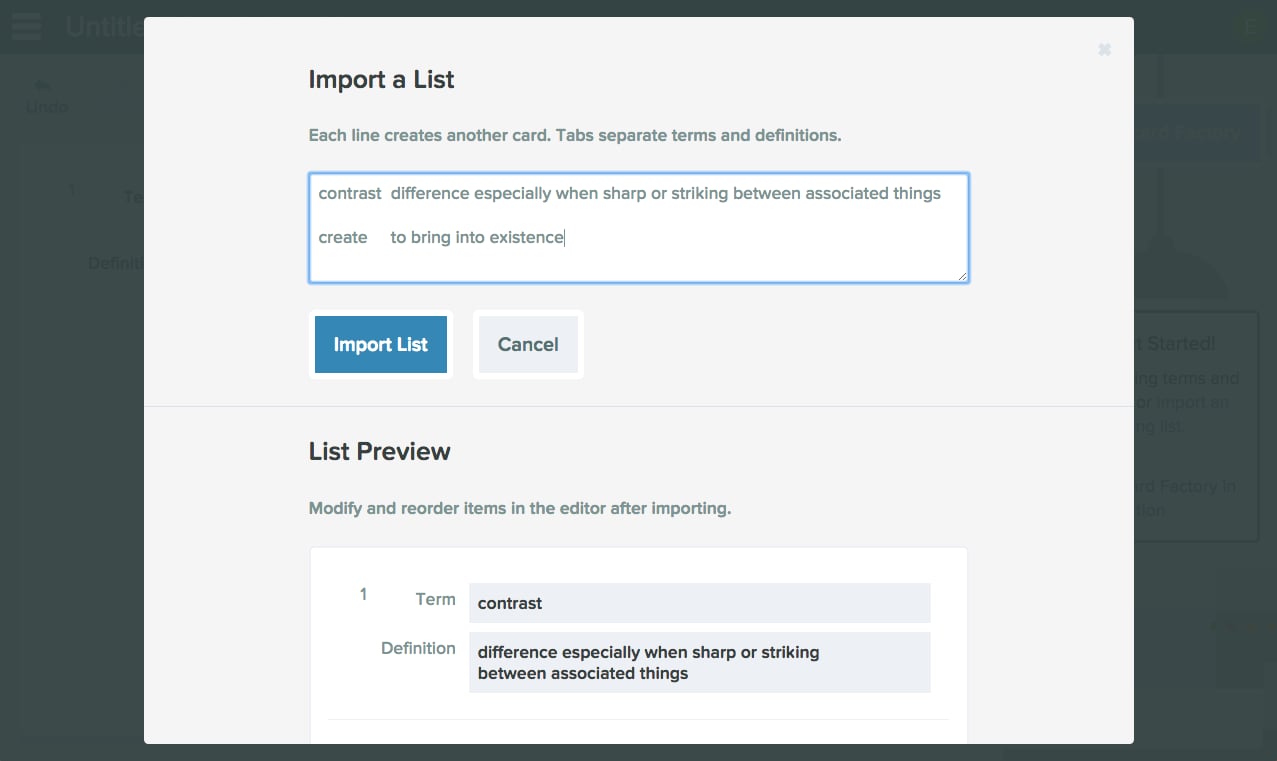
3. In the window that opens, go to **Import a List** and paste your terms and definitions into the box.
4. Each line creates a separate card. Press **Enter** on your keyboard to start a new line and a new card. If you include definitions, they must be placed in a separate column. Separate the columns with the tab key on your keyboard. Use the **List Preview** to confirm how the cards will appear in your Vocabulary List.
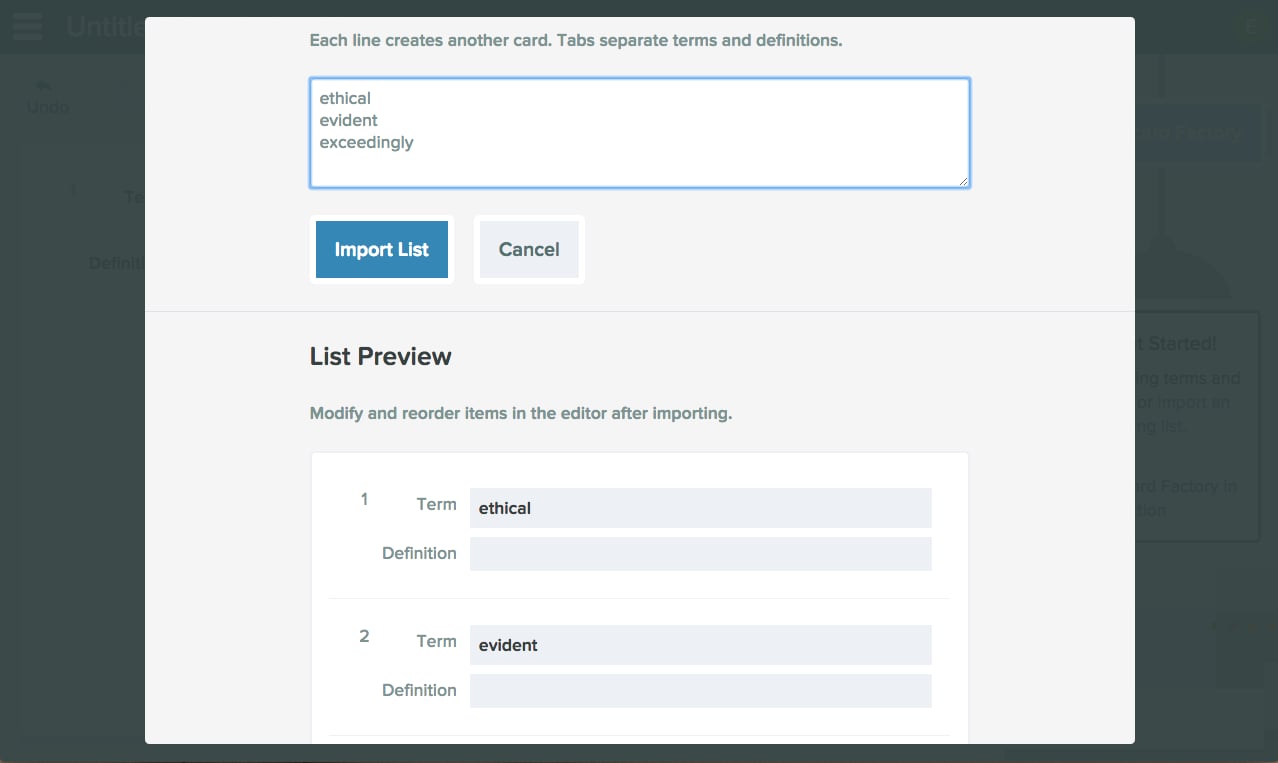
If you leave definitions out of your list, students will see only the term during the Flashcard Factory game and can write either an example sentence or their own definition.
5. Click **Import List**.
6. Review your Vocabulary List. You can still add definitions here by typing them or by clicking **Definitions** to search Merriam-Webster.
Vocabulary Lists are automatically saved to a **Vocabulary** folder in your Google Drive. To open a list you created previously, go to [Pear Deck Home](https://app.peardeck.com/home), click **Open Existing File**, search for the list, click **Select**, and then choose to edit the list or start a Flashcard Factory game.
2. Open the [Pear Deck Vocabulary List Editor](https://app.peardeck.com/vocab/editor) and click **Import**.
3. In the window that opens, go to **Import a List** and paste your terms and definitions into the box.
4. Each line creates a separate card. Press **Enter** on your keyboard to start a new line and a new card. If you include definitions, they must be placed in a separate column. Separate the columns with the tab key on your keyboard. Use the **List Preview** to confirm how the cards will appear in your Vocabulary List.
If you leave definitions out of your list, students will see only the term during the Flashcard Factory game and can write either an example sentence or their own definition.
5. Click **Import List**.
6. Review your Vocabulary List. You can still add definitions here by typing them or by clicking **Definitions** to search Merriam-Webster.
Vocabulary Lists are automatically saved to a **Vocabulary** folder in your Google Drive. To open a list you created previously, go to [Pear Deck Home](https://app.peardeck.com/home), click **Open Existing File**, search for the list, click **Select**, and then choose to edit the list or start a Flashcard Factory game.
 ## Resources
Run a live Flashcard Factory session using a Vocabulary List you have created.
Learn how Pear Deck Vocabulary works and what features are available for your class.
## Resources
Run a live Flashcard Factory session using a Vocabulary List you have created.
Learn how Pear Deck Vocabulary works and what features are available for your class.