> ## Documentation Index
> Fetch the complete documentation index at: https://docs.goguardian.com/llms.txt
> Use this file to discover all available pages before exploring further.
# Embed Sites in a Web Slide
> Learn which websites can be embedded in a Pear Deck Web Slide and how to embed sites that block direct embedding
Most websites work in a Pear Deck Web Slide as long as they meet two requirements: the site must use a secure connection (HTTPS), and it must allow embedding. Some sites (including google.com) block embedding by default, but many of those offer a separate embed link you can use instead.
## Requirements for Embedding a Website
For a website to display in a Pear Deck Web Slide, it must meet both of the following conditions:
* **Secure connection:** The site must use HTTPS. Most secure sites show `https://` at the start of the URL. Some browsers, such as Safari, display a padlock icon instead. A few sites (such as National Geographic) support HTTPS even when the address bar does not show it explicitly.
* **Embeddable:** The site must allow itself to be embedded. Some sites explicitly block this. Google Search (google.com) is one example.
If you are unsure whether a site is secure, paste the URL into Pear Deck and observe the result, or manually type `https://` in front of the address in your browser to confirm it loads.
## Embed a Site That Blocks Direct Embedding
Sites like Google Maps and YouTube block direct embedding but provide a dedicated embed link you can use instead. Follow these steps any time a site offers an embed code option.
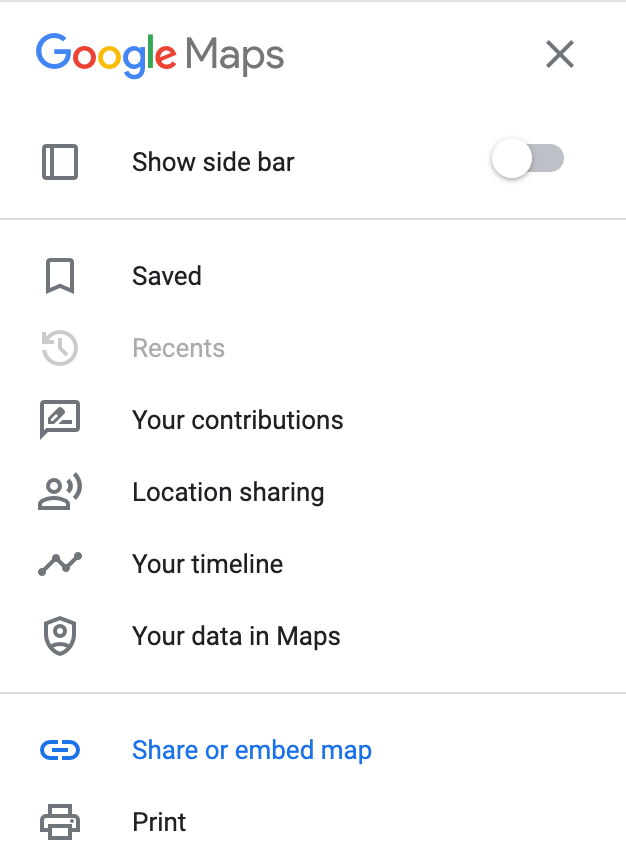
1. Find the embed code. Embed options are usually available under a **Share** or **Settings** button. In Google Maps, open the menu and select **Share or embed map**.
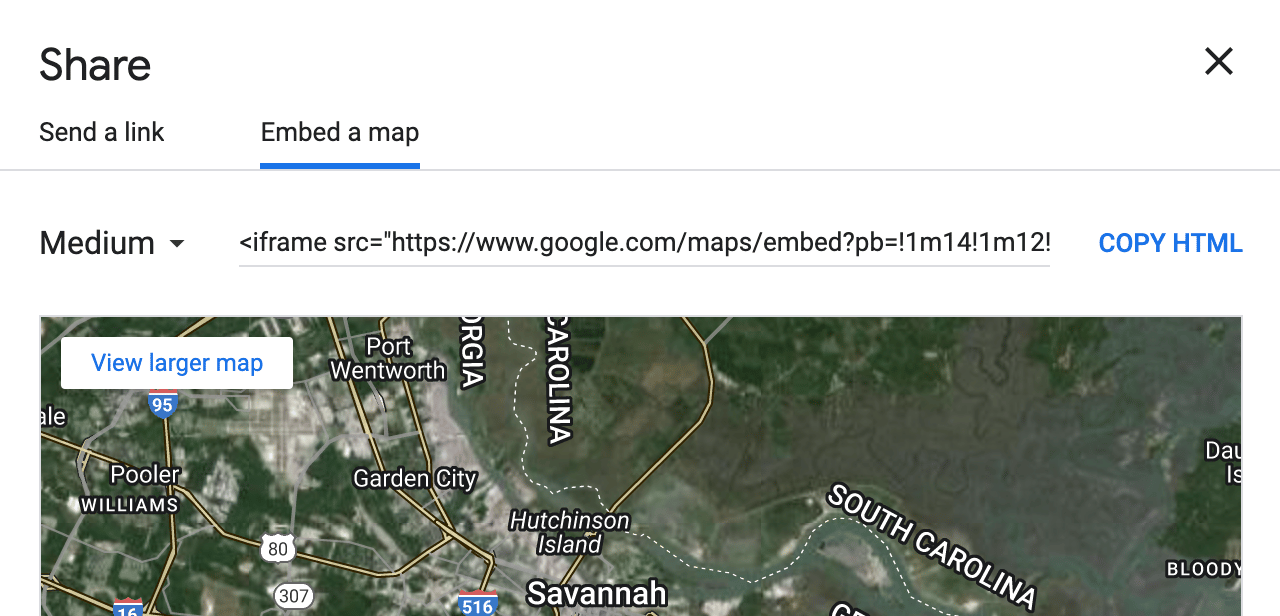
2. Navigate to the **Embed map** tab. Note the full URL in the text field.
3. Copy the entire embed code snippet.
4. Paste the code into a text editor or document. Locate the URL inside the snippet. It appears between the first pair of quotation marks in the `src` attribute. Select and copy only that URL.
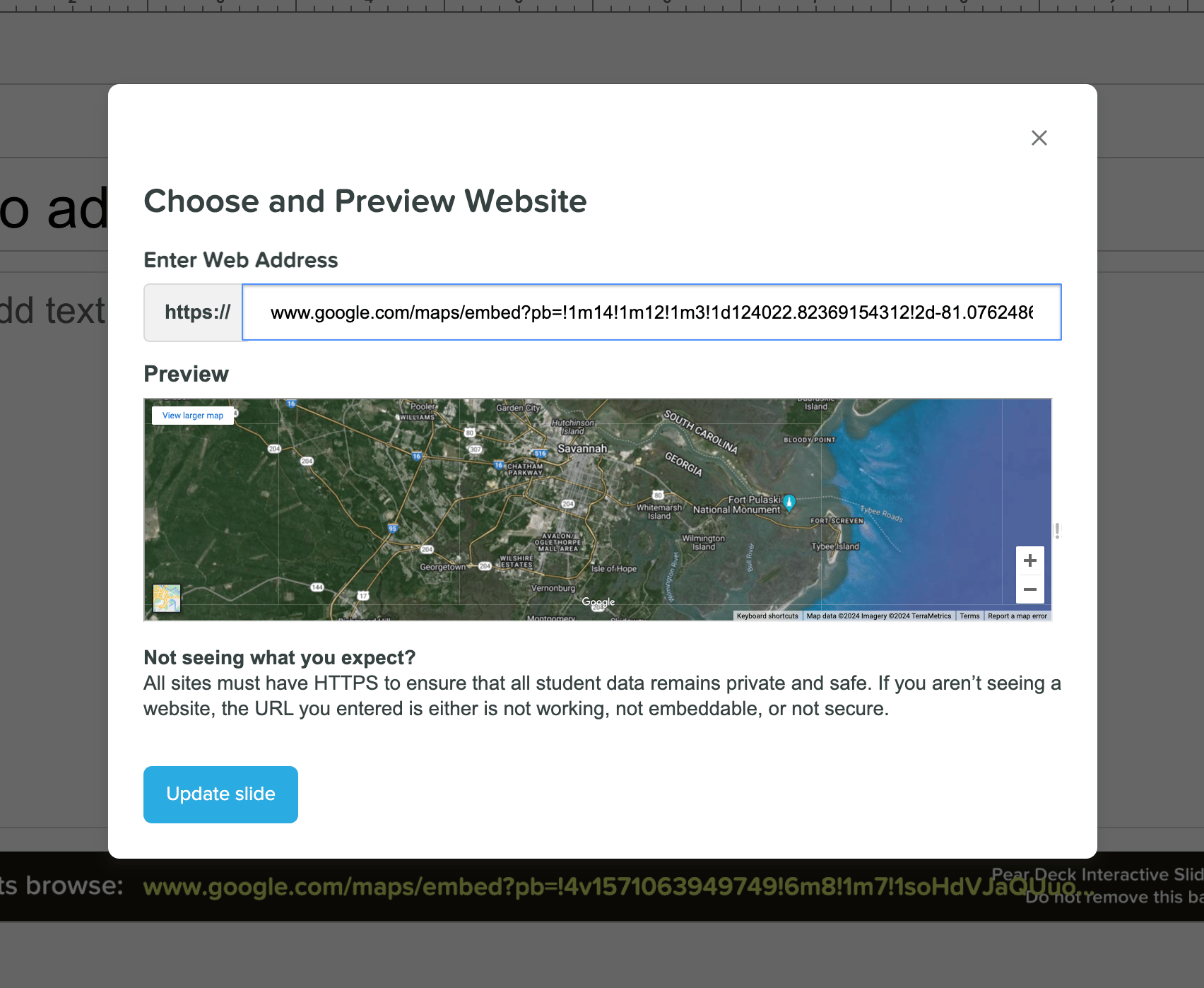
5. In Pear Deck, create a Web Slide and paste the URL into the **Web Address** field. Click **Update slide**.
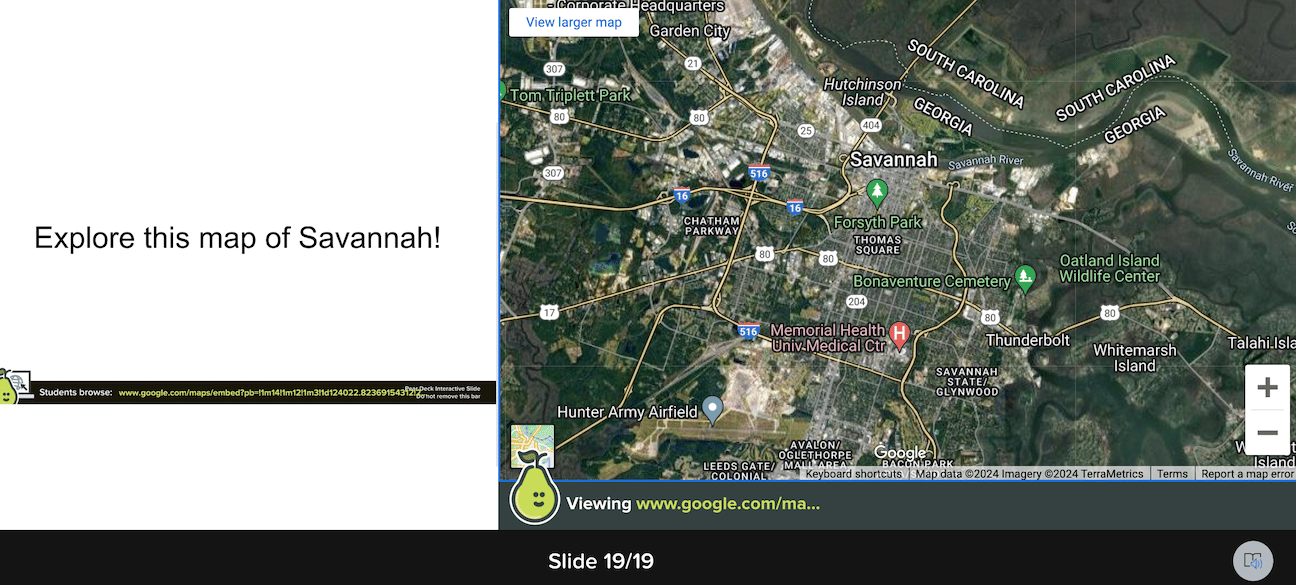
6. Confirm the slide renders correctly. If the website is properly embedded, students see it in their view during the session.
You can follow this same process for any site that provides an embed option. Many sites work with a standard URL, but if they do not, the embed code method is the recommended alternative.

 ## Resources
Learn how to insert and configure a Web Slide in your Pear Deck presentation.
Explore creative ways to use Pear Deck features to engage students.
## Resources
Learn how to insert and configure a Web Slide in your Pear Deck presentation.
Explore creative ways to use Pear Deck features to engage students.