> ## Documentation Index
> Fetch the complete documentation index at: https://docs.goguardian.com/llms.txt
> Use this file to discover all available pages before exploring further.
# Get Pear Deck for PowerPoint Online
> Install the Pear Deck Add-in for PowerPoint Online to collect student responses during presentations
The Pear Deck Add-in for PowerPoint Online lets you automatically collect responses from students, display those responses anonymously in Projector View, and gain insight into student progress, all from within a PowerPoint Online presentation. Note that Pear Deck is only available in the Online version of PowerPoint, not the Desktop version. If you are a Microsoft Office 365 administrator deploying the Add-in for your school, see the [Pear Deck for PowerPoint Online Administrator Installation Guide](/products/pear-deck/powerpoint-online-administrator-installation-guide).
## Install the Add-In
1. Open any PowerPoint Online presentation.
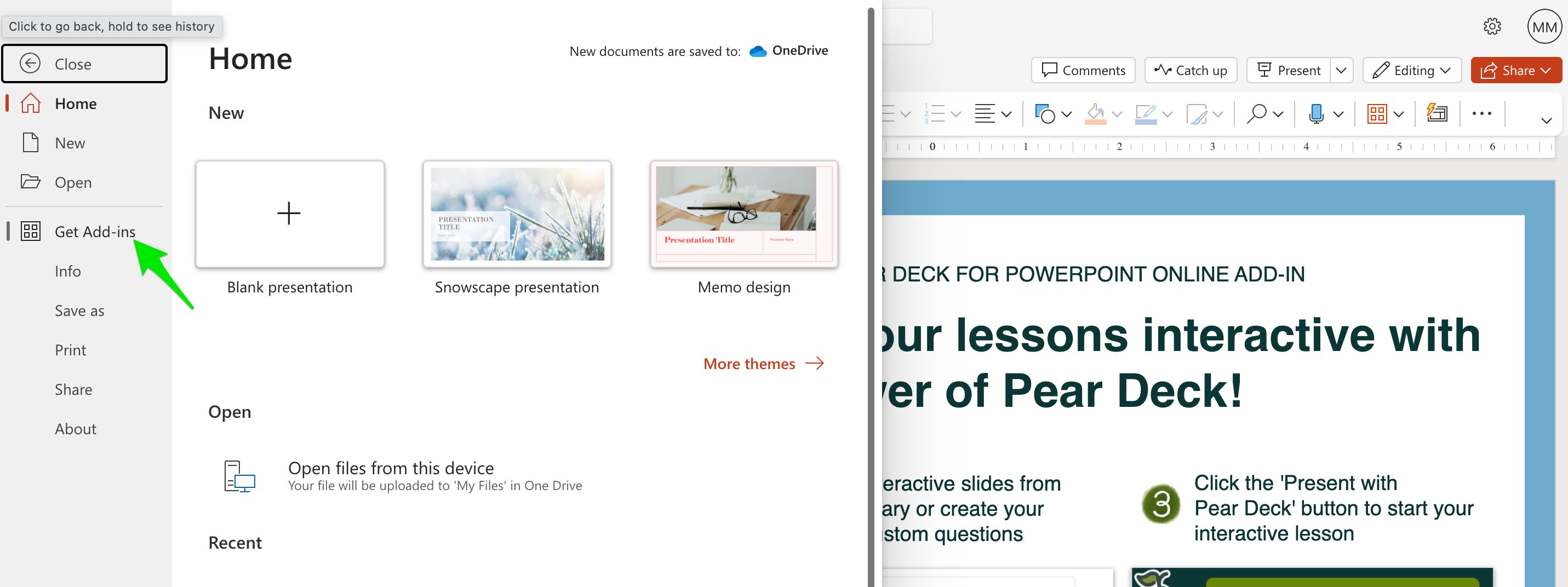
2. Click the **File** tab.
3. Click **Get Add-ins**.
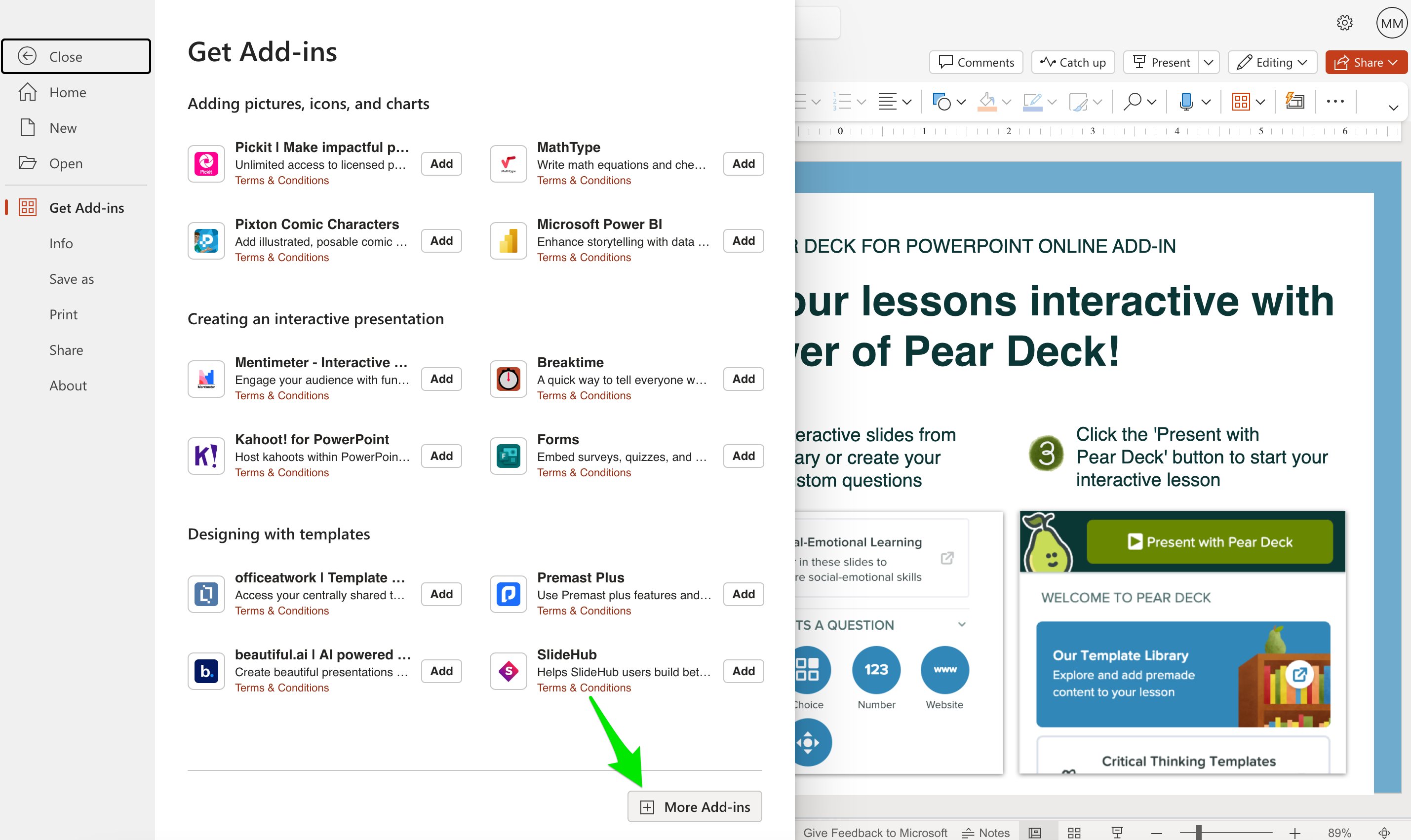
4. In the Office Add-ins menu, click **More Add-ins**.
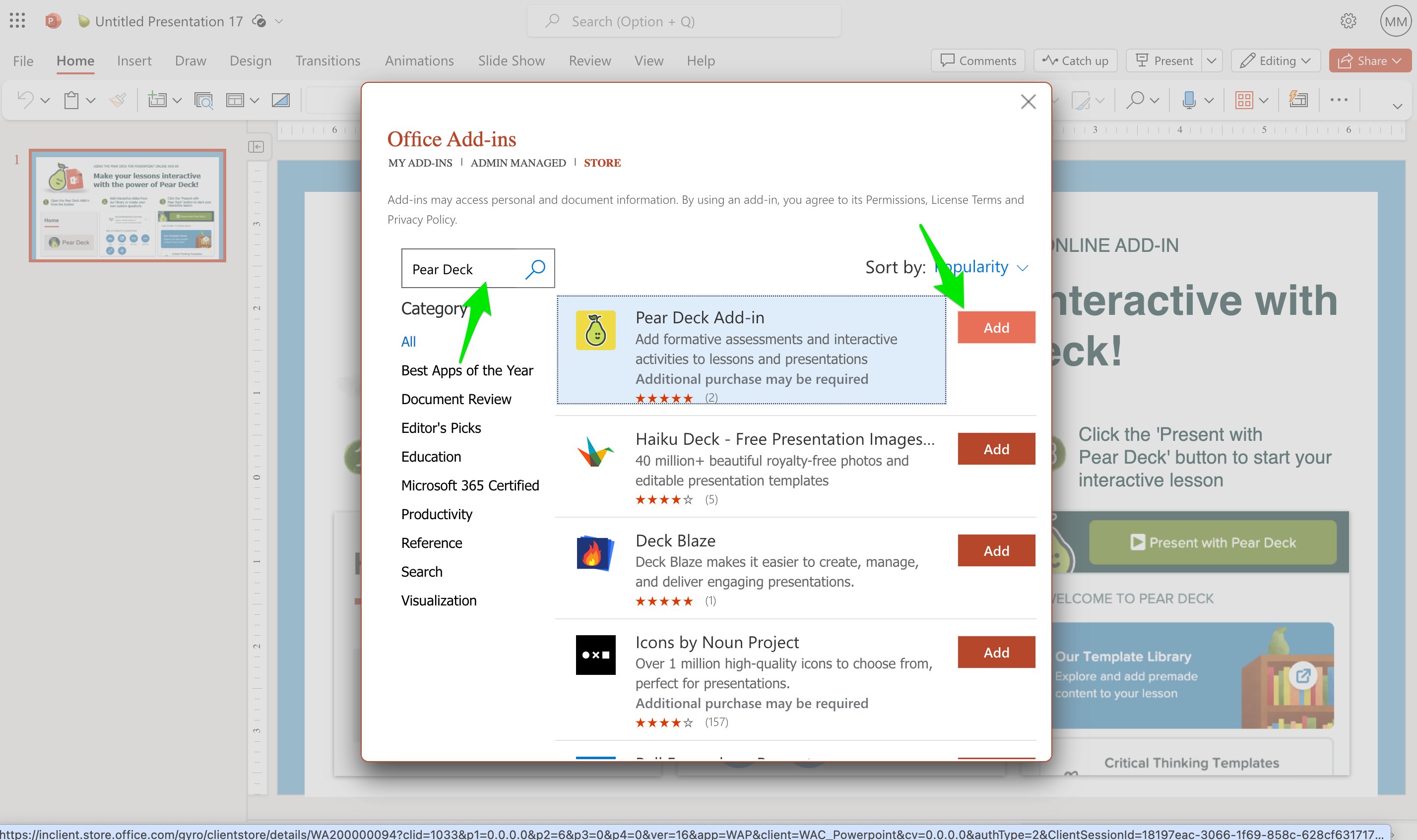
5. Search for the Pear Deck Add-in and click **Add** to install it. The Add-in is free, with additional features available through [Pear Deck Premium](https://www.peardeck.com/pricing/).
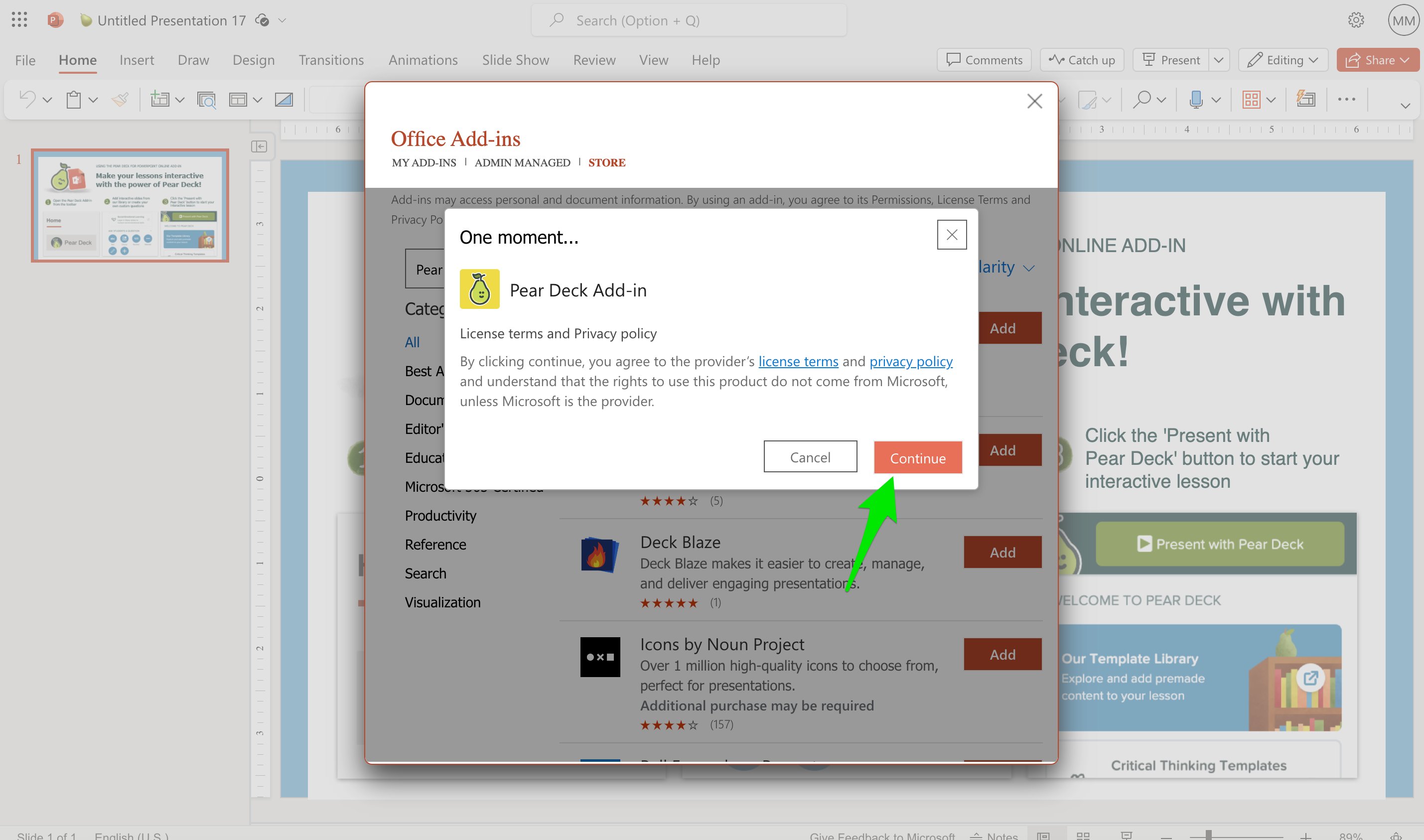
 6. Click **Continue**.
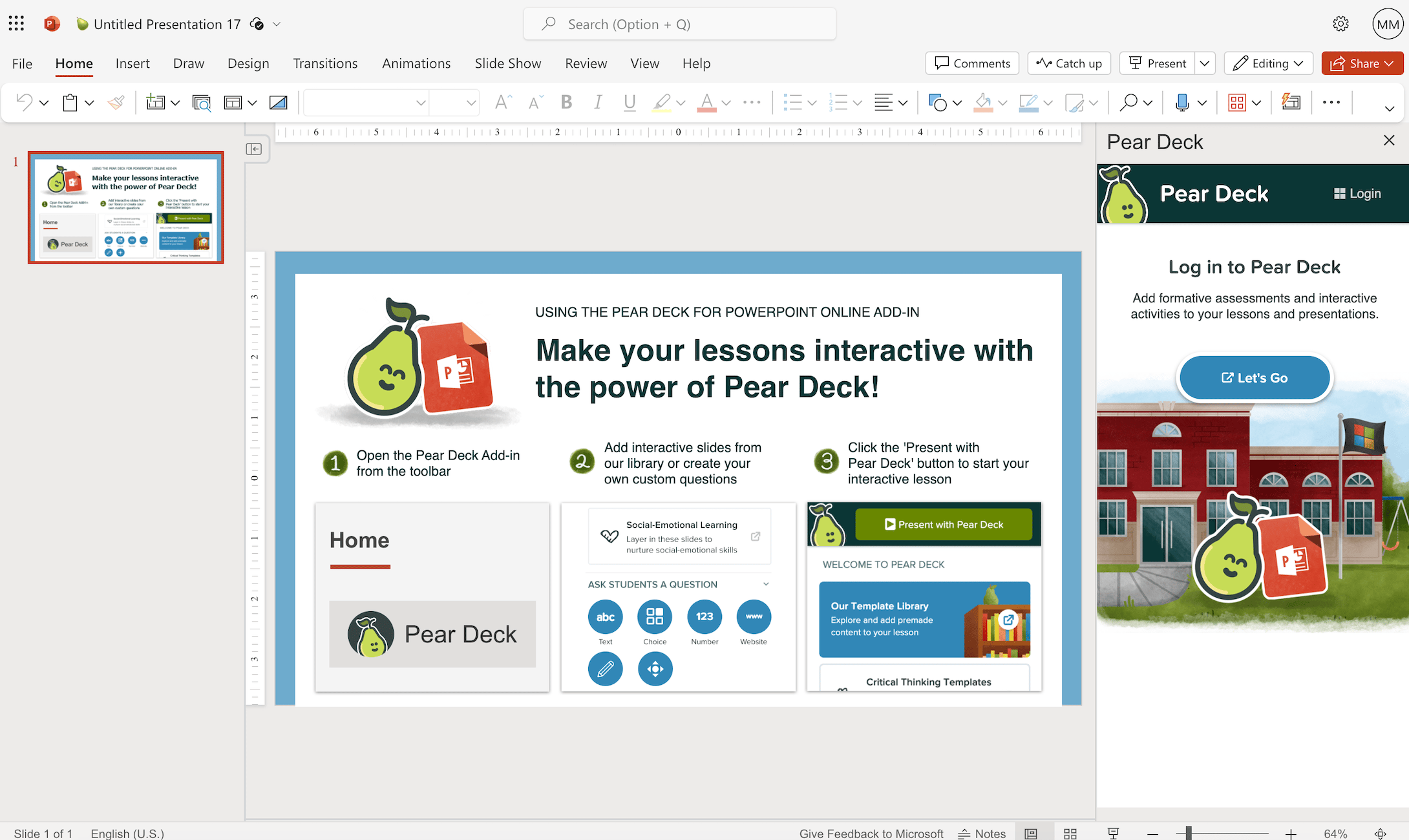
 7. When prompted in the sidebar, sign in to your [Pear Deck account](https://app.peardeck.com/home).
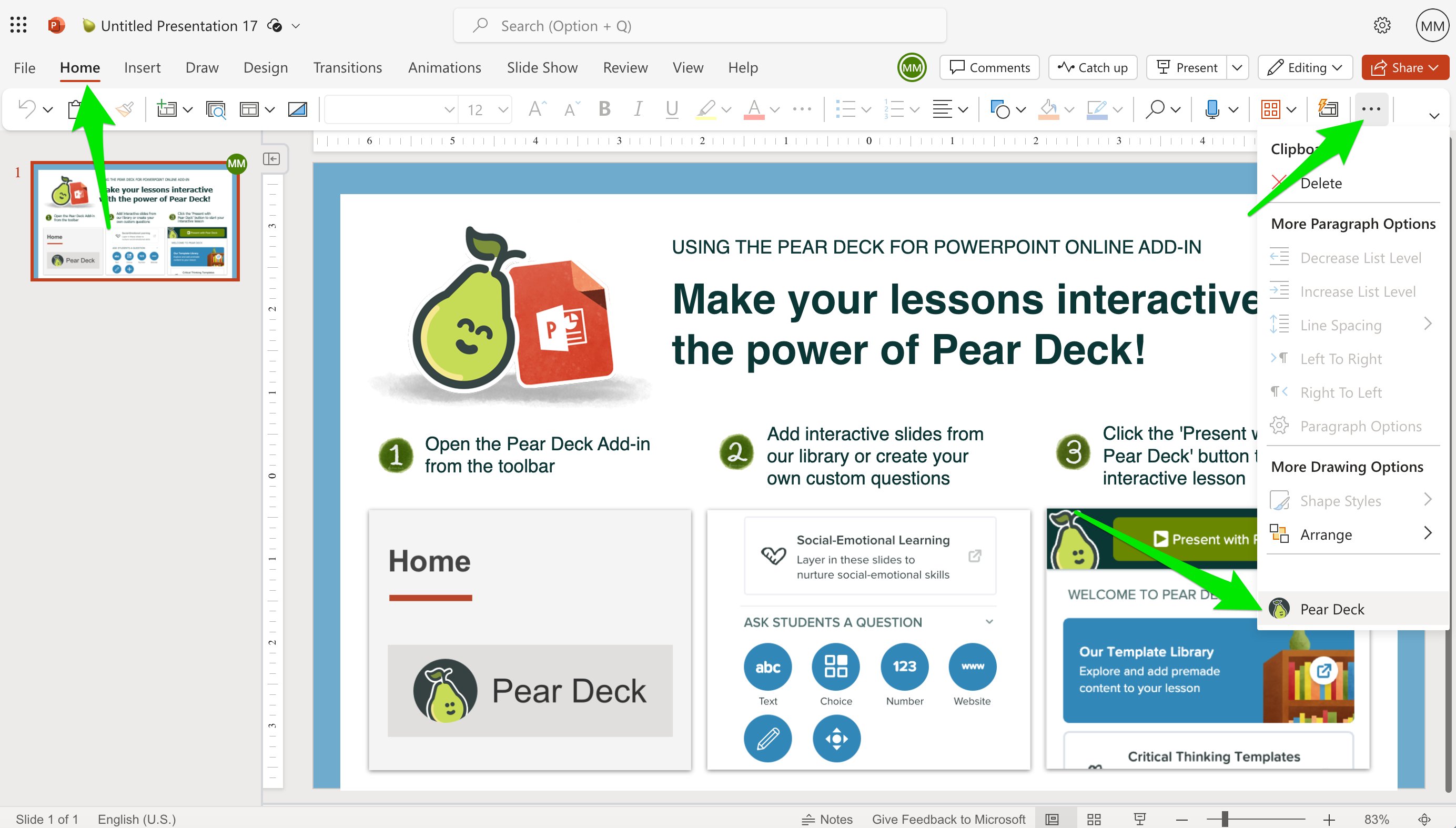
 8. After installation, click the **Home** tab, then click the **More Options** (three-dot) button and select **Pear Deck** to open the sidebar.
 With the Pear Deck sidebar open, you can add custom interactive questions to any slide or download pre-made slide templates from the Template Library. To learn more, see [Add Premade Slide Templates to Your Presentation](/products/pear-deck/add-premade-slide-templates).

 ## Can't Find the Pear Deck Add-In?
If you followed the steps above but could not find the Pear Deck Add-in, your Office 365 site administrator may need to deploy it for your school first. Share the [Pear Deck for PowerPoint Online Administrator Installation Guide](/products/pear-deck/powerpoint-online-administrator-installation-guide) with your administrator so they can enable your access.
## Resources
Download and use pre-made interactive slide templates from the Pear Deck Template Library.
Deploy the Pear Deck Add-in for all users at your school as an Office 365 administrator.
## Can't Find the Pear Deck Add-In?
If you followed the steps above but could not find the Pear Deck Add-in, your Office 365 site administrator may need to deploy it for your school first. Share the [Pear Deck for PowerPoint Online Administrator Installation Guide](/products/pear-deck/powerpoint-online-administrator-installation-guide) with your administrator so they can enable your access.
## Resources
Download and use pre-made interactive slide templates from the Pear Deck Template Library.
Deploy the Pear Deck Add-in for all users at your school as an Office 365 administrator.