> ## Documentation Index
> Fetch the complete documentation index at: https://docs.goguardian.com/llms.txt
> Use this file to discover all available pages before exploring further.
# Admin Install of the Pear Deck for Google Classroom Add-On
> Install the Pear Deck for Google Classroom add-on across your domain from Google Workspace Marketplace
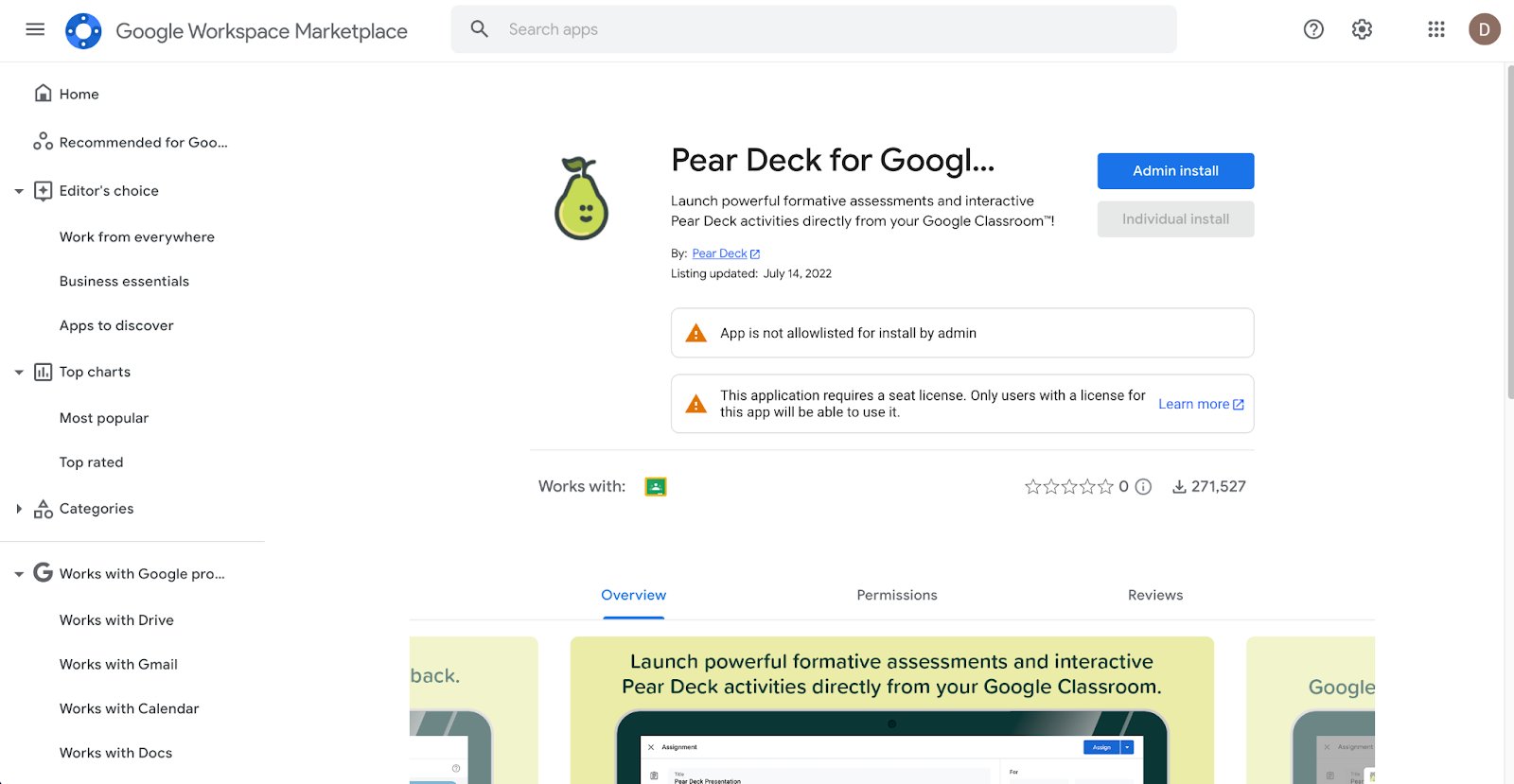
Before teachers can use the Pear Deck for Google Classroom add-on, an administrator must either grant permission for teachers to install the add-on themselves or perform a domain install (recommended). Admins can initiate the domain install directly from the [Google Workspace Marketplace](https://workspace.google.com/marketplace/app/pear_deck_for_google_classroom/454012513681).
To access the add-on within Google Classroom, teachers must have either the Google Workspace Teaching and Learning Upgrade or the Google Workspace for Education Plus edition. See [Google Workspace editions](https://edu.google.com/intl/ALL_us/workspace-for-education/editions/compare-editions/) for a full comparison.
## Install the Add-On
1. Open the [Pear Deck for Google Classroom listing](https://workspace.google.com/marketplace/app/pear_deck_for_google_classroom/454012513681) in Google Workspace Marketplace.
2. Select **Admin Install**.
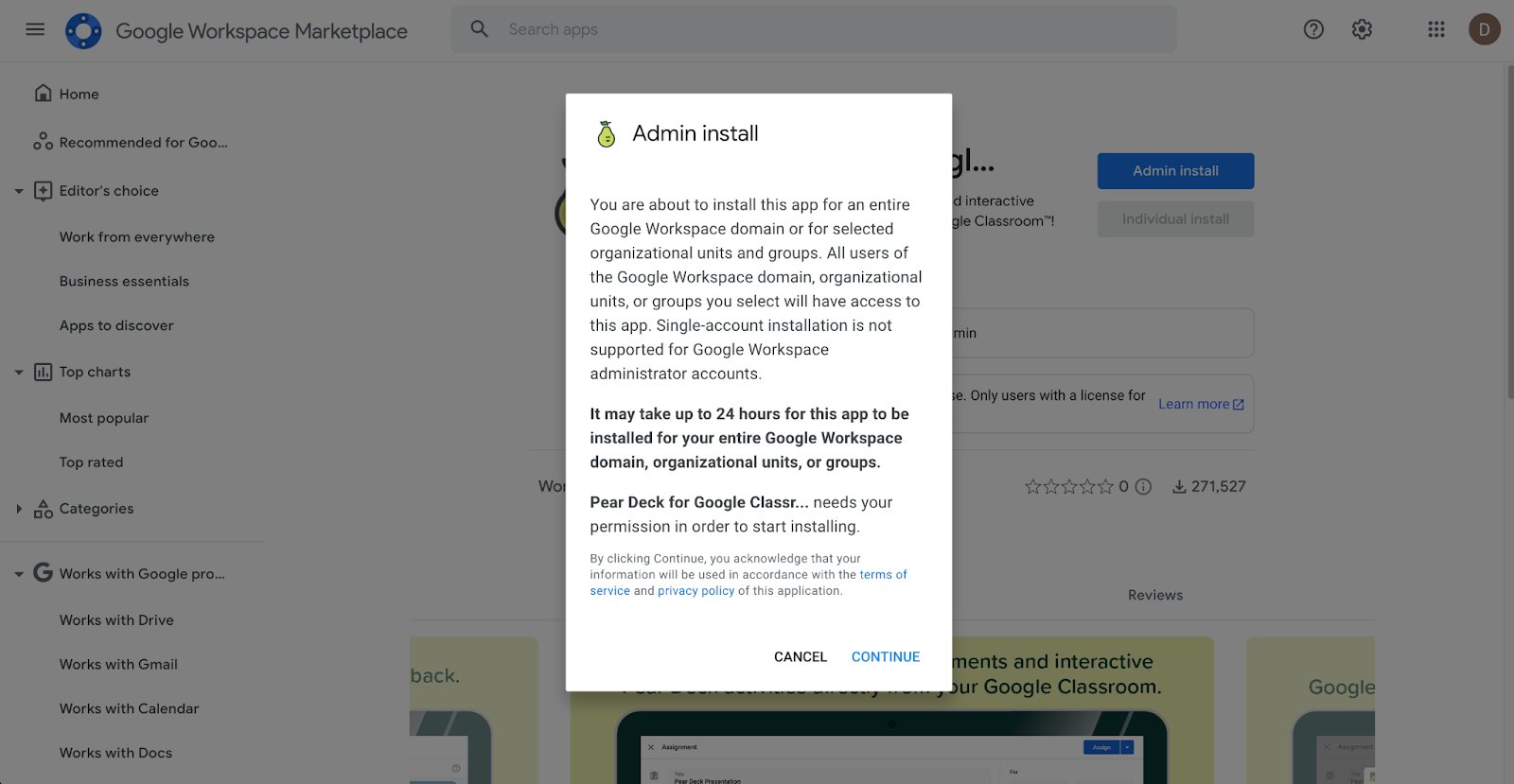
3. Review the prompt confirming you are installing the app for your entire Google Workspace domain, organizational units, or groups. Select **Continue**.
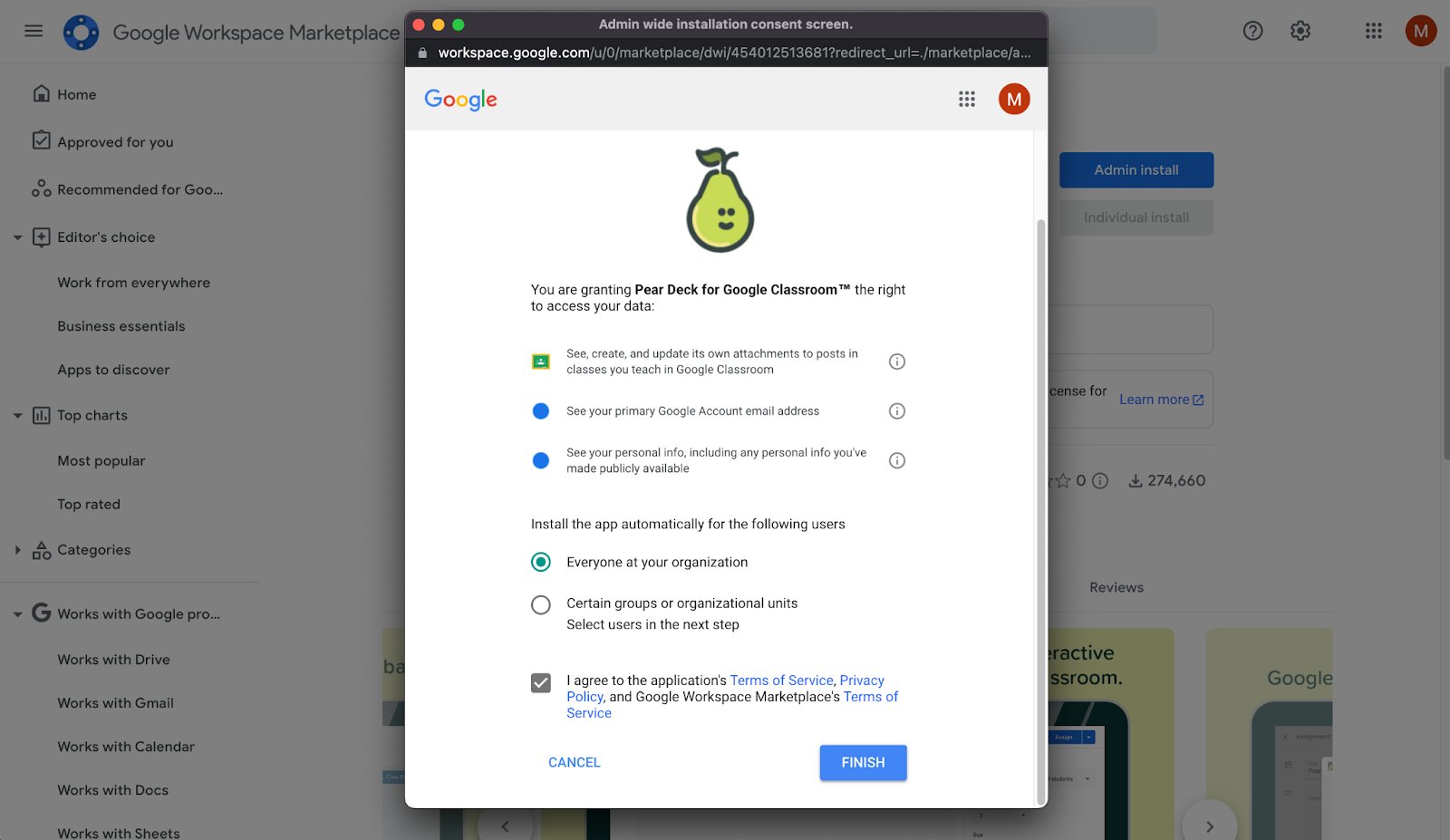
4. Review the data access permissions Pear Deck for Google Classroom requires, then select **Allow**.
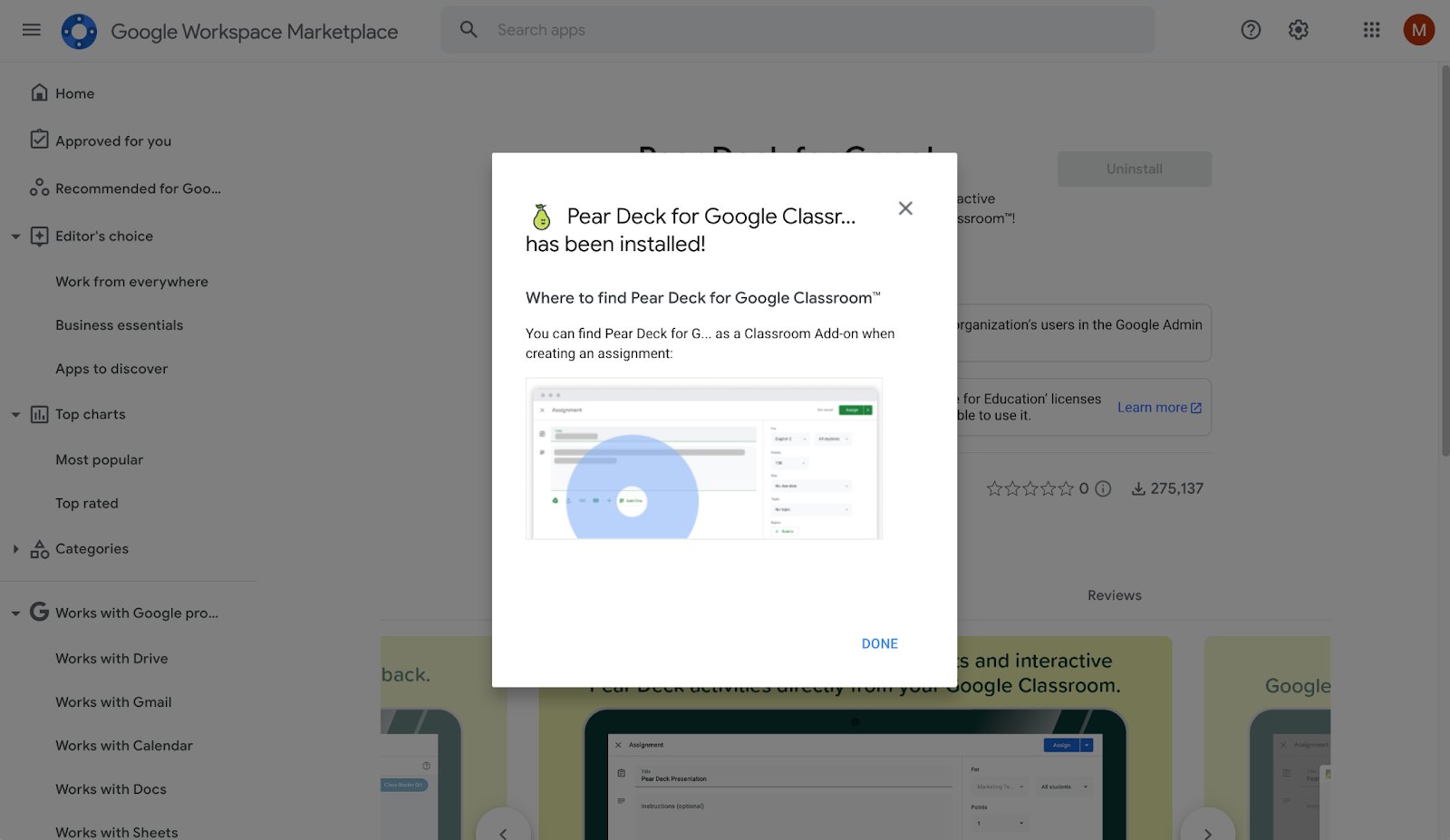
5. Select **Finish**. The domain install is complete.
 ## Resources
Learn how teachers can use the Pear Deck for Google Classroom add-on once it is installed.
Explore the core setup steps and first-use guidance for GoGuardian Pear Deck.
## Resources
Learn how teachers can use the Pear Deck for Google Classroom add-on once it is installed.
Explore the core setup steps and first-use guidance for GoGuardian Pear Deck.