> ## Documentation Index
> Fetch the complete documentation index at: https://docs.goguardian.com/llms.txt
> Use this file to discover all available pages before exploring further.
# Install Pear Deck in Canvas
> Install Pear Deck as an LTI integration in Canvas so teachers and students can use it without leaving the LMS
Administrators with a district or school-wide Pear Deck subscription can install Pear Deck in Canvas as an LTI integration. Once installed, teachers can present Pear Deck sessions and students can join them without leaving the Canvas environment.
This integration is available only to users who have a district or school-wide subscription to Pear Deck. Contact your Pear Deck Partnership Manager or email [help@peardeck.com](mailto:help@peardeck.com) for more information.
## Install Pear Deck in Canvas
1. As the administrator of your Pear Deck district-wide subscription, go to your [Pear Deck My Account page](https://app.peardeck.com/home/my-account) and click **+ Add New Integration**.
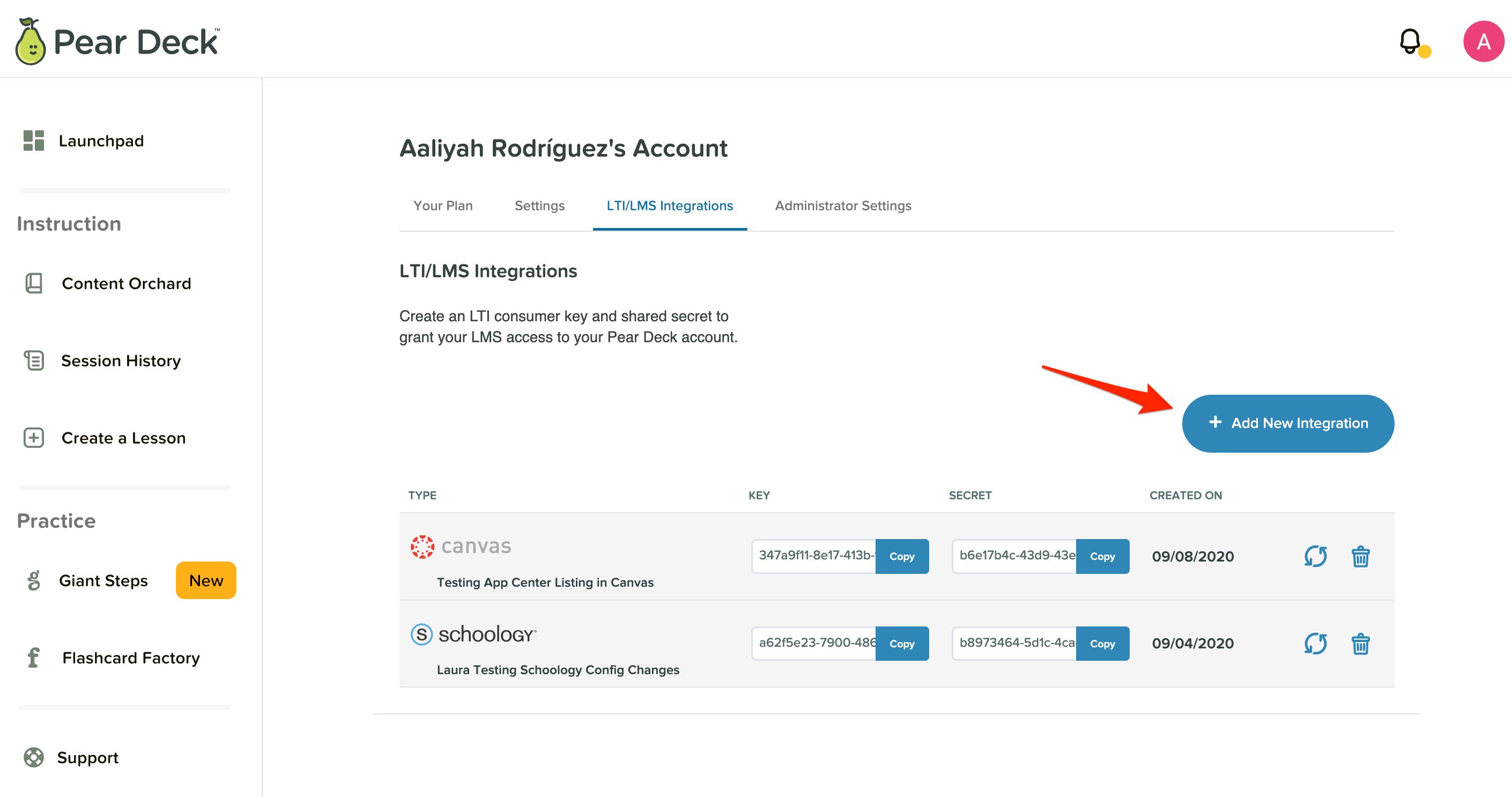 2. Select **Canvas**.
 3. Copy the **Key** and **Secret** that are generated for you.
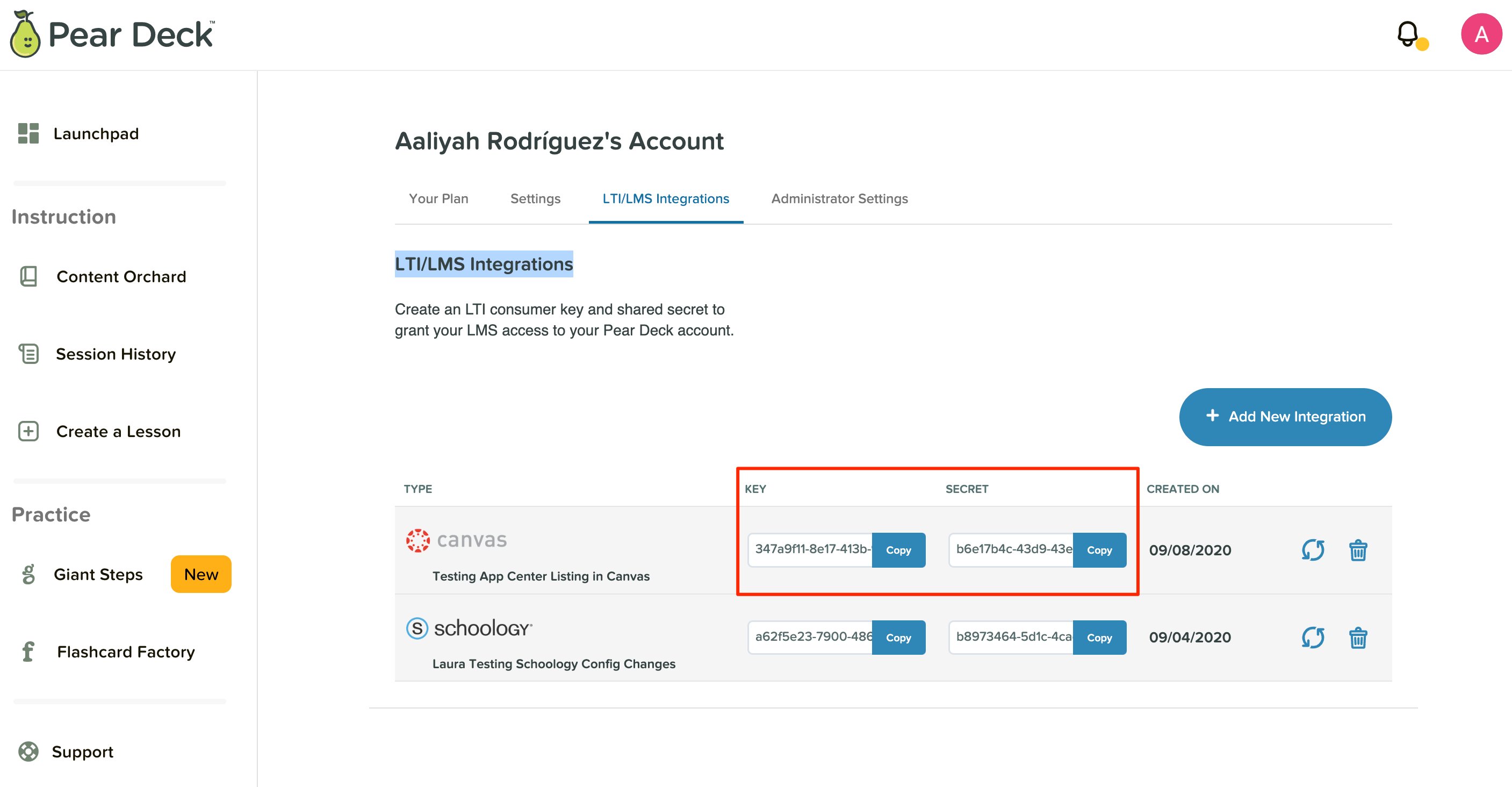 4. Open [Canvas](https://www.instructure.com/) and complete the following steps:
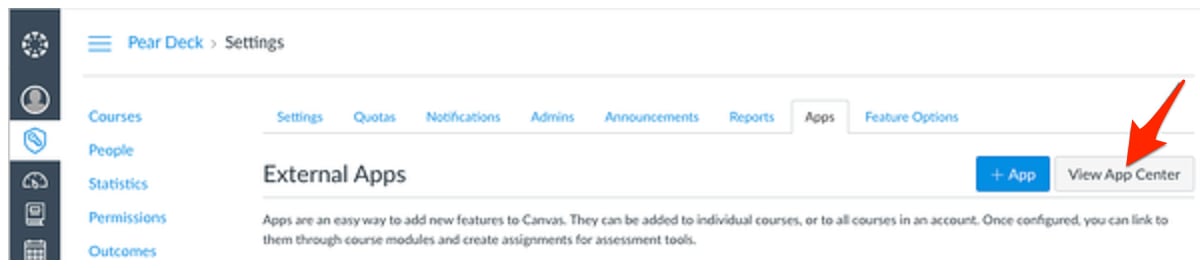
a. In the left control panel, open the **Admin Center**. Scroll to the bottom of the menu and select **Settings**.
b. Go to the **Apps** tab. If the App Configurations screen appears, select **View App Center** to search for external apps.
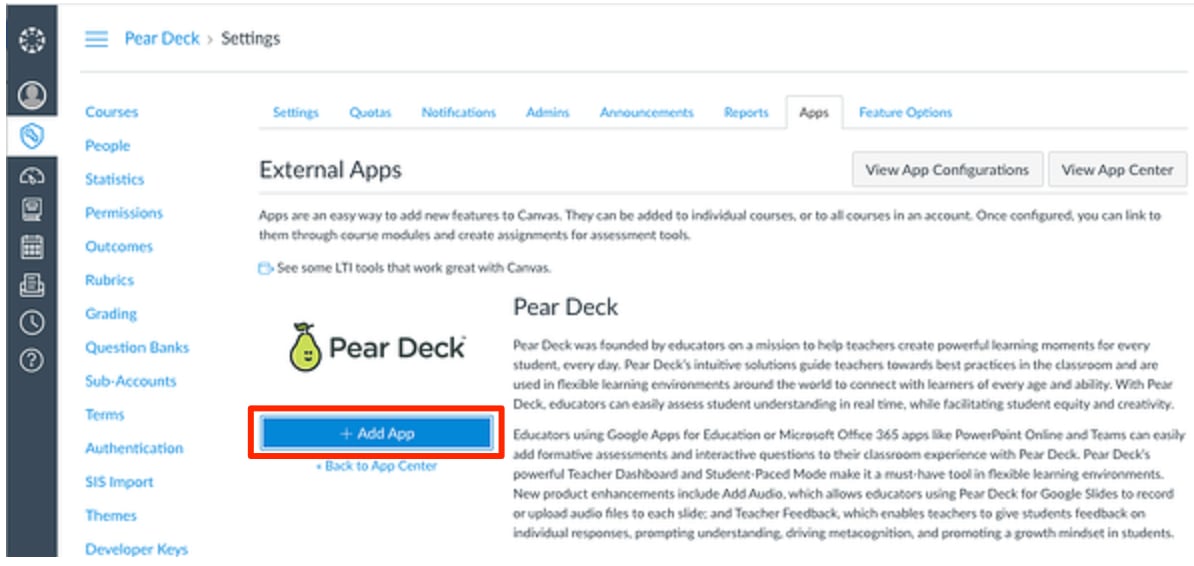
c. In the App Center, search for **Pear Deck**.
d. Select **Pear Deck** from the search results.
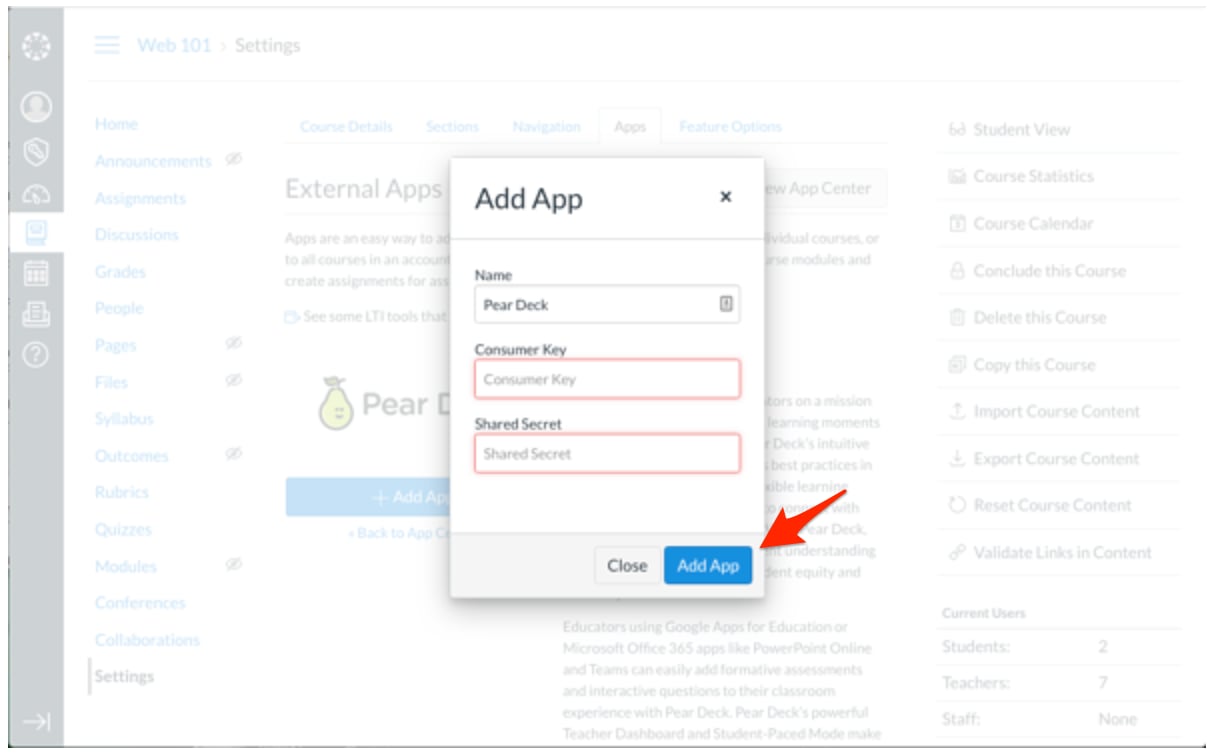
e. Click **+ Add App**.
f. Paste the **Key** and **Secret** from your Pear Deck My Account page into the **Consumer Key** and **Shared Secret** fields.
g. Select **Add App** to complete the installation.
5. Users who have access to the Pear Deck app can now present as teachers and join presentations as students within Canvas. For questions, email [help@peardeck.com](mailto:help@peardeck.com).
4. Open [Canvas](https://www.instructure.com/) and complete the following steps:
a. In the left control panel, open the **Admin Center**. Scroll to the bottom of the menu and select **Settings**.
b. Go to the **Apps** tab. If the App Configurations screen appears, select **View App Center** to search for external apps.
c. In the App Center, search for **Pear Deck**.
d. Select **Pear Deck** from the search results.
e. Click **+ Add App**.
f. Paste the **Key** and **Secret** from your Pear Deck My Account page into the **Consumer Key** and **Shared Secret** fields.
g. Select **Add App** to complete the installation.
5. Users who have access to the Pear Deck app can now present as teachers and join presentations as students within Canvas. For questions, email [help@peardeck.com](mailto:help@peardeck.com).

 ## Resources
Learn the basics of setting up and using Pear Deck for the first time.
Explore all supported LMS integrations available for Pear Deck.
## Resources
Learn the basics of setting up and using Pear Deck for the first time.
Explore all supported LMS integrations available for Pear Deck.