> ## Documentation Index
> Fetch the complete documentation index at: https://docs.goguardian.com/llms.txt
> Use this file to discover all available pages before exploring further.
# Install Pear Deck in Schoology
> Install the Pear Deck LTI app in Schoology so teachers and students can run sessions without leaving the platform
This article is for Schoology administrators who want to install the Pear Deck app for their organization. Once installed, teachers can present Pear Deck Sessions and students can join them without leaving the Schoology environment. This integration requires a district or school-wide Pear Deck subscription.
## Generate Your Integration Key and Secret
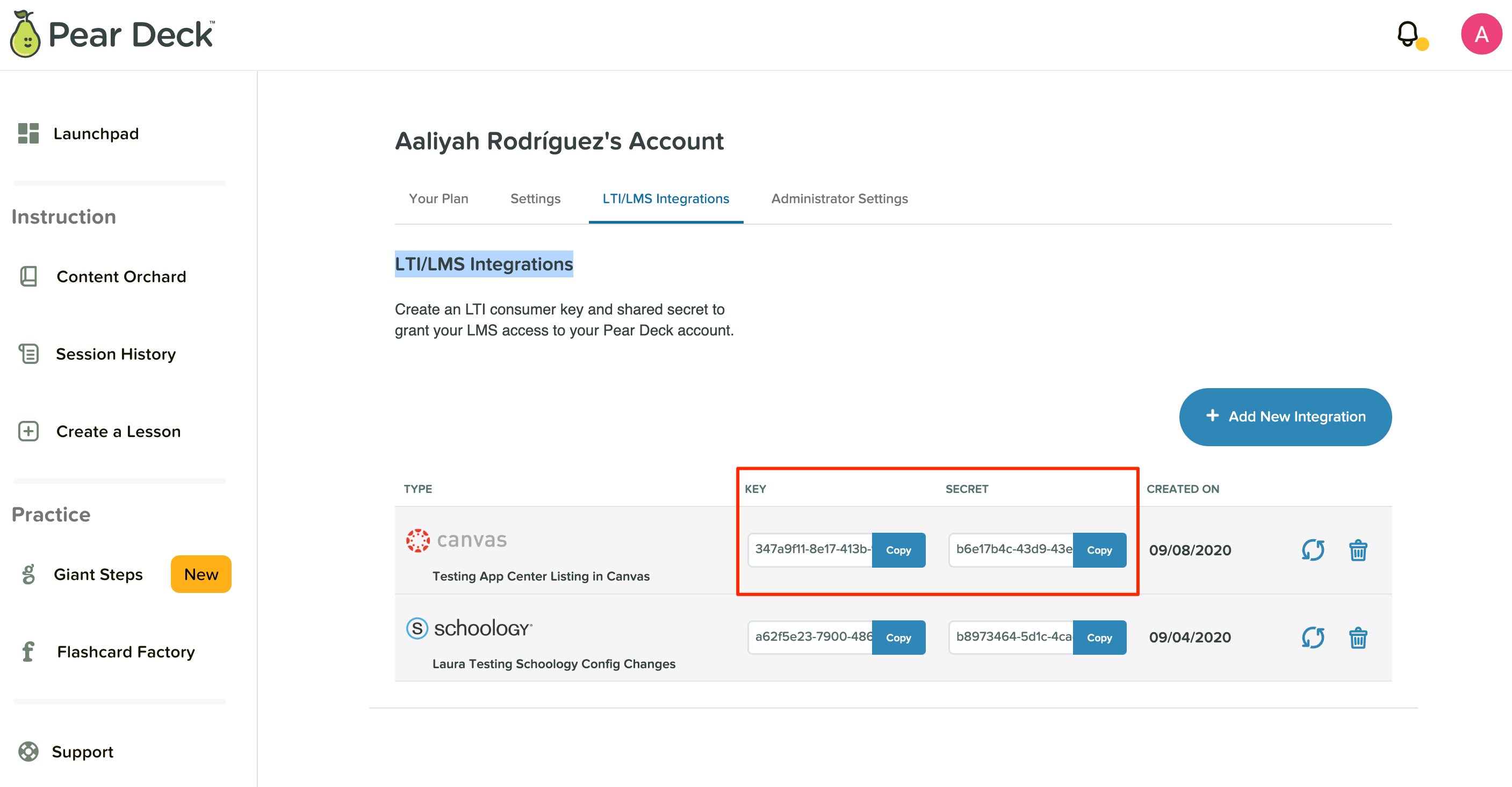
1. As the Subscription Manager of your Pear Deck school or district subscription, go to your [Pear Deck My Account page](https://app.peardeck.com/home/my-account) and click **+ Add New Integration**.
 2. Select **Schoology**.
 3. A Key and Secret are generated for you. Keep this page open: you will need these values in a later step.

 ## Install the LTI App in Schoology
1. Open Schoology.
2. Open the **App Center**.
3. Click **Type > LTI App**.
## Install the LTI App in Schoology
1. Open Schoology.
2. Open the **App Center**.
3. Click **Type > LTI App**.
 4. Find Pear Deck in the results.
5. Open the Pear Deck detail page.
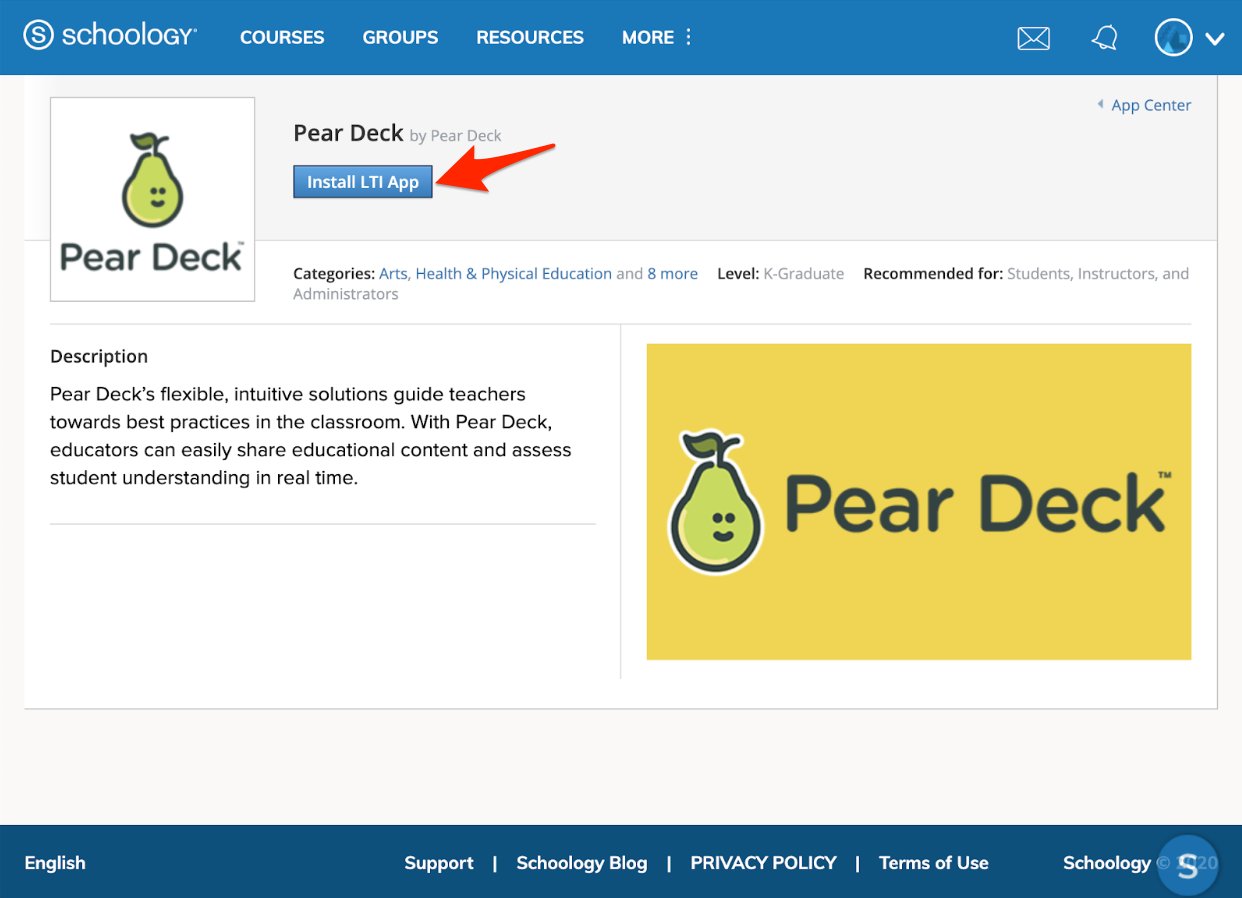
6. Click **Install LTI App**.
4. Find Pear Deck in the results.
5. Open the Pear Deck detail page.
6. Click **Install LTI App**.
 7. On the Consent screen, select **I agree**.
8. When prompted, select **Add to Organization**.
9. The Organization Apps page opens.
10. Find Pear Deck in the list of apps, select it, and click **Configure**.
11. On the Configuration page, paste the Key and Secret from your [app.peardeck.com/home/integrations](http://app.peardeck.com/home/integrations) page into the **Consumer Key** and **Shared Secret** fields.
7. On the Consent screen, select **I agree**.
8. When prompted, select **Add to Organization**.
9. The Organization Apps page opens.
10. Find Pear Deck in the list of apps, select it, and click **Configure**.
11. On the Configuration page, paste the Key and Secret from your [app.peardeck.com/home/integrations](http://app.peardeck.com/home/integrations) page into the **Consumer Key** and **Shared Secret** fields.
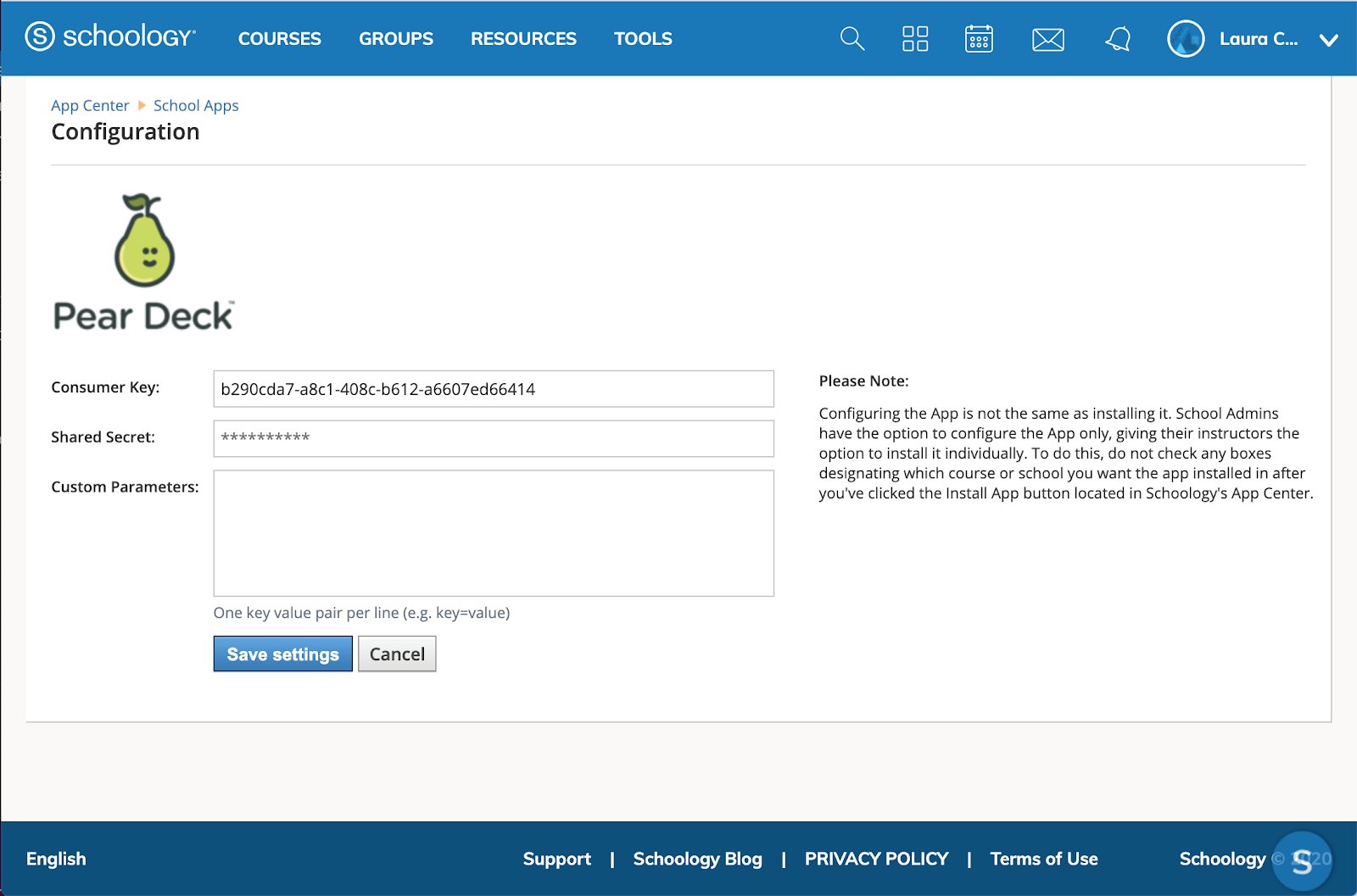 12. Click **Save settings**.
## Assign Access to Users
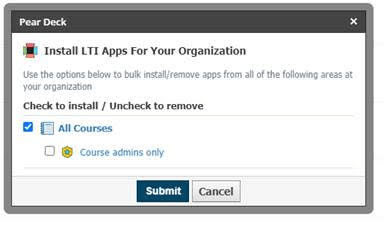
1. Go to **App Center > Organization Apps** and find Pear Deck. Click the blue **Install/Remove** button to grant access to the appropriate users in your organization.
Both teachers and students require access to Pear Deck for the integration to work correctly.
If your Schoology access is more limited, you will see an option to install the LTI app for all courses or course admins only. Select **All Courses**.
Once access is granted, teachers can present and students can join presentations directly within Schoology.
For further help installing apps in Schoology, see [Schoology's App Center help page](https://support.schoology.com/hc/en-us/articles/201002053-App-Center) or contact [help@peardeck.com](mailto:help@peardeck.com).
## Resources
Learn the basics of setting up and running your first Pear Deck Session.
View and configure all active LMS integrations for your Pear Deck subscription.
12. Click **Save settings**.
## Assign Access to Users
1. Go to **App Center > Organization Apps** and find Pear Deck. Click the blue **Install/Remove** button to grant access to the appropriate users in your organization.
Both teachers and students require access to Pear Deck for the integration to work correctly.
If your Schoology access is more limited, you will see an option to install the LTI app for all courses or course admins only. Select **All Courses**.
Once access is granted, teachers can present and students can join presentations directly within Schoology.
For further help installing apps in Schoology, see [Schoology's App Center help page](https://support.schoology.com/hc/en-us/articles/201002053-App-Center) or contact [help@peardeck.com](mailto:help@peardeck.com).
## Resources
Learn the basics of setting up and running your first Pear Deck Session.
View and configure all active LMS integrations for your Pear Deck subscription.