> ## Documentation Index
> Fetch the complete documentation index at: https://docs.goguardian.com/llms.txt
> Use this file to discover all available pages before exploring further.
# Your Account Settings
> Manage your Pear Deck account settings to control student interactions across all Sessions
Update your account settings to control how you interact with students in each Pear Deck Session. Your settings apply to every Session until you change them, so you will rarely need to update them.
## Open Settings
1. Go to your [Pear Deck Home](https://app.peardeck.com/home) page.
2. Click the downward arrow next to your name and icon in the upper-right corner of the screen.
3. Click **My Account**.
4. On the My Account page, click **Settings**.
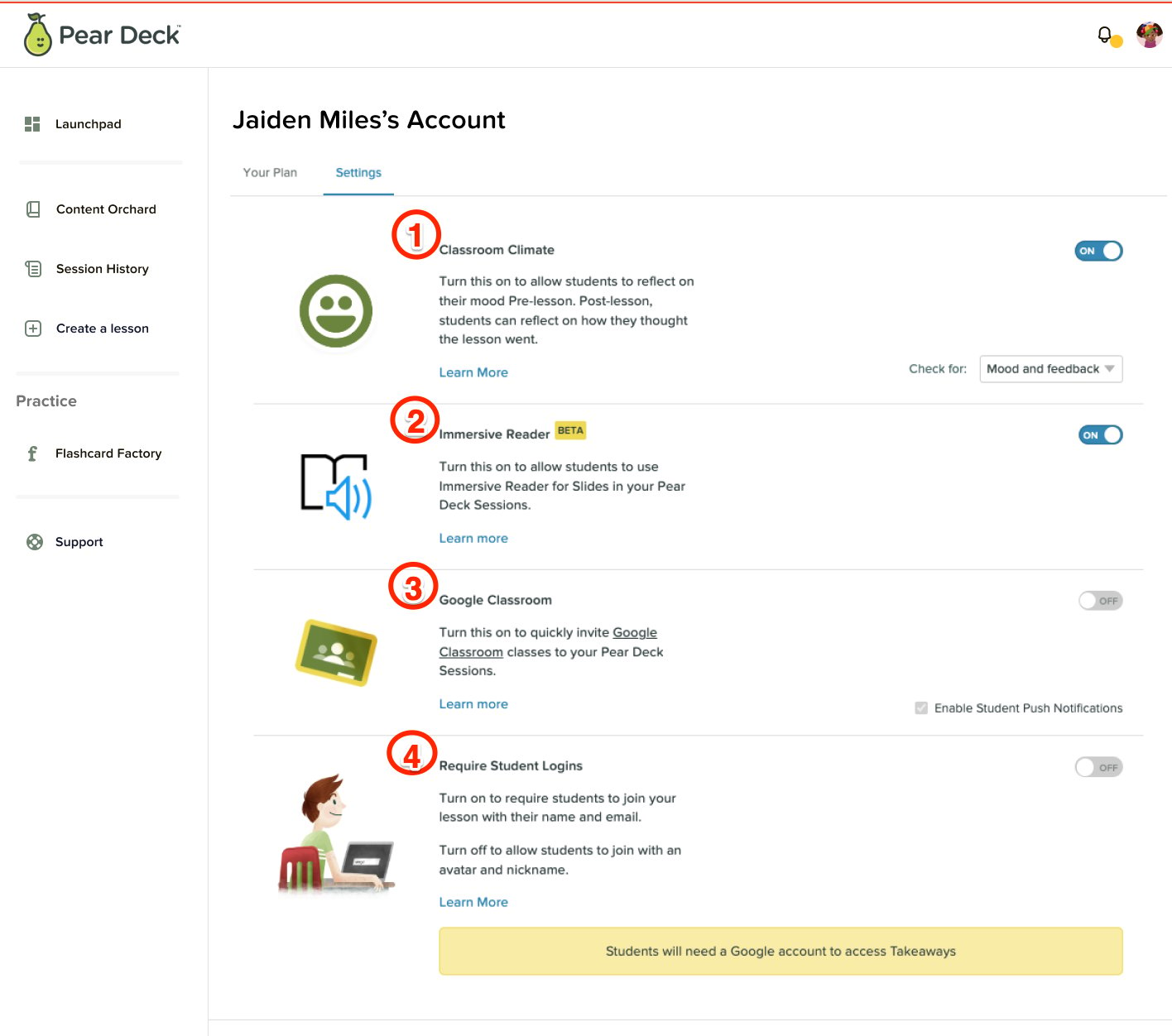 ## Configure Available Settings
The settings available to you depend on whether you sign in with Microsoft Office 365 or Google, and whether you have a Free or Premium account.
### Classroom Climate
Get an extra layer of insight into how students are doing and how well they learned the lesson. Classroom Climate allows students to reflect on their mood at the beginning of the lesson and give a thumbs-up or down at the end. This setting is available to all user types.
### Immersive Reader (Beta)
[Immersive Reader](/products/pear-deck/immersive-reader-integration) is a Microsoft service that encourages reading and improves comprehension with literacy-enhancing features. Students can activate multi-sensory, multilingual learning techniques such as having text read aloud, translated into different languages, or displayed with highlighting, adjusted fonts, and illustrated word meanings. Both Google and Microsoft Office 365 users can enable Immersive Reader, but it is only available to Premium users at this time.
### Google Classroom
If you use Google Classroom, you can make it easier for students to join your Session with [Google Classroom Integration](/products/pear-deck/google-classroom-integration). This is available to Premium users, as the integration works through the [Teacher Dashboard](/products/pear-deck/the-teacher-dashboard) roster and Takeaways.
### Student Email Sign-In
* Participants can join your Sessions with an email account or anonymously.
* This setting applies only to Pear Deck Slides, not [Flashcard Factory](/products/pear-deck/getting-started-with-flashcard-factory) Sessions. Flashcard Factory automatically requires a Google email sign-in.
* Select **ON** and choose the email account type (Google or Microsoft Office 365) when you want to see exactly who joins your Sessions and who submits each response.
* Select **OFF** to let participants join anonymously. When they join, they are assigned an avatar and a nickname. If you turn off the requirement and make sign-in anonymous, you will not be able to retrieve student names from future Sessions (including Sessions presented through the Pear Deck Sidebar in Google Slides or PowerPoint Online). To see names in future Sessions, turn this setting back **ON**.
## Configure Available Settings
The settings available to you depend on whether you sign in with Microsoft Office 365 or Google, and whether you have a Free or Premium account.
### Classroom Climate
Get an extra layer of insight into how students are doing and how well they learned the lesson. Classroom Climate allows students to reflect on their mood at the beginning of the lesson and give a thumbs-up or down at the end. This setting is available to all user types.
### Immersive Reader (Beta)
[Immersive Reader](/products/pear-deck/immersive-reader-integration) is a Microsoft service that encourages reading and improves comprehension with literacy-enhancing features. Students can activate multi-sensory, multilingual learning techniques such as having text read aloud, translated into different languages, or displayed with highlighting, adjusted fonts, and illustrated word meanings. Both Google and Microsoft Office 365 users can enable Immersive Reader, but it is only available to Premium users at this time.
### Google Classroom
If you use Google Classroom, you can make it easier for students to join your Session with [Google Classroom Integration](/products/pear-deck/google-classroom-integration). This is available to Premium users, as the integration works through the [Teacher Dashboard](/products/pear-deck/the-teacher-dashboard) roster and Takeaways.
### Student Email Sign-In
* Participants can join your Sessions with an email account or anonymously.
* This setting applies only to Pear Deck Slides, not [Flashcard Factory](/products/pear-deck/getting-started-with-flashcard-factory) Sessions. Flashcard Factory automatically requires a Google email sign-in.
* Select **ON** and choose the email account type (Google or Microsoft Office 365) when you want to see exactly who joins your Sessions and who submits each response.
* Select **OFF** to let participants join anonymously. When they join, they are assigned an avatar and a nickname. If you turn off the requirement and make sign-in anonymous, you will not be able to retrieve student names from future Sessions (including Sessions presented through the Pear Deck Sidebar in Google Slides or PowerPoint Online). To see names in future Sessions, turn this setting back **ON**.
 If you have questions about your settings, email [help@peardeck.com](mailto:help@peardeck.com).
## Resources
Connect Pear Deck to Google Classroom to streamline student roster management and Takeaways.
Learn how to run Flashcard Factory Sessions and understand its sign-in requirements.
If you have questions about your settings, email [help@peardeck.com](mailto:help@peardeck.com).
## Resources
Connect Pear Deck to Google Classroom to streamline student roster management and Takeaways.
Learn how to run Flashcard Factory Sessions and understand its sign-in requirements.