> ## Documentation Index
> Fetch the complete documentation index at: https://docs.goguardian.com/llms.txt
> Use this file to discover all available pages before exploring further.
# Present a File from a Google Shared Drive
> Resolve errors when trying to present a file stored in a Google Shared Drive using Pear Deck
If you received a message stating that you cannot present a file from a [Google Shared Drive](https://support.google.com/a/answer/7212025?hl=en), there are restrictions on who can present directly from Shared Drives based on account type. The steps below walk through the resolution for each account situation.
## School or District Premium Plan
If your school or district has a Premium subscription, ask your Pear Deck contact to enable Shared Drive access for your account. If you do not know who your contact is, email [support@deck.peardeck.com](mailto:support@deck.peardeck.com) with the name of your school.
In the meantime, you can present the file by sharing it from the Shared Drive to your own Drive first, then following the steps in the next section.
## Individual Subscription or Free Account
To present a file from a Shared Drive, move it to your own Drive first.
1. Locate the file you want to present in the Shared Drive.
2. Select the file.
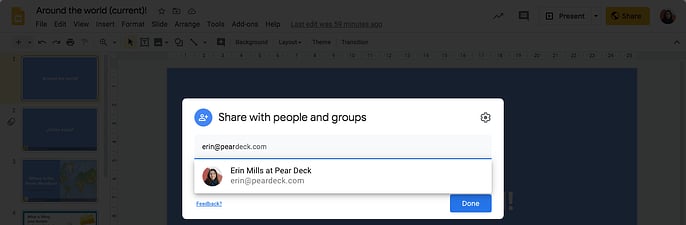
3. Click **Share**.
* If you do not have permission to share the file, open it in Google Slides and select **File** > **Make a copy** to create your own copy. Then open your copy and click **Share**.
4. Enter your Google email address in the people field and click **Done**.
5. Open [Google Drive](https://drive.google.com/drive/my-drive).
6. Click **Shared with me**.
7. Locate the file and double-click to open it in Google Slides.
8. In Google Slides, open the [Pear Deck for Google Slides Add-on](/products/pear-deck/present-google-slides-with-pear-deck-add-on).
9. In the Pear Deck sidebar, click **Start Lesson**.

 ## Resources
Share a presentation from your Drive or publish it for student access.
Use the Pear Deck for Google Slides Add-on to run interactive lessons.
## Resources
Share a presentation from your Drive or publish it for student access.
Use the Pear Deck for Google Slides Add-on to run interactive lessons.