> ## Documentation Index
> Fetch the complete documentation index at: https://docs.goguardian.com/llms.txt
> Use this file to discover all available pages before exploring further.
# Present Videos
> Add and share videos in your Pear Deck presentation to keep students engaged during a session
You can add a video directly to your Pear Deck presentation to share information with students and keep them engaged during your lesson. The steps differ depending on whether you use Pear Deck for Google Slides or Pear Deck for PowerPoint Online.
## Pear Deck for Google Slides
If you sign in to Pear Deck with a Google account, you can:
* Embed a video into the Student View
* Play a video for students on your Projector View
* Paste a hyperlink onto your slide
### Embed a Video in the Student View
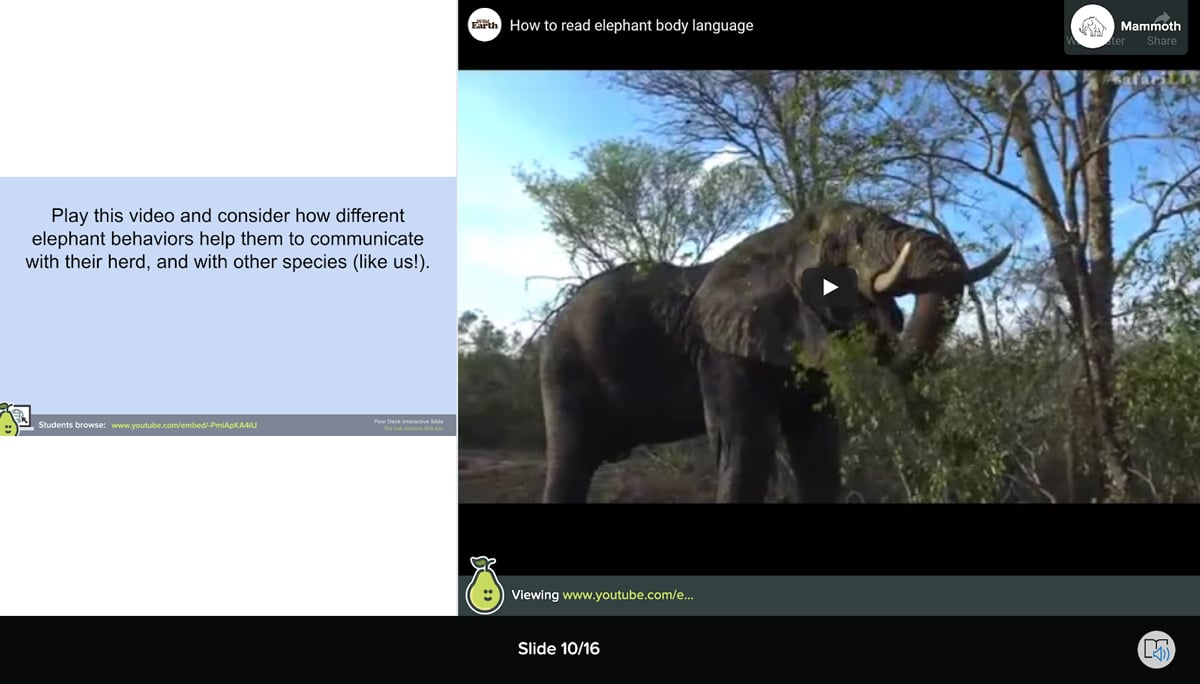
You can embed your video into a Website slide. This gives students control of the video on their Student View when you present a session with Pear Deck. Students will see both the contents of your slide and the embedded video on their screen. The steps below show how to embed a YouTube video. [Learn more about Website Slides](https://help.peardeck.com/embed-websites-and-activities-in-your-pear-deck).
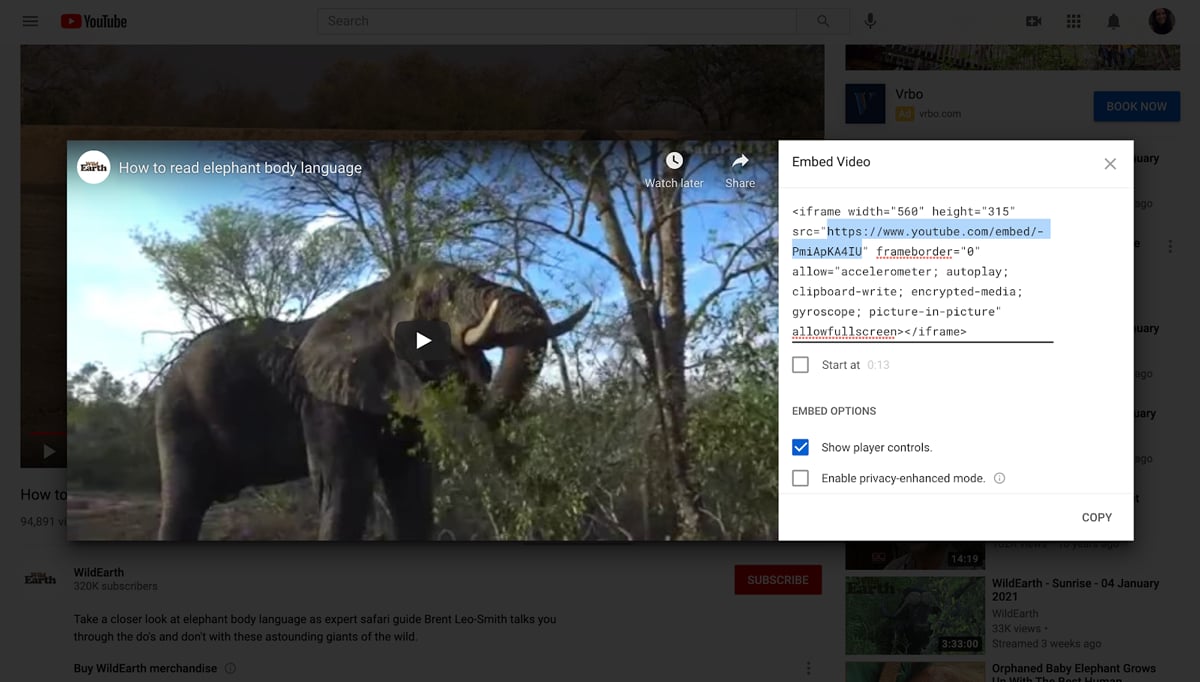
1. Get the video embed URL:
1. Open the video on YouTube.
2. Select **Share**.
3. Select **Embed**.
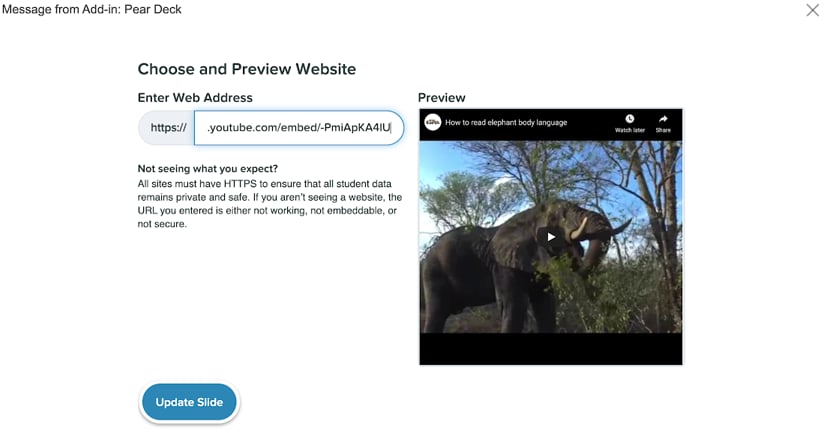
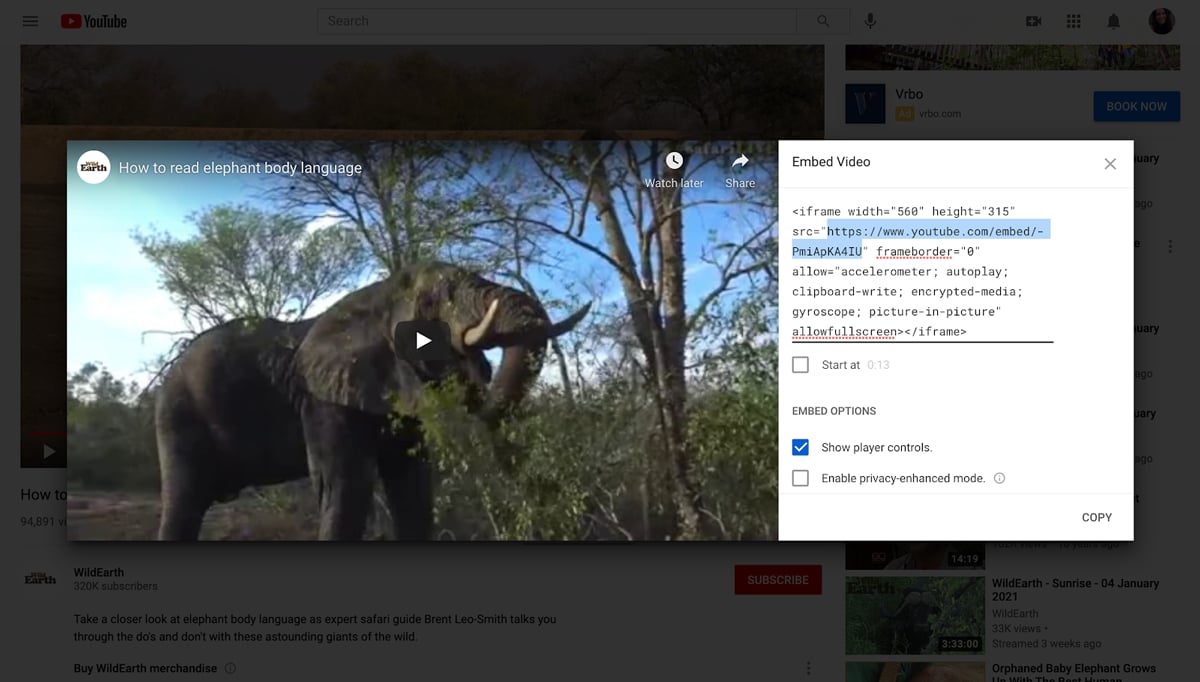
4. Copy the URL found between the frame references, as highlighted in the example below.

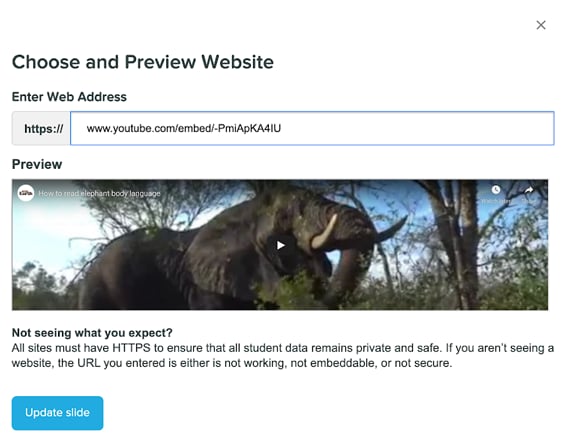
2. Paste the embed URL into a Pear Deck Website slide:
 1. Open your Google Slides presentation.
2. Open the Pear Deck sidebar. Scroll down to ask students a question and select **Website**.
3. In the Preview window, paste the embed URL from the YouTube video. When it embeds correctly, the video appears in the Preview window.

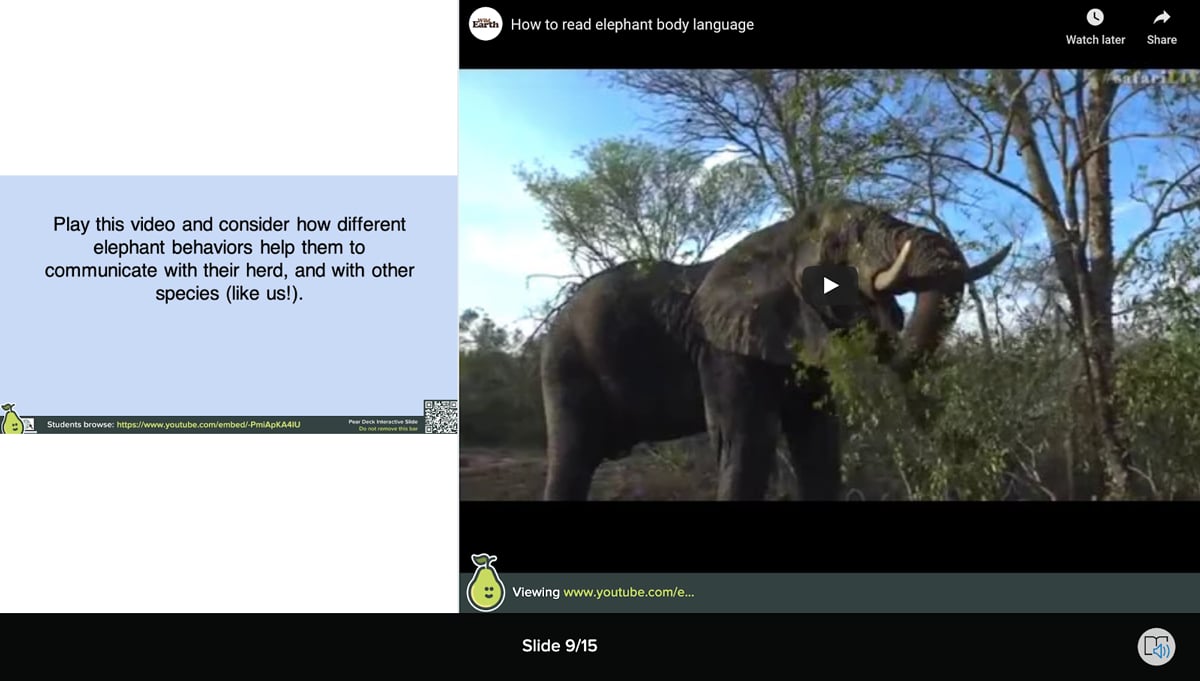
4. When you [present your session](/products/pear-deck/present-a-session), students will be able to see the body of the slide and play the video simultaneously.
1. Open your Google Slides presentation.
2. Open the Pear Deck sidebar. Scroll down to ask students a question and select **Website**.
3. In the Preview window, paste the embed URL from the YouTube video. When it embeds correctly, the video appears in the Preview window.

4. When you [present your session](/products/pear-deck/present-a-session), students will be able to see the body of the slide and play the video simultaneously.
 ### Play a Video for Students on the Projector View
When you add a video directly to your slide, you can play it for students on the Projector View. Students will not be able to play or see it on their Student View. We recommend sharing your Projector View on a screen in front of the class or in any video conferencing platform.
1. Install the free Pear Deck Power-Up extension in your Chrome browser. Without the extension, the slide will be a static image when you present. [Find helpful tips for using the Power-Up](/products/pear-deck/present-google-slides-animations-power-up).
2. Open a Google Slides presentation.
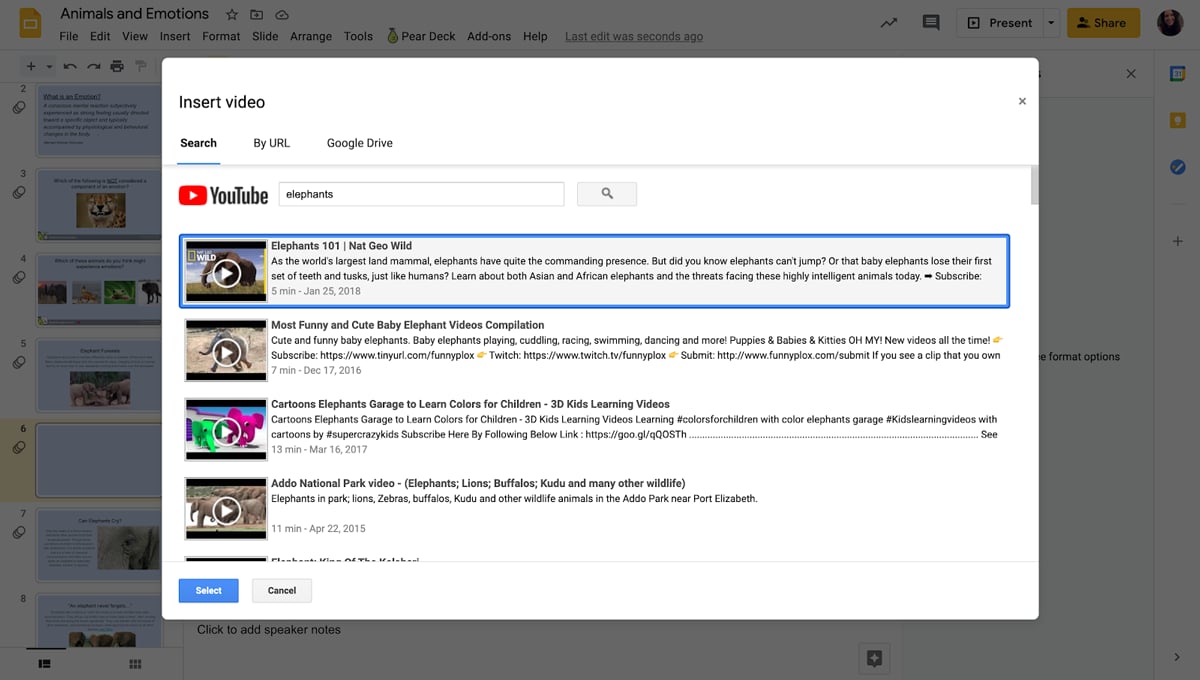
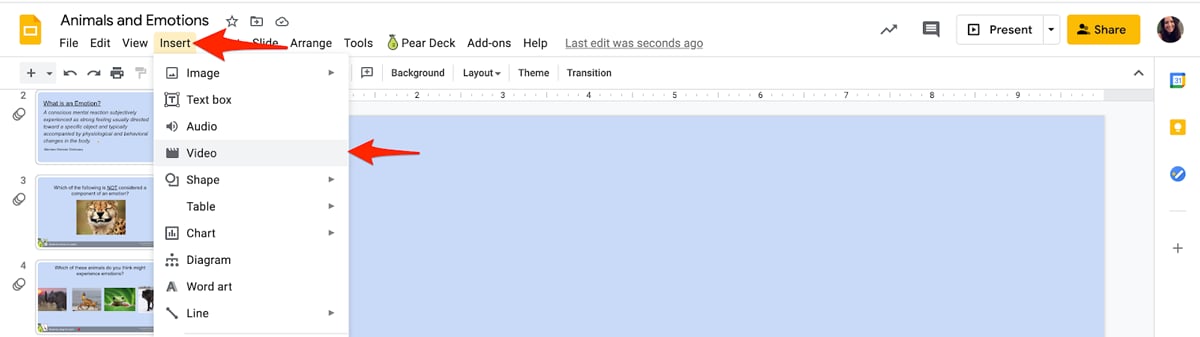
3. Open a slide and add the video by selecting **Insert** → **Video** from the Google Slides toolbar.
4. Search for the video you want to add. Select it, then click **Select** to add it to your slide.
### Play a Video for Students on the Projector View
When you add a video directly to your slide, you can play it for students on the Projector View. Students will not be able to play or see it on their Student View. We recommend sharing your Projector View on a screen in front of the class or in any video conferencing platform.
1. Install the free Pear Deck Power-Up extension in your Chrome browser. Without the extension, the slide will be a static image when you present. [Find helpful tips for using the Power-Up](/products/pear-deck/present-google-slides-animations-power-up).
2. Open a Google Slides presentation.
3. Open a slide and add the video by selecting **Insert** → **Video** from the Google Slides toolbar.
4. Search for the video you want to add. Select it, then click **Select** to add it to your slide.
 5. When you are ready to present your Pear Deck session, open the Pear Deck Add-on sidebar and select **Start Lesson**.
 ### Paste a Hyperlink in a Slide
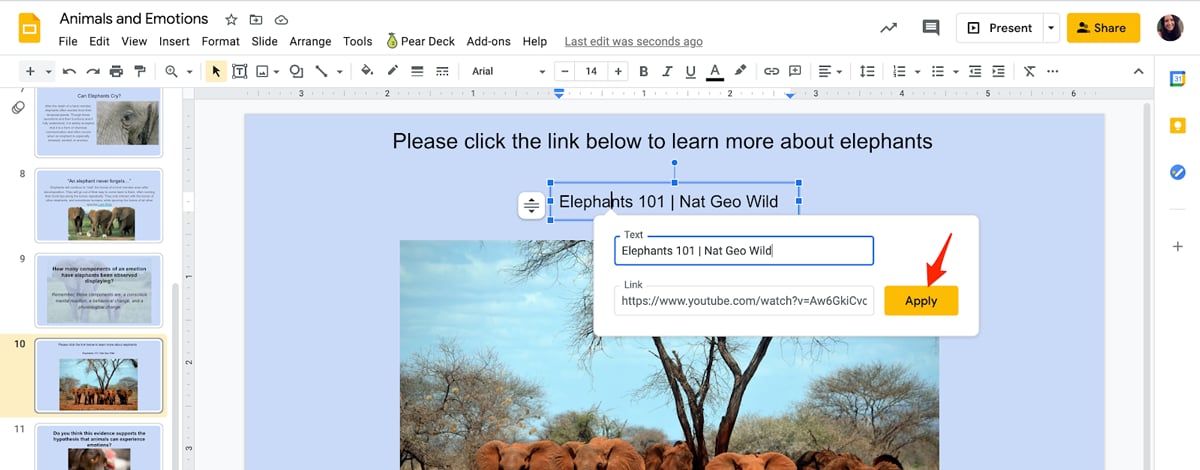
You can paste a link to your video into a text box and make it active. During your Pear Deck session, you and your students will be able to select the link to open the video in a new tab.
1. Open your presentation in Google Slides. Create a text box by selecting **Insert** → **Text Box**.
2. Select the text box to highlight it.
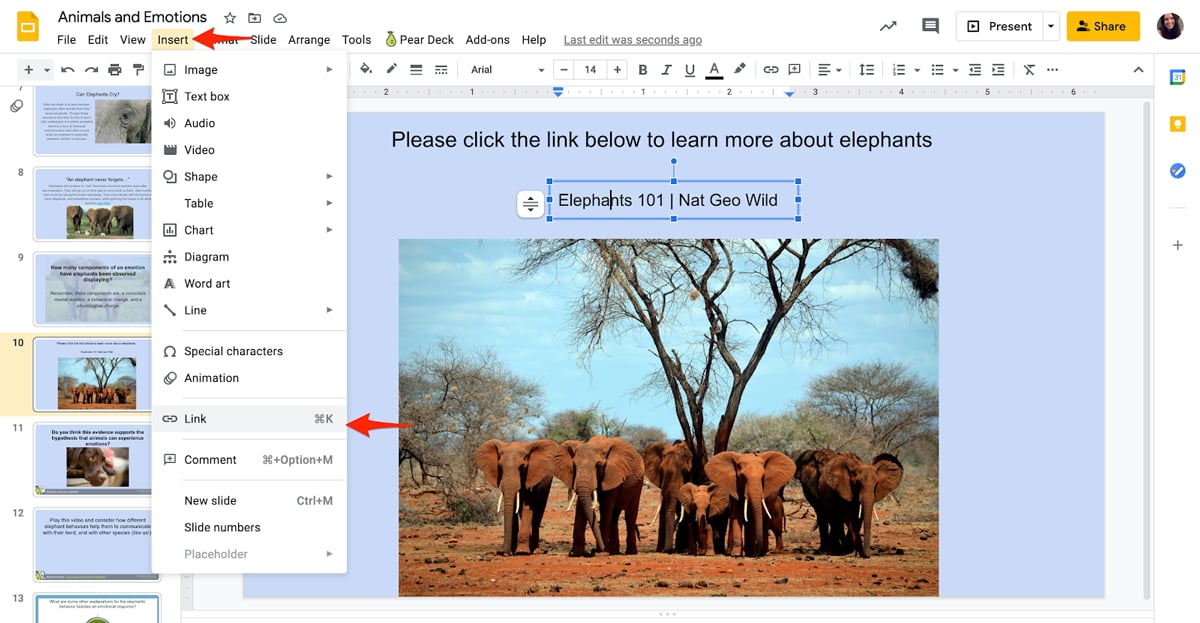
3. Go back to the Google Slides toolbar and select **Insert** → **Link**.

4. Add the link and your preferred display text.
5. Select **Apply**.

6. When you [present your Pear Deck session](/products/pear-deck/present-a-session), you and your students will be able to select the link to open and play the video in a new tab.
### Paste a Hyperlink in a Slide
You can paste a link to your video into a text box and make it active. During your Pear Deck session, you and your students will be able to select the link to open the video in a new tab.
1. Open your presentation in Google Slides. Create a text box by selecting **Insert** → **Text Box**.
2. Select the text box to highlight it.
3. Go back to the Google Slides toolbar and select **Insert** → **Link**.

4. Add the link and your preferred display text.
5. Select **Apply**.

6. When you [present your Pear Deck session](/products/pear-deck/present-a-session), you and your students will be able to select the link to open and play the video in a new tab.
 ## Pear Deck for PowerPoint Online
If you sign in to Pear Deck with a Microsoft Office 365 account, you can:
* Embed a video into the Student View
* Paste a hyperlink onto your slide
### Embed a Video in the Student View
Embed your video into a Website slide. This allows students to control the video on their Student View when you present a session with Pear Deck. Students will see both the contents of your slide and the embedded video on their screen. The steps below show how to embed a YouTube video. [Learn more about Website Slides](https://help.peardeck.com/embed-websites-and-activities-in-your-pear-deck).
1. Get the video embed URL:
1. Open the video on YouTube.
2. Select **Share**.
3. Select **Embed**.
4. Copy the URL between the frame references as shown in the example below.

2. Paste the embed URL into a Pear Deck Website slide:
1. Open your PowerPoint Online presentation.
2. Open the [Pear Deck Add-in sidebar](/products/pear-deck/get-pear-deck-for-powerpoint-online).
3. Scroll down to ask students a question and select **Website**.
4. Paste the embed URL from the YouTube video. When it embeds, an image of the video appears in the Preview window.

3. When you [present your session](/products/pear-deck/present-a-session) with Pear Deck, students will be able to see the body of the slide and play the video.

### Paste a Hyperlink in a Slide
You can paste a link to your video into a text box and make it active. During your Pear Deck session, you and your students will be able to select the link to open the video in a new tab.
1. Open your slide. Go to the PowerPoint Online toolbar and select **Insert** → **Text Box**.
## Pear Deck for PowerPoint Online
If you sign in to Pear Deck with a Microsoft Office 365 account, you can:
* Embed a video into the Student View
* Paste a hyperlink onto your slide
### Embed a Video in the Student View
Embed your video into a Website slide. This allows students to control the video on their Student View when you present a session with Pear Deck. Students will see both the contents of your slide and the embedded video on their screen. The steps below show how to embed a YouTube video. [Learn more about Website Slides](https://help.peardeck.com/embed-websites-and-activities-in-your-pear-deck).
1. Get the video embed URL:
1. Open the video on YouTube.
2. Select **Share**.
3. Select **Embed**.
4. Copy the URL between the frame references as shown in the example below.

2. Paste the embed URL into a Pear Deck Website slide:
1. Open your PowerPoint Online presentation.
2. Open the [Pear Deck Add-in sidebar](/products/pear-deck/get-pear-deck-for-powerpoint-online).
3. Scroll down to ask students a question and select **Website**.
4. Paste the embed URL from the YouTube video. When it embeds, an image of the video appears in the Preview window.

3. When you [present your session](/products/pear-deck/present-a-session) with Pear Deck, students will be able to see the body of the slide and play the video.

### Paste a Hyperlink in a Slide
You can paste a link to your video into a text box and make it active. During your Pear Deck session, you and your students will be able to select the link to open the video in a new tab.
1. Open your slide. Go to the PowerPoint Online toolbar and select **Insert** → **Text Box**.
 2. Select the text box to highlight it.
3. Go back to the PowerPoint Online toolbar and select **Insert** → **Link**.
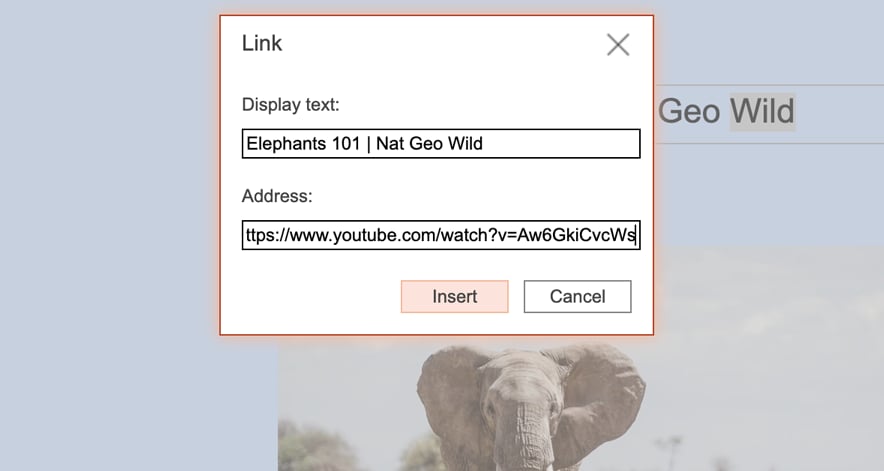
4. Add the link and your preferred display text. Select **Insert**.
5. When you [present your Pear Deck session](/products/pear-deck/present-a-session), you and your students will be able to select the link to open it in a new tab and play the video.
## Resources
Start and manage a live Pear Deck session with your students.
Review which websites and content types are supported in Pear Deck Website slides.
2. Select the text box to highlight it.
3. Go back to the PowerPoint Online toolbar and select **Insert** → **Link**.
4. Add the link and your preferred display text. Select **Insert**.
5. When you [present your Pear Deck session](/products/pear-deck/present-a-session), you and your students will be able to select the link to open it in a new tab and play the video.
## Resources
Start and manage a live Pear Deck session with your students.
Review which websites and content types are supported in Pear Deck Website slides.