> ## Documentation Index
> Fetch the complete documentation index at: https://docs.goguardian.com/llms.txt
> Use this file to discover all available pages before exploring further.
# Publish Takeaways to Extend Your Lesson and Give Students Feedback
> Publish individualized Takeaway documents so students can review their responses and you can leave feedback after a session
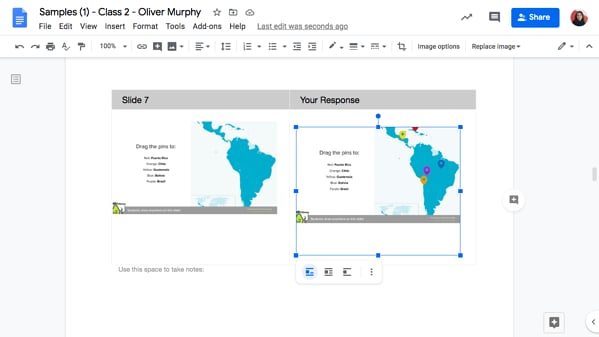
Pear Deck Takeaways are individualized Google Docs that contain the slides from your session and each student's responses. You can publish Takeaways at the end of any Pear Deck session to extend the lesson, leave personalized feedback, or give students a record of their work.
Takeaways are a Premium feature available only to users who sign in to Pear Deck with a Google account.
## Quick Facts
* Takeaways can only be published once per session.
* Each Takeaway is an individualized, editable Google Doc where you and your students can leave comments and add notes.
* When you publish Takeaways, they are automatically saved in your Google Drive in the **Pear Deck > Takeaways** folder.
* Each student who joined the session receives access to their own Takeaway only. They cannot see their peers' Takeaways. Students find their copy in the **Shared with me** section of Google Drive.
* In the Takeaway, students see every slide from the session and all of the answers they submitted to interactive questions.
* You have ownership and editing rights to each student's Takeaway. You can share a Takeaway with other teachers, parents, or mentors using the Google Drive share interface.
* Each time you publish Takeaways, you also receive a blank response copy stored in the same Google Drive folder. You can share it with a student who missed class so they can work through the lesson.
* To see all student responses in one document, use [Export Student Responses](/products/pear-deck/export-student-responses).
* [Teacher Feedback](/products/pear-deck/teacher-feedback) is a separate feature that lives in the Teacher Dashboard. Comments you leave there cannot be published in Takeaways.
* See [Google Classroom Integration](/products/pear-deck/google-classroom-integration) to publish Takeaways directly to Google Classroom.
## Example Takeaway
The title of a Takeaway includes the deck name, the session name, and the student's name. Takeaways give access to all Google Docs tools, so you and your students can leave comments and type text below the slide images. Click an image and drag its border to resize it.
 ## Publish Takeaways
Takeaways can only be published once per session, so confirm you are done collecting responses before publishing. You can publish Takeaways when you end a session or from the Sessions menu.
### When You End a Session
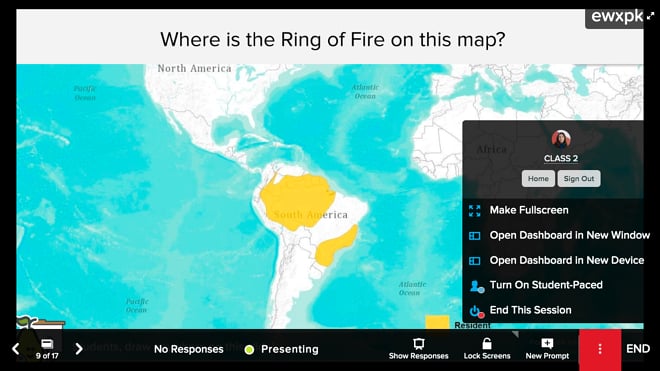
1. On your Presenter View, hover over the Navigation Bar and click **End**. You can also open the **More Actions** menu and click **End this Session**.
## Publish Takeaways
Takeaways can only be published once per session, so confirm you are done collecting responses before publishing. You can publish Takeaways when you end a session or from the Sessions menu.
### When You End a Session
1. On your Presenter View, hover over the Navigation Bar and click **End**. You can also open the **More Actions** menu and click **End this Session**.
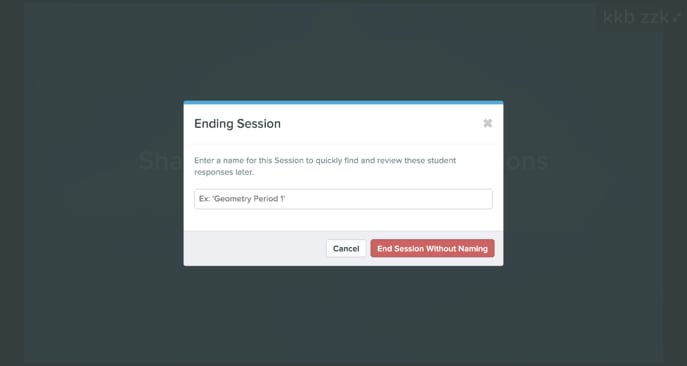
 2. Name your session or select **End Session Without Naming**. Naming the session makes it easier to locate in your Sessions menu later.
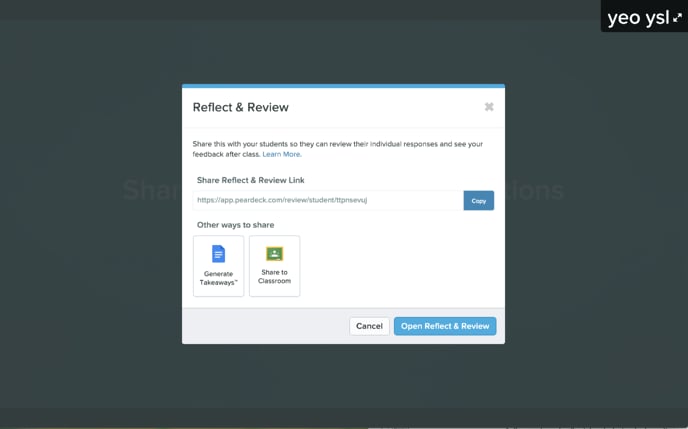
 3. Select **Generate Takeaways**. You can learn more about [Reflect & Review](/products/pear-deck/reflect-and-review) and the [Google Classroom Integration](/products/pear-deck/google-classroom-integration).
 4. Select **Publish Takeaways for This Session**.
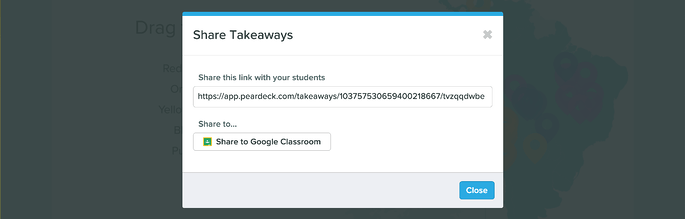
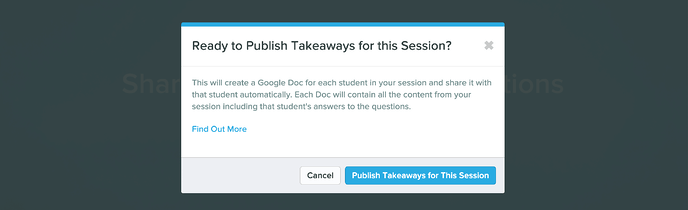 5. You receive a link to your Takeaways, which are automatically stored in Google Drive in the **Pear Deck > Takeaways** folder. The folder is created for you the first time you publish Takeaways.
 ### From the Sessions Menu
1. Open your Pear Deck [Sessions](https://app.peardeck.com/home/sessions) menu.
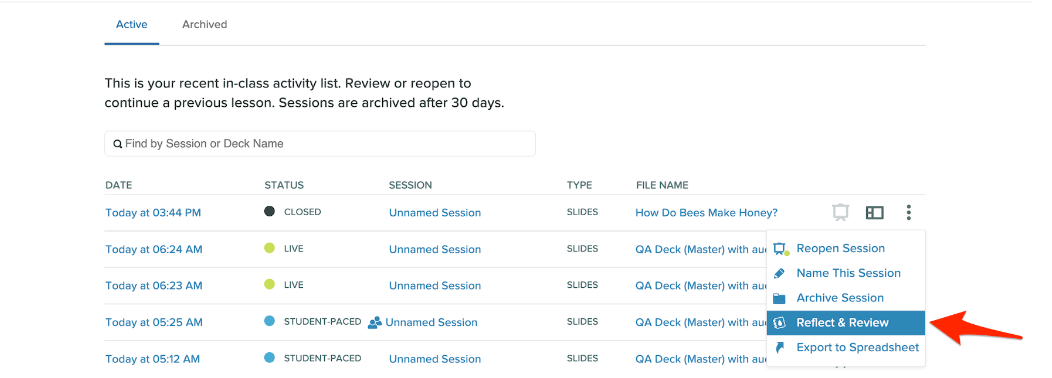
2. Click the **More Actions** menu. You must end the session from this menu before the Takeaways option appears.
3. Select **Reflect & Review** to open the Reflect & Review modal.
### From the Sessions Menu
1. Open your Pear Deck [Sessions](https://app.peardeck.com/home/sessions) menu.
2. Click the **More Actions** menu. You must end the session from this menu before the Takeaways option appears.
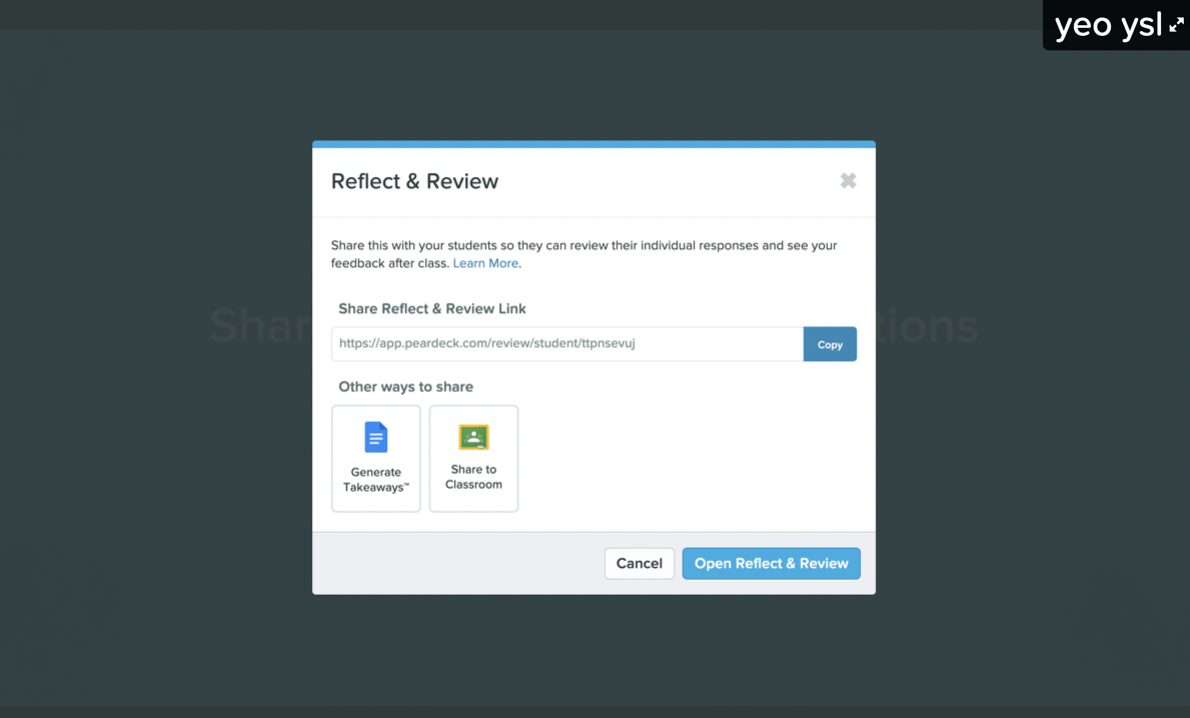
3. Select **Reflect & Review** to open the Reflect & Review modal.
 4. Click **Generate Takeaways**. If you have already published Takeaways for this session, you receive a link to those existing Takeaways in Google Drive.
 ## Find Takeaways After Publishing
When Takeaways are published, both you and your students can access them using the Takeaways link or directly through Google Drive.
### Follow the Takeaways Link
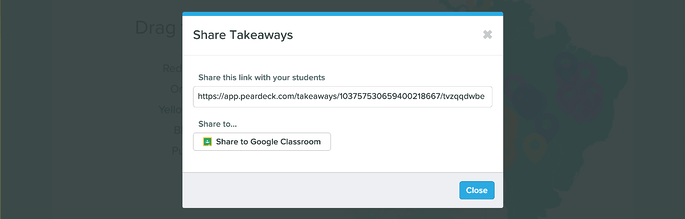
When you publish Takeaways, you receive a link that opens the list of Takeaway documents for the session. For a student, the same link opens their individual Takeaway. Share this link with your students so they can access their work.
## Find Takeaways After Publishing
When Takeaways are published, both you and your students can access them using the Takeaways link or directly through Google Drive.
### Follow the Takeaways Link
When you publish Takeaways, you receive a link that opens the list of Takeaway documents for the session. For a student, the same link opens their individual Takeaway. Share this link with your students so they can access their work.
 ### Find Takeaways in Google Drive
#### Students
1. Open [Google Drive](https://drive.google.com/drive/my-drive).
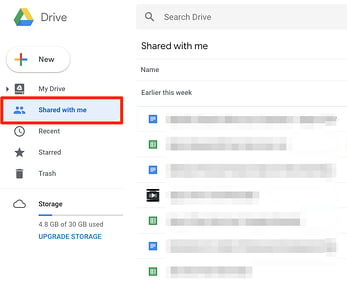
2. Click **Shared with me**. Your Takeaway Google Doc is listed there.
#### Teachers
1. Open your [Google Drive](https://drive.google.com/drive/my-drive).
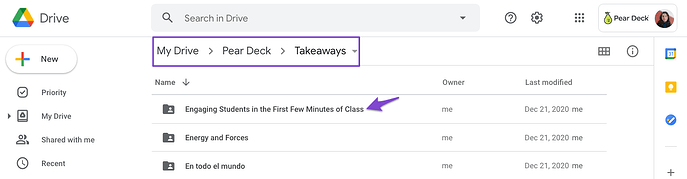
2. Go to the **Pear Deck > Takeaways** folder, then open the folder for your deck.
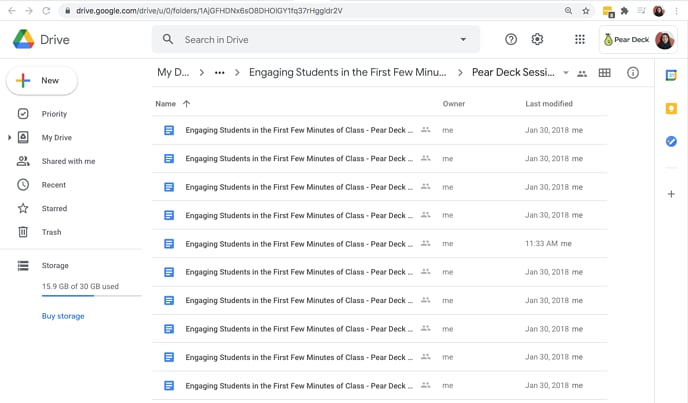
3. Open the session folder.
4. All of your students' Takeaways are saved there. Hover over a doc to see which student it belongs to, then open it to review slides, student responses, leave comments, change permissions, and more.
### Find Takeaways in Google Drive
#### Students
1. Open [Google Drive](https://drive.google.com/drive/my-drive).
2. Click **Shared with me**. Your Takeaway Google Doc is listed there.
#### Teachers
1. Open your [Google Drive](https://drive.google.com/drive/my-drive).
2. Go to the **Pear Deck > Takeaways** folder, then open the folder for your deck.
3. Open the session folder.
4. All of your students' Takeaways are saved there. Hover over a doc to see which student it belongs to, then open it to review slides, student responses, leave comments, change permissions, and more.
 ## Share Takeaways with Canvas and Schoology Students
When you publish Takeaways from Canvas or Schoology, they are not automatically shared with your students. Follow these steps to share them manually.
1. Open your **Google Drive > Pear Deck > Takeaways** folder.
2. Open the deck folder.
## Share Takeaways with Canvas and Schoology Students
When you publish Takeaways from Canvas or Schoology, they are not automatically shared with your students. Follow these steps to share them manually.
1. Open your **Google Drive > Pear Deck > Takeaways** folder.
2. Open the deck folder.
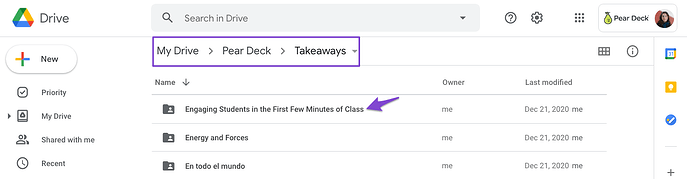 3. Open the session folder to find the Takeaways you published.
4. Open a Takeaway doc to see which student it belongs to.
5. Select **Share** to share the doc with that student in Google Drive. To extend the lesson, give the student editing permission by selecting **Editor** next to their email address so they can continue typing in the doc.
3. Open the session folder to find the Takeaways you published.
4. Open a Takeaway doc to see which student it belongs to.
5. Select **Share** to share the doc with that student in Google Drive. To extend the lesson, give the student editing permission by selecting **Editor** next to their email address so they can continue typing in the doc.
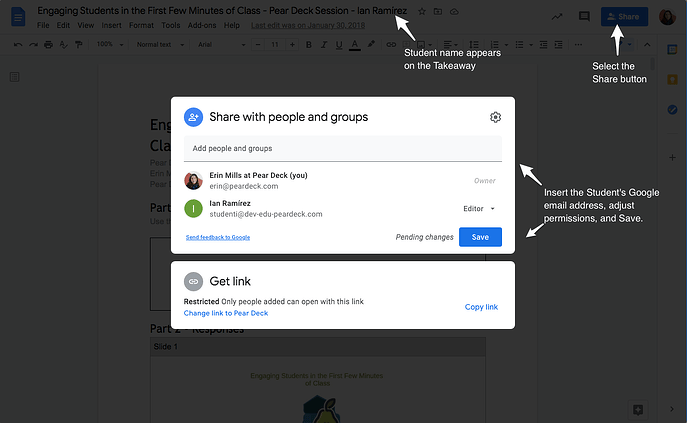 6. When the student's name and email address appear in the share confirmation, the doc has been shared. The student can find it in the **Shared with me** section of their Google Drive.
## Resources
Export all student responses from a session to a Google Sheet for review and analysis.
Connect Pear Deck to Google Classroom to publish Takeaways directly to student assignments.
6. When the student's name and email address appear in the share confirmation, the doc has been shared. The student can find it in the **Shared with me** section of their Google Drive.
## Resources
Export all student responses from a session to a Google Sheet for review and analysis.
Connect Pear Deck to Google Classroom to publish Takeaways directly to student assignments.