> ## Documentation Index
> Fetch the complete documentation index at: https://docs.goguardian.com/llms.txt
> Use this file to discover all available pages before exploring further.
# Use Classroom Climate
> Enable Classroom Climate to collect student mood and lesson feedback during Pear Deck sessions
Classroom Climate gives teachers an extra layer of insight into how students are learning. By gathering feedback about student mood and feelings of achievement, you can gauge the success of a lesson while helping students develop greater self-awareness.
## Enable Classroom Climate
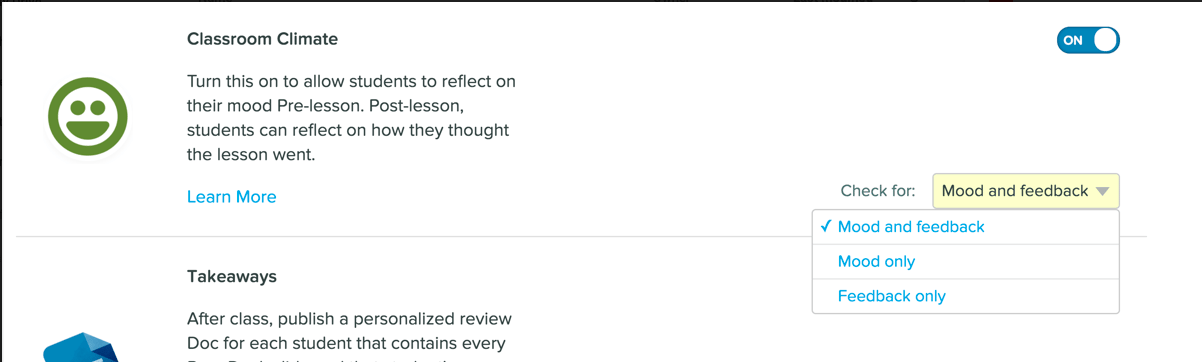
1. Go to your [Settings tab](https://app.peardeck.com/home/settings) and set Classroom Climate to **On**.
2. Choose the type of feedback you want to gather. You can collect mood data at the beginning of class, lesson feedback at the end of class, or both.


 ## Present Your Lesson
Once Classroom Climate is enabled, Pear Deck automatically presents students with the feedback prompts you selected. No additional steps are required.
* If you enable mood check, students see this screen as soon as they join your session:
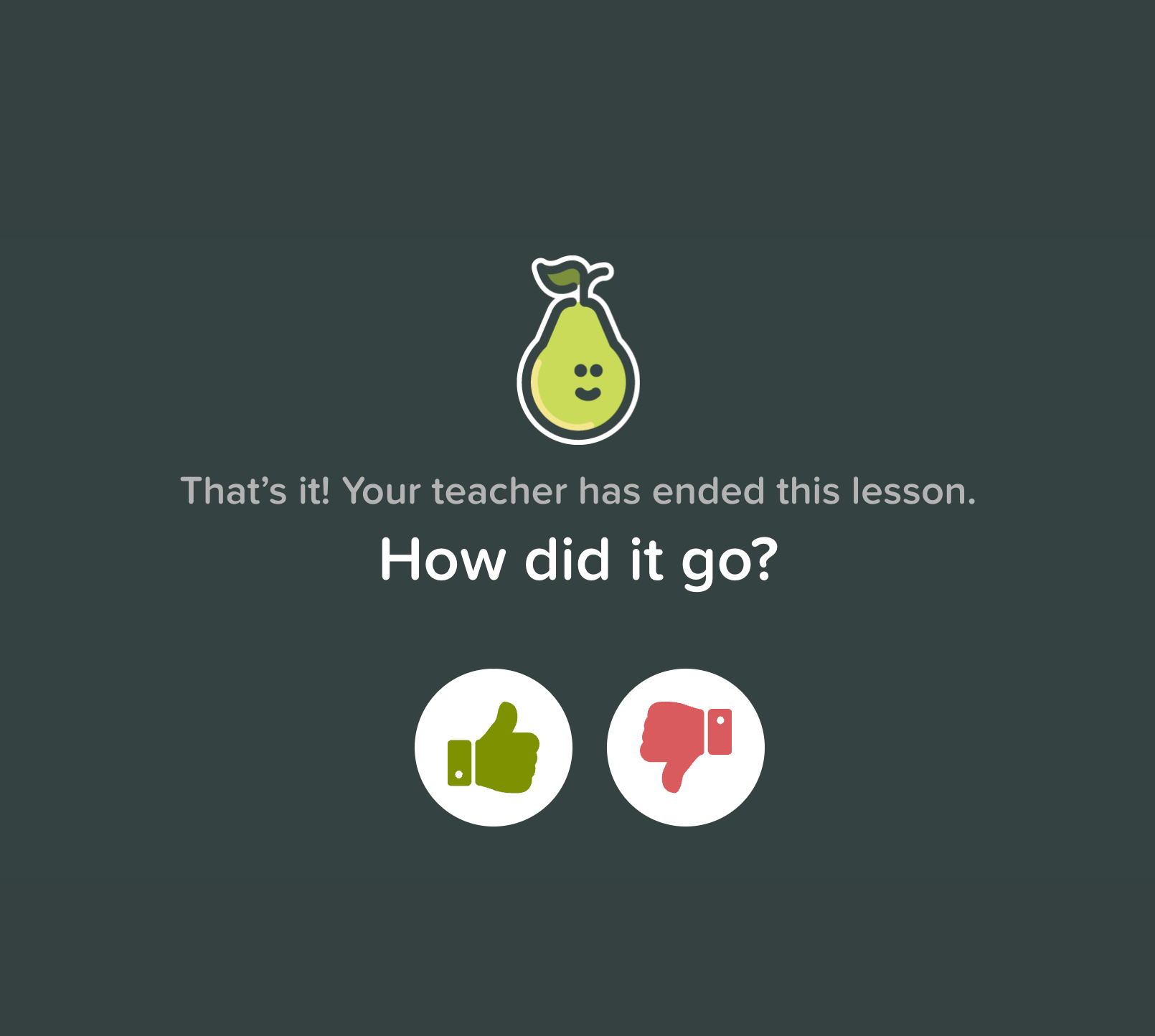
* If you enable lesson feedback, students see this screen as soon as you end the session:
Students can submit their responses for up to one hour after you end the session.
## Use the Data
After collecting responses, you have two ways to review the data.
**Teacher Dashboard (Premium)**
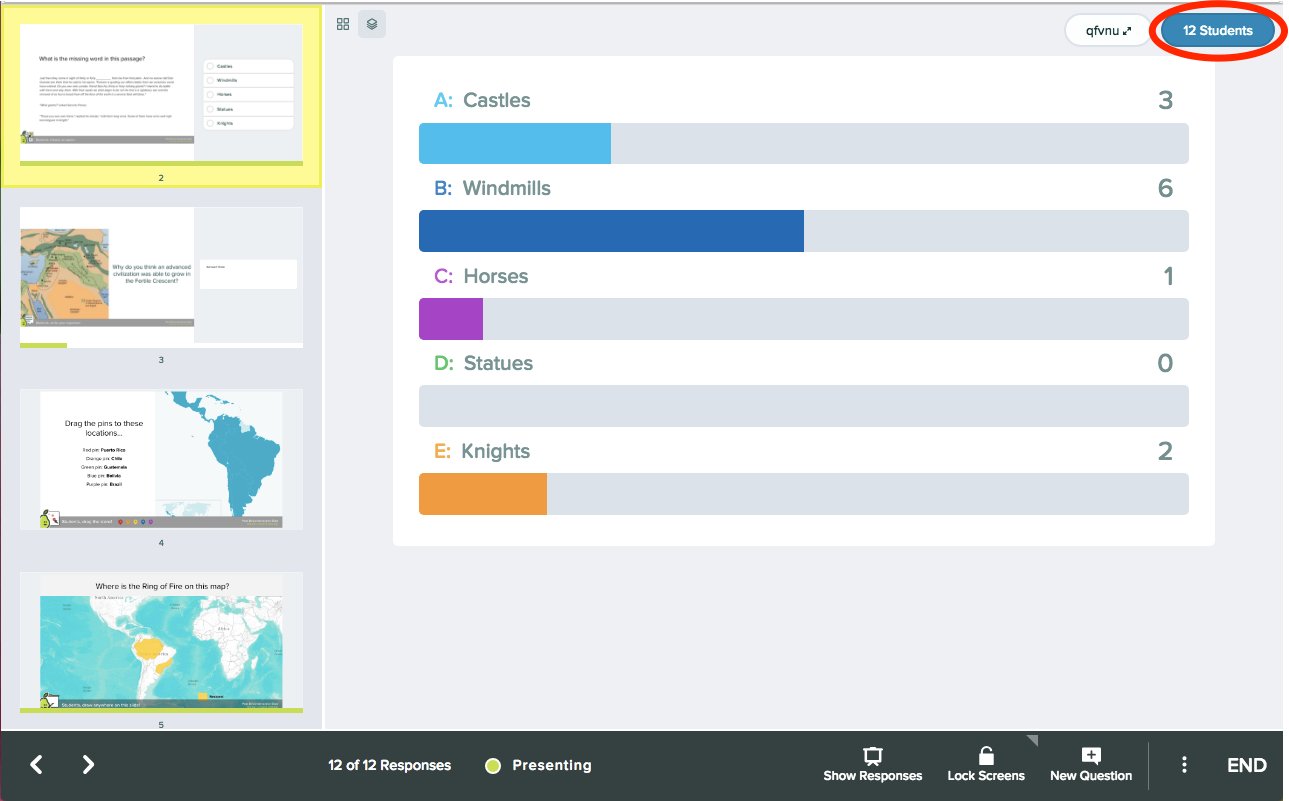
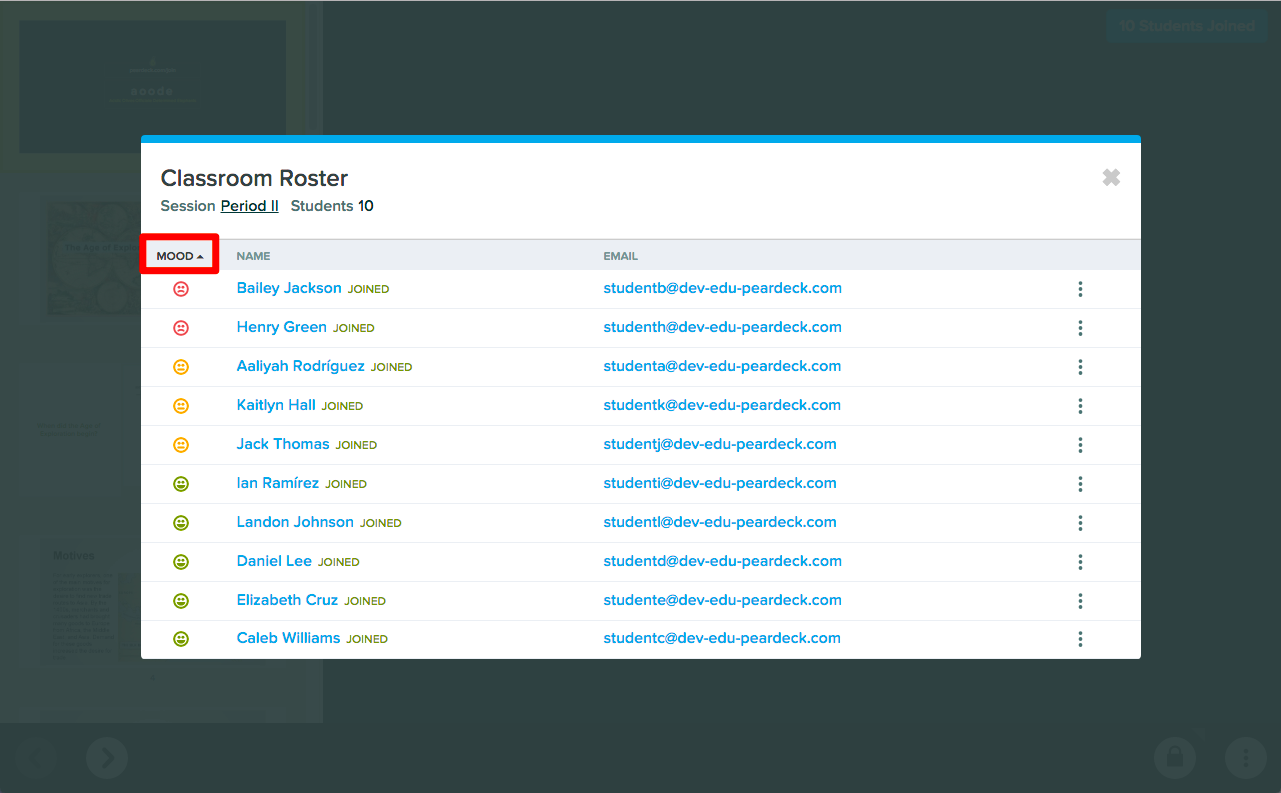
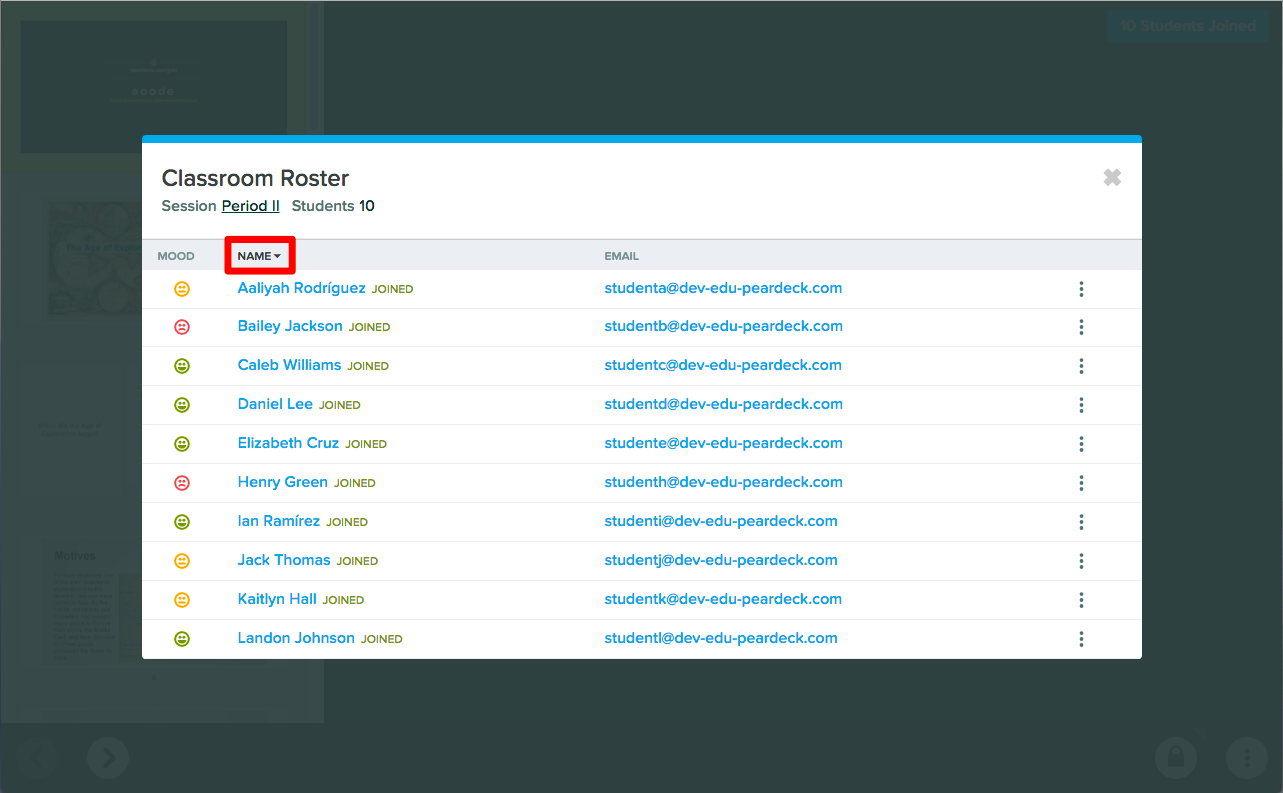
Open the Classroom Roster in the top-right corner of the [Teacher Dashboard](/products/pear-deck/the-teacher-dashboard) to see mood data:
Click **Mood** to sort students by mood response:
Click **Name** to sort alphabetically:
**Pear Deck Home Screen**
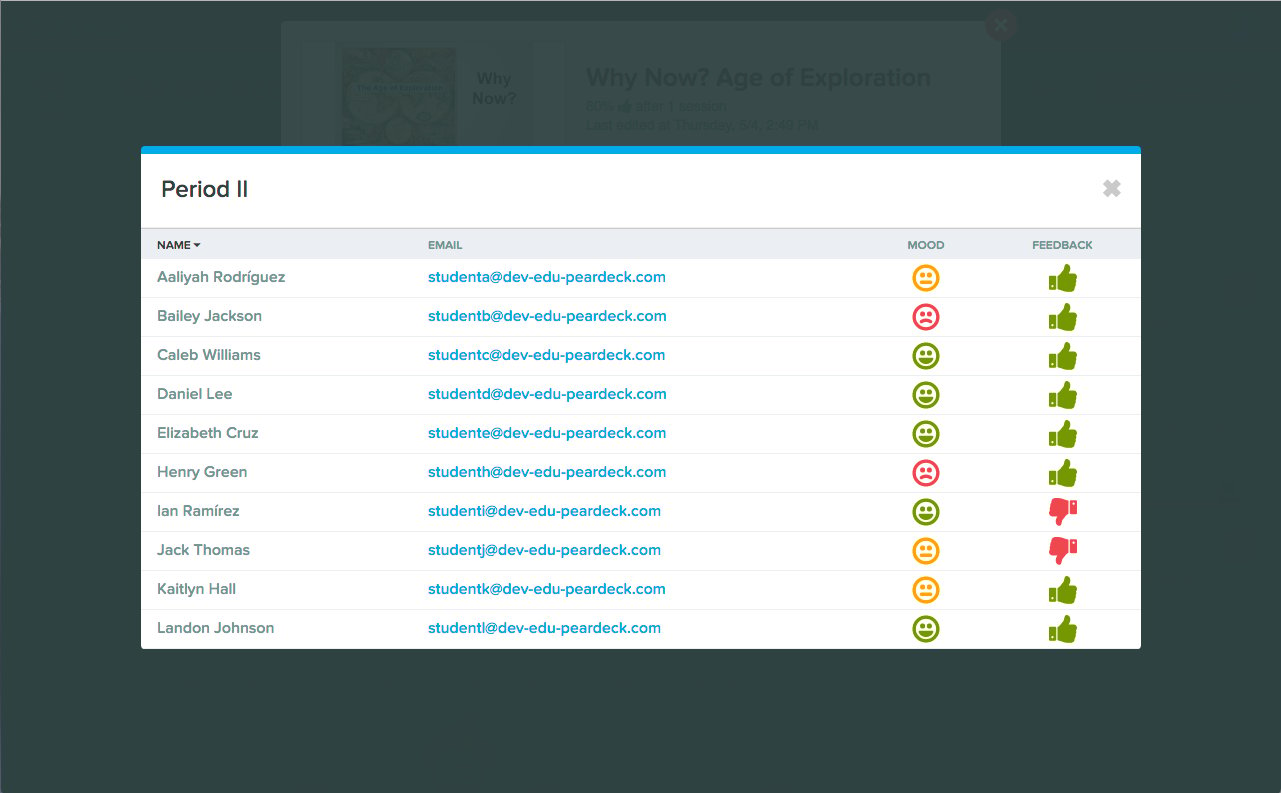
On the [Pear Deck Home Screen](https://app.peardeck.com/home/), click a deck title to open its menu, then click the thumbs-up rating percentage or the roster number:
This opens a report showing how the thumbs-up rating relates to student mood:
## Resources
Review student responses and mood data in real time during a session.
Learn how to launch a session and present slides to students.
## Present Your Lesson
Once Classroom Climate is enabled, Pear Deck automatically presents students with the feedback prompts you selected. No additional steps are required.
* If you enable mood check, students see this screen as soon as they join your session:
* If you enable lesson feedback, students see this screen as soon as you end the session:
Students can submit their responses for up to one hour after you end the session.
## Use the Data
After collecting responses, you have two ways to review the data.
**Teacher Dashboard (Premium)**
Open the Classroom Roster in the top-right corner of the [Teacher Dashboard](/products/pear-deck/the-teacher-dashboard) to see mood data:
Click **Mood** to sort students by mood response:
Click **Name** to sort alphabetically:
**Pear Deck Home Screen**
On the [Pear Deck Home Screen](https://app.peardeck.com/home/), click a deck title to open its menu, then click the thumbs-up rating percentage or the roster number:
This opens a report showing how the thumbs-up rating relates to student mood:
## Resources
Review student responses and mood data in real time during a session.
Learn how to launch a session and present slides to students.