> ## Documentation Index
> Fetch the complete documentation index at: https://docs.goguardian.com/llms.txt
> Use this file to discover all available pages before exploring further.
# Formative Assessment Templates
> Add educator-created slide templates to any Pear Deck lesson to support warm-ups, reflection, and deeper engagement
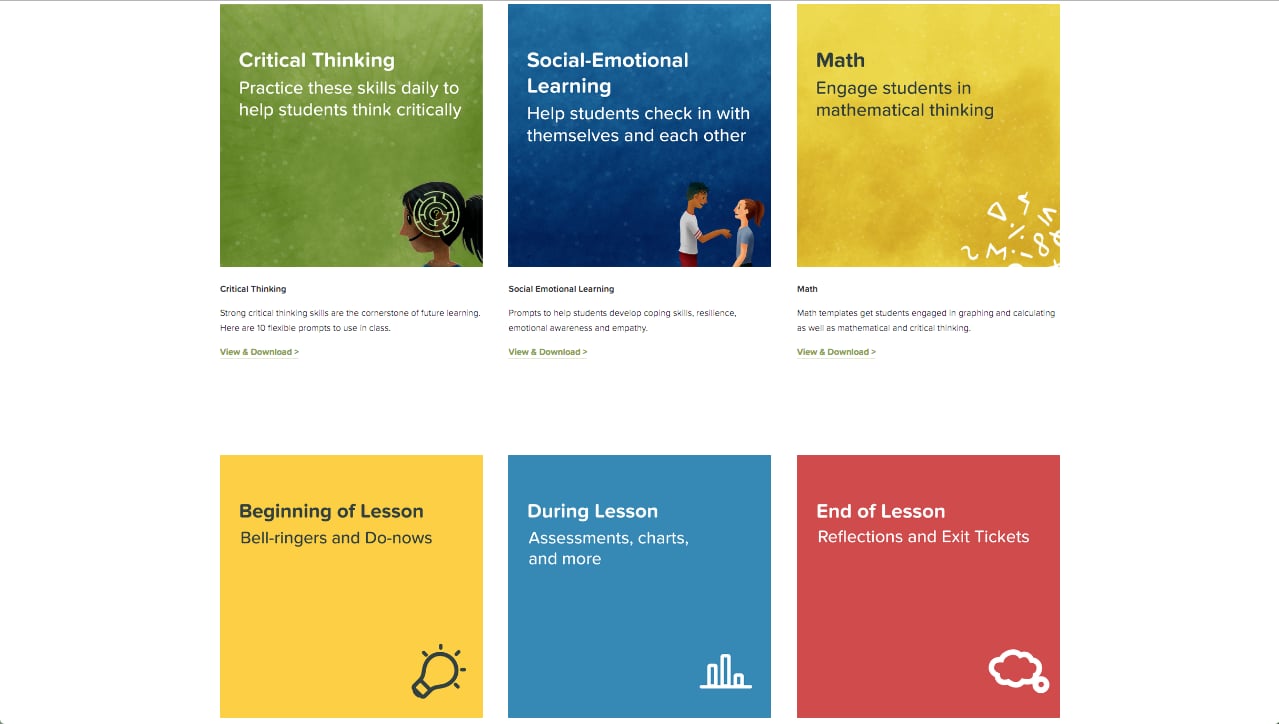
Pear Deck's Formative Assessment Slide Templates were created by GoGuardian's team of educators. You can add these templates to any Pear Deck lesson to help students warm up for the day, think more deeply about a subject, or reflect on what they have learned. Templates are available in the Template Library and cover Beginning, During, and End of Lesson formats for any subject or grade level, as well as Social-Emotional Learning, Math, and Critical Thinking categories.
## Get the Slide Templates
First, create your Pear Deck account. You can sign in with a Google account or a Microsoft 365 account. Then, open the [Pear Deck for Google Slides Add-on](https://chrome.google.com/webstore/detail/pear-deck/amfkiahebibbkifgdjdfplkjohlgfdgg) or the Pear Deck for PowerPoint Online Add-in.
**If you're using Pear Deck for Google Slides:**
Many templates can be added directly from inside the Google Slides Add-on sidebar. Additional templates and Example Decks can be viewed and copied from the [Pear Deck Orchard](https://www.peardeck.com/orchard).
**If you're using Pear Deck for PowerPoint Online:**
1. Download the templates.
2. Upload them to OneDrive.
3. Open the presentation of your choice and copy the templates into it.
PowerPoint Online users can also access the Template Library from the PowerPoint Add-in sidebar.
You can change the background image, text, or question type of any Slide Template you add to your presentation. The templates are designed to jumpstart your use of Interactive Slides. Feel free to adjust the question, font, theme, text color, or background image to fit your lesson. Keep the bar with the Pear icon at the bottom of the slide. If it is deleted or moved, the slide will no longer be interactive.
## Template Types
### Beginning of Lesson
This group of templates introduces a lesson and gets students thinking. They include warm-up, temperature check, and reflection slides that are easy to customize for any class.
### During Lesson
These templates prompt additional thought, discussion, and deeper engagement mid-lesson. Slide types include true/false, checks for understanding, summary, diagrams, maps, graphs, and more. Each type can be customized for a wide range of subjects.
### End of Lesson
Wrap up class with reflection opportunities and exit tickets that help students consolidate what they have learned.
## Critical Thinking and Social-Emotional Learning
Use these templates to help students explore topics more thoroughly or engage with the five core SEL themes: Mindfulness, Empathy, Active Listening, Mutual Respect, and Mind-Body Connections.
## Subject-Specific Templates
Templates are also available for specific subject areas, including Littles, Math, Science, Social Studies, World Languages, and ELA. Use them to jumpstart lessons with ready-made interactive slides tailored to your curriculum.
 ## Resources
Create your account and set up the Pear Deck Add-on for Google Slides or PowerPoint Online.
Learn about the question and response types available when building interactive Pear Deck slides.
## Resources
Create your account and set up the Pear Deck Add-on for Google Slides or PowerPoint Online.
Learn about the question and response types available when building interactive Pear Deck slides.