> ## Documentation Index
> Fetch the complete documentation index at: https://docs.goguardian.com/llms.txt
> Use this file to discover all available pages before exploring further.
# Google Classroom Integration
> Connect Pear Deck to Google Classroom to invite classes and publish Takeaways directly from your Session
Google Classroom Integration lets you invite your Google Classroom classes directly from the Projector View or the [Teacher Dashboard](/products/pear-deck/teacher-dashboard) of any Pear Deck Session. You can also automatically post your Takeaways™ to your Classroom feed at the end of the Session. This feature is available to Premium users who sign in to Pear Deck with a Google account.
## Enable Google Classroom
Before you can invite students from Google Classroom or post Takeaways there, confirm that Google Classroom Integration is enabled in your Account Settings. Once you enable it, Google Classroom Integration tools appear automatically in your Pear Deck Sessions.
1. Go to your [Pear Deck Home](https://app.peardeck.com/home/).
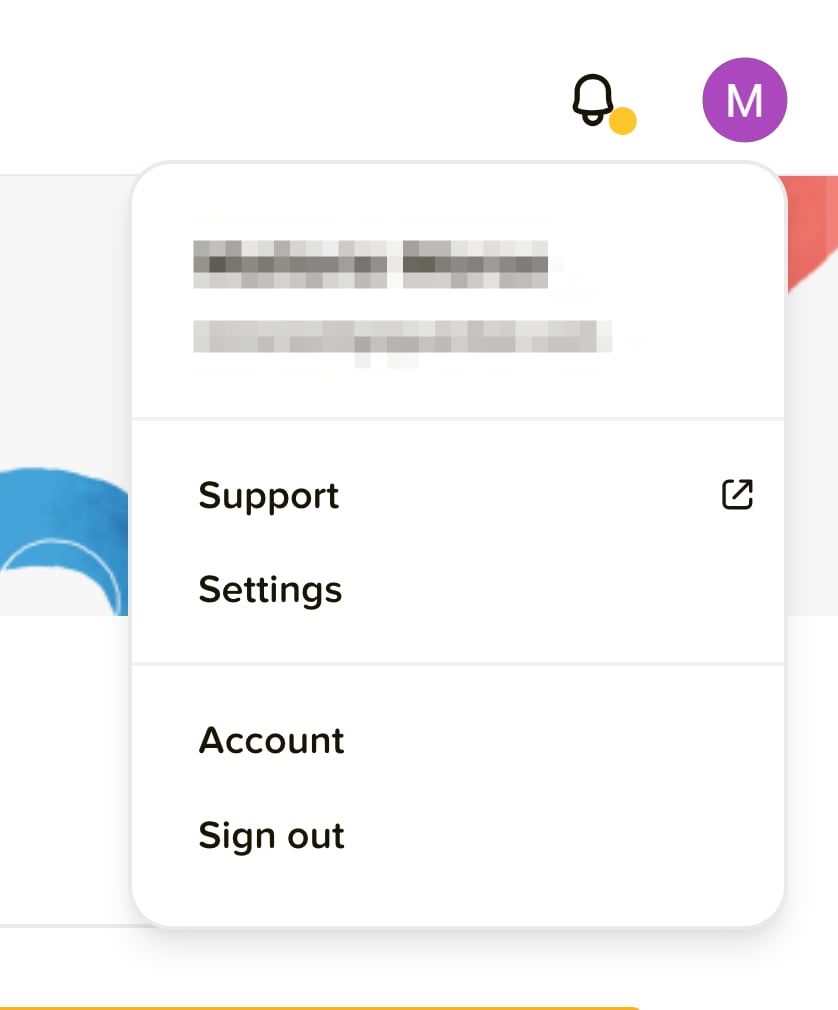
2. Click your person icon.
3. Go to the [Settings](/products/pear-deck/account-settings) tab.
4. Turn Google Classroom **On**.
 ## Invite Students from the Teacher Dashboard
With Google Classroom Integration enabled, you can invite students to join your Session from the Teacher Dashboard.
1. [Start your Pear Deck Session](/products/pear-deck/present-a-session).
2. Open the [Teacher Dashboard](/products/pear-deck/teacher-dashboard).
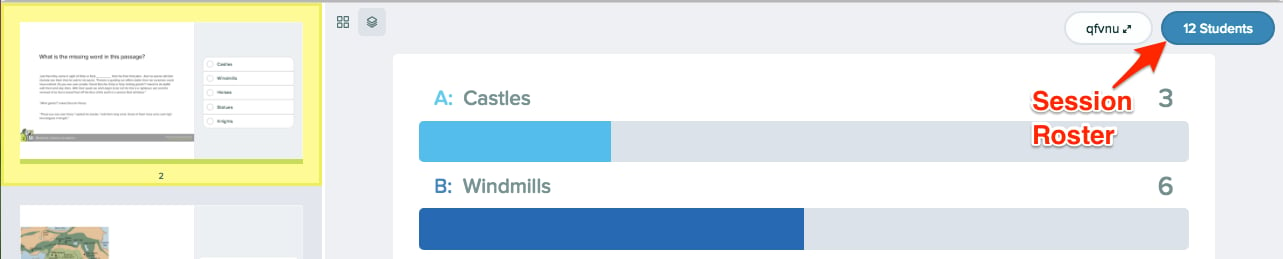
3. In the Dashboard, click the blue **Roster** button in the top-right corner of the screen.
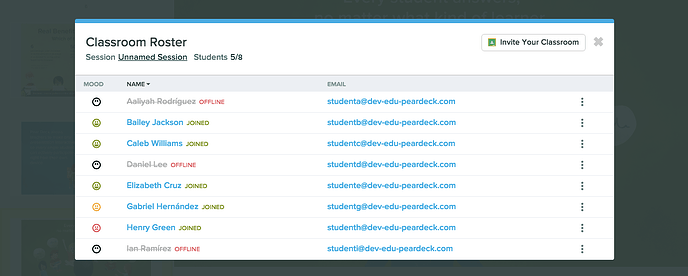
4. In the Roster, click **Invite Your Classroom**.
5. Choose the Google Classroom section you want to invite.
As students join, their names light up in the roster.
## Invite Students from the Teacher Dashboard
With Google Classroom Integration enabled, you can invite students to join your Session from the Teacher Dashboard.
1. [Start your Pear Deck Session](/products/pear-deck/present-a-session).
2. Open the [Teacher Dashboard](/products/pear-deck/teacher-dashboard).
3. In the Dashboard, click the blue **Roster** button in the top-right corner of the screen.
4. In the Roster, click **Invite Your Classroom**.
5. Choose the Google Classroom section you want to invite.
As students join, their names light up in the roster.

 ## Invite Students from the Projector View
You can also invite students directly from the Join Instructions screen in the Projector View of your Session.
1. [Start presenting](/products/pear-deck/present-a-session) your Session.
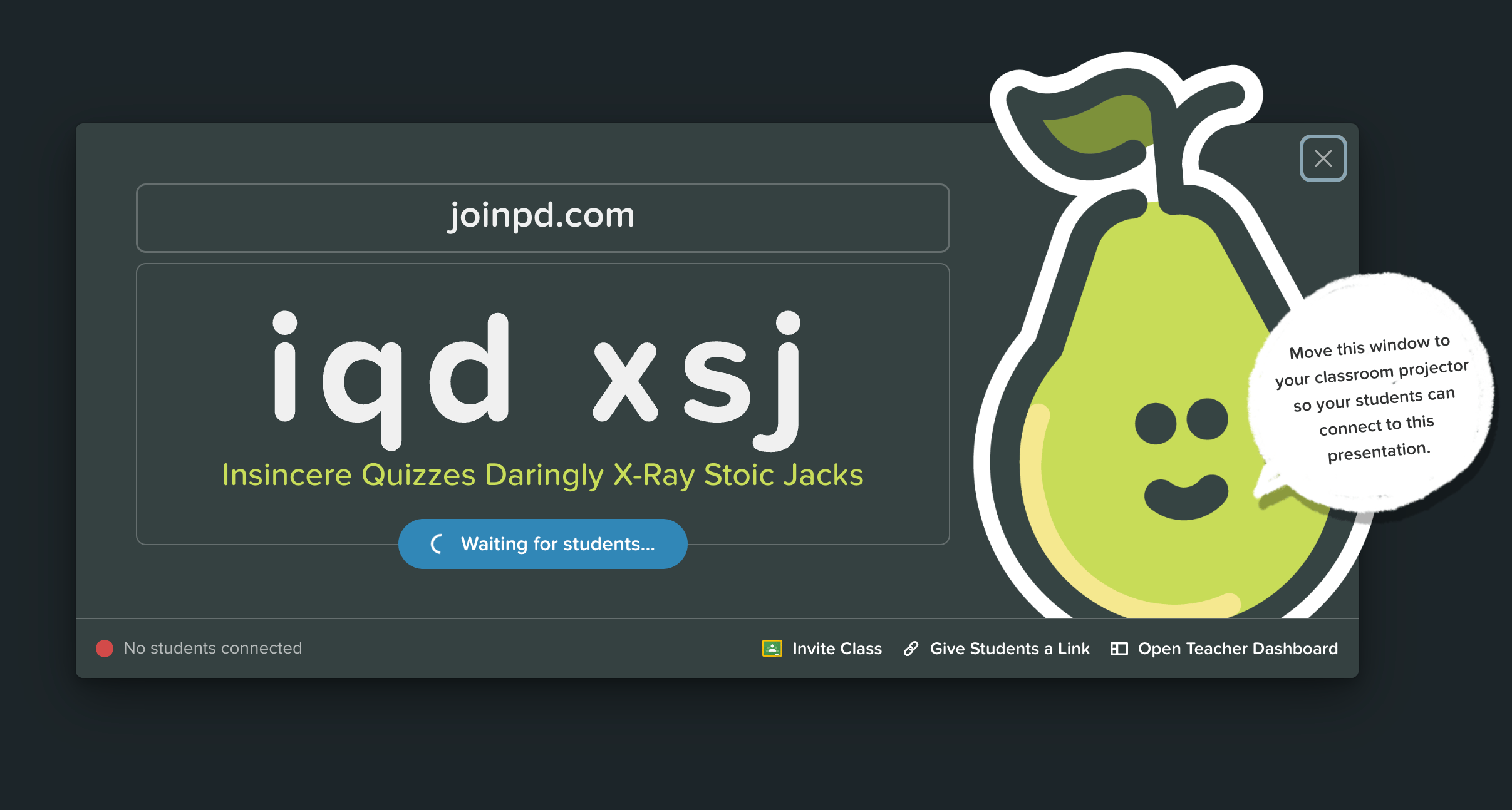
2. In the Join Instructions screen, click **Invite Class**.
Selecting **Invite Class** lets you pick a Google Classroom section to invite. To see the real-time Session roster, open the Teacher Dashboard.
## Invite Students from the Projector View
You can also invite students directly from the Join Instructions screen in the Projector View of your Session.
1. [Start presenting](/products/pear-deck/present-a-session) your Session.
2. In the Join Instructions screen, click **Invite Class**.
Selecting **Invite Class** lets you pick a Google Classroom section to invite. To see the real-time Session roster, open the Teacher Dashboard.
 ## What Students See
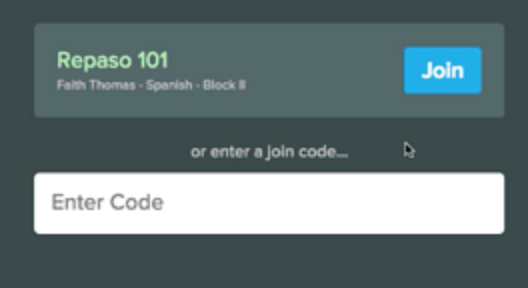
When students go to the Pear Deck join URL ([joinpd.com](http://joinpd.com/)), they see a list of any presentations they have been invited to recently. They can click **Join** to enter the Session.
If your Google Classroom roster is out of date or some students are not on it, students can still go to [joinpd.com](http://joinpd.com/) and enter the 6-letter Session Join Code.
## What Students See
When students go to the Pear Deck join URL ([joinpd.com](http://joinpd.com/)), they see a list of any presentations they have been invited to recently. They can click **Join** to enter the Session.
If your Google Classroom roster is out of date or some students are not on it, students can still go to [joinpd.com](http://joinpd.com/) and enter the 6-letter Session Join Code.
 ## Publish Takeaways to Google Classroom
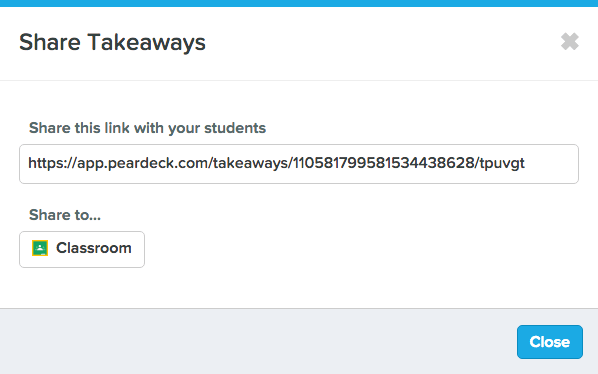
When Google Classroom Integration is enabled, you have the option to share the Takeaways link to your Google Classroom after you publish Takeaways.
1. At the end of your Session, open the Publish Takeaways window.
2. Click **Classroom** to share the link. The link is posted to Announcements.
When a student clicks the Takeaways share link, Pear Deck automatically identifies who is signed in with Google and gives that student access to their own Takeaway Doc only. The teacher can access all Docs from the Session.
For more on Takeaways, see [Use Takeaways to Extend Your Lesson](/products/pear-deck/use-takeaways).
## Publish Takeaways to Google Classroom
When Google Classroom Integration is enabled, you have the option to share the Takeaways link to your Google Classroom after you publish Takeaways.
1. At the end of your Session, open the Publish Takeaways window.
2. Click **Classroom** to share the link. The link is posted to Announcements.
When a student clicks the Takeaways share link, Pear Deck automatically identifies who is signed in with Google and gives that student access to their own Takeaway Doc only. The teacher can access all Docs from the Session.
For more on Takeaways, see [Use Takeaways to Extend Your Lesson](/products/pear-deck/use-takeaways).
 ## Resources
Navigate the Dashboard View to manage your Session roster and student responses in real time.
Publish and share personalized Takeaway Docs with students after a Session.
## Resources
Navigate the Dashboard View to manage your Session roster and student responses in real time.
Publish and share personalized Takeaway Docs with students after a Session.