> ## Documentation Index
> Fetch the complete documentation index at: https://docs.goguardian.com/llms.txt
> Use this file to discover all available pages before exploring further.
# Immersive Reader Integration
> Enable Microsoft Immersive Reader in Pear Deck to give students multilingual, multi-sensory reading support on every slide
Immersive Reader is available to all Pear Deck users. Students with learning differences often need extra time and individualized support during classroom activities. Using the right assistive technology can help these students become confident, independent learners who feel empowered to participate fully and share their ideas with their teachers and peers.
## What Is Immersive Reader?
Immersive Reader is a service developed by Microsoft that encourages reading and improves comprehension with a full set of proven literacy-enhancing features. With Immersive Reader, students can activate multi-sensory, multilingual learning techniques such as having text read aloud or translated into different languages, highlighting specific lines of text, changing fonts and sizes to improve readability, and visualizing word meanings through illustrations.
## Who Can Use It?
All Pear Deck users (including those who are Premium, on a trial of Premium, or on the Free plan) can enable this feature.
## Does It Work for Both Google Slides and PowerPoint?
Yes. Regardless of whether a teacher created a lesson in Google Slides or PowerPoint, the integration functions for the student as long as the teacher has it enabled.
## How Does It Work in Pear Deck?
First, enable Immersive Reader in your Pear Deck settings. Then, [present your lesson](/products/pear-deck/present-a-lesson) as usual. Students who join your session will automatically see the Immersive Reader button on every slide with readable text.
Immersive Reader renders text that is typed directly into your Google Slides or PowerPoint Online slides. It cannot render text from images or from the Multiple Choice options added via the Pear Deck Add-on or Add-in sidebar. To display multiple choice options or text from images in Immersive Reader, type the text or options in a text box on the slide.
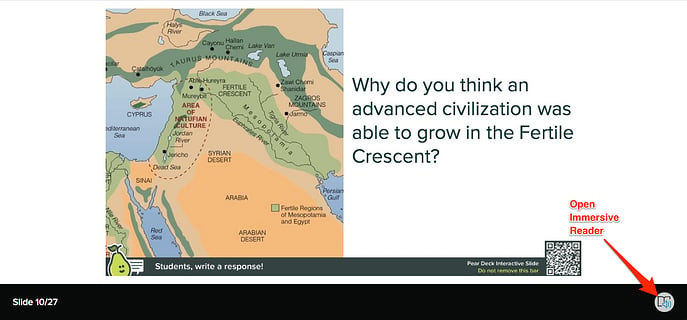
Here is what the Immersive Reader button looks like in the Student View:
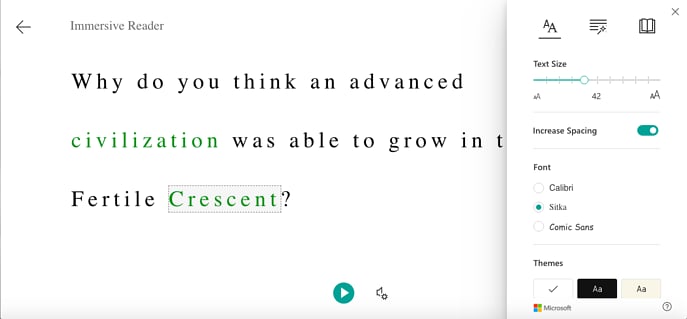
By clicking the button, students instantly access a host of tools to help them read the text on the slide. The tools include the option to have text read aloud, break text into syllables, increase spacing between lines and letters, highlight parts of speech, change text size, and more.
Students can click the back arrow at the top left of their screen to return to the regular slide view. [Learn more about Immersive Reader.](https://www.onenote.com/learningtools)
 ## How Do I Enable Immersive Reader?
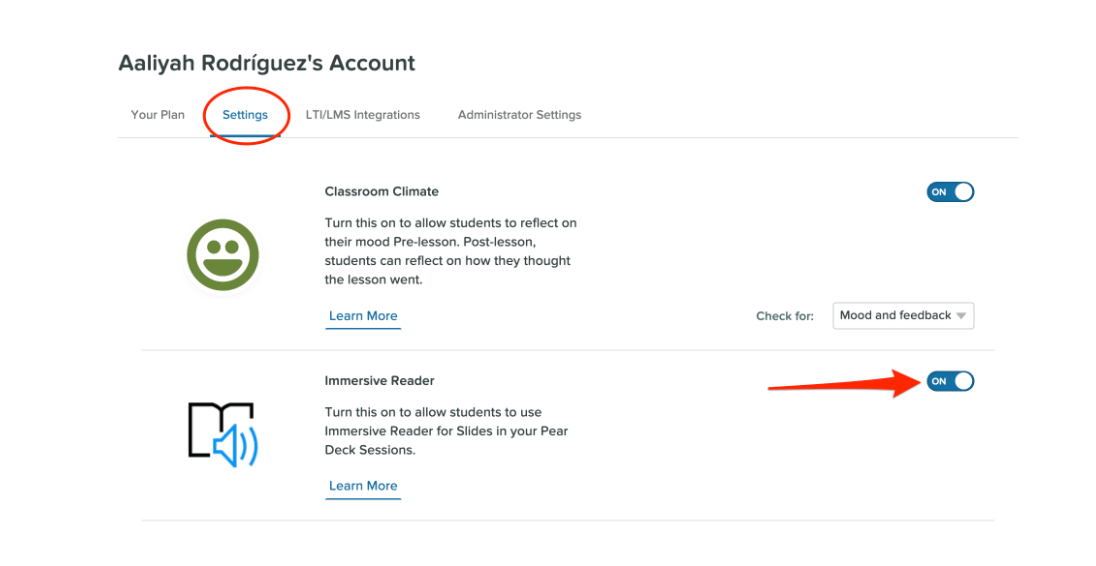
1. Go to your [Pear Deck Settings](https://app.peardeck.com/home/settings) page by navigating to **Pear Deck Home** → **My Account** → **Settings**.
2. Locate the Immersive Reader setting and turn it on.
This setting applies to all future sessions until you turn it off.
## How Do I Enable Immersive Reader?
1. Go to your [Pear Deck Settings](https://app.peardeck.com/home/settings) page by navigating to **Pear Deck Home** → **My Account** → **Settings**.
2. Locate the Immersive Reader setting and turn it on.
This setting applies to all future sessions until you turn it off.
 ## Does Immersive Reader Work in Student-Paced Mode?
Yes, Immersive Reader works in Student-Paced Mode.
## Can Students Open Immersive Reader with a Keyboard Only?
No. Students need to use a mouse, touchpad, or touch screen to activate Immersive Reader via the icon.
## Resources
Start and manage a live Pear Deck session with your class.
Learn how students join and interact with Pear Deck sessions.
## Does Immersive Reader Work in Student-Paced Mode?
Yes, Immersive Reader works in Student-Paced Mode.
## Can Students Open Immersive Reader with a Keyboard Only?
No. Students need to use a mouse, touchpad, or touch screen to activate Immersive Reader via the icon.
## Resources
Start and manage a live Pear Deck session with your class.
Learn how students join and interact with Pear Deck sessions.