> ## Documentation Index
> Fetch the complete documentation index at: https://docs.goguardian.com/llms.txt
> Use this file to discover all available pages before exploring further.
# Use Quick Prompts for Instant Engagement
> Launch interactive slide prompts on the fly to collect student responses during any lesson without a prepared presentation
Quick Prompts let you run GoGuardian Pear Deck's assessment and engagement tools without a prepared presentation. Select a ready-to-use interactive slide prompt, launch it mid-lesson, and every student responds on their own screen, just as they would in a full Pear Deck session. Responses save automatically for later review.
Quick Prompt activities require a Pear Deck [Premium](https://www.peardeck.com/pricing) subscription.
Quick Prompts work well for situations such as:
* Running a low-stakes pop quiz as a [retrieval practice](https://www.cultofpedagogy.com/retrieval-practice) tool
* Launching an entrance ticket as students arrive, or an exit ticket as they leave
* Opening a whole-class discussion when a student asks a question worth exploring together
## Launch a Quick Prompt
1. Open your Pear Deck [Home](https://app.peardeck.com/home).
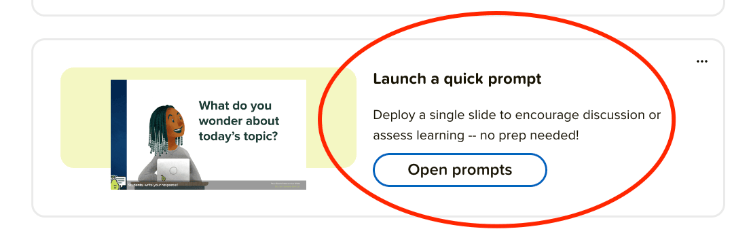
2. Scroll down and click **Open prompts**.
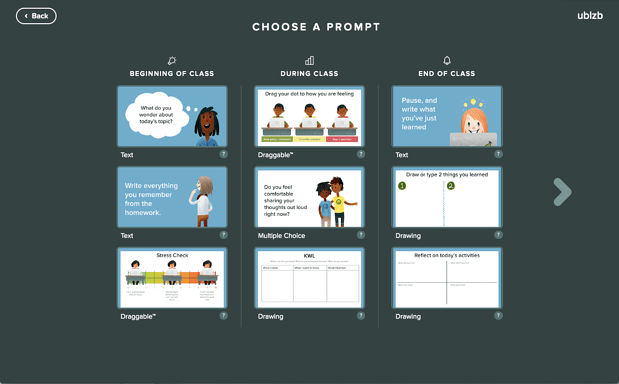
 3. Select one of the pre-made interactive slide prompts. Each prompt shows a preview and the interactive response type below it. Click the right arrow to browse the second page of options.
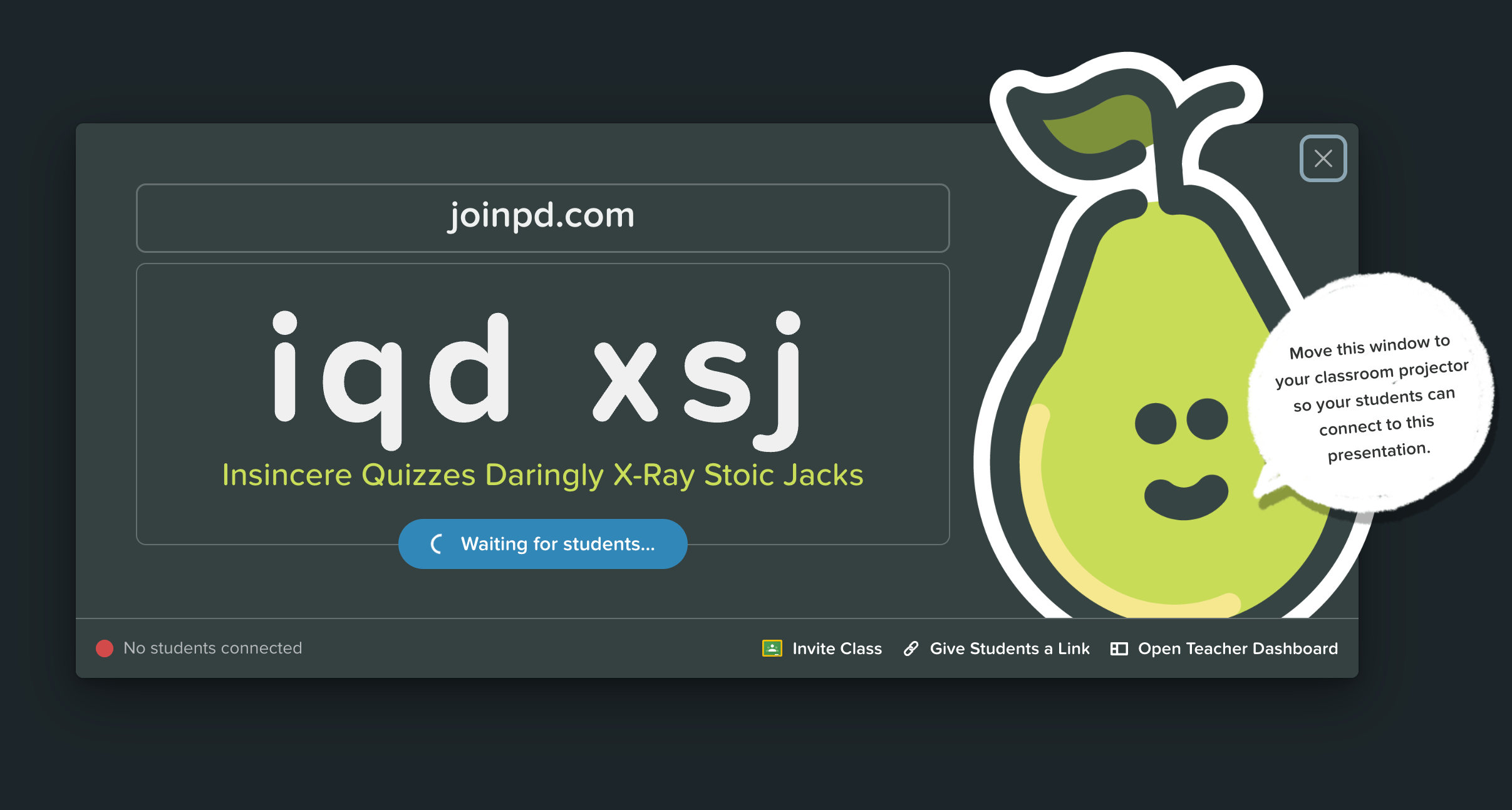
 4. A new Pear Deck session begins. To join, students go to [joinpd.com](http://joinpd.com/) and enter the Join Code. You can also click **Give Students a Link** and share the link through Google Classroom, Microsoft Teams, or any platform students can access. Students sign in with an email address or join anonymously with an avatar. You control this in your [Session Settings](/products/pear-deck/present-a-session).
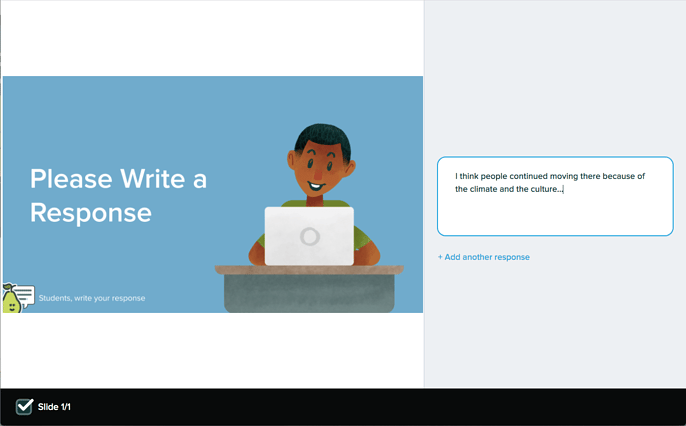
 5. Students respond on their own screens. The response format depends on the prompt type you selected.
 ## Review Responses
On your **Projector View**, the Navigation Bar at the bottom of the screen shows the number of responses received.
* Click **Show Responses** on your Projector View to display anonymized responses to the class.
* Click the three-dots button to open the private **Teacher Dashboard**, where responses appear with student names.
* Visit your [Sessions Menu](https://app.peardeck.com/home/sessions) to review responses from past Quick Prompt activities.
## Resources
Configure session settings, share join codes, and manage student access during a live Pear Deck session.
Install and use the Pear Deck Add-on to launch interactive presentations directly from Google Classroom.
## Review Responses
On your **Projector View**, the Navigation Bar at the bottom of the screen shows the number of responses received.
* Click **Show Responses** on your Projector View to display anonymized responses to the class.
* Click the three-dots button to open the private **Teacher Dashboard**, where responses appear with student names.
* Visit your [Sessions Menu](https://app.peardeck.com/home/sessions) to review responses from past Quick Prompt activities.
## Resources
Configure session settings, share join codes, and manage student access during a live Pear Deck session.
Install and use the Pear Deck Add-on to launch interactive presentations directly from Google Classroom.