> ## Documentation Index
> Fetch the complete documentation index at: https://docs.goguardian.com/llms.txt
> Use this file to discover all available pages before exploring further.
# Use the Shared Teacher Dashboard for Co-Teaching
> Invite co-teachers to your Pear Deck Session so they can view slides and student responses in real time
The Shared Teacher Dashboard lets you invite co-teachers and certified staff members to your Pear Deck Sessions, giving them full access to your presentation and your students' responses, in real time or after class. This feature is available to [Pear Deck Premium](https://www.peardeck.com/pricing) subscribers.
## Manage Your Shared Dashboard (Host)
### Invite a Co-Teacher
When you invite co-teachers to your Session, you remain in control of the lesson pace. In Instructor-Paced (Live) Mode, presentation slides are synchronized. If a co-teacher advances a slide, it advances for all co-teachers and students in the lesson. In Student-Paced Mode, screens are asynchronous, so advancing a slide on one screen does not affect anyone else's. See [How to Present a Pear Deck](/products/pear-deck/present-a-pear-deck) for more detail.
1. Start a new Session, or open a previous one from your [Sessions](https://app.peardeck.com/home/sessions) menu.
2. Open the [Teacher Dashboard](/products/pear-deck/the-teacher-dashboard).
3. Get the co-teacher invitation link using one of these two methods:
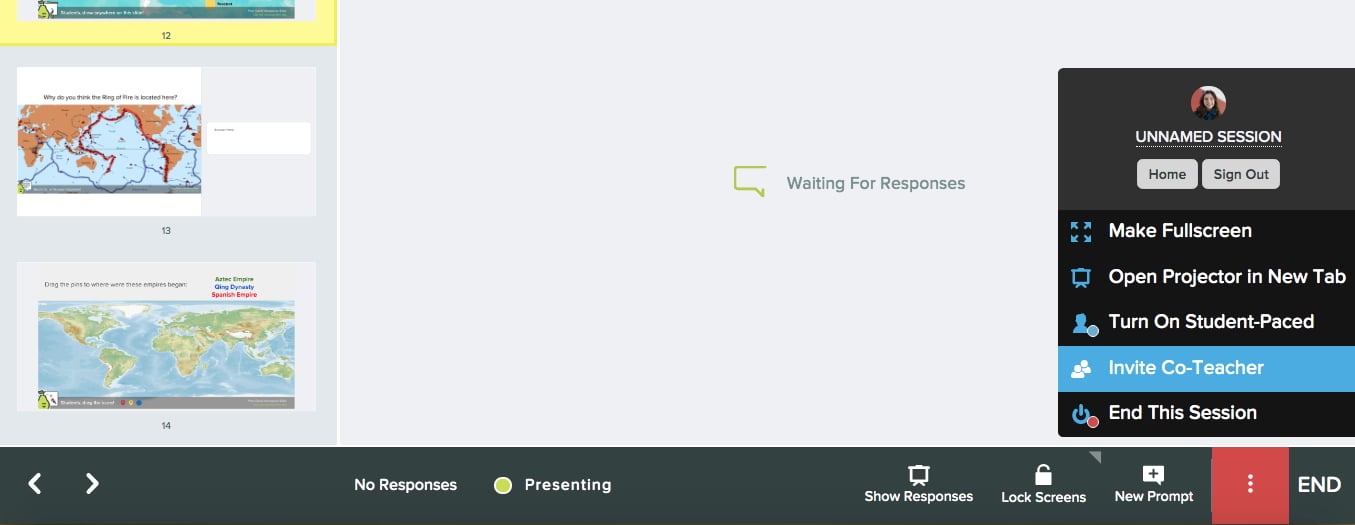 * Go to the Navigation Bar and select the **three-dots** button, then select **Invite Co-Teacher**.
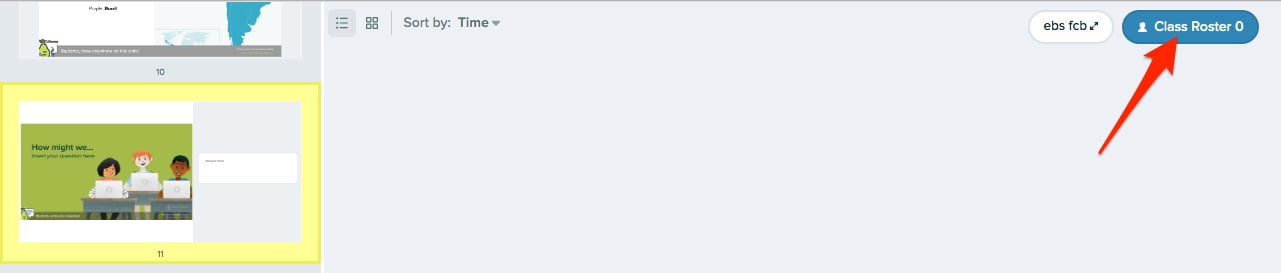
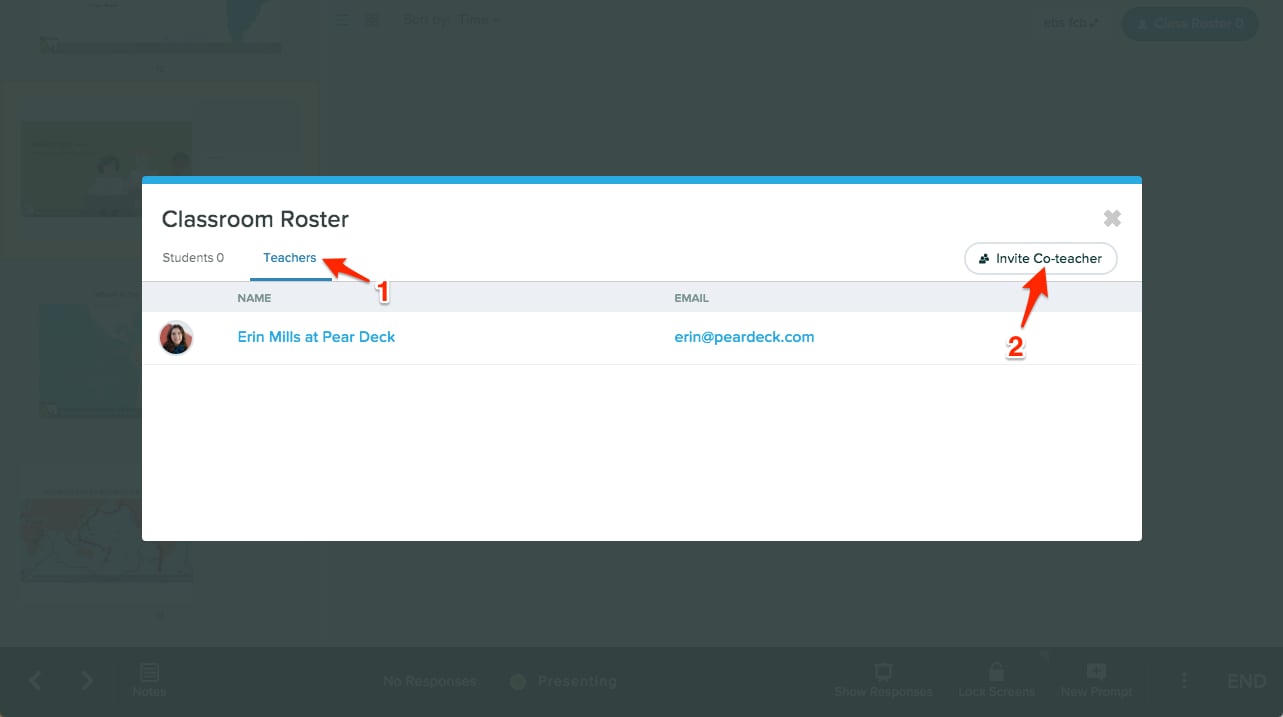
* Or select the **Class Roster** button.
* In the roster, select the **Teachers** tab, then select **Invite Co-Teacher**.
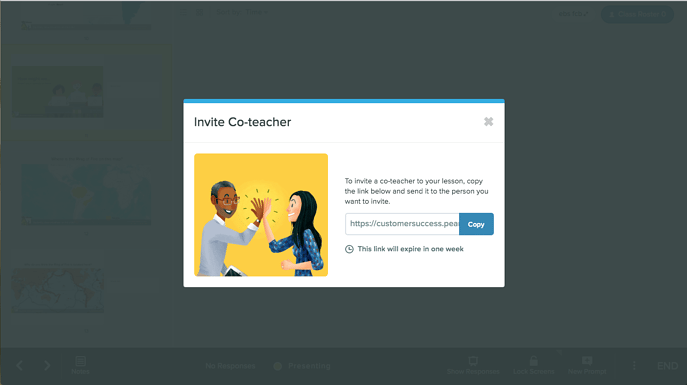
* The invitation window opens and displays the Shared Dashboard link. Select **Copy**. The link is copied to your clipboard. Paste and send it via email, your LMS, or a chat service to the colleagues you want to join your Session.
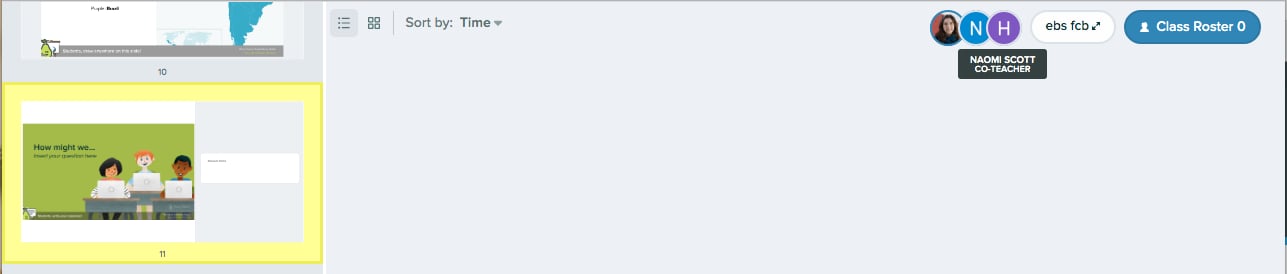
4. When another teacher joins your Session, their account avatar appears in the top-right corner of the Dashboard. Hover over the avatar to see their name. Open the Class Roster to see the full list of teachers who have joined.
* Go to the Navigation Bar and select the **three-dots** button, then select **Invite Co-Teacher**.
* Or select the **Class Roster** button.
* In the roster, select the **Teachers** tab, then select **Invite Co-Teacher**.
* The invitation window opens and displays the Shared Dashboard link. Select **Copy**. The link is copied to your clipboard. Paste and send it via email, your LMS, or a chat service to the colleagues you want to join your Session.
4. When another teacher joins your Session, their account avatar appears in the top-right corner of the Dashboard. Hover over the avatar to see their name. Open the Class Roster to see the full list of teachers who have joined.
 ### Block a Co-Teacher
Only users who have the invitation link can join your Session Dashboard. You can block anyone who has previously joined to revoke their access.
When you block someone, Pear Deck generates a new invitation link so the blocked teacher cannot use the old link to re-enter. Blocking a teacher does not affect other co-teachers currently in the Session. If your co-teachers need to re-enter later, share the newly generated link with them (see step 3 above).
1. Click **Class Roster** and go to the **Teachers** tab.
2. Click the **three-dots** button next to the teacher's name and select **Block from Session**.
### Block a Co-Teacher
Only users who have the invitation link can join your Session Dashboard. You can block anyone who has previously joined to revoke their access.
When you block someone, Pear Deck generates a new invitation link so the blocked teacher cannot use the old link to re-enter. Blocking a teacher does not affect other co-teachers currently in the Session. If your co-teachers need to re-enter later, share the newly generated link with them (see step 3 above).
1. Click **Class Roster** and go to the **Teachers** tab.
2. Click the **three-dots** button next to the teacher's name and select **Block from Session**.
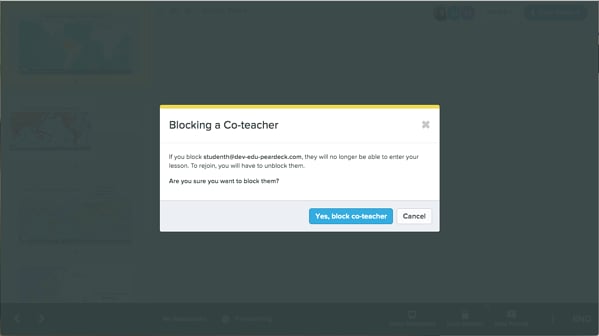
 3. Click **Yes, block co-teacher** to confirm, or click **Cancel** to exit.
 4. If you change your mind, return to the **Class Roster**, click the **Teachers** tab, and click the same three-dots button to unblock the teacher. Share the new invitation link with them when you do.
## Join a Shared Teacher Dashboard (Co-Teacher)
1. Select the link you received from the host teacher.
2. What you see next depends on your Pear Deck account status. You need [Pear Deck Premium](https://www.peardeck.com/pricing) access to join a shared Session:
* **Already signed in with a Premium account:** the co-teacher confirmation screen appears immediately.
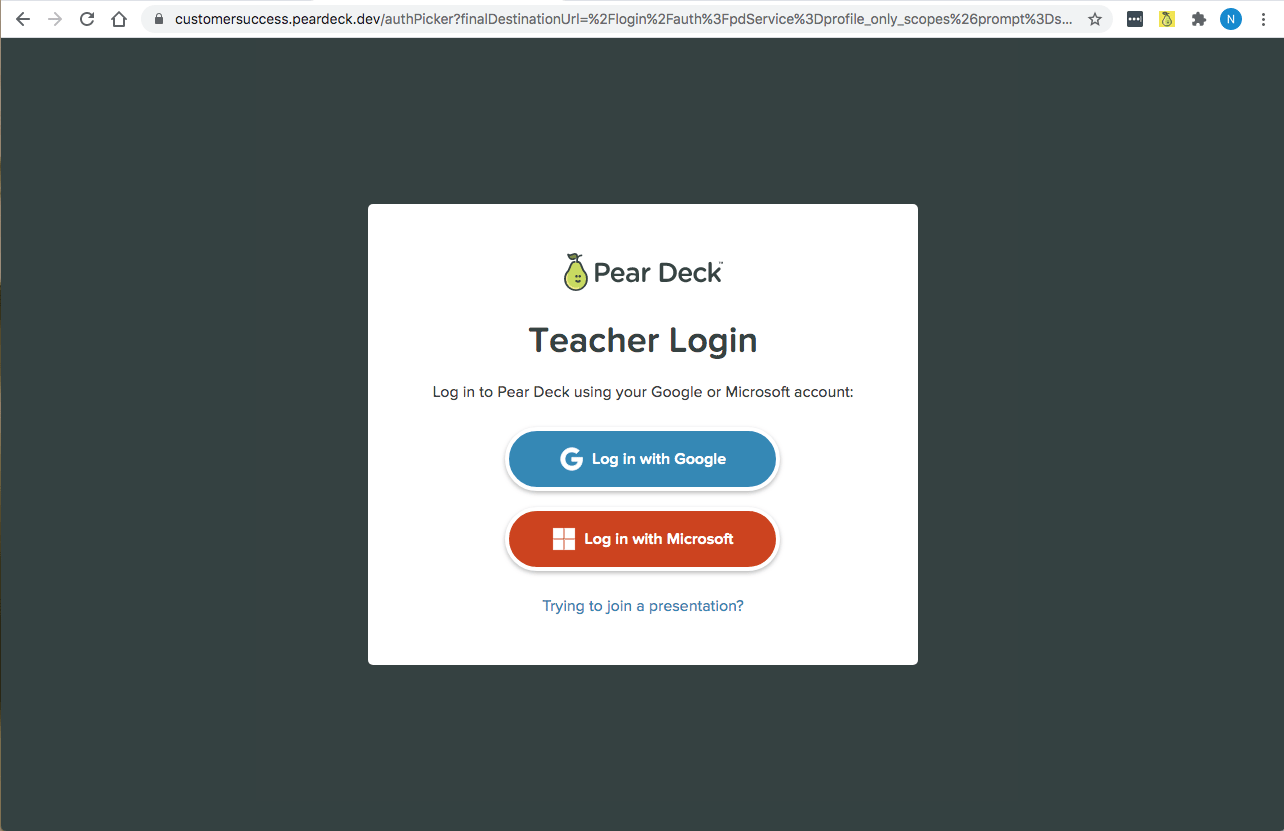
* **Not signed in, but have a Premium account:** you see an account type picker. Choose your account type, sign in, and enter the Session.
* **New to Pear Deck:** you are prompted to choose your account type and create a Pear Deck account. You receive instant access to a free 30-day trial of Pear Deck Premium. See [Create a Pear Deck Account](/products/pear-deck/create-a-pear-deck-account).
* **Free account (no Premium trial or subscription):** you cannot access the Shared Teacher Dashboard.
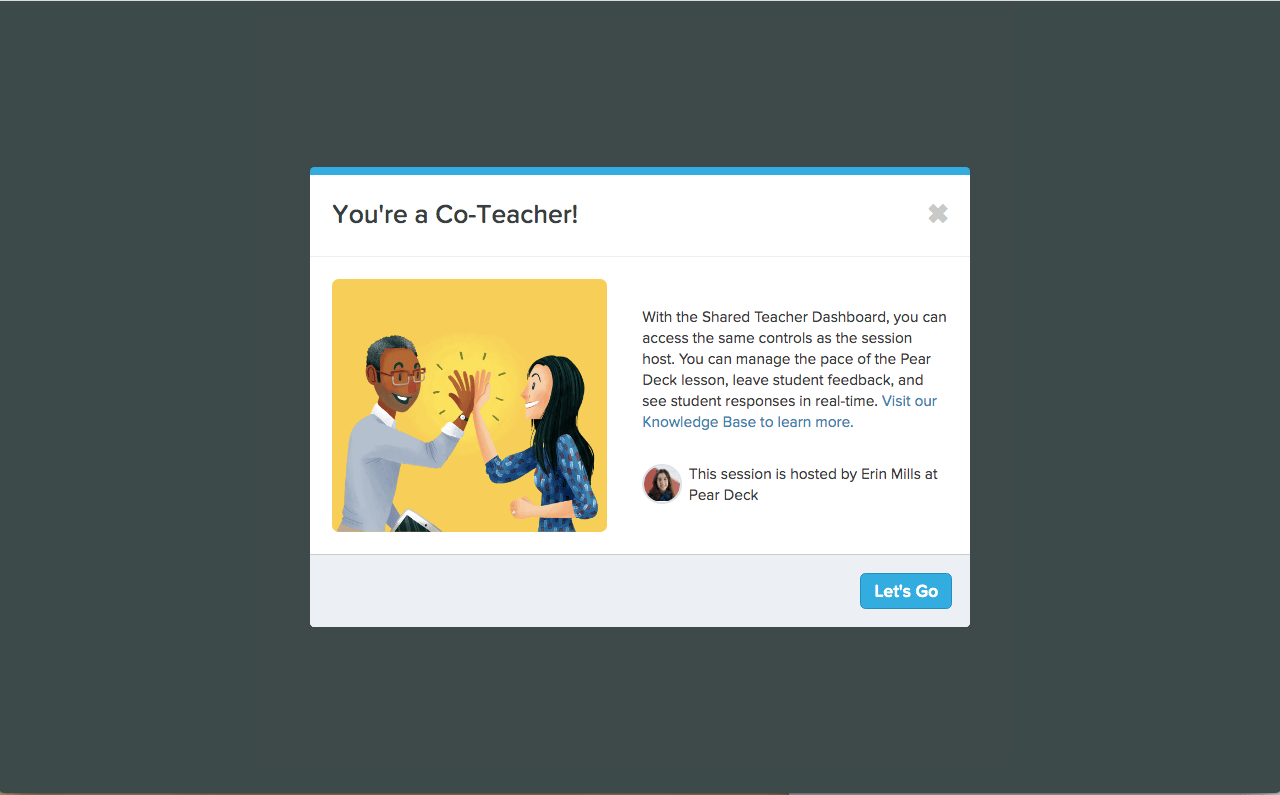
3. On the confirmation screen, select **Let's Go**. You now have access to the host teacher's Dashboard.
4. If you change your mind, return to the **Class Roster**, click the **Teachers** tab, and click the same three-dots button to unblock the teacher. Share the new invitation link with them when you do.
## Join a Shared Teacher Dashboard (Co-Teacher)
1. Select the link you received from the host teacher.
2. What you see next depends on your Pear Deck account status. You need [Pear Deck Premium](https://www.peardeck.com/pricing) access to join a shared Session:
* **Already signed in with a Premium account:** the co-teacher confirmation screen appears immediately.
* **Not signed in, but have a Premium account:** you see an account type picker. Choose your account type, sign in, and enter the Session.
* **New to Pear Deck:** you are prompted to choose your account type and create a Pear Deck account. You receive instant access to a free 30-day trial of Pear Deck Premium. See [Create a Pear Deck Account](/products/pear-deck/create-a-pear-deck-account).
* **Free account (no Premium trial or subscription):** you cannot access the Shared Teacher Dashboard.
3. On the confirmation screen, select **Let's Go**. You now have access to the host teacher's Dashboard.
 ## Frequently Asked Questions
### Do I Need a Pear Deck Premium Account to Add or Join a Shared Teacher Dashboard?
Yes to both. Only users with Pear Deck Premium (whether on a subscription or a trial) can be co-teachers. When you access a Session via a shared link for the first time, Pear Deck verifies your account. If you are new, Pear Deck creates an account and starts you on a free 30-day Premium trial. After the trial, you can upgrade your account or ask your school or district to purchase a license. [Learn more about upgrading](https://www.peardeck.com/pricing).
### Can Co-Teachers Do Everything the Host Teacher Can Do?
Co-teachers can access nearly all of the same Teacher Dashboard controls. The exception is that they cannot invite or block other teachers from your Dashboard.
Slide behavior also differs by mode: in Instructor-Paced (Live) Mode, Dashboard screens are synchronized. If a co-teacher advances a slide, it advances for everyone. In Student-Paced Mode, screens are asynchronous, so advancing a slide on one screen does not affect anyone else's.
### Can Co-Teachers Edit My Slides or Change the Prompts?
No. Giving a teacher access to the Shared Teacher Dashboard does not allow them to edit your slides. Editing slides during a live Session is not possible for anyone. You can edit slides before presenting, and you can give co-teachers edit access to your file in Google Slides or [PowerPoint Online](/products/pear-deck/share-a-pear-deck-with-microsoft-office-365) before the Session starts.
### Do Students See Which Teacher Left Teacher Feedback for Them?
Yes. The teacher's account name appears next to the feedback on the Student View.
### Can Co-Teachers Export Student Responses?
Yes (Google only). The exported sheet is automatically added to the co-teacher's Google Drive.
### Can Co-Teachers Publish Takeaways?
Yes (Google only). Both co-teachers and the host teacher can publish Takeaways. If two teachers publish Takeaways for the same Session, students receive two sets. If one teacher publishes them, the other teacher does not automatically have access to those files. They must be [shared manually in Google Drive](https://support.google.com/drive/answer/2494822). Takeaways are saved together in a new folder, so you can share the entire folder rather than sharing each student file individually.
### Is There a Limit to How Many Co-Teachers Can Join My Session?
There is no technical limit. However, co-teachers have access to nearly all Dashboard controls, so adding too many can be disruptive to your lesson. Keep the list as small as practical.
### How Do I Remove a Co-Teacher and Revoke Their Access Entirely?
Open the Class Roster, go to the **Teachers** tab, and block the individual. See [Block a Co-Teacher](#block-a-co-teacher) above for the precise steps. Blocking prevents that teacher from accessing your Dashboard unless you choose to unblock them later.
## Resources
Learn how to navigate and use the Pear Deck Teacher Dashboard during a Session.
Start a Session in Instructor-Paced or Student-Paced mode and manage it in real time.
## Frequently Asked Questions
### Do I Need a Pear Deck Premium Account to Add or Join a Shared Teacher Dashboard?
Yes to both. Only users with Pear Deck Premium (whether on a subscription or a trial) can be co-teachers. When you access a Session via a shared link for the first time, Pear Deck verifies your account. If you are new, Pear Deck creates an account and starts you on a free 30-day Premium trial. After the trial, you can upgrade your account or ask your school or district to purchase a license. [Learn more about upgrading](https://www.peardeck.com/pricing).
### Can Co-Teachers Do Everything the Host Teacher Can Do?
Co-teachers can access nearly all of the same Teacher Dashboard controls. The exception is that they cannot invite or block other teachers from your Dashboard.
Slide behavior also differs by mode: in Instructor-Paced (Live) Mode, Dashboard screens are synchronized. If a co-teacher advances a slide, it advances for everyone. In Student-Paced Mode, screens are asynchronous, so advancing a slide on one screen does not affect anyone else's.
### Can Co-Teachers Edit My Slides or Change the Prompts?
No. Giving a teacher access to the Shared Teacher Dashboard does not allow them to edit your slides. Editing slides during a live Session is not possible for anyone. You can edit slides before presenting, and you can give co-teachers edit access to your file in Google Slides or [PowerPoint Online](/products/pear-deck/share-a-pear-deck-with-microsoft-office-365) before the Session starts.
### Do Students See Which Teacher Left Teacher Feedback for Them?
Yes. The teacher's account name appears next to the feedback on the Student View.
### Can Co-Teachers Export Student Responses?
Yes (Google only). The exported sheet is automatically added to the co-teacher's Google Drive.
### Can Co-Teachers Publish Takeaways?
Yes (Google only). Both co-teachers and the host teacher can publish Takeaways. If two teachers publish Takeaways for the same Session, students receive two sets. If one teacher publishes them, the other teacher does not automatically have access to those files. They must be [shared manually in Google Drive](https://support.google.com/drive/answer/2494822). Takeaways are saved together in a new folder, so you can share the entire folder rather than sharing each student file individually.
### Is There a Limit to How Many Co-Teachers Can Join My Session?
There is no technical limit. However, co-teachers have access to nearly all Dashboard controls, so adding too many can be disruptive to your lesson. Keep the list as small as practical.
### How Do I Remove a Co-Teacher and Revoke Their Access Entirely?
Open the Class Roster, go to the **Teachers** tab, and block the individual. See [Block a Co-Teacher](#block-a-co-teacher) above for the precise steps. Blocking prevents that teacher from accessing your Dashboard unless you choose to unblock them later.
## Resources
Learn how to navigate and use the Pear Deck Teacher Dashboard during a Session.
Start a Session in Instructor-Paced or Student-Paced mode and manage it in real time.