> ## Documentation Index
> Fetch the complete documentation index at: https://docs.goguardian.com/llms.txt
> Use this file to discover all available pages before exploring further.
# Use Teacher Feedback
> Leave comments on individual student responses from the Teacher Dashboard. Students see feedback in real time in their Student View.
Teacher Feedback lets you leave comments on individual student responses from the Teacher Dashboard. Students receive feedback immediately in their Student View — during active Instructor-Paced or Student-Paced sessions. Teacher Feedback is a Premium feature and requires students to join with email sign-in so responses are attributed to names.

 ## Leave Feedback on a Response
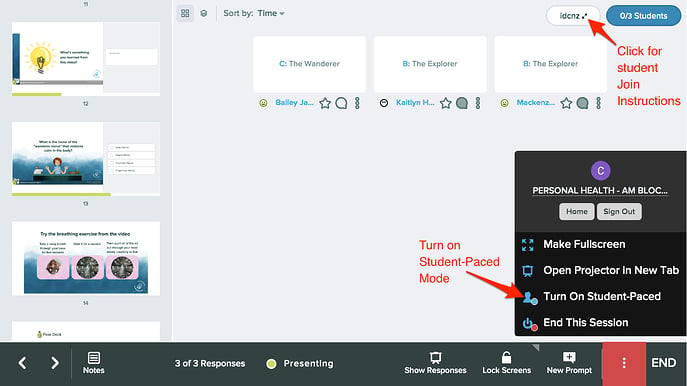
1. Open the [Teacher Dashboard](/products/pear-deck/use-the-teacher-dashboard) during an active session.
2. Navigate to an interactive slide with responses. You can leave feedback on Drawing, Draggable, Text, Number, and Multiple Choice responses.
3. Select **List** or **Grid** from the layout options at the top of the Dashboard.
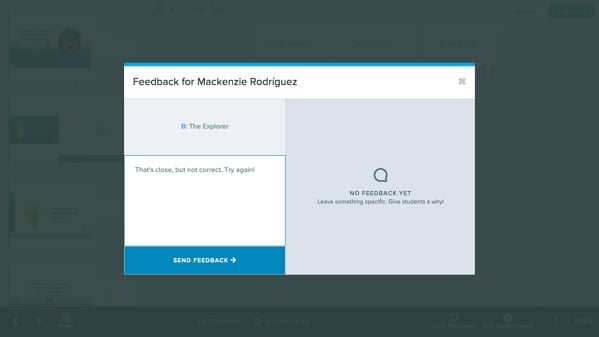
4. Find the student response you want to comment on and click the **Feedback** button below the response.
5. In the feedback modal, enter your comment.
Feedback cannot be deleted after it is sent. Review your comment before clicking **Send Feedback**.
6. Click **Send Feedback**. The feedback saves automatically with a date and time stamp.
## Leave Feedback on a Response
1. Open the [Teacher Dashboard](/products/pear-deck/use-the-teacher-dashboard) during an active session.
2. Navigate to an interactive slide with responses. You can leave feedback on Drawing, Draggable, Text, Number, and Multiple Choice responses.
3. Select **List** or **Grid** from the layout options at the top of the Dashboard.
4. Find the student response you want to comment on and click the **Feedback** button below the response.
5. In the feedback modal, enter your comment.
Feedback cannot be deleted after it is sent. Review your comment before clicking **Send Feedback**.
6. Click **Send Feedback**. The feedback saves automatically with a date and time stamp.
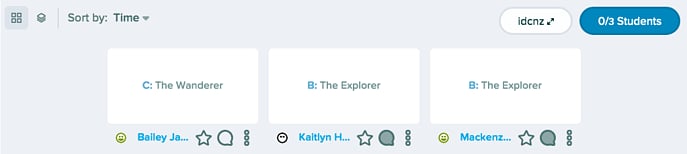 7. Verify the result: The **Feedback** button turns grey to indicate feedback exists for that student on the current slide. Students who are in an active session see a notification in their Student View immediately.
## Review or Add to Existing Feedback
1. Open the Teacher Dashboard and navigate to the slide with existing feedback.
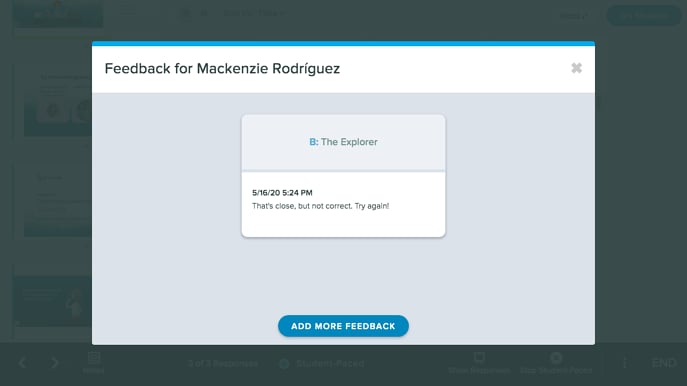
2. Click the **Feedback** button on a response where feedback has already been sent. The button appears grey when feedback exists.
3. In the modal, review your previous comment.
4. Click **Add More Feedback** to leave an additional comment.
5. Click **Send Feedback** to save the new comment.
## View Feedback as a Student
Students access Teacher Feedback from their Student View:
1. Join the session using a Join Code at [joinpd.com](https://app.peardeck.com/join) or the Join Link.
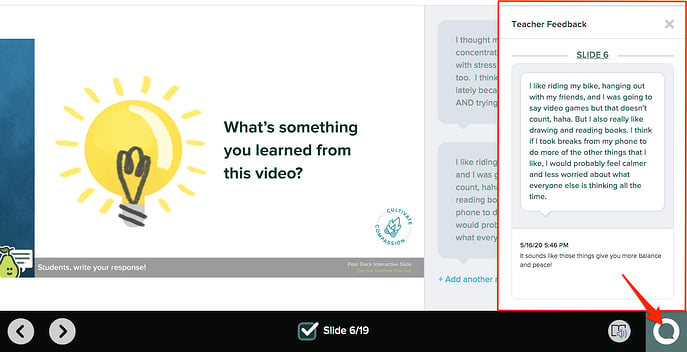
2. When feedback is available, a **Feedback** notification appears in the lower-right corner of the Student View. Click the notification to read the comment.
3. After reading the feedback, click **Mark as Read** to dismiss the notification. The feedback remains saved and can be accessed again at any time by clicking the **Feedback** button on that slide.
**When students see feedback by session mode:**
* **Student-Paced sessions:** The Feedback button appears on every slide that has feedback, as long as the session is active.
* **Instructor-Paced sessions:** The Feedback button appears only when the teacher navigates to a slide with feedback on the Projector View.
7. Verify the result: The **Feedback** button turns grey to indicate feedback exists for that student on the current slide. Students who are in an active session see a notification in their Student View immediately.
## Review or Add to Existing Feedback
1. Open the Teacher Dashboard and navigate to the slide with existing feedback.
2. Click the **Feedback** button on a response where feedback has already been sent. The button appears grey when feedback exists.
3. In the modal, review your previous comment.
4. Click **Add More Feedback** to leave an additional comment.
5. Click **Send Feedback** to save the new comment.
## View Feedback as a Student
Students access Teacher Feedback from their Student View:
1. Join the session using a Join Code at [joinpd.com](https://app.peardeck.com/join) or the Join Link.
2. When feedback is available, a **Feedback** notification appears in the lower-right corner of the Student View. Click the notification to read the comment.
3. After reading the feedback, click **Mark as Read** to dismiss the notification. The feedback remains saved and can be accessed again at any time by clicking the **Feedback** button on that slide.
**When students see feedback by session mode:**
* **Student-Paced sessions:** The Feedback button appears on every slide that has feedback, as long as the session is active.
* **Instructor-Paced sessions:** The Feedback button appears only when the teacher navigates to a slide with feedback on the Projector View.

 ## FAQ
### Can Students Respond to Teacher Feedback?
Students cannot reply directly through Teacher Feedback. However, students can leave a new response on a Text Response slide — either by updating their original answer or clicking **+ Add another response** to add a second text response.
### Can I Export or Publish Teacher Feedback?
Teacher Feedback cannot be exported or included in Takeaways. It is included in Reflect and Review — share the [Reflect and Review](/products/pear-deck/use-reflect-and-review) link with students so they can access a closed version of the slides, their responses, and any feedback you left.
### Can I Delete Feedback I Have Already Sent?
No. Once feedback is sent, it cannot be deleted.
### The Feedback Button Is Not Visible in My Dashboard. Why?
The session is closed. Reopen it in Instructor-Paced or Student-Paced mode from the Navigation bar's **More Actions** menu or from your [Sessions](https://app.peardeck.com/home/sessions) page to enable Teacher Feedback.
### How Do Students Know They Received Feedback?
Students see a notification in the lower-right corner of their Student View when they are in an active session and navigate to a slide with feedback. Outside of the session, students can access feedback through [Reflect and Review](/products/pear-deck/use-reflect-and-review). You can also inform students directly — through a class message or post — that feedback is waiting for them.
## Resources
View student responses, highlight or hide answers, and control the Projector View during a session.
Share a closed version of the session so students can review their responses and any Teacher Feedback.
## FAQ
### Can Students Respond to Teacher Feedback?
Students cannot reply directly through Teacher Feedback. However, students can leave a new response on a Text Response slide — either by updating their original answer or clicking **+ Add another response** to add a second text response.
### Can I Export or Publish Teacher Feedback?
Teacher Feedback cannot be exported or included in Takeaways. It is included in Reflect and Review — share the [Reflect and Review](/products/pear-deck/use-reflect-and-review) link with students so they can access a closed version of the slides, their responses, and any feedback you left.
### Can I Delete Feedback I Have Already Sent?
No. Once feedback is sent, it cannot be deleted.
### The Feedback Button Is Not Visible in My Dashboard. Why?
The session is closed. Reopen it in Instructor-Paced or Student-Paced mode from the Navigation bar's **More Actions** menu or from your [Sessions](https://app.peardeck.com/home/sessions) page to enable Teacher Feedback.
### How Do Students Know They Received Feedback?
Students see a notification in the lower-right corner of their Student View when they are in an active session and navigate to a slide with feedback. Outside of the session, students can access feedback through [Reflect and Review](/products/pear-deck/use-reflect-and-review). You can also inform students directly — through a class message or post — that feedback is waiting for them.
## Resources
View student responses, highlight or hide answers, and control the Projector View during a session.
Share a closed version of the session so students can review their responses and any Teacher Feedback.