> ## Documentation Index
> Fetch the complete documentation index at: https://docs.goguardian.com/llms.txt
> Use this file to discover all available pages before exploring further.
# Use the Timer and Lock Screens
> Control lesson pacing in Instructor-Led sessions using the Lock button and Lock Slide Timer
Pear Deck provides a Lock button and a Lock Slide Timer to help you control the pacing of Instructor-Led lessons. Clicking the Lock button once immediately locks student screens so students cannot change their answers. Holding the Lock button lets you set a countdown timer before screens lock automatically. Use these controls to keep students focused on Projector View, prevent distraction from [Drawing and Draggable](/products/pear-deck/five-interactive-question-types) tools, and stop answer changes after you display responses.
## Lock a Slide
1. Hover over the bottom of your Projector or Dashboard View to open the Navigation Bar.
2. Click the **Lock Screens** button once.
 3. Student screens are now locked and students cannot change their answers.
## Set the Lock Slide Timer on a Slide
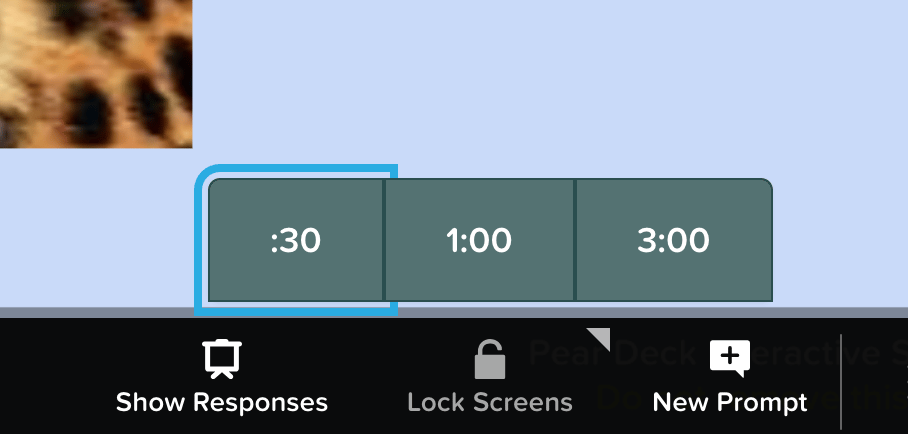
1. Hover over the Navigation Bar, then click and hold the **Lock** button to engage the timer.
2. Select a duration: **:30**, **1:00**, or **3:00**.
3. The timer begins counting down. Students can see the remaining time on their screens.
4. When the timer reaches zero, student screens lock automatically and students can no longer respond.
3. Student screens are now locked and students cannot change their answers.
## Set the Lock Slide Timer on a Slide
1. Hover over the Navigation Bar, then click and hold the **Lock** button to engage the timer.
2. Select a duration: **:30**, **1:00**, or **3:00**.
3. The timer begins counting down. Students can see the remaining time on their screens.
4. When the timer reaches zero, student screens lock automatically and students can no longer respond.
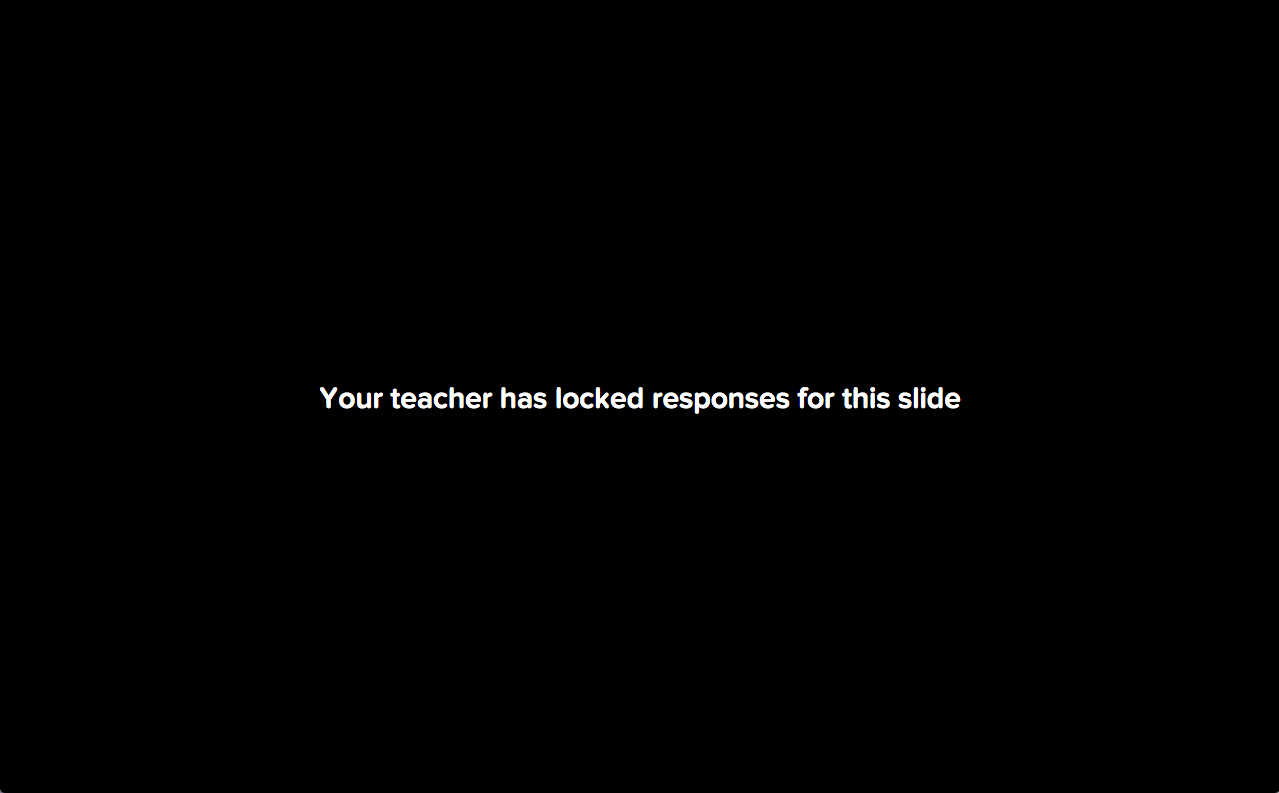 To give students more time, click the **Lock** button again to unlock screens. To restart the countdown, press and hold the **Lock** button again to reset the timer.
 ## Resources
Learn about Drawing, Draggable, and the other interactive question types available in Pear Deck.
Walk through starting and managing a live Instructor-Led Pear Deck session.
## Resources
Learn about Drawing, Draggable, and the other interactive question types available in Pear Deck.
Walk through starting and managing a live Instructor-Led Pear Deck session.