> ## Documentation Index
> Fetch the complete documentation index at: https://docs.goguardian.com/llms.txt
> Use this file to discover all available pages before exploring further.
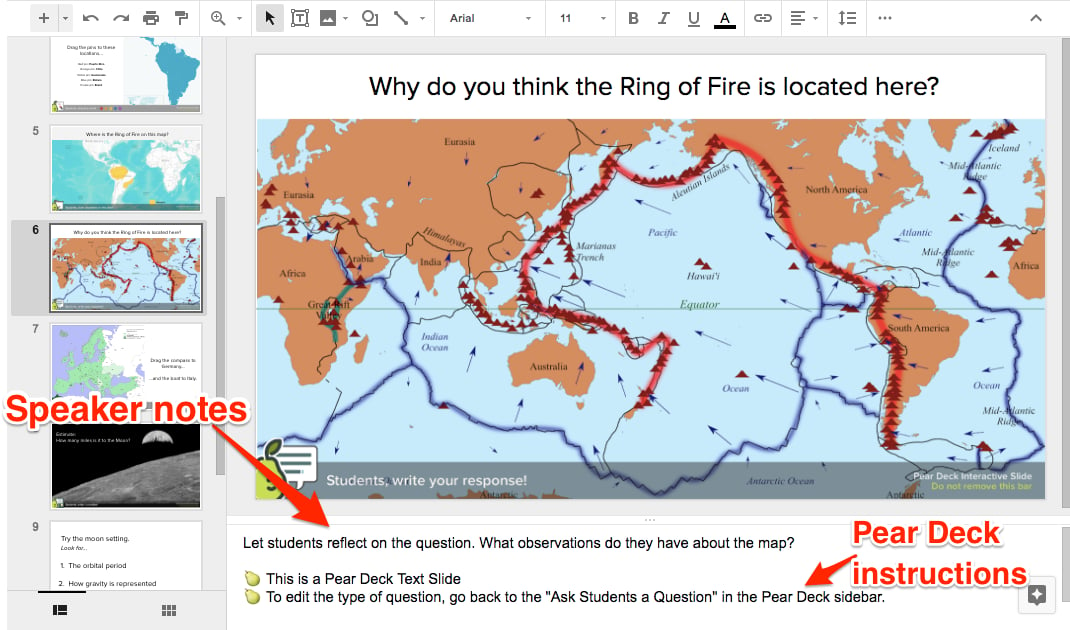
# View Speaker Notes
> Access your Google Slides speaker notes from the Projector View and Teacher Dashboard during a Pear Deck session
When you use the Pear Deck for Google Slides Add-on to present your lesson, your speaker notes from Google Slides are accessible from both the Projector View and the private Teacher Dashboard (Premium required). You can walk around the classroom with a tablet, keep an eye on your presenter notes, control the slides, and see student responses in real time.
## Find Speaker Notes in Google Slides
1. Install the [Pear Deck for Google Slides Add-on](https://chrome.google.com/webstore/detail/pear-deck/amfkiahebibbkifgdjdfplkjohlgfdgg).
2. Edit your slides in the Google Slides editor.
3. Open the Pear Deck Add-on to insert Interactive Slides and Formative Assessments into your presentation.
* Optional: Add notes to the Speaker Notes section beneath the slide. Pear Deck inserts slide instructions into the Speaker Notes section as well, but these notes will not appear in your presentation.
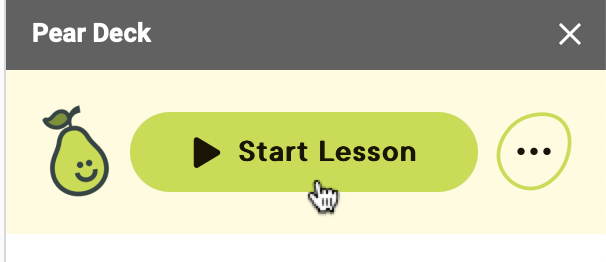
4. When you're ready to present, open the Pear Deck Add-on and click **Start Lesson**.
5. During the presentation session, the **Notes** button appears on the Navigation Bar.
6. Open and close your notes by clicking the **Notes** button. You can open them on both the Projector View and the Teacher Dashboard.
 ## Resources
Answers to common questions about Pear Deck features and settings.
Learn how to launch a Pear Deck session from Google Slides.
## Resources
Answers to common questions about Pear Deck features and settings.
Learn how to launch a Pear Deck session from Google Slides.