> ## Documentation Index
> Fetch the complete documentation index at: https://docs.goguardian.com/llms.txt
> Use this file to discover all available pages before exploring further.
# Approve Pear Practice as a Third-Party App in Google Workspace
> Approve Pear Practice as a trusted third-party app in Google Workspace so students can sign i in.
In Google Workspace, your administrator can add Pear Practice as a trusted third-party app to allow students to sign in. [Workspace policy](https://support.google.com/a/answer/13288950?hl=en) requires that Pear Practice is trusted for accounts whose users are 18 or younger. Users under 18 cannot sign into Pear Practice if the app is not trusted.
For more information about Workspace third-party app access, refer to Google's resources:
* [Third-party app access enhancements](https://workspaceupdates.googleblog.com/2023/08/third-party-app-access-enhancements-for-google-workspace-edu.html)
* [Manage access to unconfigured third-party apps for users under 18](https://support.google.com/a?p=under18-third-party-apps-access)
* [How to configure third-party app access in bulk](https://support.google.com/a/answer/12653991?hl=en\&ref_topic=10021546\&sjid=761531526352746196-NA)
## Approve Pear Practice as a Third-Party App
Use these steps if Pear Practice is already listed in Workspace as an app awaiting approval. If you do not see Pear Practice listed, skip to [Add Pear Practice Manually](#add-pear-practice-as-a-third-party-app-manually).
1. Visit [admin.google.com](https://admin.google.com).
2. Sign in with an administrator account.
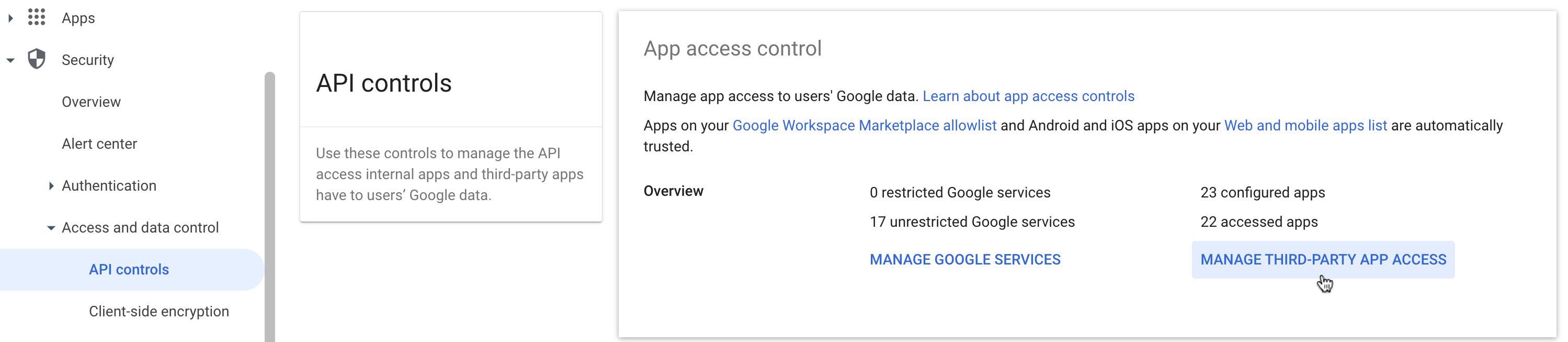
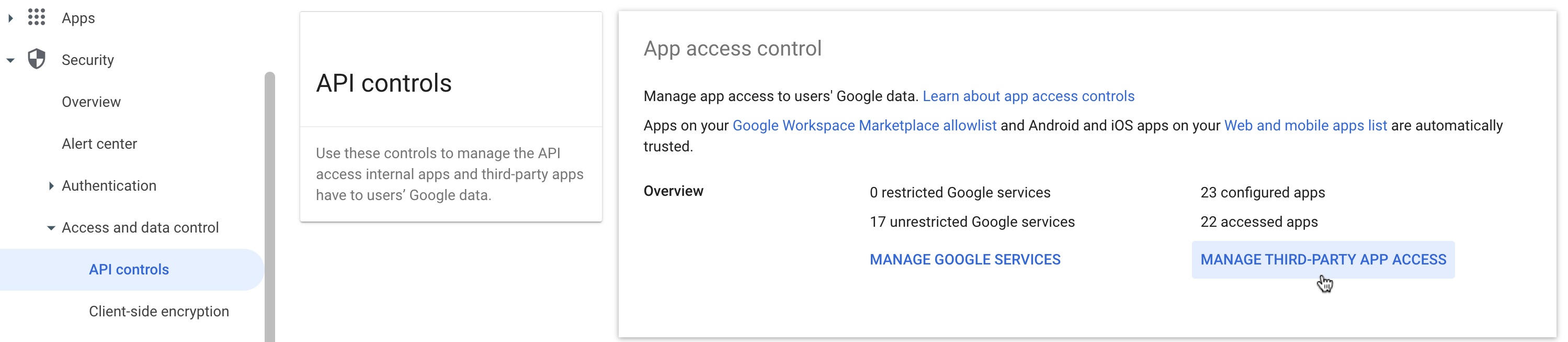
3. In the sidebar, click **Security** > **Access and data control** > **API controls**.
4. Click **Manage Third-Party Access**.
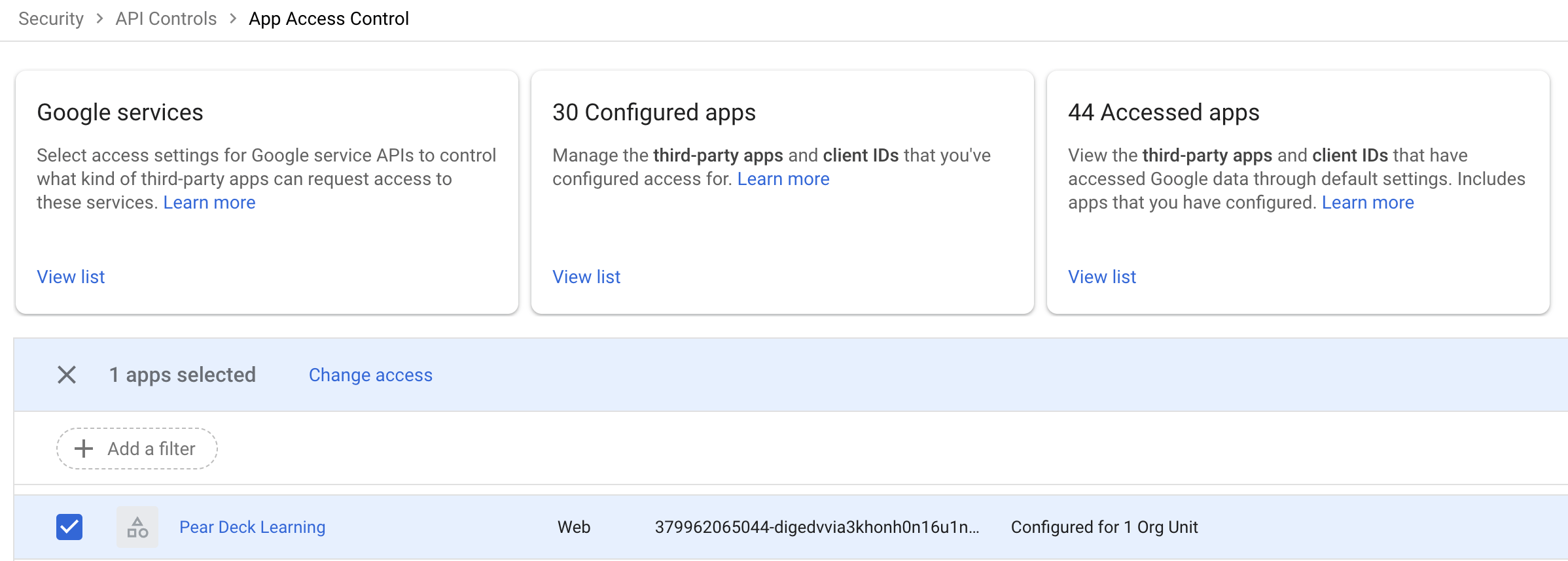
5. Under **Configured apps**, click **Add a filter** > **App name**.
6. Enter `Pear Deck Learning` and click **Apply**.
7. Select **Pear Deck Learning** and click **Change access**.
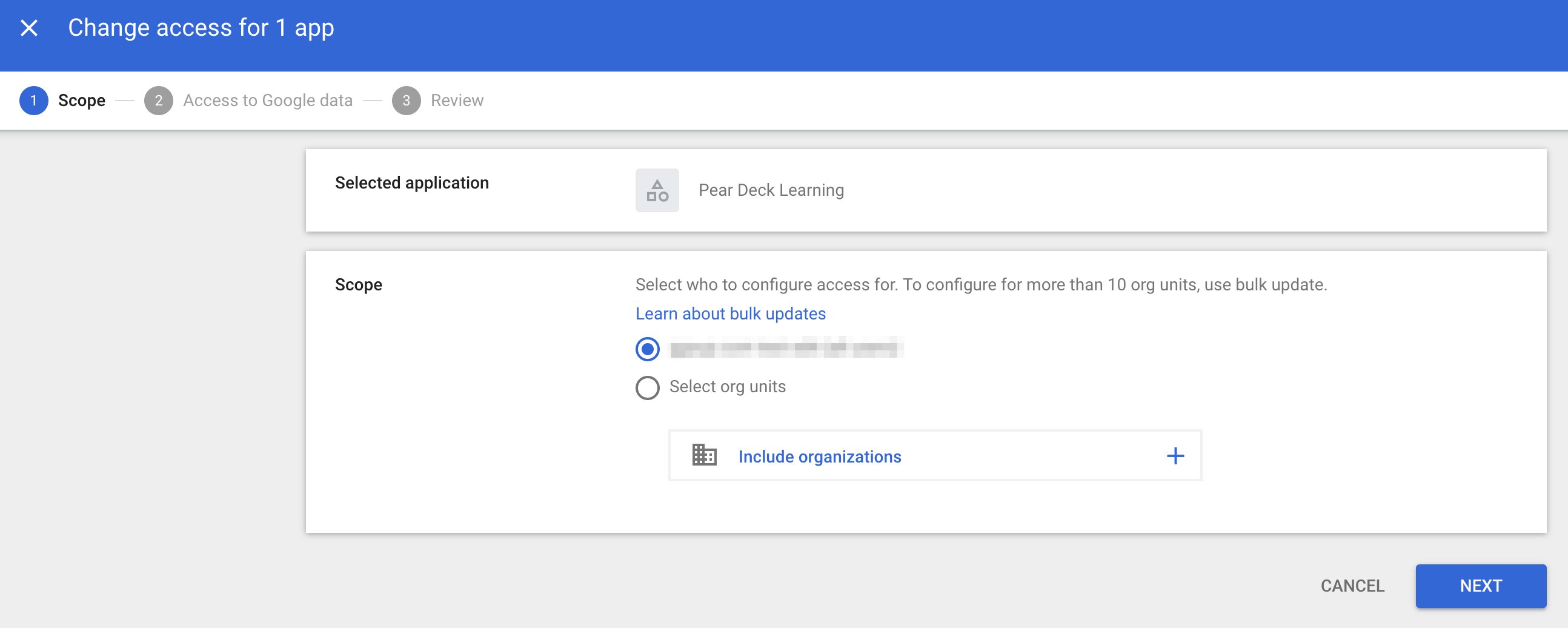
8. For **Scope**, select your root organizational unit (OU) or a specific OU that hosts student accounts. GoGuardian recommends the root OU.
9. Click **Continue**.
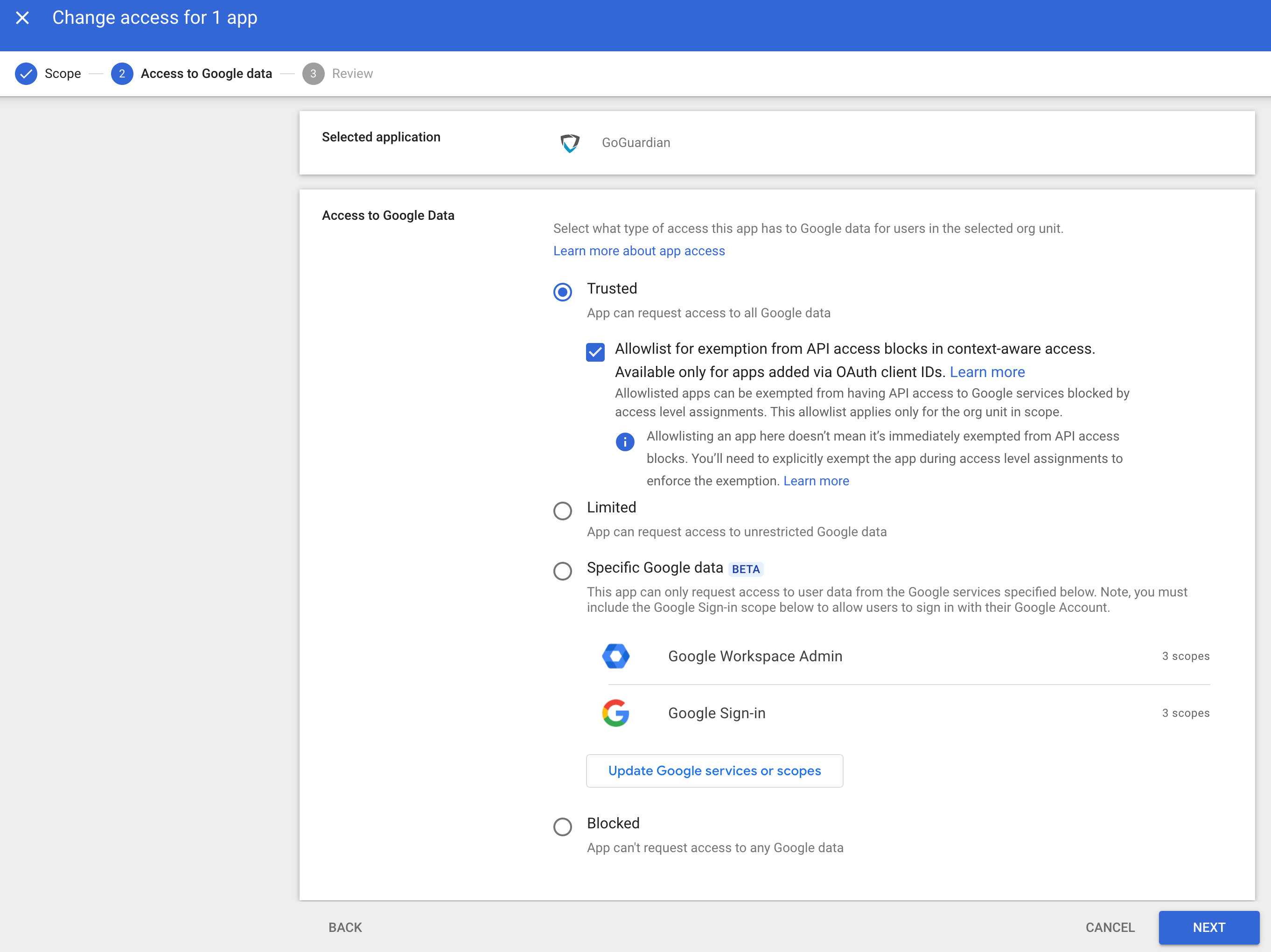
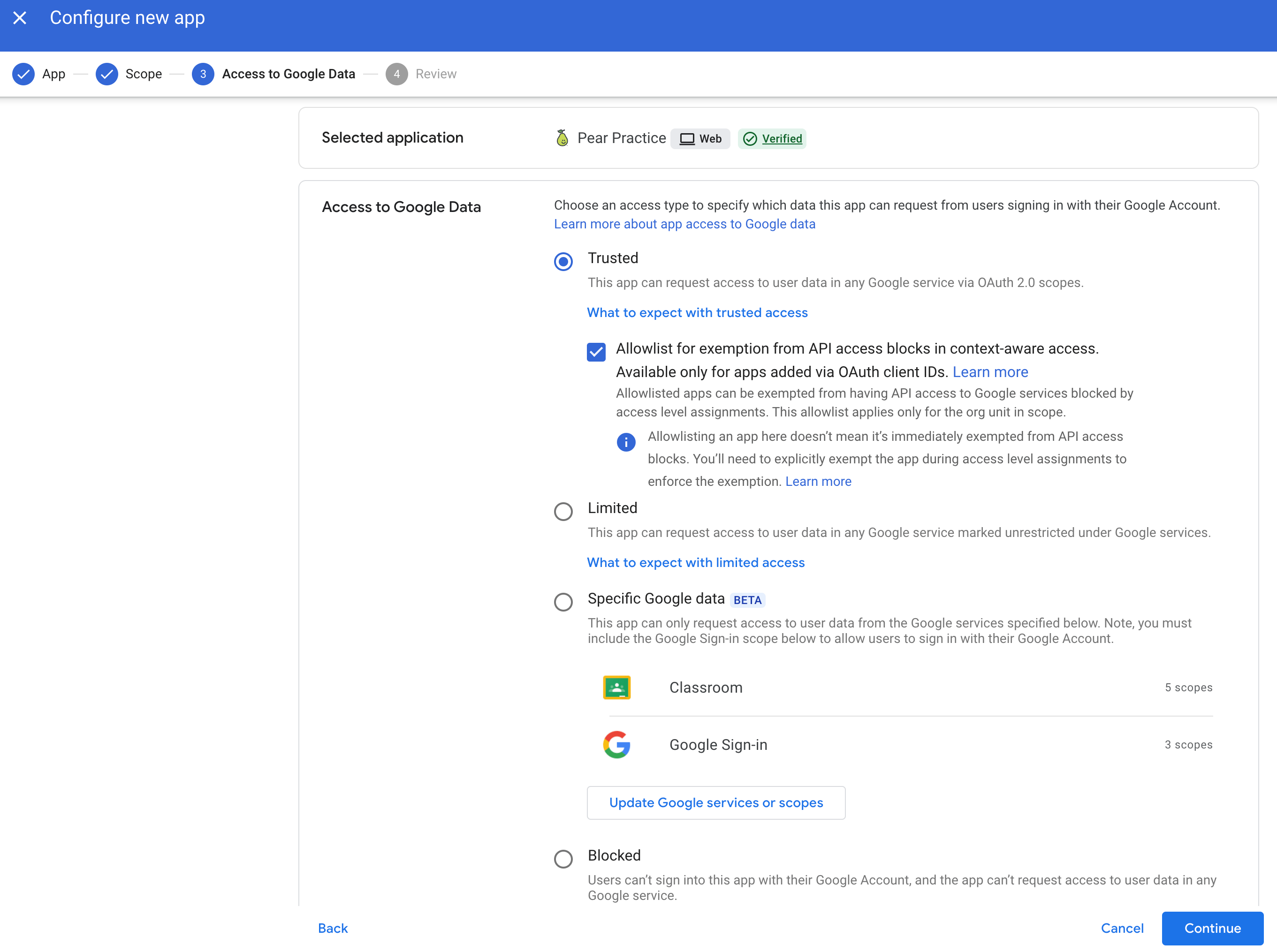
10. Select **Trusted**.
11. Select **Allowlist for exemption from API access blocks in context-aware access. Available only for apps added via OAuth client IDs**.
12. Click **Continue**.
13. Confirm your setup and click **Change Access**.
14. Verify your students can sign in to Pear Practice.
 ## Add Pear Practice as a Third-Party App Manually
Use these steps if Pear Practice is not listed as a third-party app in Workspace. You will need to add it twice , once for each Client ID.
1. Visit [admin.google.com](https://admin.google.com).
2. Sign in with an administrator account.
3. In the sidebar, click **Security** > **Access and data control** > **API controls**.
4. Click **Manage Third-Party Access**.
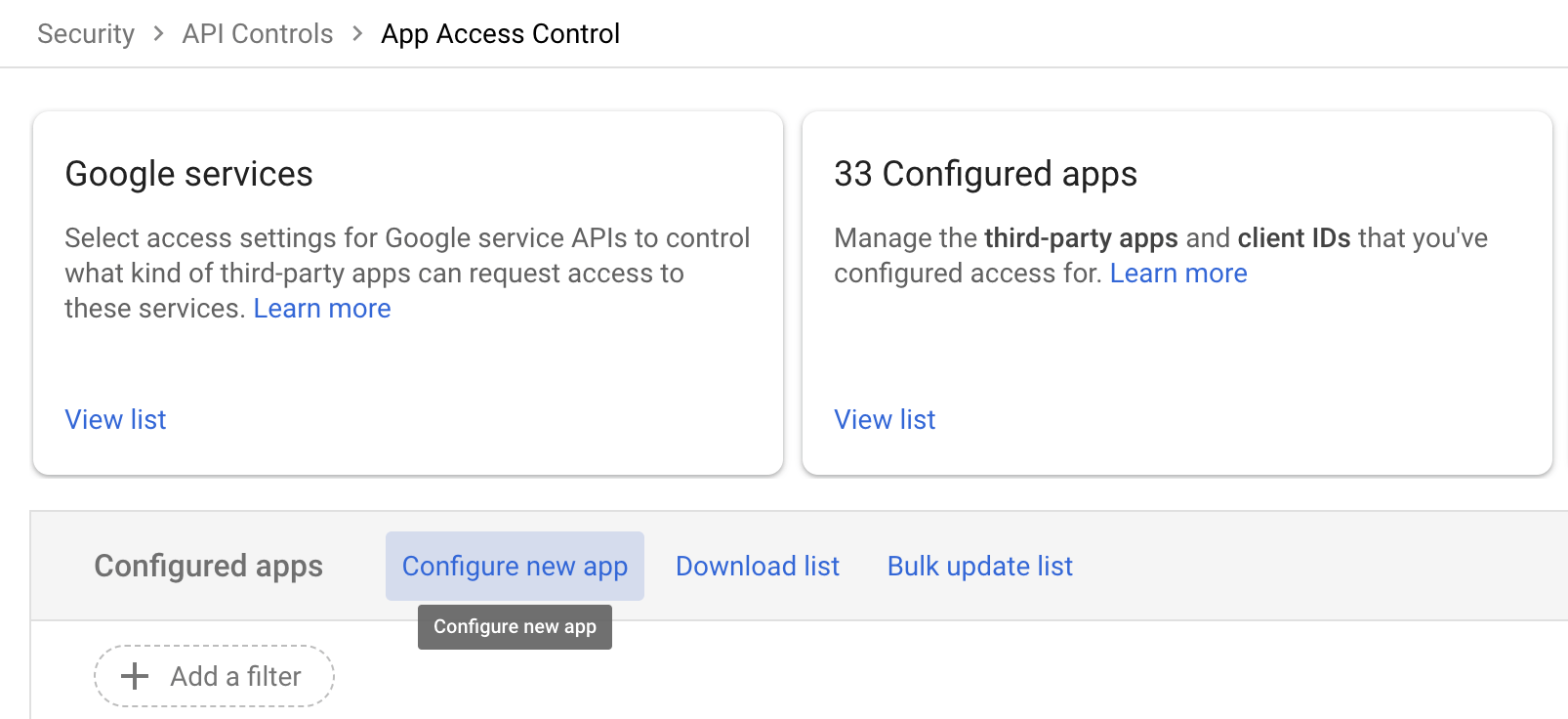
5. Click **Configure new app**.
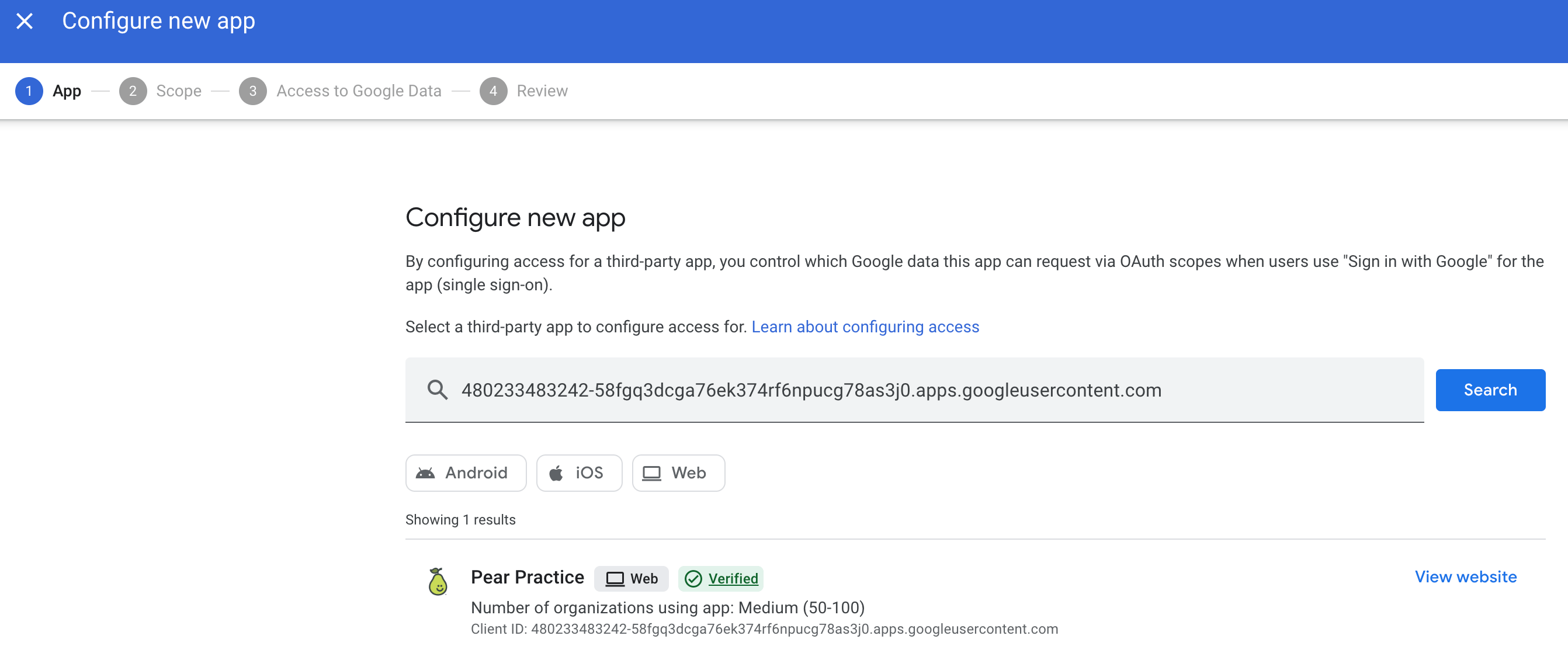
6. Paste the following string under **App**:
`480233483242-58fgq3dcga76ek374rf6npucg78as3j0.apps.googleusercontent.com`
7. Click **Search**.
8. Click **Pear Deck Learning**.
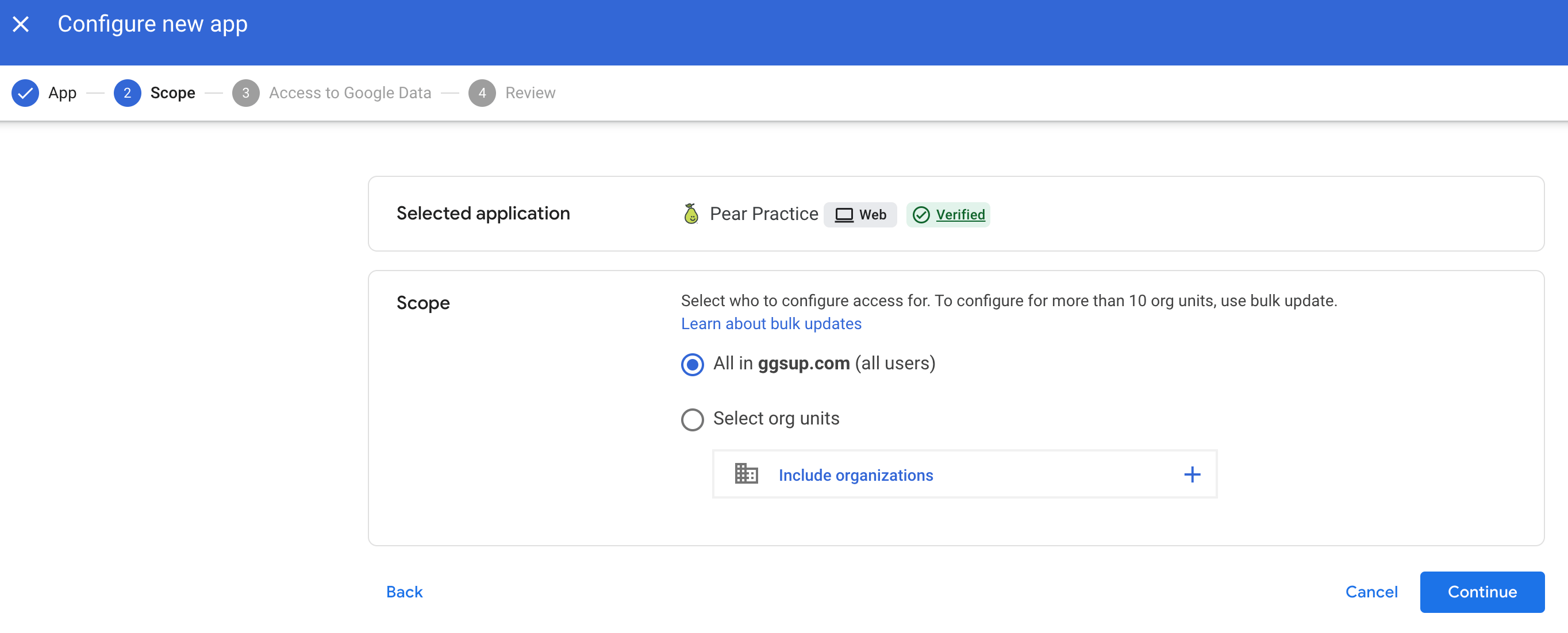
9. For **Scope**, select your root OU or a specific OU that hosts student accounts. GoGuardian recommends the root OU.
10. Click **Continue**.
11. Select **Trusted**.
12. Select **Allowlist for exemption from API access blocks in context-aware access. Available only for apps added via OAuth client IDs**.
13. Click **Continue**.
14. Confirm your setup and click **Finish**.
15. Repeat steps 5–14 for the second Pear Deck Learning Client ID:
`379962065044-digedvvia3khonh0n16u1n3teq8ue9q2.apps.googleusercontent.com`
16. Verify your students can sign in to Pear Practice.
## Add Pear Practice as a Third-Party App Manually
Use these steps if Pear Practice is not listed as a third-party app in Workspace. You will need to add it twice , once for each Client ID.
1. Visit [admin.google.com](https://admin.google.com).
2. Sign in with an administrator account.
3. In the sidebar, click **Security** > **Access and data control** > **API controls**.
4. Click **Manage Third-Party Access**.
5. Click **Configure new app**.
6. Paste the following string under **App**:
`480233483242-58fgq3dcga76ek374rf6npucg78as3j0.apps.googleusercontent.com`
7. Click **Search**.
8. Click **Pear Deck Learning**.
9. For **Scope**, select your root OU or a specific OU that hosts student accounts. GoGuardian recommends the root OU.
10. Click **Continue**.
11. Select **Trusted**.
12. Select **Allowlist for exemption from API access blocks in context-aware access. Available only for apps added via OAuth client IDs**.
13. Click **Continue**.
14. Confirm your setup and click **Finish**.
15. Repeat steps 5–14 for the second Pear Deck Learning Client ID:
`379962065044-digedvvia3khonh0n16u1n3teq8ue9q2.apps.googleusercontent.com`
16. Verify your students can sign in to Pear Practice.
 ## Resources
Set up Clever as a single sign-on method for Pear Practice in your district or school.
Install Pear Practice as a PWA on Chrome for easier student access across devices.
Add Pear Practice to the Home Screen on iPad or the Dock on Mac for quick access.
Compare free and premium features to understand what a subscription unlocks.
## Resources
Set up Clever as a single sign-on method for Pear Practice in your district or school.
Install Pear Practice as a PWA on Chrome for easier student access across devices.
Add Pear Practice to the Home Screen on iPad or the Dock on Mac for quick access.
Compare free and premium features to understand what a subscription unlocks.