> ## Documentation Index
> Fetch the complete documentation index at: https://docs.goguardian.com/llms.txt
> Use this file to discover all available pages before exploring further.
# Create a Pear Practice Shortcut on Apple Devices
> Add Pear Practice to an iPad Home Screen or Mac Dock so students can open the app without entering the URL
On Apple devices, you can add Pear Practice to the iPad Home Screen or Mac Dock, letting students open the app in their default browser without entering the URL each time.
If you want to add Pear Practice to Home Screens in bulk, ask your administrator to enter `https://practice.peardeck.com/` in a [Web Clips payload](https://support.apple.com/guide/deployment/web-clips-payload-settings-depbc7c7808/1/web/1.0) in your mobile device management (MDM) solution.
## Add Pear Practice to the Home Screen on iPad
1. Open [Pear Practice](https://practice.peardeck.com/) in Safari.
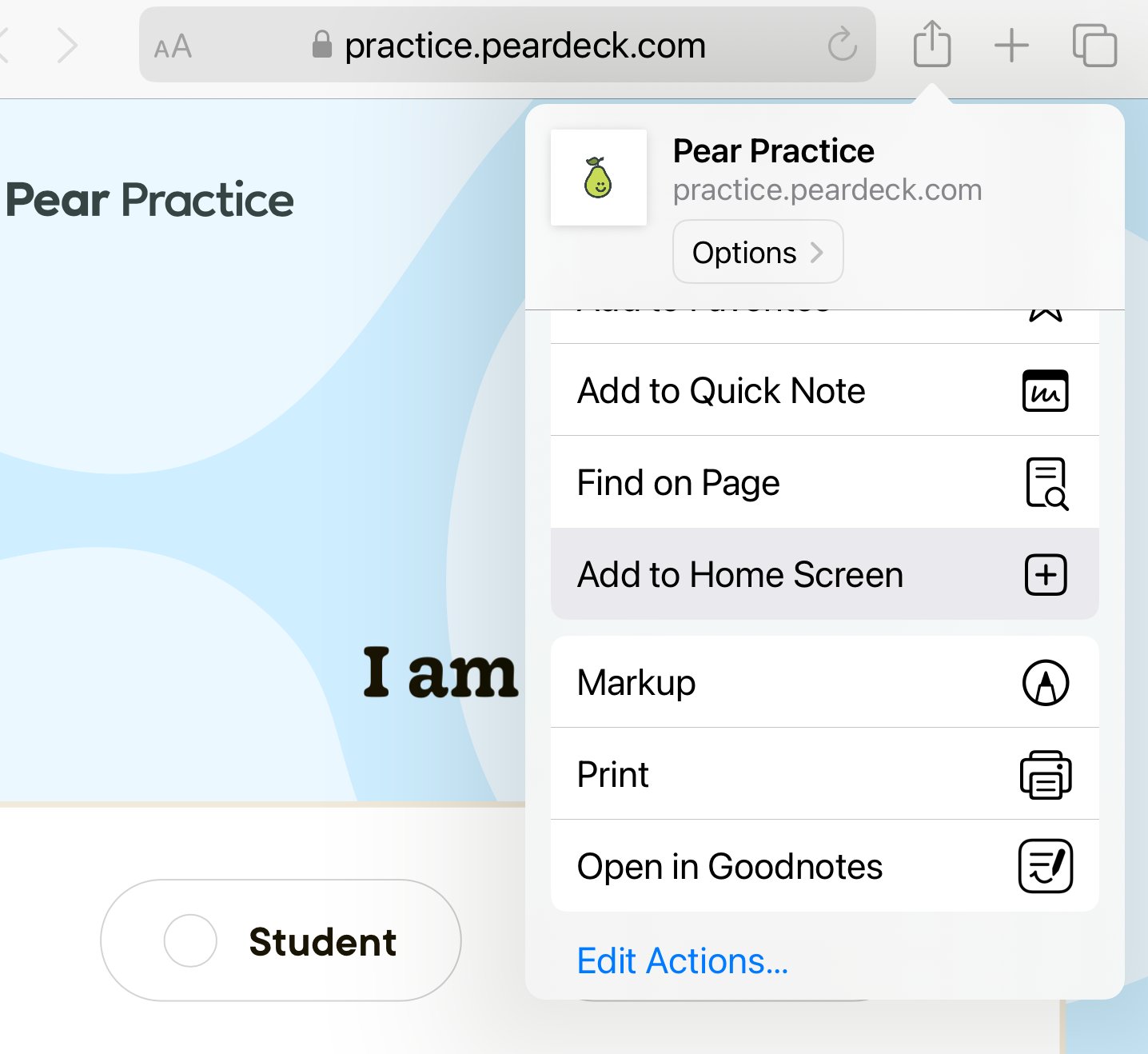
2. Tap the action menu, then tap **Add to Home Screen**.
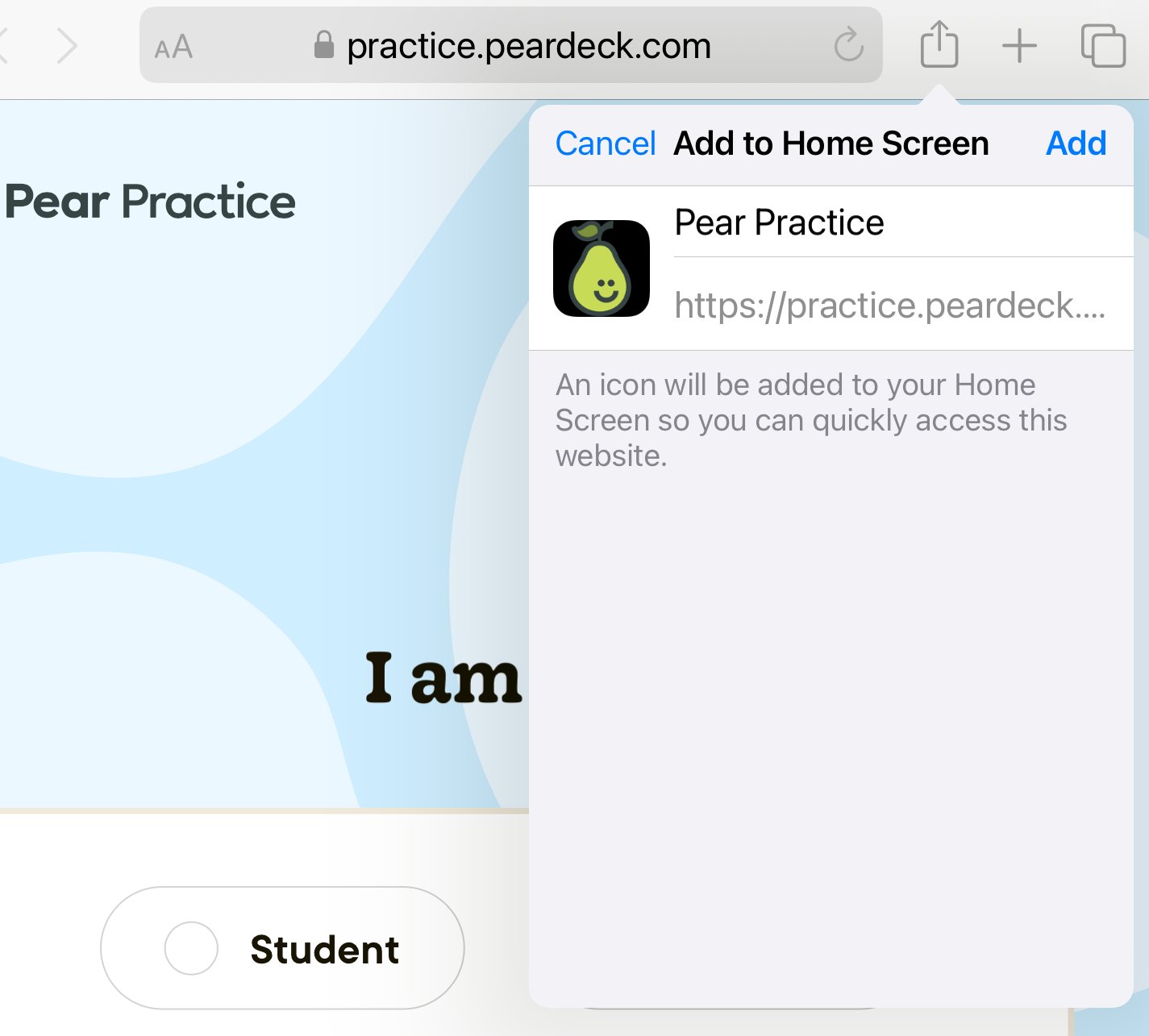
3. Name the shortcut **Pear Practice**.
4. Tap **Add**.
5. On your Home Screen, tap the Pear Practice icon to open it.
 These steps may differ or may not be supported in browsers other than Safari. Review your browser's documentation if you use a different browser.
 ## Add Pear Practice to the Dock on Mac
1. Open [Pear Practice](https://practice.peardeck.com/) in your preferred browser.
2. Create the shortcut based on your browser:
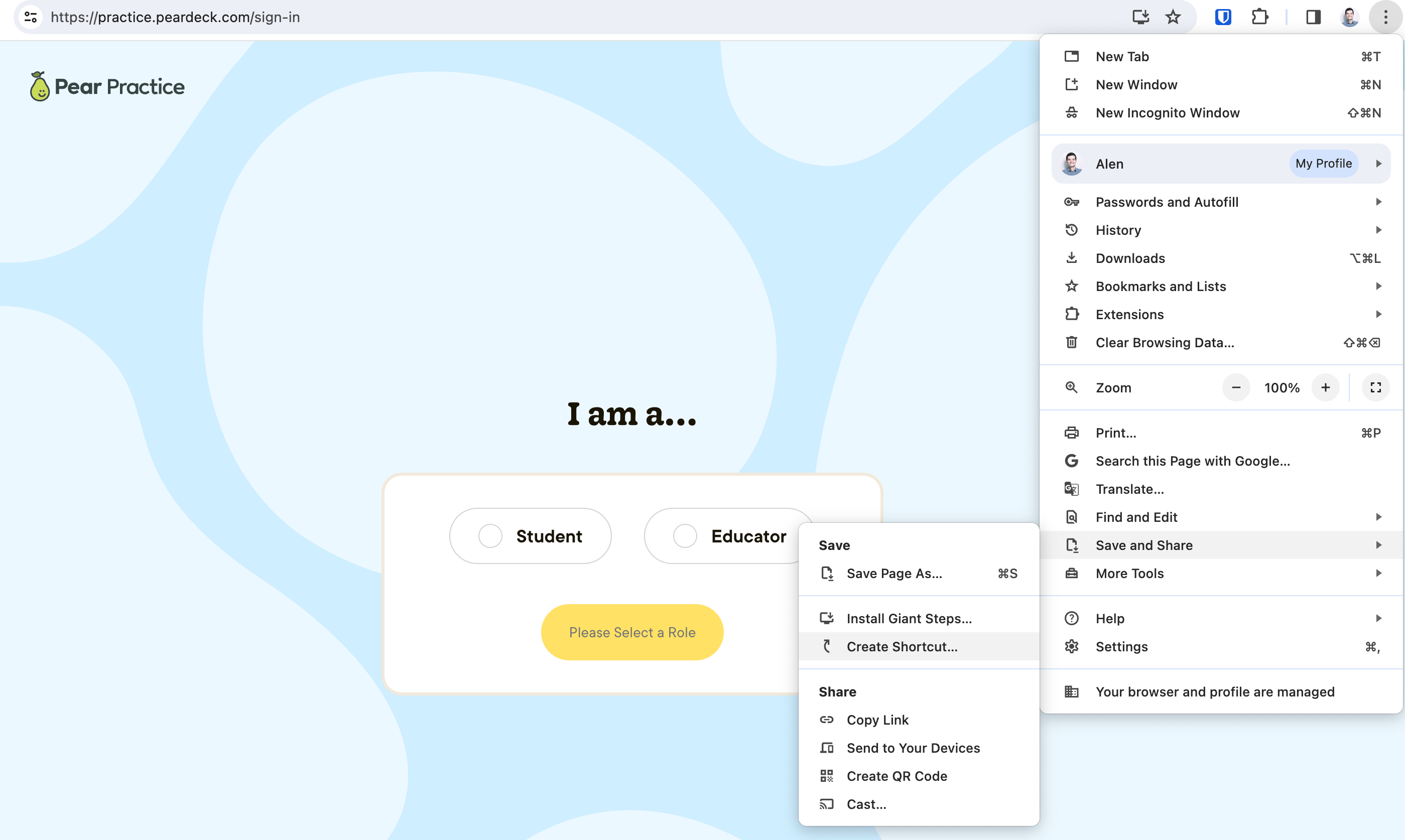
* In **Chrome**, click the ellipsis button, then select **More Tools** > **Create Shortcut** > **Create**. Move the shortcut from the Chrome Apps folder to your Dock. After Pear Practice is added to your Dock, the shortcut displays the app's logo.
* In **Safari**, click and hold the URL in the address bar, then drag it to your Dock next to the Trash, where recent apps appear. By default, Safari shows a globe icon rather than the Pear Practice logo.
3. Click the Pear Practice shortcut to confirm it opens in your default browser.
## Add Pear Practice to the Dock on Mac
1. Open [Pear Practice](https://practice.peardeck.com/) in your preferred browser.
2. Create the shortcut based on your browser:
* In **Chrome**, click the ellipsis button, then select **More Tools** > **Create Shortcut** > **Create**. Move the shortcut from the Chrome Apps folder to your Dock. After Pear Practice is added to your Dock, the shortcut displays the app's logo.
* In **Safari**, click and hold the URL in the address bar, then drag it to your Dock next to the Trash, where recent apps appear. By default, Safari shows a globe icon rather than the Pear Practice logo.
3. Click the Pear Practice shortcut to confirm it opens in your default browser.
 ## Resources
Learn about Pear Practice and its features for student practice.
Use MDM to push Web Clips to student devices in bulk.
## Resources
Learn about Pear Practice and its features for student practice.
Use MDM to push Web Clips to student devices in bulk.