> ## Documentation Index
> Fetch the complete documentation index at: https://docs.goguardian.com/llms.txt
> Use this file to discover all available pages before exploring further.
# Sign In with Clever
> Add Pear Practice to Clever and share it with your district or school to enable single sign-on.
Pear Practice supports Clever as a single sign-on (SSO) method for creating new accounts and signing in to existing accounts. Enabling SSO requires adding the Pear Practice app to Clever from the application library, or manually requesting it, and then sharing it with your district or school.
## Add the Pear Practice App in Clever
1. Navigate to your dashboard in Clever.
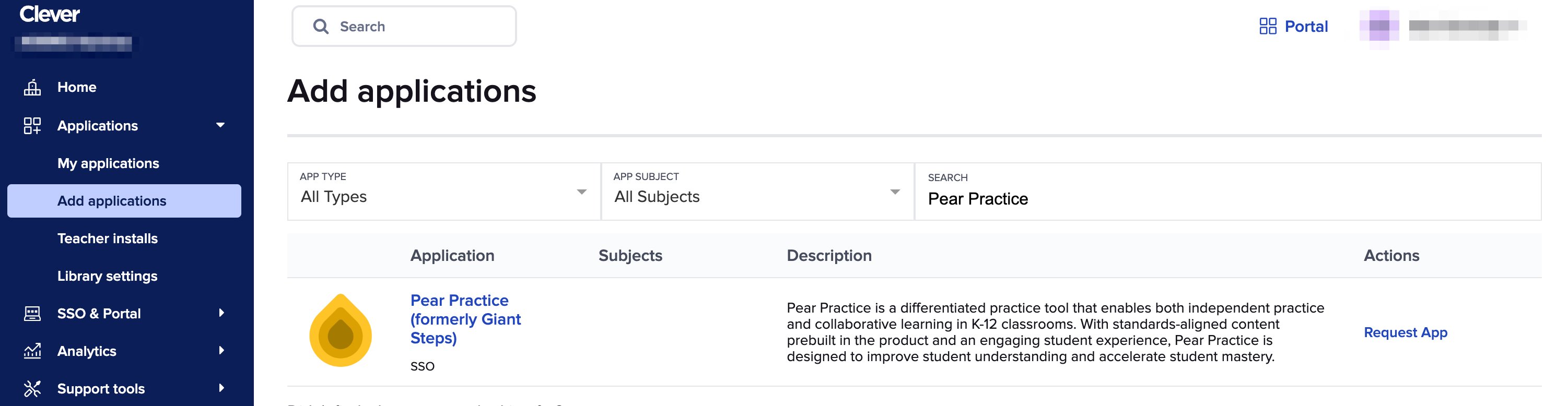
2. Click **Applications** > **Add applications**.
3. Search for **Pear Practice (formerly Giant Steps)**.
4. Click **Request App**.
5. Click **Send Integration Request** and wait for approval via email.
6. After approval, click **My applications** in Clever.
7. Click **Sharing District** or **Sharing by school** to the right of the Pear Practice app.
8. Under **Choose sharing method**, select your preferred sharing method and click **Next**.
9. For **Choose who needs access**, share the app based on the selected method and click **Next**.
10. Under **Preview & share user data**, confirm your sharing settings and click **Share with application**.
 ## Manually Request the Pear Practice App in Clever
If Pear Practice does not appear in Clever's application library, you can submit a manual integration request. After the request is submitted, Clever sends the submitter a link to the app so you can contact Pear Practice about adding it to your district. The app then appears in the Clever dashboard under **Applications** > **My applications**, where you can update sharing settings as described above.
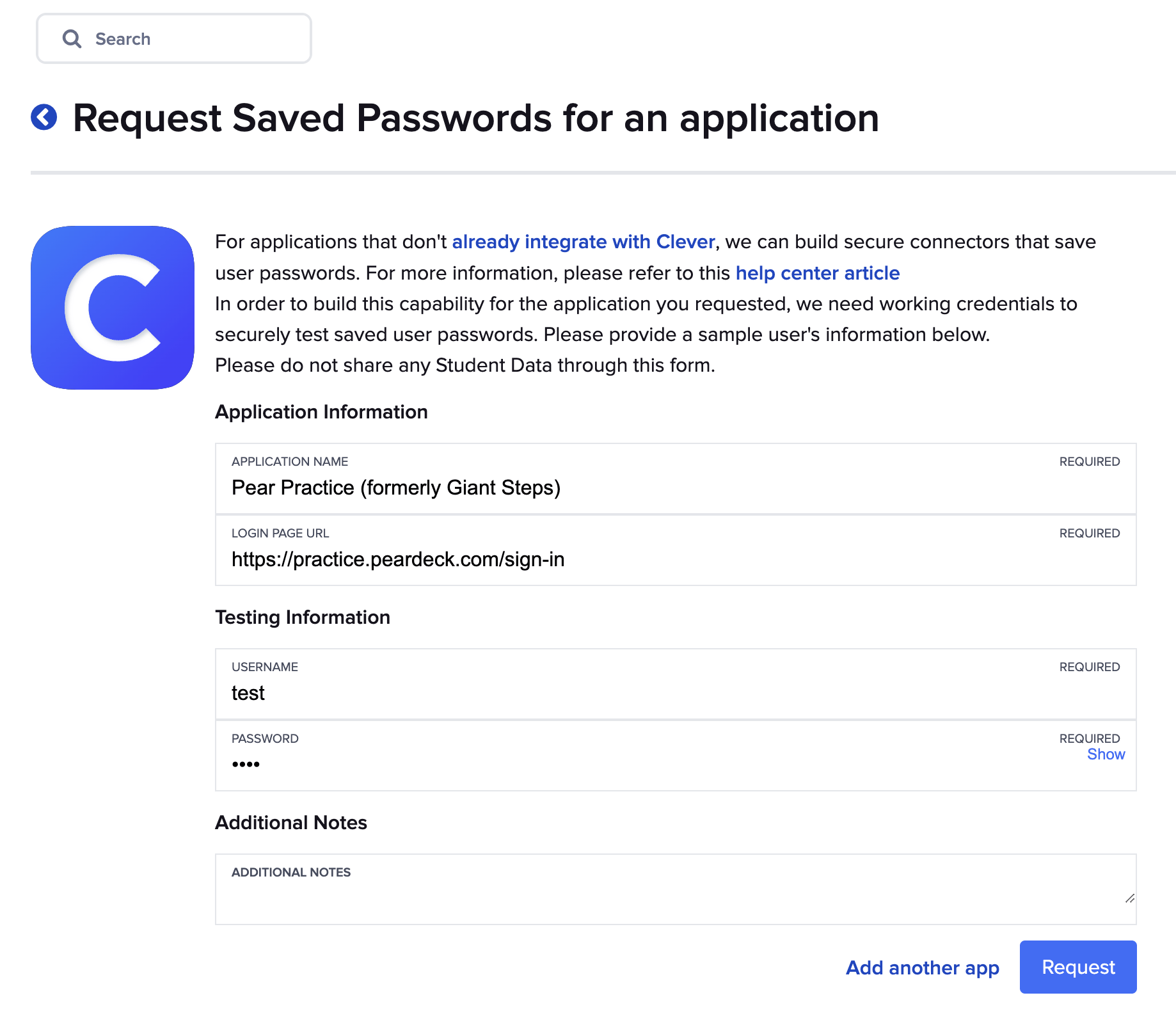
1. Visit Clever's [application request form](https://schools.clever.com/applications/request).
2. Under **Application Information**, fill out the following fields:
* **Application Name:** Pear Practice (formerly Giant Steps)
* **Sign-In Page URL:** [https://practice.peardeck.com/sign-in](https://practice.peardeck.com/sign-in)
3. For **Testing Information**, provide a test account's username and password. Do not provide an account that contains user data.
4. Click **Request**.
## Manually Request the Pear Practice App in Clever
If Pear Practice does not appear in Clever's application library, you can submit a manual integration request. After the request is submitted, Clever sends the submitter a link to the app so you can contact Pear Practice about adding it to your district. The app then appears in the Clever dashboard under **Applications** > **My applications**, where you can update sharing settings as described above.
1. Visit Clever's [application request form](https://schools.clever.com/applications/request).
2. Under **Application Information**, fill out the following fields:
* **Application Name:** Pear Practice (formerly Giant Steps)
* **Sign-In Page URL:** [https://practice.peardeck.com/sign-in](https://practice.peardeck.com/sign-in)
3. For **Testing Information**, provide a test account's username and password. Do not provide an account that contains user data.
4. Click **Request**.
 ## Resources
Overview of all available sign-in methods for Pear Practice
Learn what Pear Practice offers and how to get started
## Resources
Overview of all available sign-in methods for Pear Practice
Learn what Pear Practice offers and how to get started