> ## Documentation Index
> Fetch the complete documentation index at: https://docs.goguardian.com/llms.txt
> Use this file to discover all available pages before exploring further.
# Create a Custom Tool as Teacher
> Build a personalized AI tool in Pear Start by copying a built-in tool and customizing it for your classroom workflows.
In Pear Start, teachers can create AI-powered **Custom Tools** to accelerate classroom workflows and generate materials tailored to their needs. You create a custom tool by copying a built-in tool and personalizing it in five steps:
1. Adding tool details (name and description)
2. Customizing fields and values
3. Providing custom instructions for Pear Start's AI model
4. Testing the tool by generating content
5. Publishing the tool for your use
Custom tools created by teachers display a "Custom" badge next to their name.
## Create a Custom Tool
1. Click **Tools** in the left-hand navigation menu.
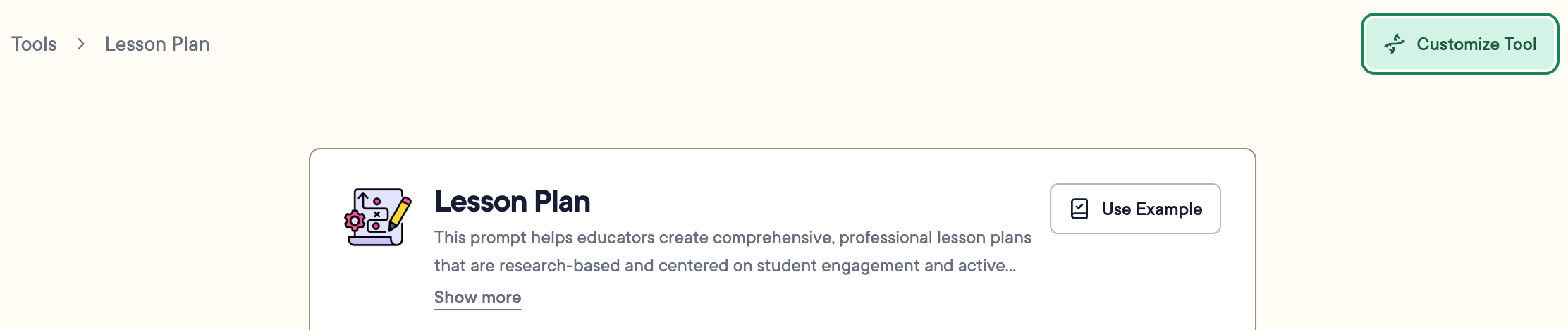
2. Click **Create Custom Tool** under **All Tools**. You can also click a tool's name and select **Customize Tool**.
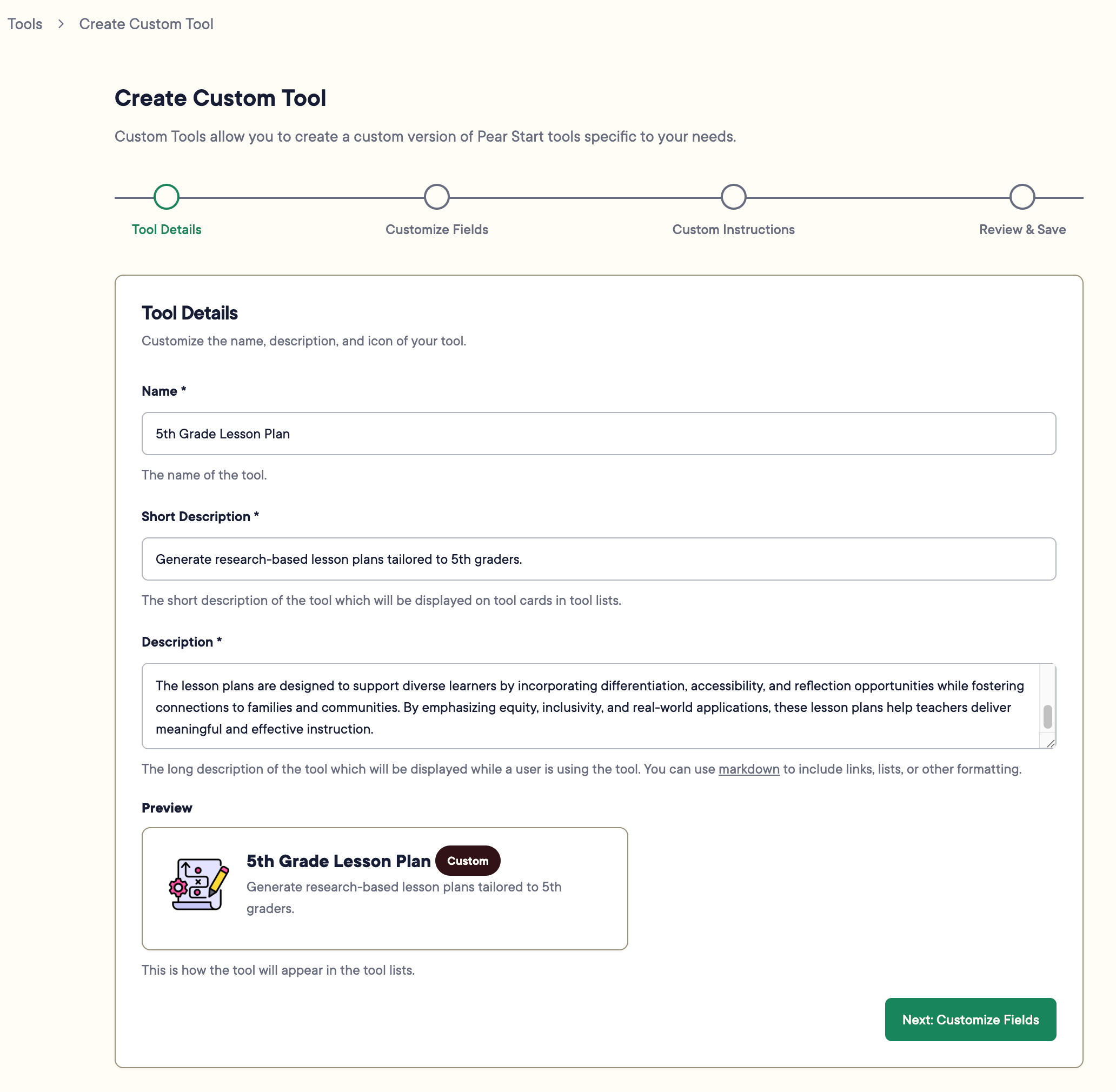
 3. Under **Tool Details**, fill out the following fields:
* **Name** : the name shown on the Tools page
* **Short Description** : shown under the tool's name in the tools list
* **Description** : a longer explanation of how the tool works and its best practices, shown when a teacher opens the tool
4. Review the tool's name and short description under **Preview**. Custom tools display a "Custom" badge.
5. Click **Next: Customize Fields**.
6. Review each field and toggle on **Hide Field** if needed.
3. Under **Tool Details**, fill out the following fields:
* **Name** : the name shown on the Tools page
* **Short Description** : shown under the tool's name in the tools list
* **Description** : a longer explanation of how the tool works and its best practices, shown when a teacher opens the tool
4. Review the tool's name and short description under **Preview**. Custom tools display a "Custom" badge.
5. Click **Next: Customize Fields**.
6. Review each field and toggle on **Hide Field** if needed.
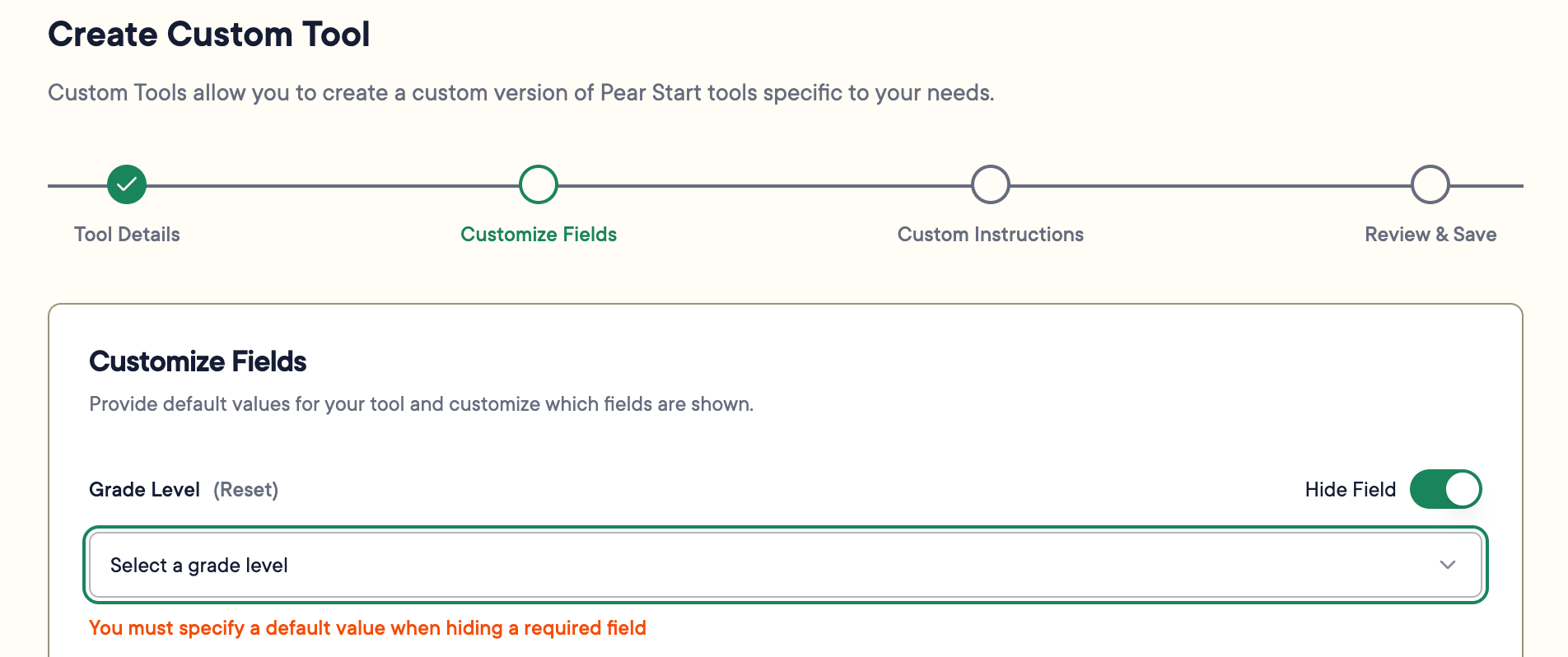 Hidden fields require default values.
Click **Reset** next to a field name to return it to its default setting.
7. Enter default or example values for each field.
8. Click **Next: Custom Instructions**.
9. Under **Custom Instructions**, list steps or requirements for the AI model to follow when generating content. Examples:
* "Include links to videos, images, and materials referenced."
* "Give clear and concise directions for student activities."
* "Create a lesson hook to engage students at the start of a lesson."
10. Click **Next: Review & Save**.
Hidden fields require default values.
Click **Reset** next to a field name to return it to its default setting.
7. Enter default or example values for each field.
8. Click **Next: Custom Instructions**.
9. Under **Custom Instructions**, list steps or requirements for the AI model to follow when generating content. Examples:
* "Include links to videos, images, and materials referenced."
* "Give clear and concise directions for student activities."
* "Create a lesson hook to engage students at the start of a lesson."
10. Click **Next: Review & Save**.
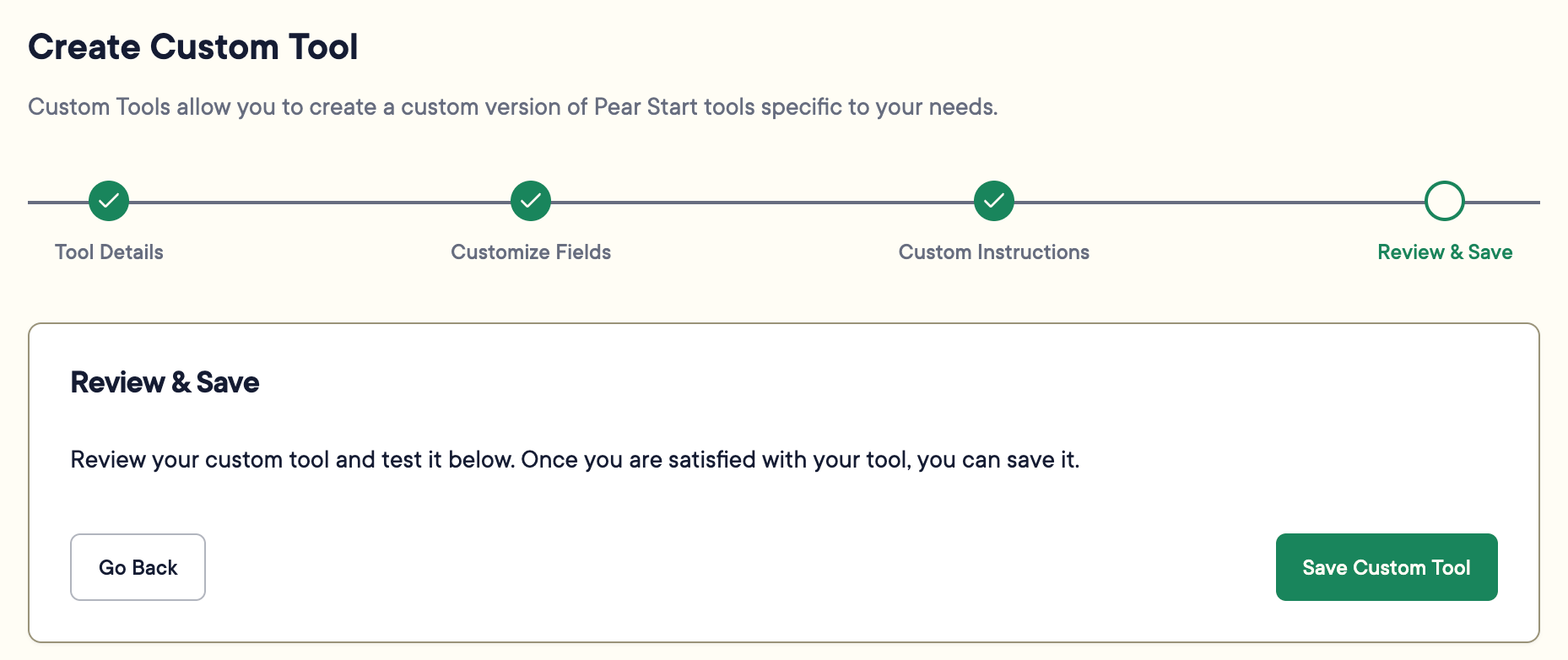
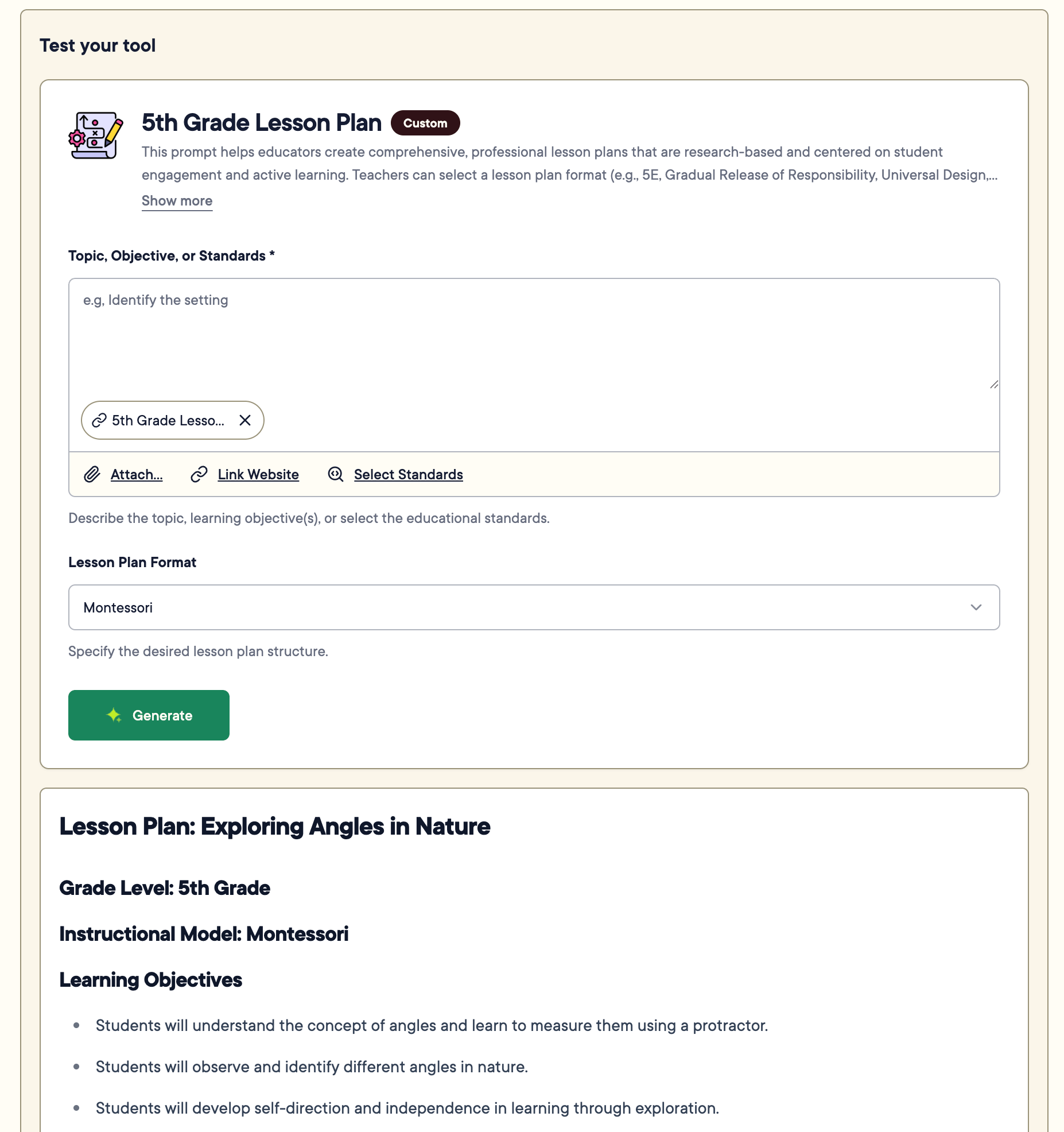 11. Fill out the fields and click **Generate** to confirm the tool works as expected.
12. Click **Save Custom Tool**.
11. Fill out the fields and click **Generate** to confirm the tool works as expected.
12. Click **Save Custom Tool**.
 ## Resources
Learn how Pear Start Tools work and how to generate and transform content.
## Resources
Learn how Pear Start Tools work and how to generate and transform content.