> ## Documentation Index
> Fetch the complete documentation index at: https://docs.goguardian.com/llms.txt
> Use this file to discover all available pages before exploring further.
# Create Custom Tools as Administrator
> Build AI-powered district-wide tools in Pear Start to standardize content creation and align teacher workflows with instructional goals.
In Pear Start, administrators can create AI-powered **Custom Tools** for teachers in their district or school. These tools let administrators generate standardized content, follow district policy and instructional goals, and enable consistent workflows across classrooms.
Creating a tool involves five steps:
1. Adding tool details (name and description)
2. Customizing fields and values
3. Providing custom instructions for Pear Start's AI model
4. Testing the tool by generating content
5. Enabling the tool for all teachers
Administrators need access to Pear Start **District Management Tools** to create district- or school-wide Custom Tools. This access includes **Manage Tools** in the navigation menu and a "Workspace" badge on district-wide tools.
## Create a Workspace Tool for All Teachers
1. Sign in to Pear Start with an administrator account.
2. Click **Manage Tools**.
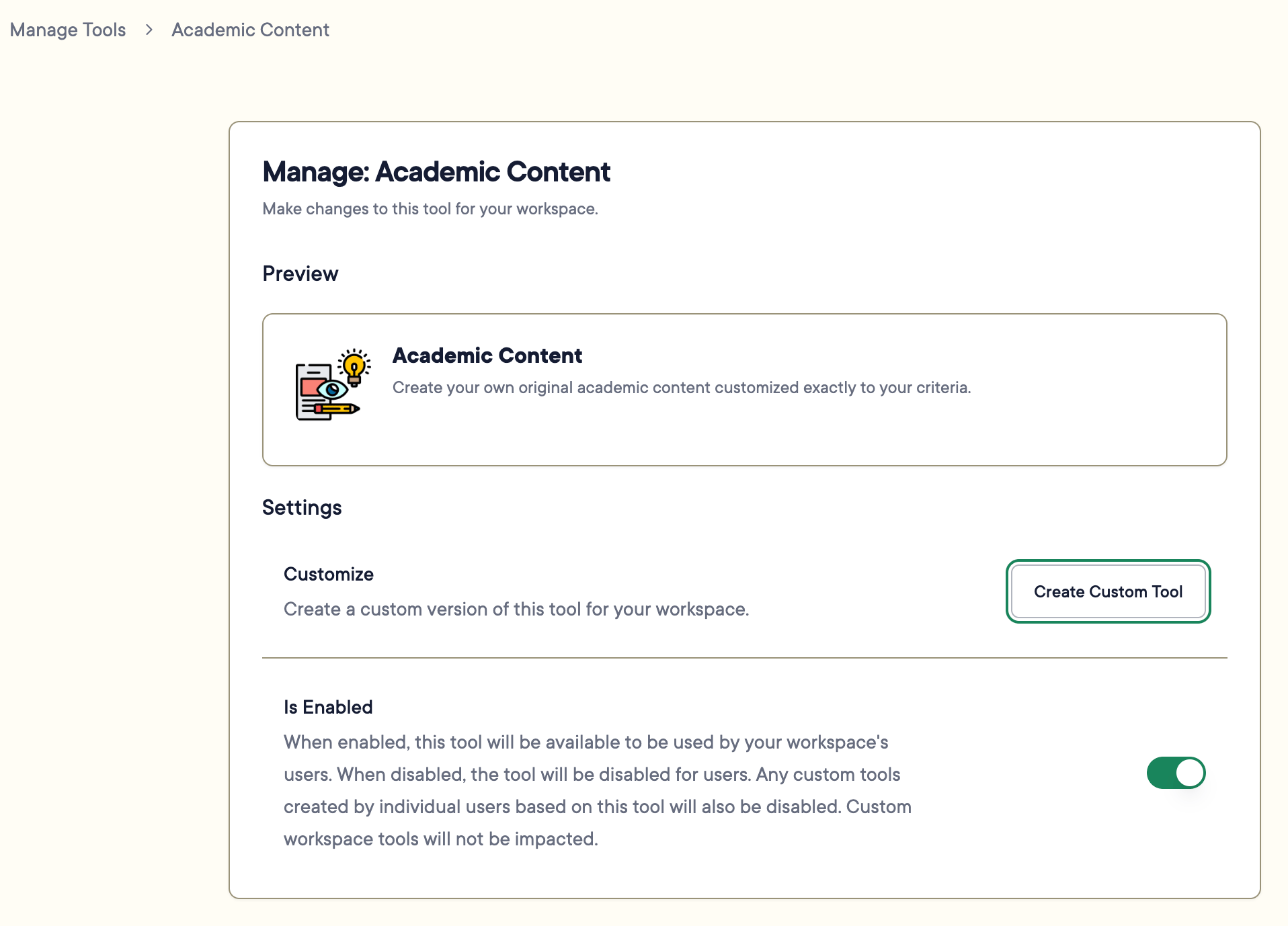
3. Click the name of the tool you want to copy, then click **Create Custom Tool**. You can also click **Create Custom Tool** on the **Manage Tools** screen and search for a tool in the dropdown.
4. Click **Create Custom Tool** on the tool's page.
 5. Fill out the following fields under **Tool Details**:
* **Name** : the name displayed to teachers on the Tools page
* **Short Description** : shown under the tool's name in the tools list
* **Description** : a longer explanation of how the tool works, including best practices
6. Review the tool's name and short description under **Preview**. Workspace tools display a "Workspace" badge.
7. Click **Next: Customize Fields**.
8. Review each field and toggle on **Hide Field** if needed.
5. Fill out the following fields under **Tool Details**:
* **Name** : the name displayed to teachers on the Tools page
* **Short Description** : shown under the tool's name in the tools list
* **Description** : a longer explanation of how the tool works, including best practices
6. Review the tool's name and short description under **Preview**. Workspace tools display a "Workspace" badge.
7. Click **Next: Customize Fields**.
8. Review each field and toggle on **Hide Field** if needed.
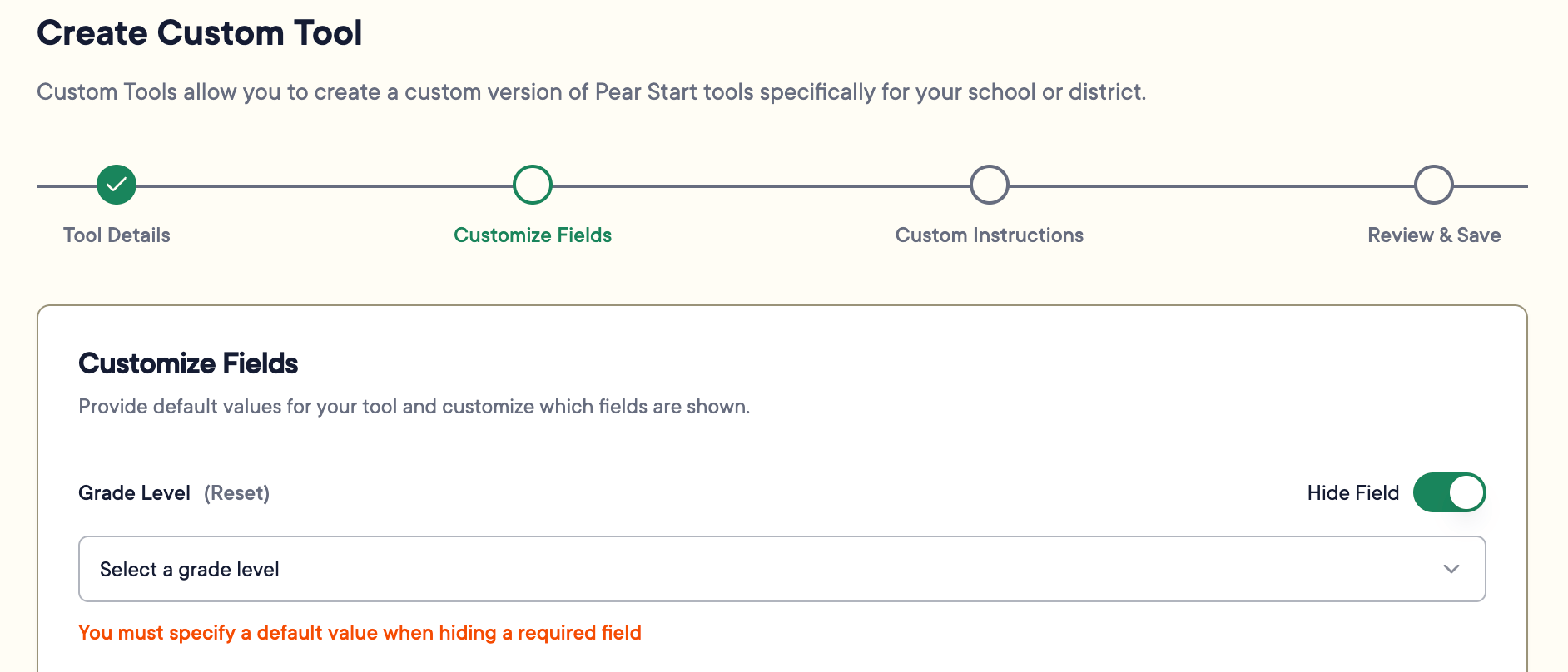 Hidden fields require default values.
Click **Reset** next to a field name to return it to its default setting.
9. Enter default or example values for each field to guide teachers.
10. Click **Next: Custom Instructions**.
11. Under **Custom Instructions**, list requirements or steps for the AI model to follow each time it generates content.
12. Click **Next: Review & Save**.
13. Test the tool by filling out the fields and clicking **Generate**.
14. Click **Save Custom Tool** after reviewing the output.
Hidden fields require default values.
Click **Reset** next to a field name to return it to its default setting.
9. Enter default or example values for each field to guide teachers.
10. Click **Next: Custom Instructions**.
11. Under **Custom Instructions**, list requirements or steps for the AI model to follow each time it generates content.
12. Click **Next: Review & Save**.
13. Test the tool by filling out the fields and clicking **Generate**.
14. Click **Save Custom Tool** after reviewing the output.
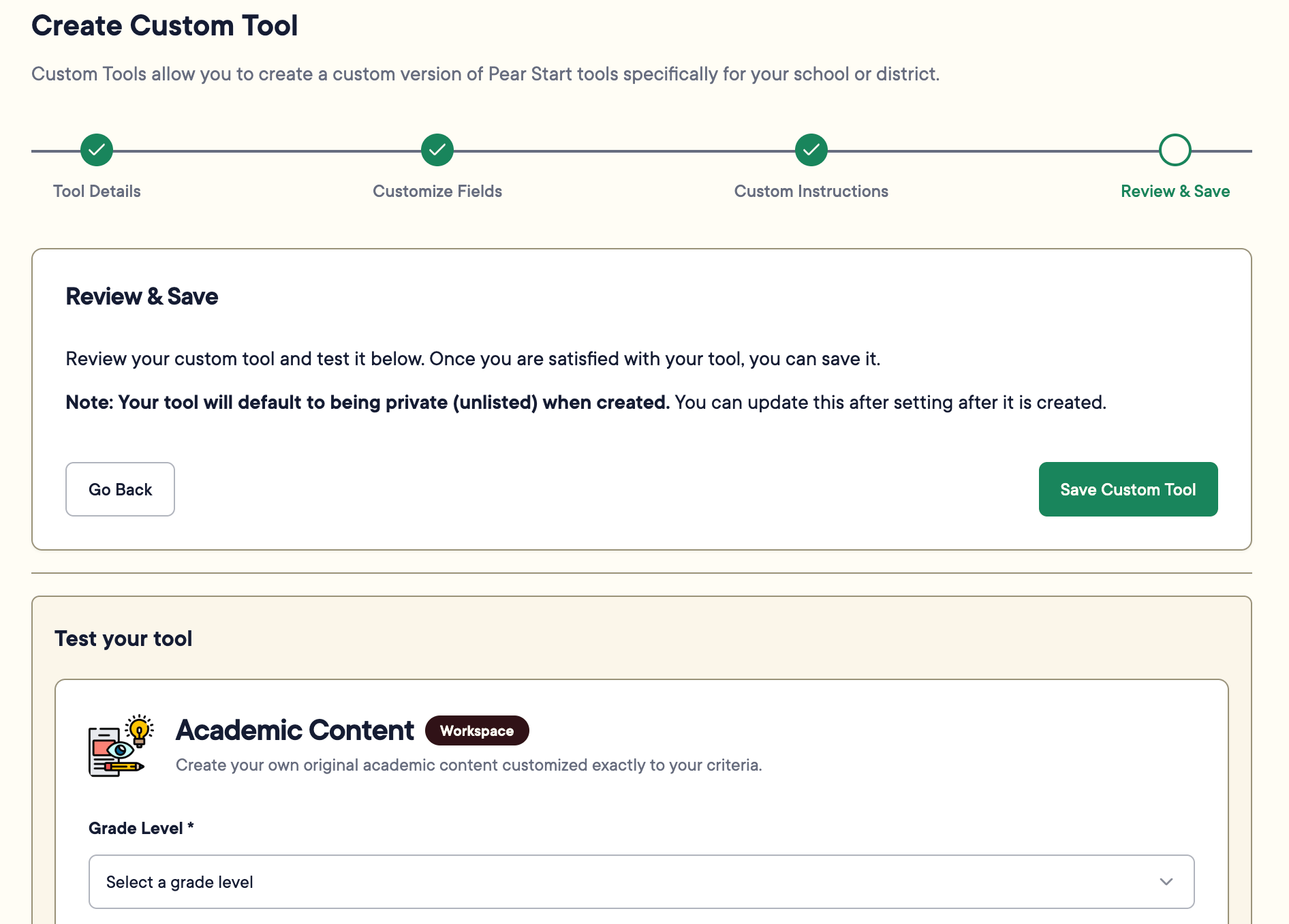 15. Toggle on **Is Public** in the tool settings when the tool is ready for teachers to use.
## FAQ
### Where Can I Request Access to Pear Start District Management Tools?
Ask your administrator for access to District Management Tools.
### Can a Teacher Create or Modify a District-Wide Custom Tool?
No. Teachers can only modify tools they created for their own use.
### What Happens to Disabled Tools?
Disabled tools no longer appear in Tools for teachers, but teachers can review their past use in the **History** tab.
## Resources
Review and manage all Workspace and default tools in your district.
Turn individual tools on or off for all teachers.
15. Toggle on **Is Public** in the tool settings when the tool is ready for teachers to use.
## FAQ
### Where Can I Request Access to Pear Start District Management Tools?
Ask your administrator for access to District Management Tools.
### Can a Teacher Create or Modify a District-Wide Custom Tool?
No. Teachers can only modify tools they created for their own use.
### What Happens to Disabled Tools?
Disabled tools no longer appear in Tools for teachers, but teachers can review their past use in the **History** tab.
## Resources
Review and manage all Workspace and default tools in your district.
Turn individual tools on or off for all teachers.