> ## Documentation Index
> Fetch the complete documentation index at: https://docs.goguardian.com/llms.txt
> Use this file to discover all available pages before exploring further.
# Create Questions from a YouTube Video
> Generate up to 10 assignment questions from a YouTube video transcript using the YouTube Video Questions tool in Pear Start.
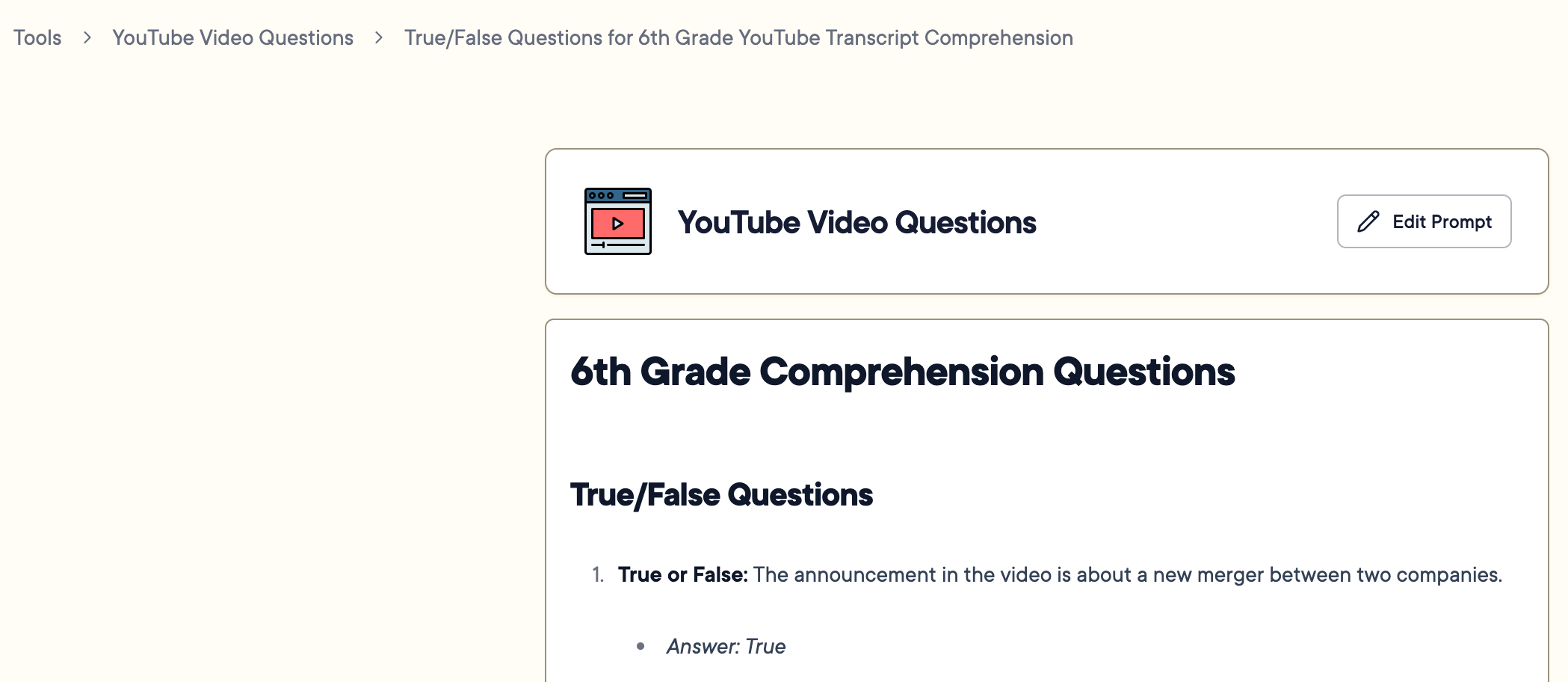
In Pear Start, you can generate assignment questions from a YouTube video's transcript with the **YouTube Video Questions** tool. The tool references the transcript to create assignments of up to 10 questions across a variety of question types.
To get the most out of this tool, blend question types that match your class's learning styles.
## Convert a YouTube Transcript to Assignment Questions
1. Navigate to your preferred video on YouTube.com.
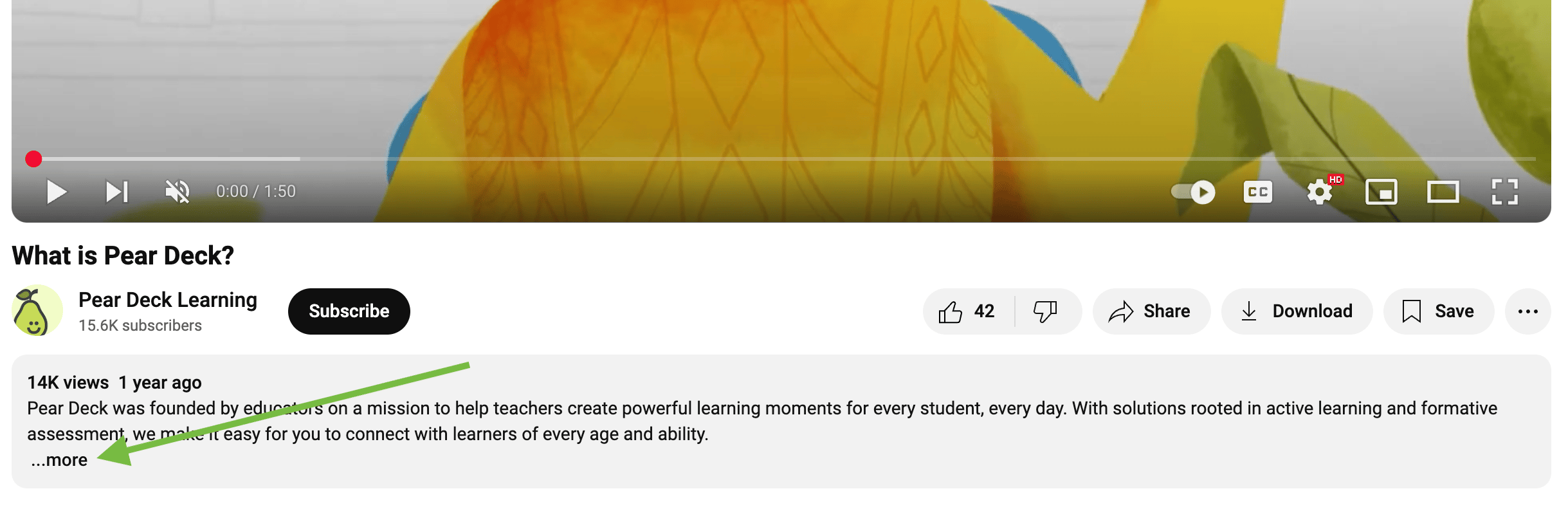
2. In the video's description, click **More**.
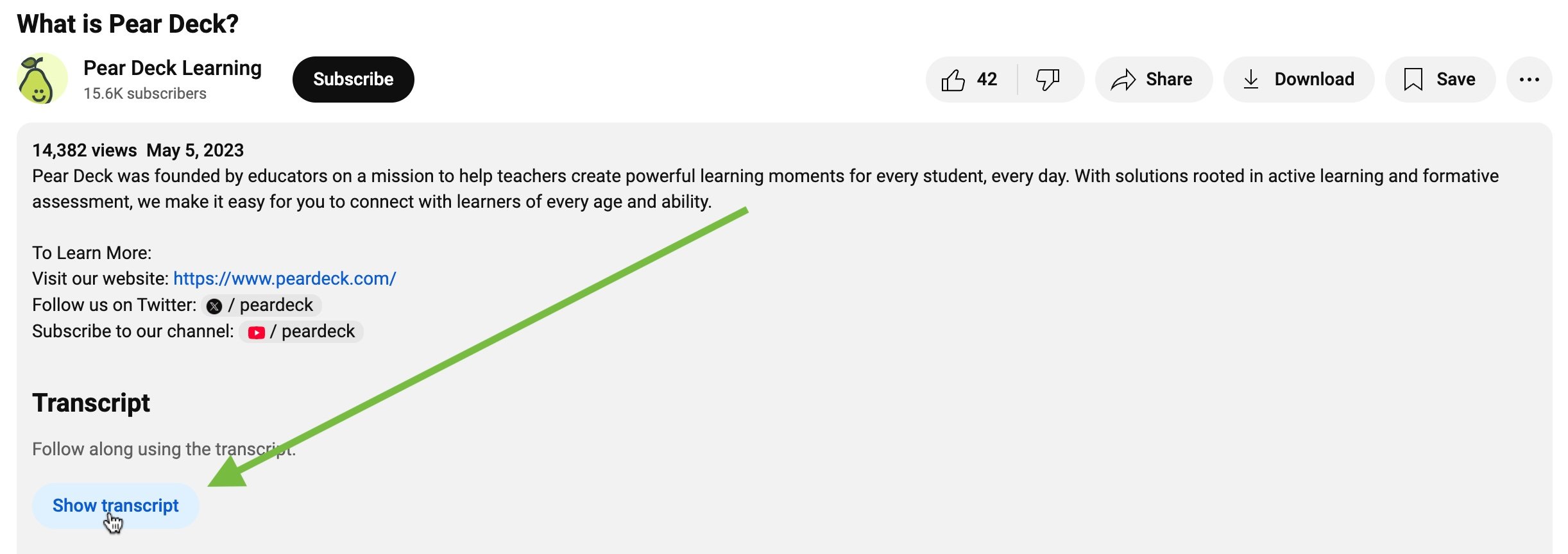
 3. Below the description, under the **Transcript** header, click **Show transcript**.
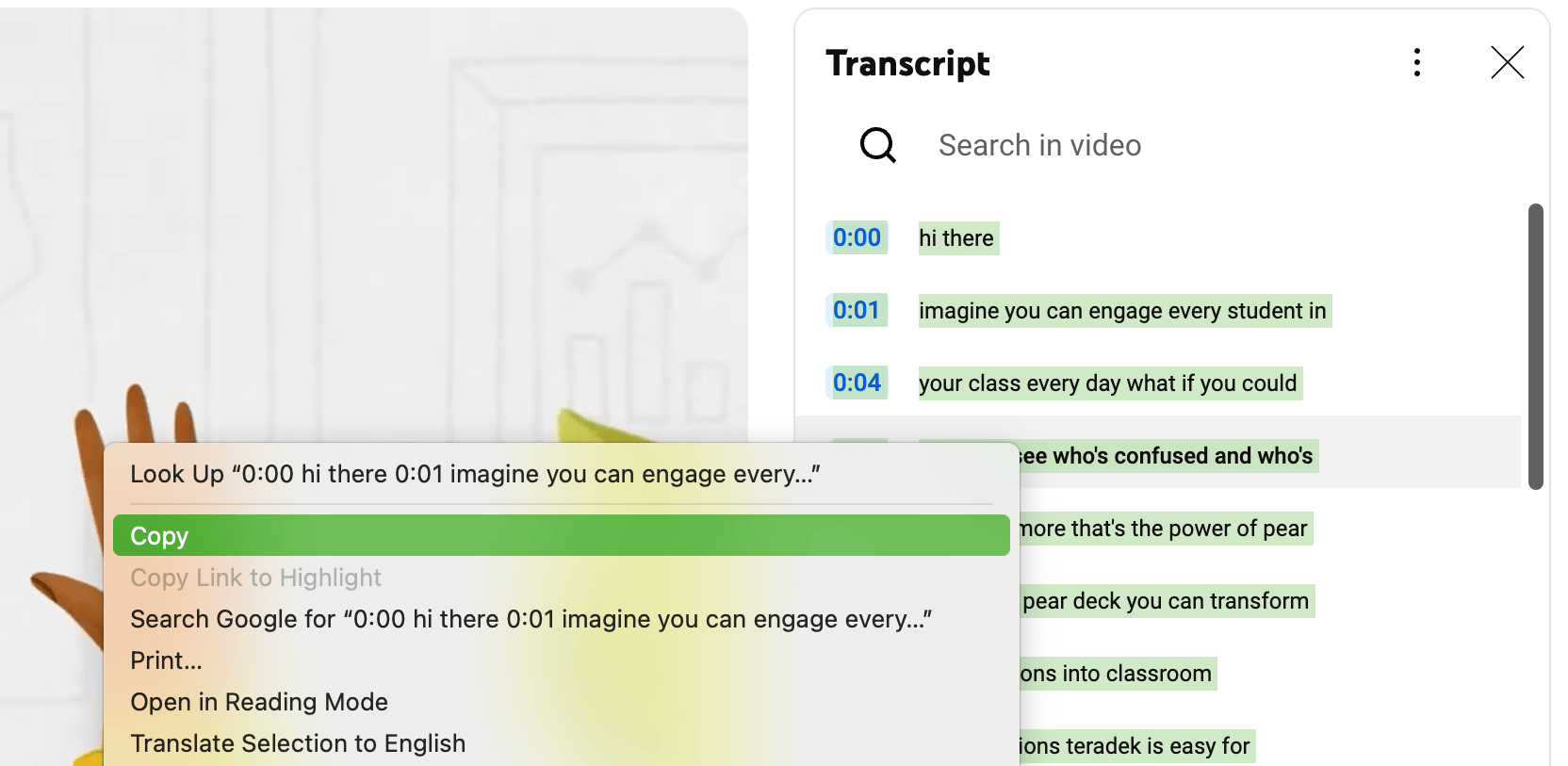
 4. Right-click the highlighted transcript and click **Copy**.
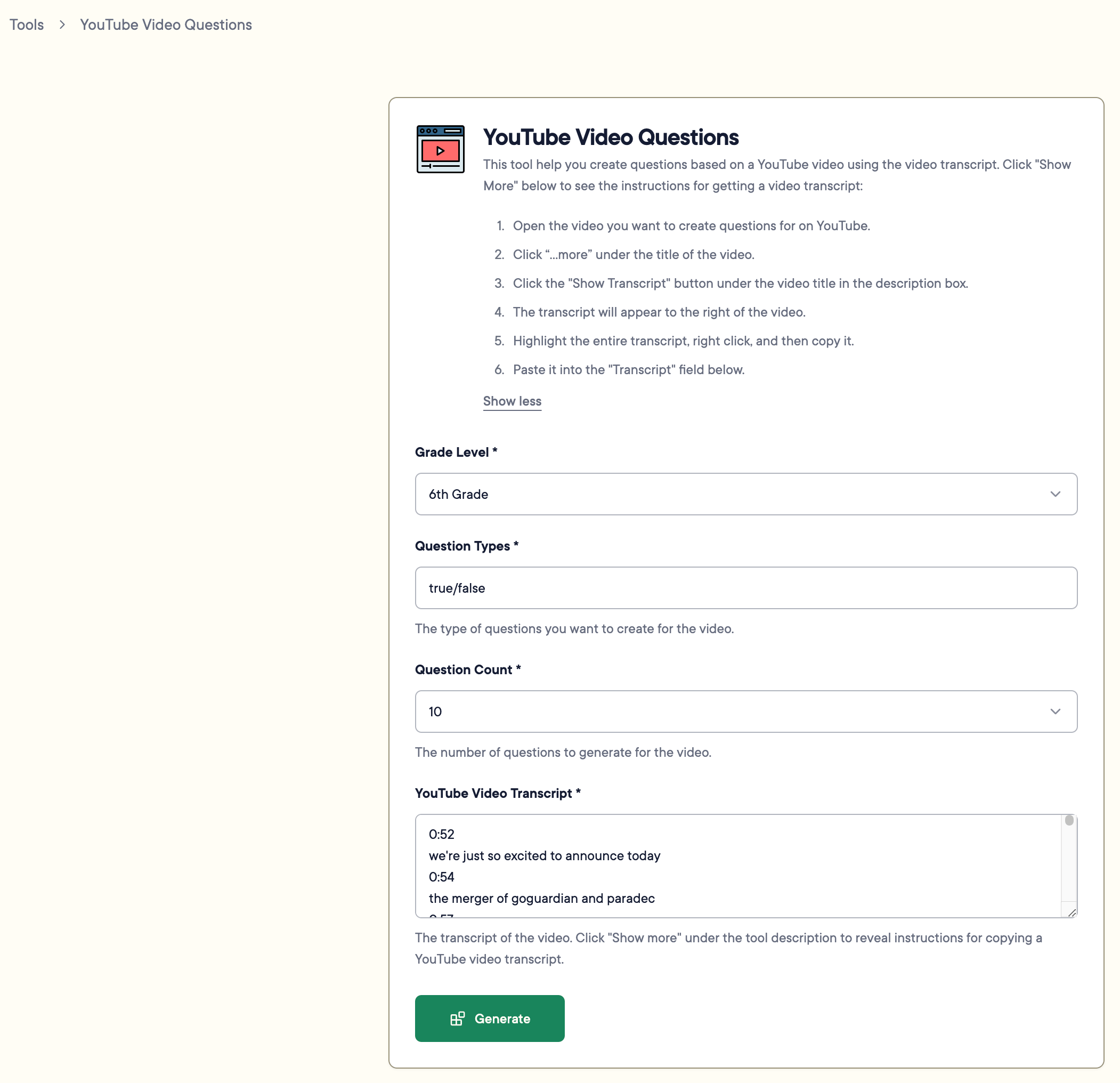
 5. In Pear Start, click **Tools** > **YouTube Video Questions**.
6. Select a grade level.
7. Enter a preferred question format , for example, multiple choice, open response, or classification.
8. Select the number of questions to generate.
9. Right-click in the **YouTube Video Transcript** field and click **Paste**. The transcript formats automatically with a timestamp on one line and text on the next. Pear Start supports up to 45,000 characters.
10. Click **Generate**.
5. In Pear Start, click **Tools** > **YouTube Video Questions**.
6. Select a grade level.
7. Enter a preferred question format , for example, multiple choice, open response, or classification.
8. Select the number of questions to generate.
9. Right-click in the **YouTube Video Transcript** field and click **Paste**. The transcript formats automatically with a timestamp on one line and text on the next. Pear Start supports up to 45,000 characters.
10. Click **Generate**.
 To edit or transform the generated content into class material, see [Tools Overview](/products/pear-start/tools-overview).
 ## Resources
Learn how to edit, refine, and transform AI-generated content into classroom materials.
## Resources
Learn how to edit, refine, and transform AI-generated content into classroom materials.