> ## Documentation Index
> Fetch the complete documentation index at: https://docs.goguardian.com/llms.txt
> Use this file to discover all available pages before exploring further.

# Find Content You've Created

> Use the History and Materials tabs to locate, save, and reuse AI-generated outputs across Pear Start tools and Instant Lesson Packages.

Every time you click **Generate** in a Pear Start tool, the output is automatically logged in your **History** tab. You can save any output to your **Materials** tab to quickly find and reuse it ,  on its own or as an input for creating Instant Lesson Packages anywhere in Pear Deck Learning.

## View All Outputs in History

Click **Generate** in any tool to log the output automatically in **History**.

<Note>
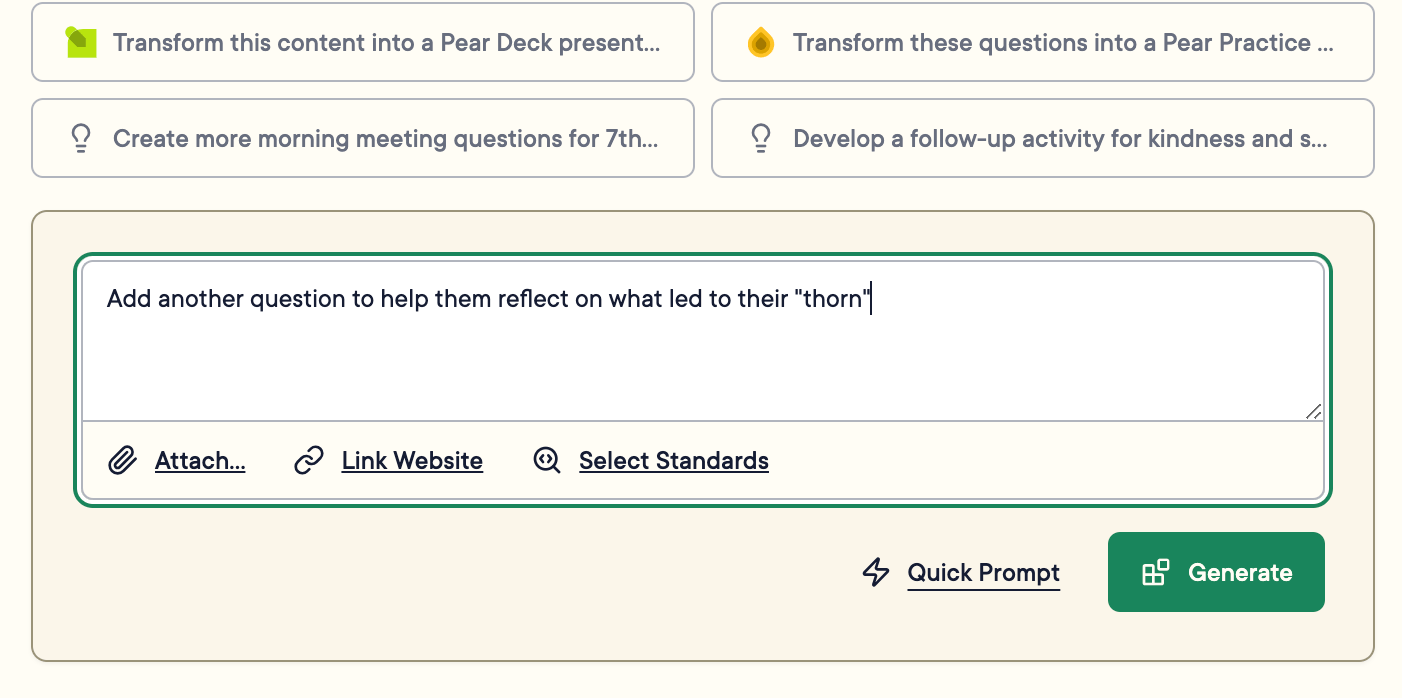
  Adding to or revising an output using the prompt box at the bottom of the generated content does not create a new History entry ,  it updates the existing output.
</Note>

To view all your outputs, click the **History** tab. Outputs are listed chronologically with their **Title**, **Tool**, and **Created** date.

You can edit an output by selecting it and clicking **Edit** (or **Edit Prompt**), then clicking **Save Changes**. Outputs cannot be deleted.
<img src="https://mintcdn.com/goguardian/KRyfzLG1l3oou9Cr/images/screenshots/find-created-content/step-01.png?fit=max&auto=format&n=KRyfzLG1l3oou9Cr&q=85&s=db0d18a1be98bf4b400a5ee190382b65" alt="View All Outputs in History" width="1326" height="1126" data-path="images/screenshots/find-created-content/step-01.png" />

<img src="https://mintcdn.com/goguardian/KRyfzLG1l3oou9Cr/images/screenshots/find-created-content/step-02.png?fit=max&auto=format&n=KRyfzLG1l3oou9Cr&q=85&s=56be9983163e437bc84b48962689e3a0" alt="View All Outputs in History" width="1402" height="698" data-path="images/screenshots/find-created-content/step-02.png" />

<img src="https://mintcdn.com/goguardian/KRyfzLG1l3oou9Cr/images/screenshots/find-created-content/step-03.png?fit=max&auto=format&n=KRyfzLG1l3oou9Cr&q=85&s=5a75e96f01018dc07c13bd101c5c3d98" alt="View All Outputs in History" width="2856" height="1706" data-path="images/screenshots/find-created-content/step-03.png" />

<img src="https://mintcdn.com/goguardian/KRyfzLG1l3oou9Cr/images/screenshots/find-created-content/step-04.png?fit=max&auto=format&n=KRyfzLG1l3oou9Cr&q=85&s=83270cf66287106d8e3611a22668da69" alt="View All Outputs in History" width="1384" height="410" data-path="images/screenshots/find-created-content/step-04.png" />

## Save Specific Outputs in Materials

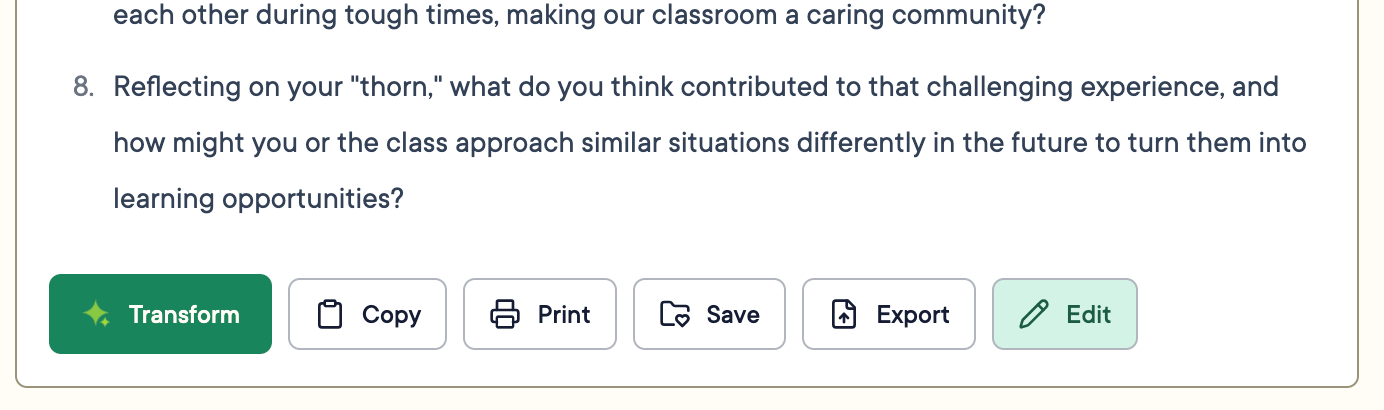
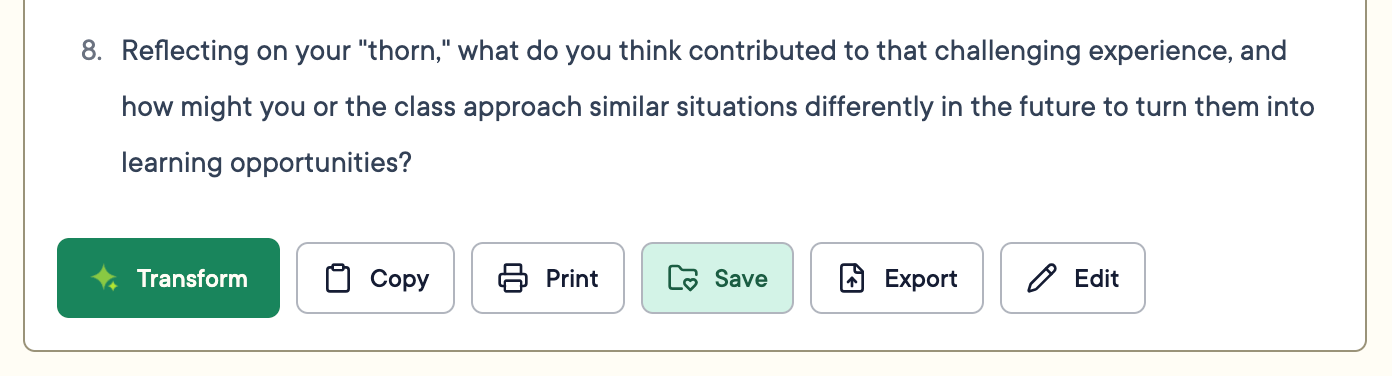
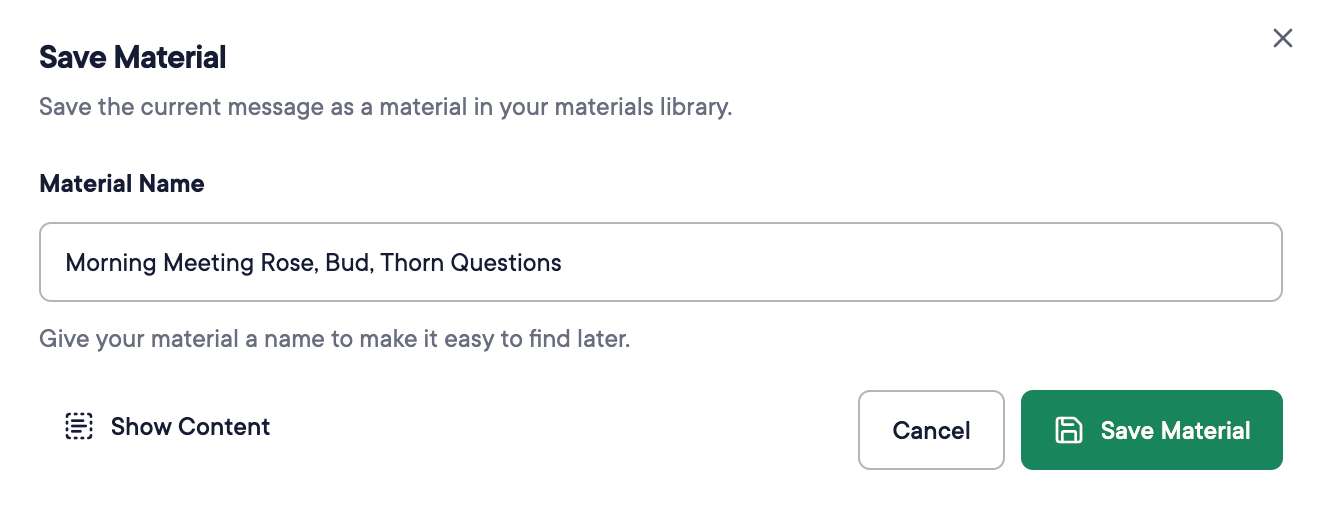
After generating an output or selecting one from **History**, click **Save** to add it to your **Materials** tab.

Review and adjust the title, then click **Save Material**.

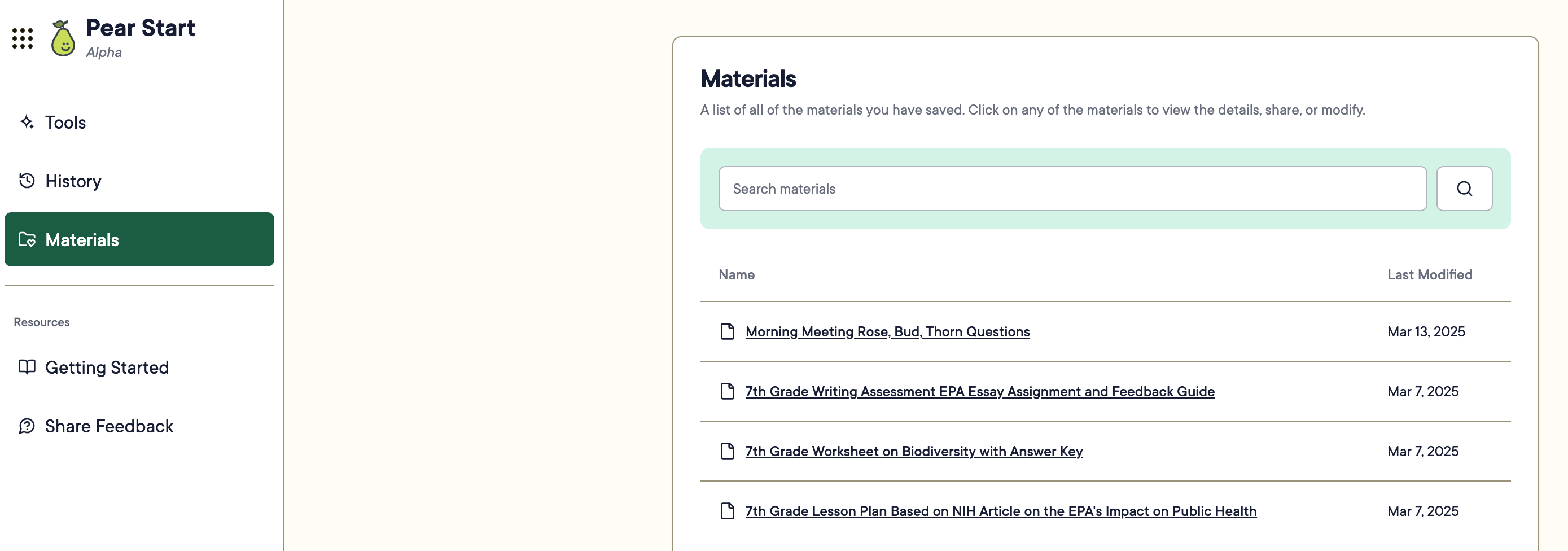
Navigate to the **Materials** tab to view your saved outputs. They are organized by **Last Modified** date. Use the search bar to find specific outputs.

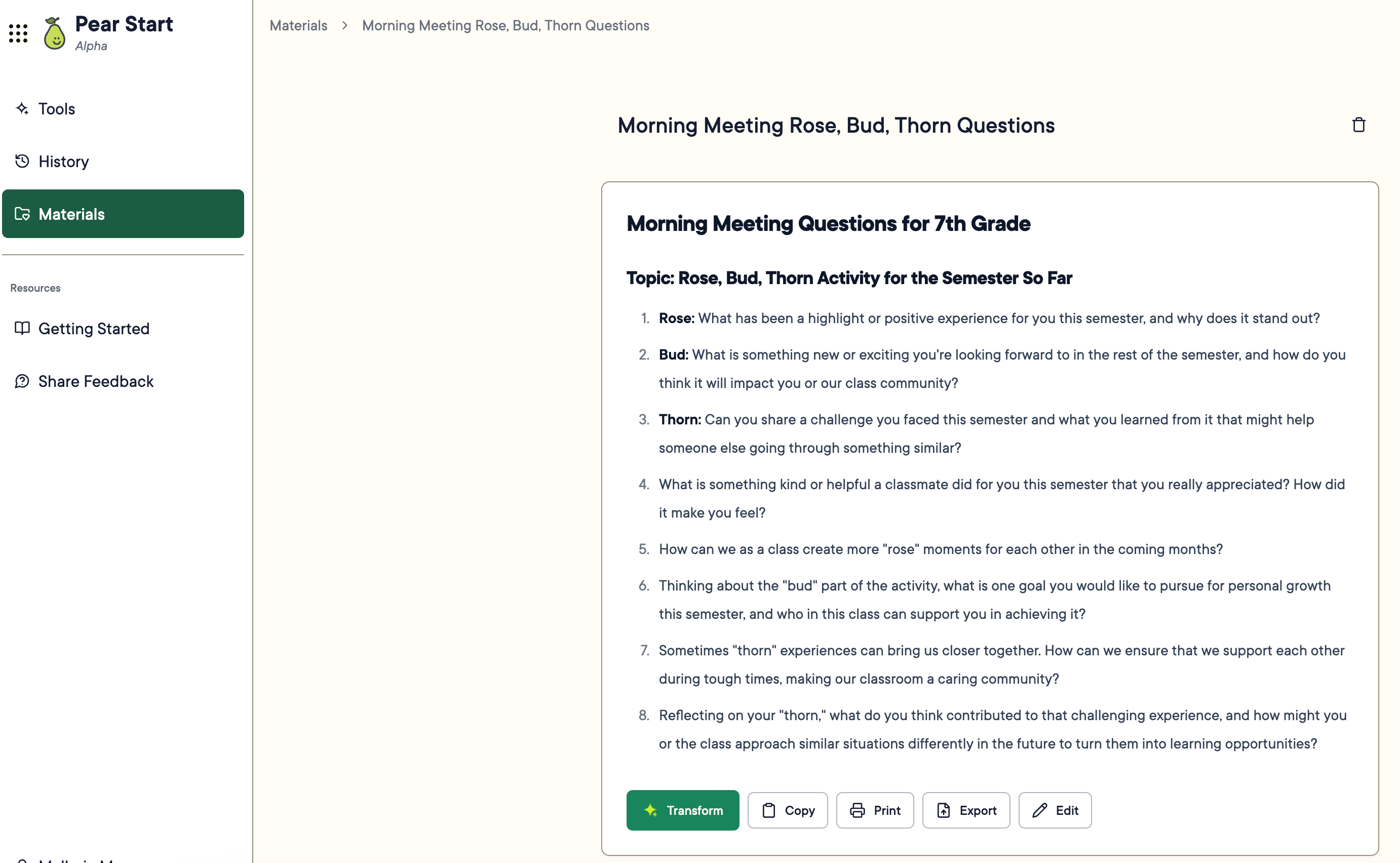
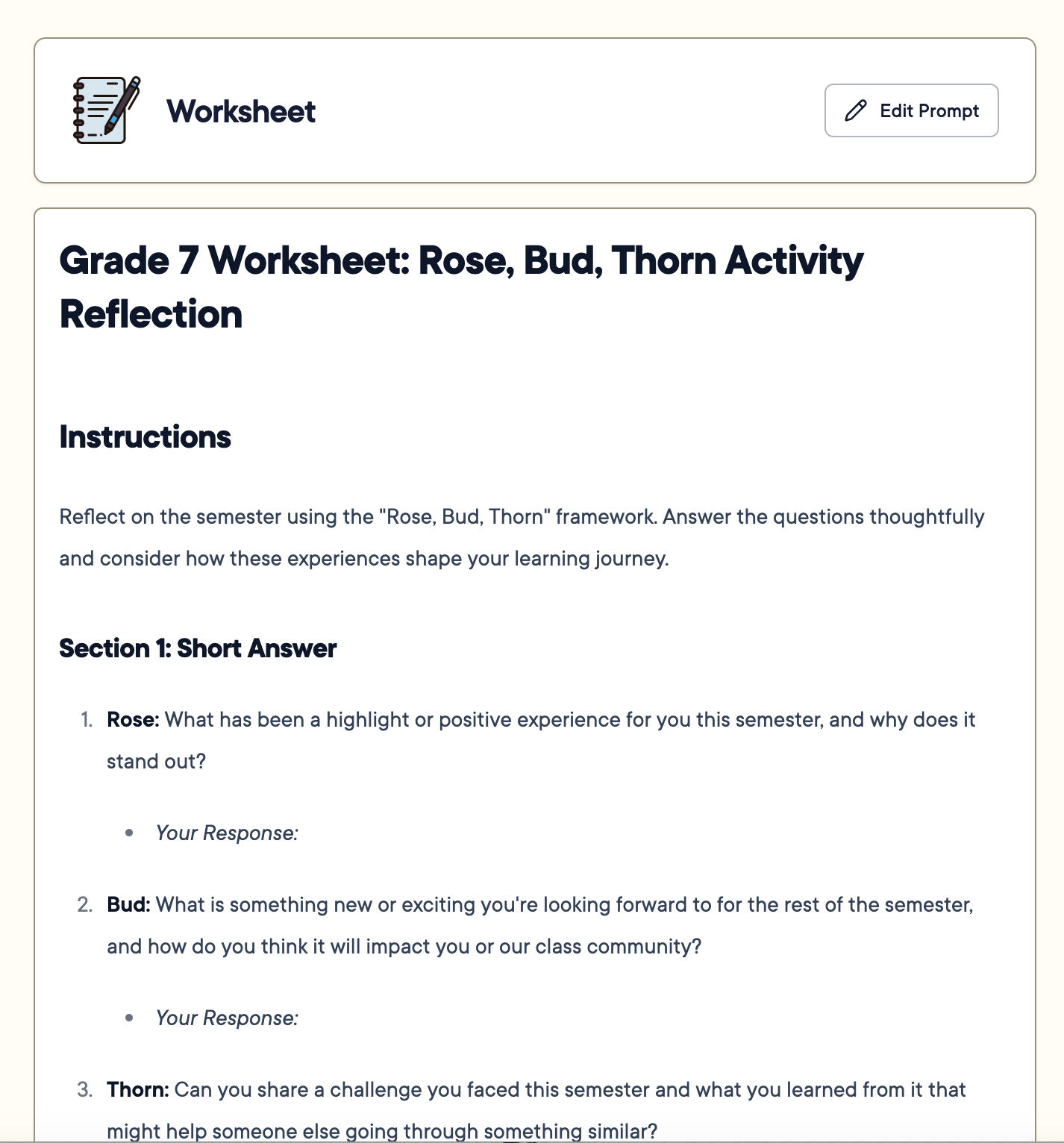
Click an output to reopen it. From there, you can **Transform**, **Copy**, **Print**, **Export**, or **Edit** the content.
<img src="https://mintcdn.com/goguardian/KRyfzLG1l3oou9Cr/images/screenshots/find-created-content/step-05.png?fit=max&auto=format&n=KRyfzLG1l3oou9Cr&q=85&s=b351dac482ecd59b75823f8c2e435548" alt="Save Specific Outputs in Materials" width="1392" height="376" data-path="images/screenshots/find-created-content/step-05.png" />

<img src="https://mintcdn.com/goguardian/KRyfzLG1l3oou9Cr/images/screenshots/find-created-content/step-06.png?fit=max&auto=format&n=KRyfzLG1l3oou9Cr&q=85&s=3d4cf4dee8427eac9cd49d96ff76ec50" alt="Save Specific Outputs in Materials" width="1320" height="506" data-path="images/screenshots/find-created-content/step-06.png" />

<img src="https://mintcdn.com/goguardian/KRyfzLG1l3oou9Cr/images/screenshots/find-created-content/step-07.png?fit=max&auto=format&n=KRyfzLG1l3oou9Cr&q=85&s=42425d248e55f7dbca8a3bf3aee2400e" alt="Save Specific Outputs in Materials" width="2778" height="976" data-path="images/screenshots/find-created-content/step-07.png" />

<img src="https://mintcdn.com/goguardian/KRyfzLG1l3oou9Cr/images/screenshots/find-created-content/step-08.png?fit=max&auto=format&n=KRyfzLG1l3oou9Cr&q=85&s=62e170c31f9f17e0686b9b5a1113f1ac" alt="Save Specific Outputs in Materials" width="2764" height="1704" data-path="images/screenshots/find-created-content/step-08.png" />

## Use Materials as Attachments

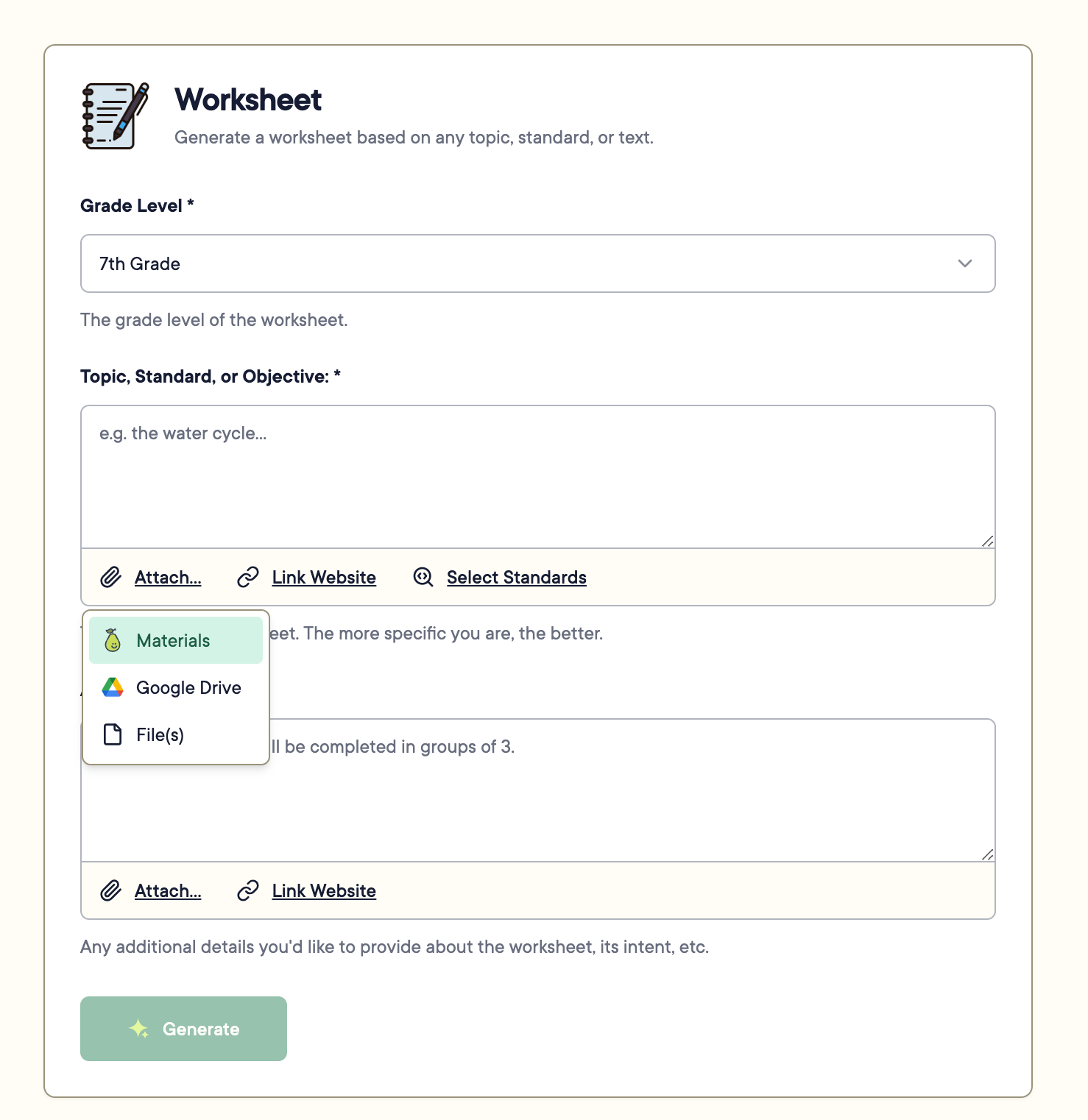
Saved materials can be attached to Pear Start Tools or Instant Lesson Packages to generate additional content.

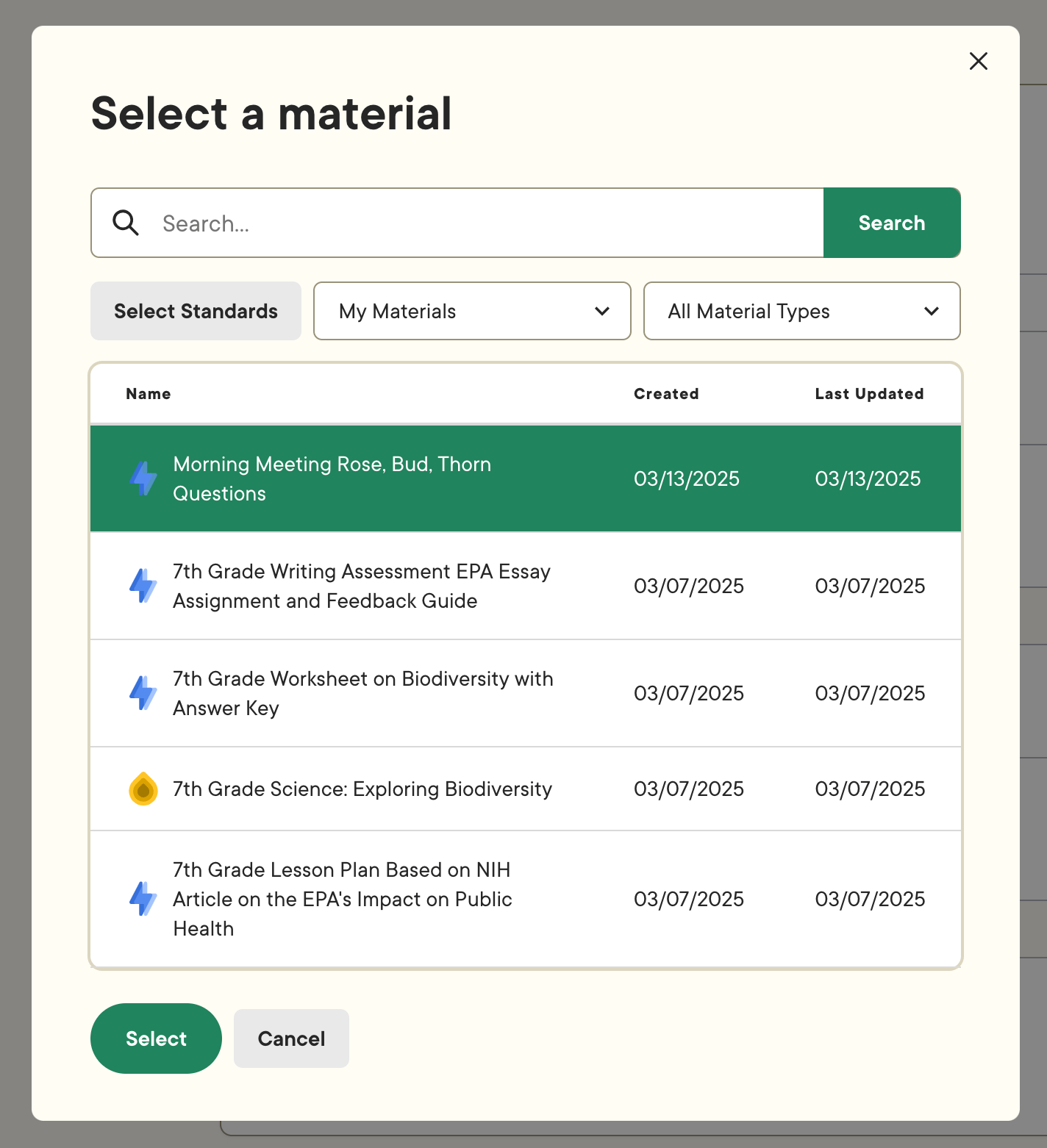
1. Click **Attach...** and select **Materials**.

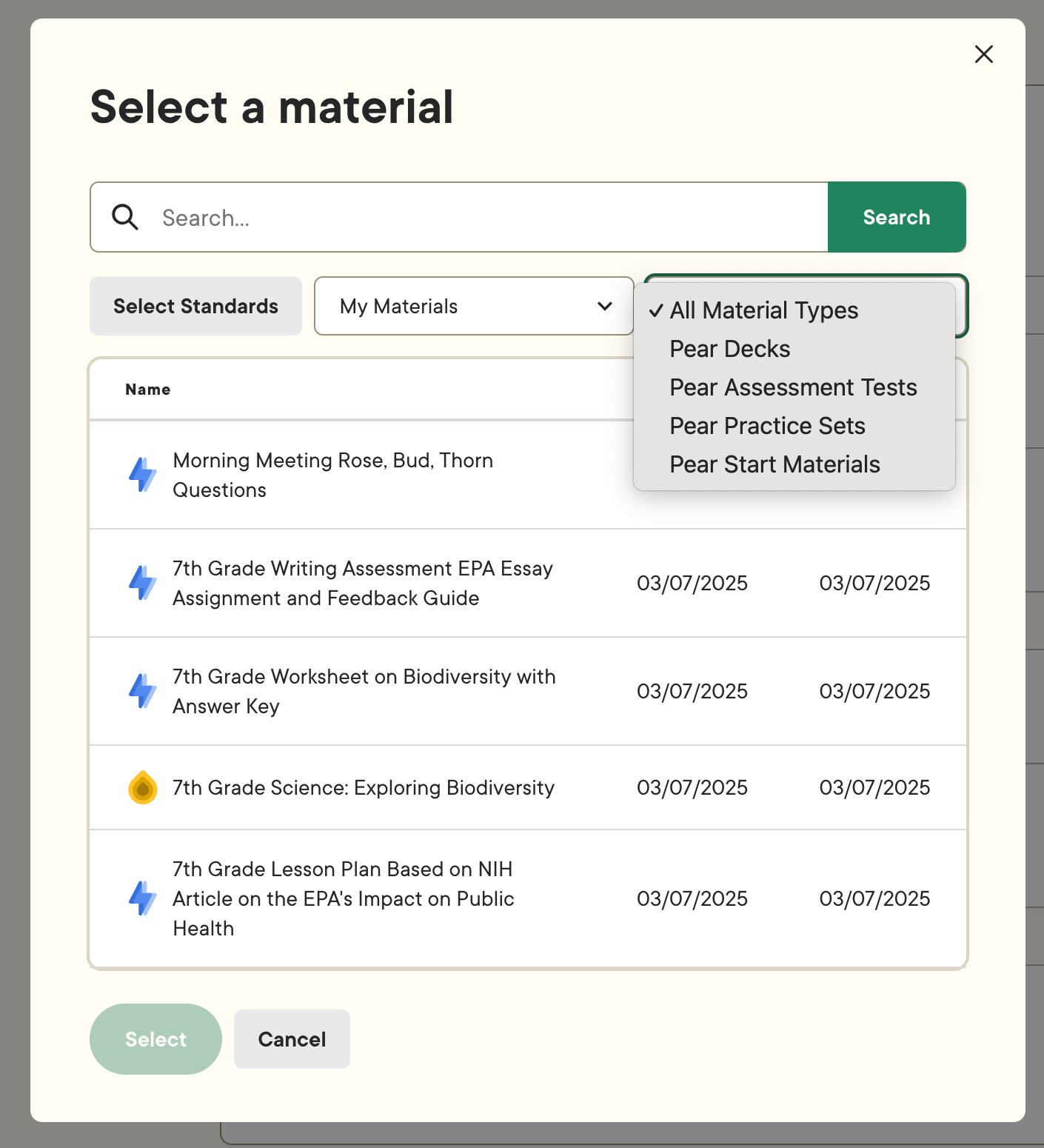
2. Search or filter by material type to find the content you want.

3. Click the material and then click **Select**.

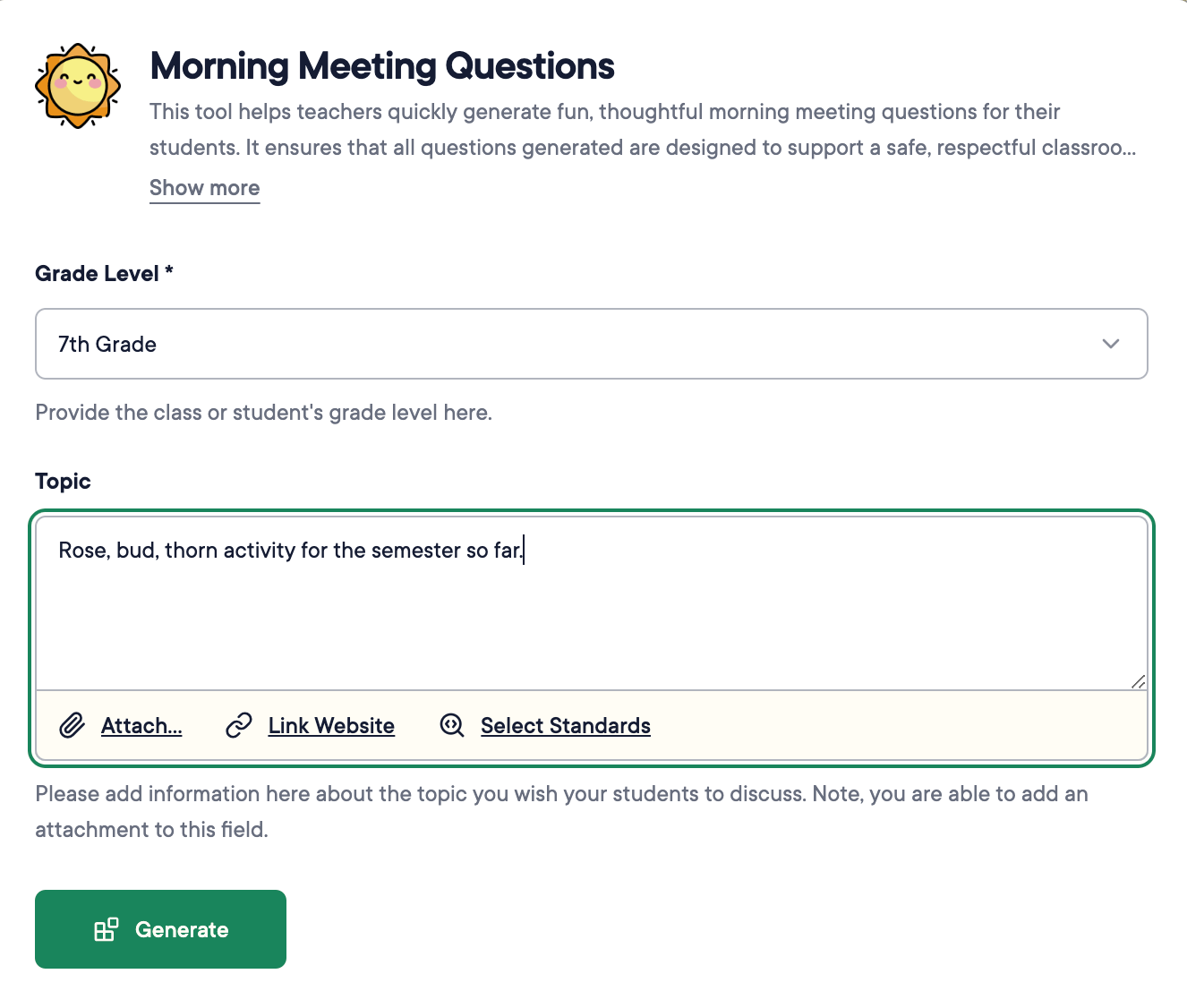
4. Adjust any additional fields, then click **Generate**.

The output is based on your selected material.
<img src="https://mintcdn.com/goguardian/Wyf8dNWdpcHURq3A/images/screenshots/find-created-content/step-09.png?fit=max&auto=format&n=Wyf8dNWdpcHURq3A&q=85&s=3a349b1e308eb00f0c8ed4563555ebcb" alt="Use Materials as Attachments" width="1478" height="1522" data-path="images/screenshots/find-created-content/step-09.png" />

<img src="https://mintcdn.com/goguardian/Wyf8dNWdpcHURq3A/images/screenshots/find-created-content/step-10.png?fit=max&auto=format&n=Wyf8dNWdpcHURq3A&q=85&s=a0b6b1ba32c727ea75140fcf8cfda84a" alt="Use Materials as Attachments" width="1410" height="1550" data-path="images/screenshots/find-created-content/step-10.png" />

<img src="https://mintcdn.com/goguardian/Wyf8dNWdpcHURq3A/images/screenshots/find-created-content/step-11.png?fit=max&auto=format&n=Wyf8dNWdpcHURq3A&q=85&s=48c5c0ff48b4cb311b9f0474abdd4611" alt="Use Materials as Attachments" width="1424" height="1562" data-path="images/screenshots/find-created-content/step-11.png" />

<img src="https://mintcdn.com/goguardian/Wyf8dNWdpcHURq3A/images/screenshots/find-created-content/step-12.png?fit=max&auto=format&n=Wyf8dNWdpcHURq3A&q=85&s=d0a0c50ee4b8f49a26d1161b5990db9a" alt="Use Materials as Attachments" width="1410" height="1588" data-path="images/screenshots/find-created-content/step-12.png" />

<img src="https://mintcdn.com/goguardian/Wyf8dNWdpcHURq3A/images/screenshots/find-created-content/step-13.png?fit=max&auto=format&n=Wyf8dNWdpcHURq3A&q=85&s=06e83acf0731cede49b957daa9d707d0" alt="Use Materials as Attachments" width="1426" height="1532" data-path="images/screenshots/find-created-content/step-13.png" />

## Resources

<CardGroup cols={2}>
  <Card title="Create Instant Lesson Packages" href="/products/pear-start/create-instant-lesson-packages">
    Transform saved materials into Pear Deck, Pear Practice, and Pear Assessment content.
  </Card>

  <Card title="Tools Overview" href="/products/pear-start/tools-overview">
    Learn how Pear Start Tools work and how to use Generate and Transform.
  </Card>
</CardGroup>