> ## Documentation Index
> Fetch the complete documentation index at: https://docs.goguardian.com/llms.txt
> Use this file to discover all available pages before exploring further.

# Manage District Tools

> Review, enable, disable, and create Workspace tools for all teachers from the Manage Tools page in Pear Start.

Pear Start **District Management Tools** lets district and school administrators ensure their environment follows district policies and instructional goals by managing the tools available to teachers. From the **Manage Tools** page, administrators can:

* Enable or disable tools to streamline operations
* Create district-wide **Custom Tools** labeled with a "Workspace" badge

## Understand the District Management Tools View

When administrators access **District Management Tools**, they see:

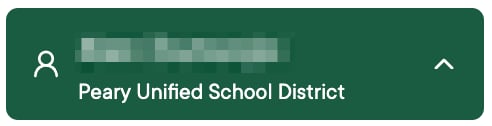
* Their district's name below their full name in the navigation menu
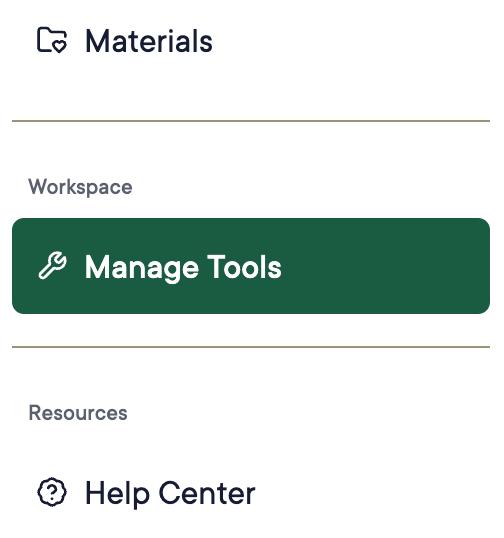
* The **Manage Tools** option in the navigation menu

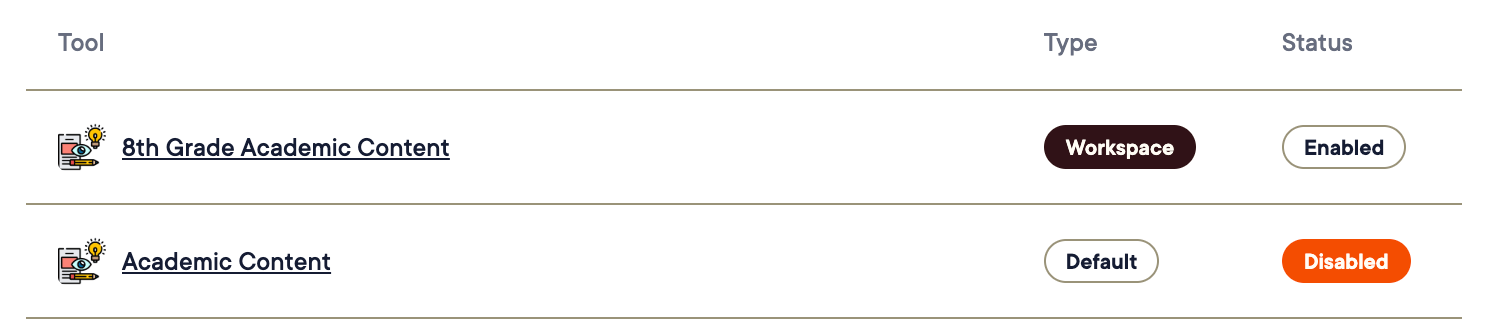
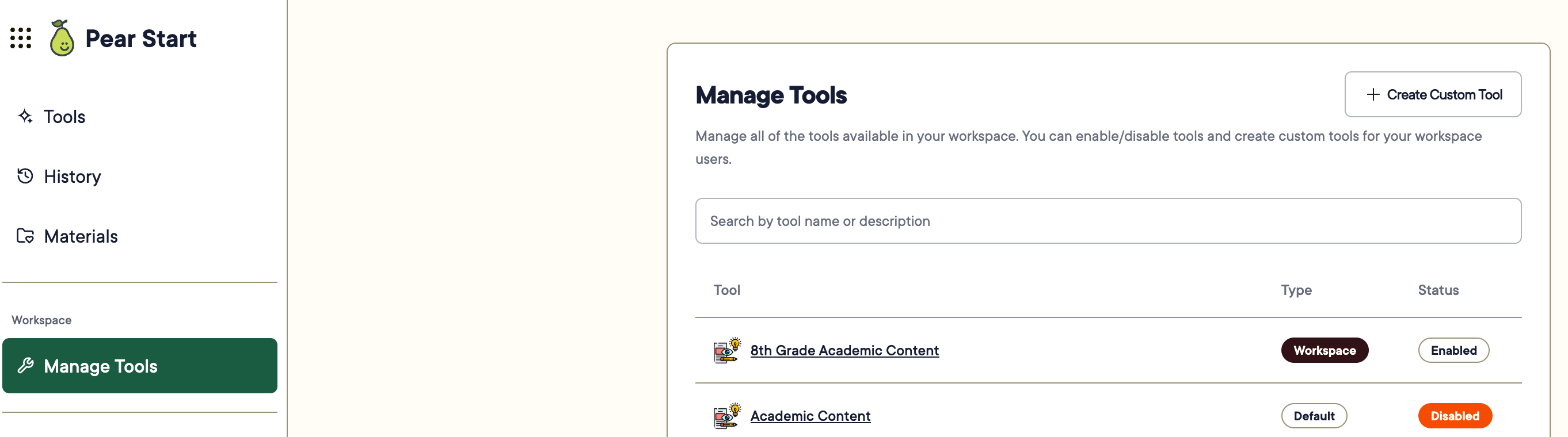
On the **Manage Tools** page, tools are listed alphabetically with the following information:

| Column     | Values                                                                |
| ---------- | --------------------------------------------------------------------- |
| **Name**   | Tool name                                                             |
| **Type**   | **Default** (built-in) or **Workspace** (created by an administrator) |
| **Status** | Enabled or Disabled                                                   |

<Note>
  Tool types also appear as badges next to the tool's name on the Tools page for teachers.
</Note>

<img src="https://mintcdn.com/goguardian/FVKUrnWRnACRmEDK/images/screenshots/manage-district-tools/step-01.png?fit=max&auto=format&n=FVKUrnWRnACRmEDK&q=85&s=e79d2b83c725d7607ebeb50cfcf7d9a3" alt="View of Pear Start &#x22;Manage Tools&#x22; page." width="2724" height="760" data-path="images/screenshots/manage-district-tools/step-01.png" />

<img src="https://mintcdn.com/goguardian/FVKUrnWRnACRmEDK/images/screenshots/manage-district-tools/step-02.png?fit=max&auto=format&n=FVKUrnWRnACRmEDK&q=85&s=3135c2884cc300786932a86d019b5a57" alt="District name under the user's name in Pear Start navigation menu." width="492" height="126" data-path="images/screenshots/manage-district-tools/step-02.png" />

<img src="https://mintcdn.com/goguardian/FVKUrnWRnACRmEDK/images/screenshots/manage-district-tools/step-03.png?fit=max&auto=format&n=FVKUrnWRnACRmEDK&q=85&s=3bb15b6da0fe6e97af3f01aacf5b3374" alt="The &#x22;Manage Tools&#x22; button in the Pear Start navigation menu." width="504" height="538" data-path="images/screenshots/manage-district-tools/step-03.png" />

<img src="https://mintcdn.com/goguardian/FVKUrnWRnACRmEDK/images/screenshots/manage-district-tools/step-04.png?fit=max&auto=format&n=FVKUrnWRnACRmEDK&q=85&s=f3e269c33fd7647bd45c5719edb5efcb" alt="View of Pear Start Custom Tools enabled and disabled." width="1492" height="332" data-path="images/screenshots/manage-district-tools/step-04.png" />

## Resources

<CardGroup cols={2}>
  <Card title="Enable or Disable Tools" href="/products/pear-start/enable-or-disable-tools">
    Turn individual tools on or off for all teachers.
  </Card>

  <Card title="Create Custom Tools as Administrator" href="/products/pear-start/create-custom-tools-as-administrator">
    Build district-wide AI tools for teachers.
  </Card>
</CardGroup>