> ## Documentation Index
> Fetch the complete documentation index at: https://docs.goguardian.com/llms.txt
> Use this file to discover all available pages before exploring further.
# Tools Overview
> Explore Pear Start's library of AI tools for lesson planning, content creation, and seamless integration with Pear Deck, Pear Assessment, and Pear Practice.
Pear Start's **Tools** is a library of AI tools that reduces teachers' time on tasks, lesson planning, and platform switching. Tools help you create class content and use the **Transform** feature to convert it into materials for Pear Deck, Pear Assessment, and Pear Practice.
The Transform feature is free to all Pear Deck Learning users.
## Use the Tools Library
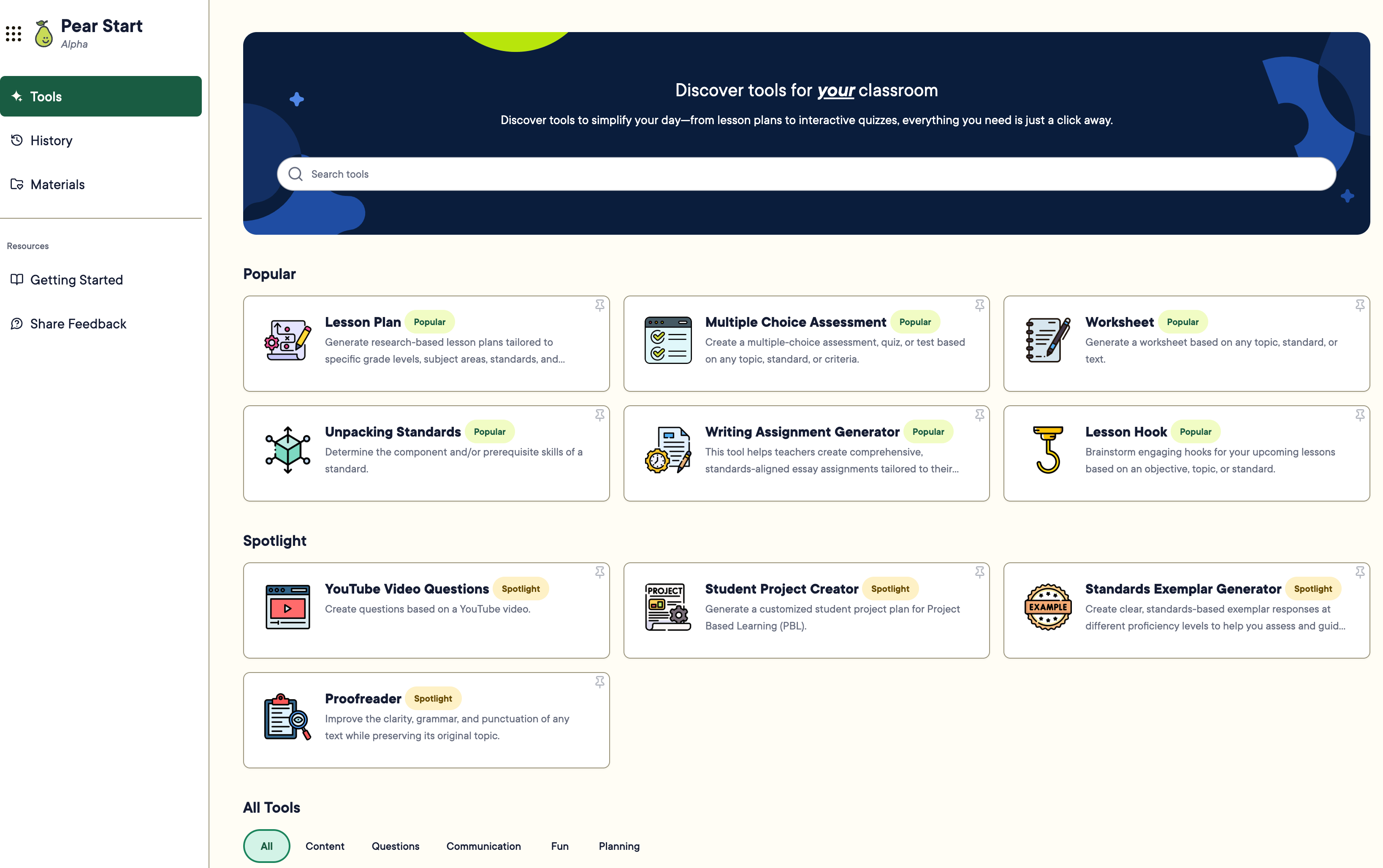
1. Click the **Tools** tab in the navigation bar.
2. Click the name of the tool that best fits your needs.
Tools are separated into two sections:
* **Popular** : tools you've used in the last 30 days or pinned as favorites
* **All Tools** : organized into Content, Questions, Communication, Fun, and Planning categories
3. Review the tool description, which explains its purpose and the type of content it creates. Click **Use Example** to pre-fill the fields with a popular use case.
Most tools share a consistent structure:
* Grade level
* Content or resource
* Format
4. Fill out the required fields, then click **Generate** to create content in real time.
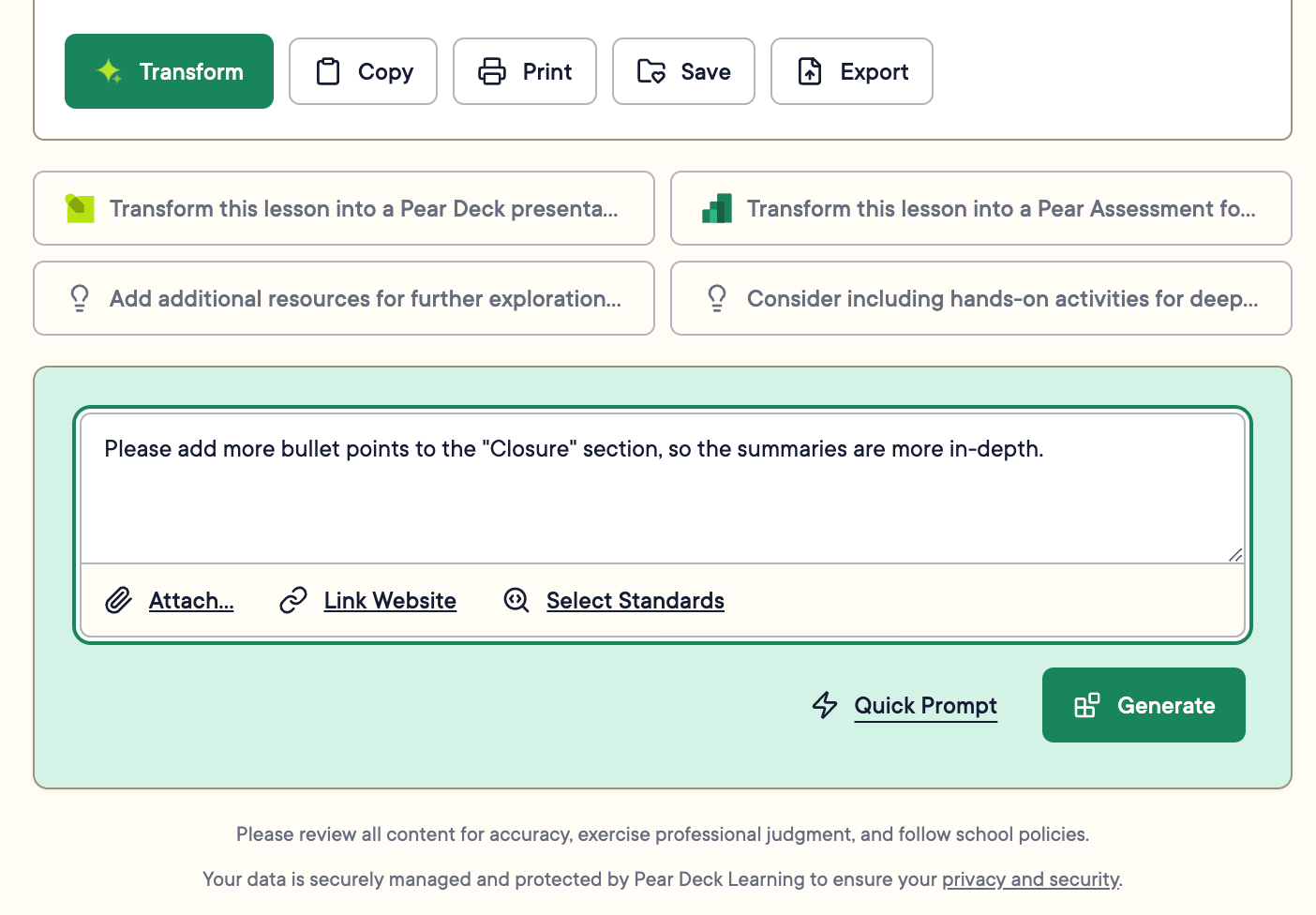
5. Review and edit the output before using it. To revise, click **Edit Prompt** in the upper-right corner of the tool, or request changes in the text field at the bottom. In the text field, use the **Quick Prompt** feature for popular changes, or enter your own change and click **Generate**. The new section is integrated into your content.



 ## Transform Content into Classroom Materials
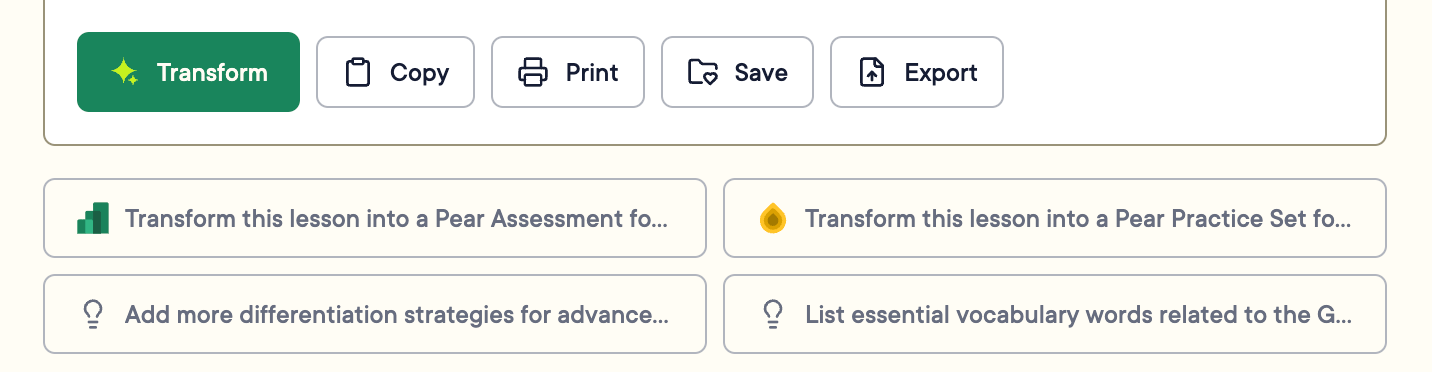
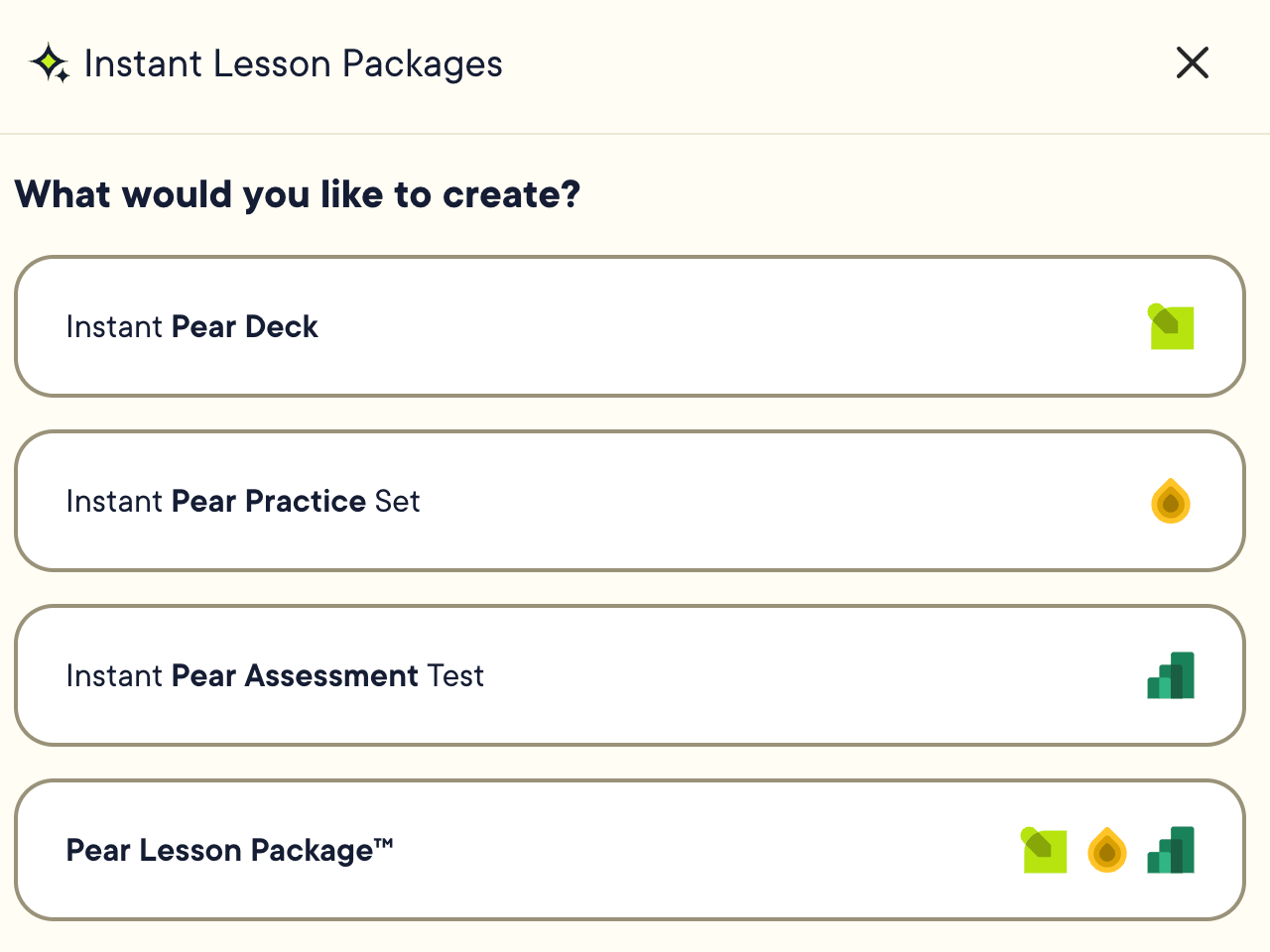
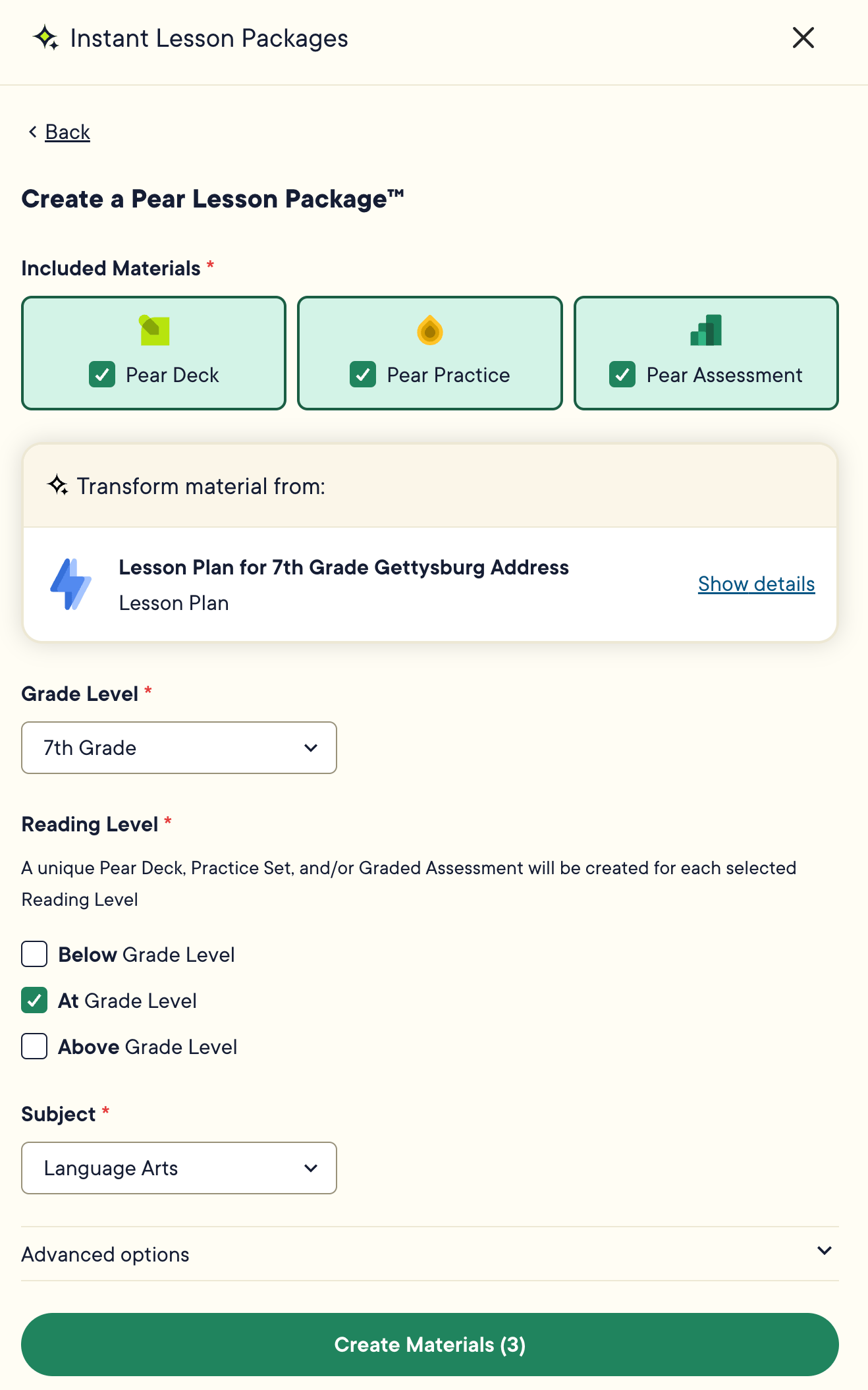
1. When your content is ready, click **Transform** : or select a suggested transformation , then select the Pear Deck Learning app where the Instant Lesson Package will be created.
2. Click **Show details** to review or adjust grade level, reading level, and subject. Pear Start automatically detects these from the generated content.
3. Click **Create Materials**.
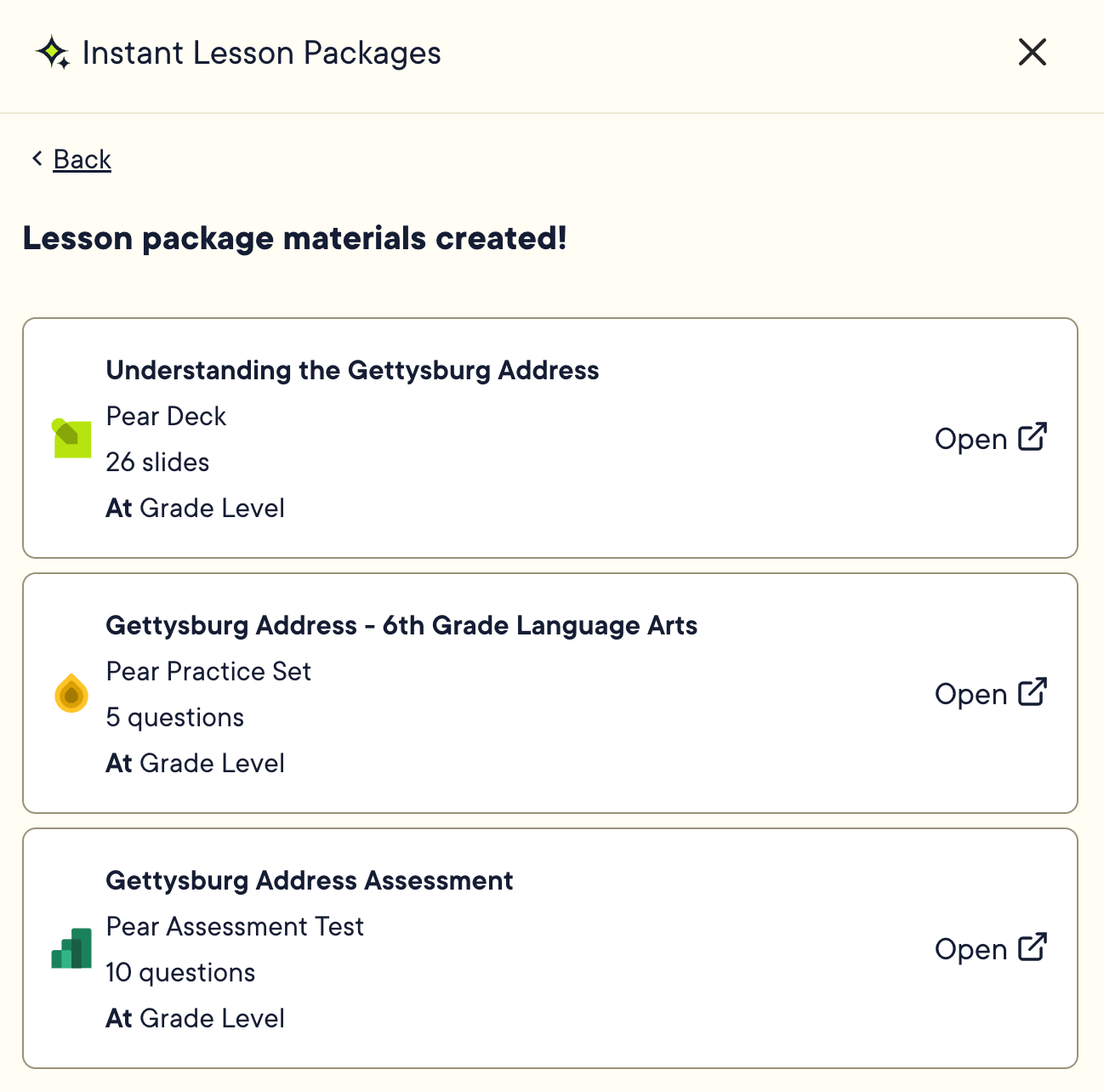
4. Open the materials in a new tab from Pear Start, or access them by clicking the waffle tray in the upper-left corner and opening the relevant Pear Deck Learning app.
## Transform Content into Classroom Materials
1. When your content is ready, click **Transform** : or select a suggested transformation , then select the Pear Deck Learning app where the Instant Lesson Package will be created.
2. Click **Show details** to review or adjust grade level, reading level, and subject. Pear Start automatically detects these from the generated content.
3. Click **Create Materials**.
4. Open the materials in a new tab from Pear Start, or access them by clicking the waffle tray in the upper-left corner and opening the relevant Pear Deck Learning app.
 ## Resources
Transform generated content into Pear Deck, Pear Practice, and Pear Assessment materials in one click.
Locate and reuse your saved outputs from History and Materials.
Share feedback or request a new tool through the Pear Start feedback form.
## Resources
Transform generated content into Pear Deck, Pear Practice, and Pear Assessment materials in one click.
Locate and reuse your saved outputs from History and Materials.
Share feedback or request a new tool through the Pear Start feedback form.