> ## Documentation Index
> Fetch the complete documentation index at: https://docs.goguardian.com/llms.txt
> Use this file to discover all available pages before exploring further.
# Access Data from Past Sessions
> How to find and review timeline data, screenshots, and command logs from previous GoGuardian Teacher class sessions.
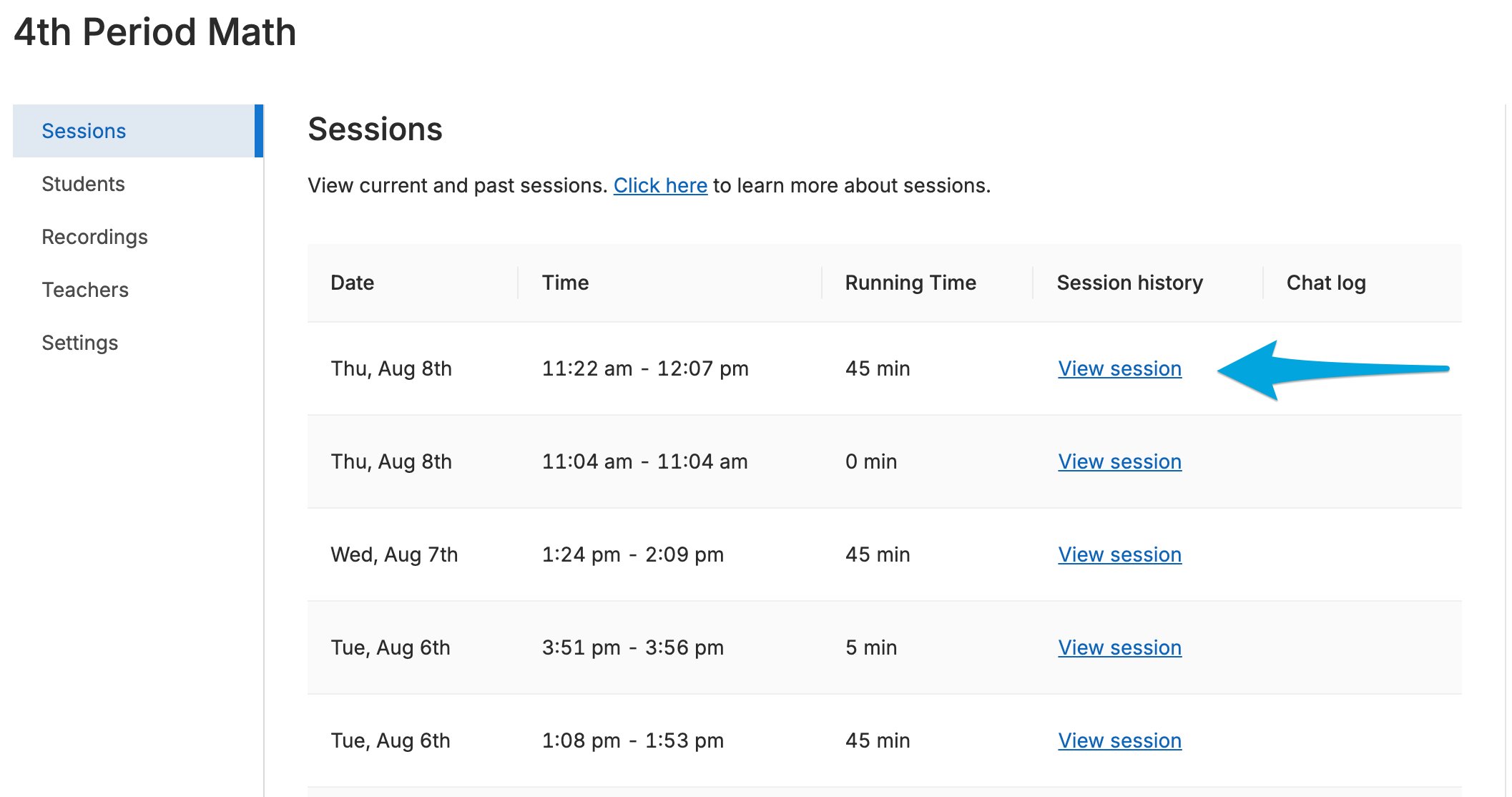
To review activity from past GoGuardian Teacher sessions, click a classroom tile or choose **View Sessions** from the **Settings** cogwheel.
To view a specific session, click **View Session** in the class session you want to see.
Each session includes 4 data tabs:
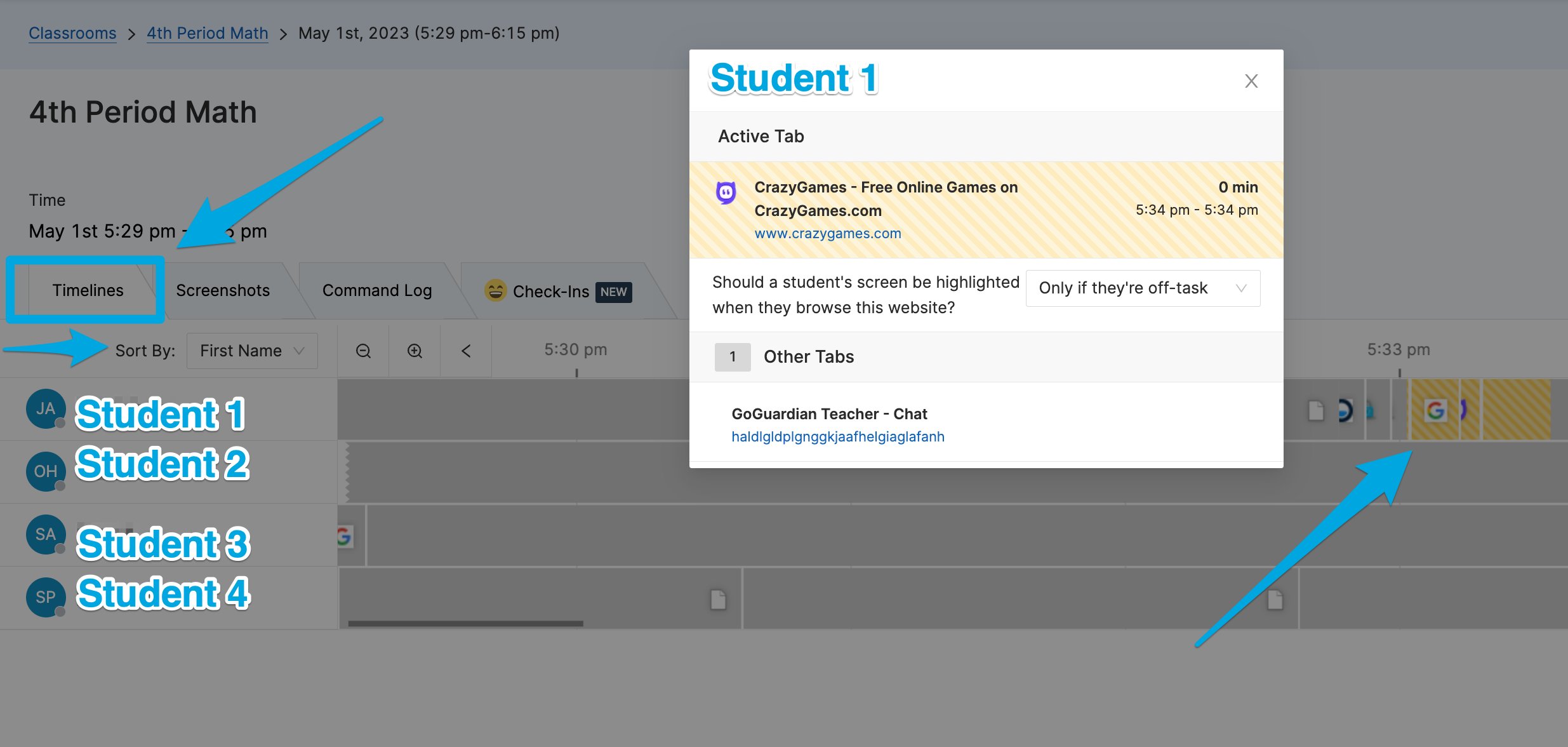
* **Timeline**: Timeline data from the session. Use your keyboard arrow keys, the scroll bar, or click and drag to scroll through the session timeline.
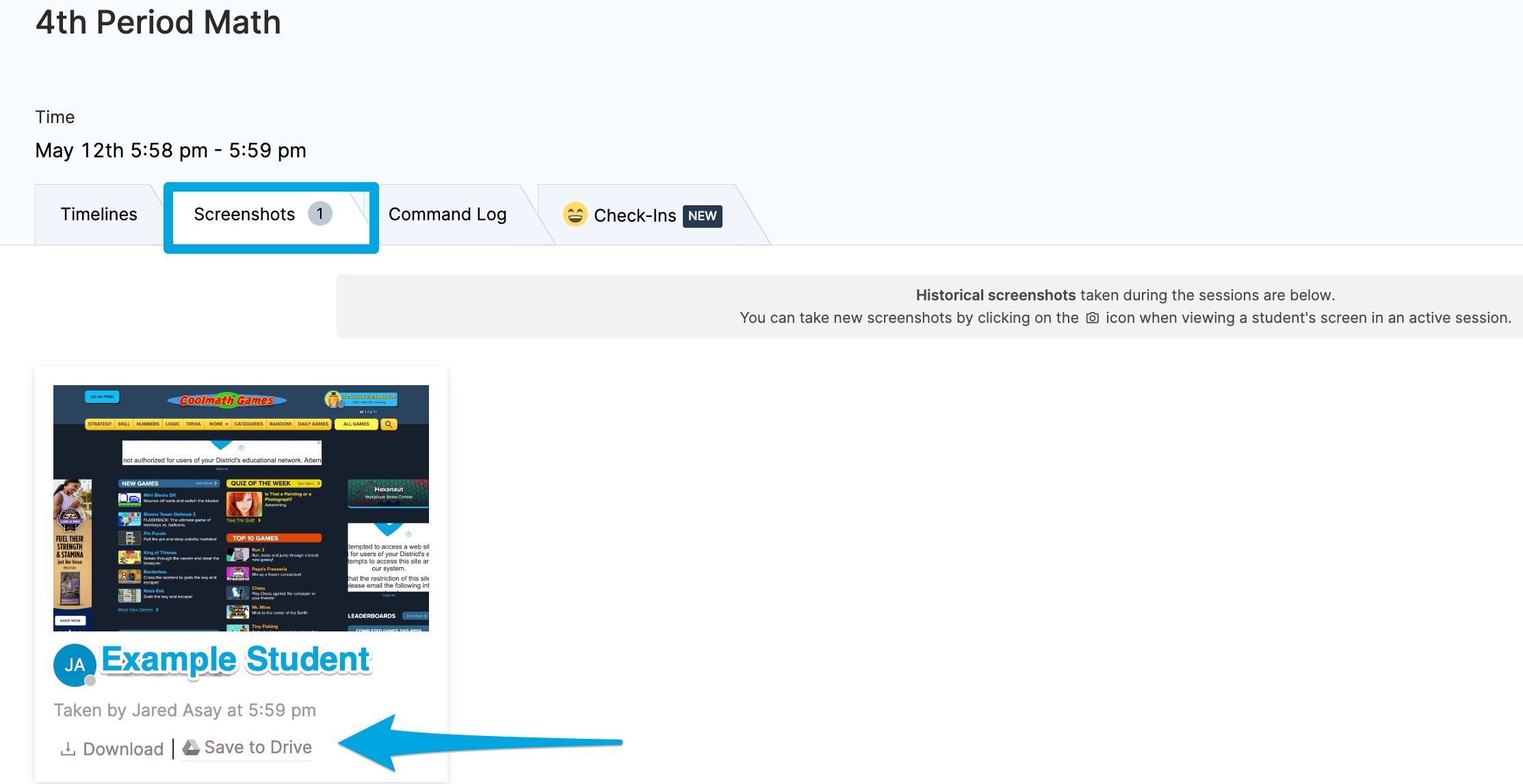
* **Screenshots**: All screenshots taken during the session are stored here indefinitely. These can be downloaded at any time.
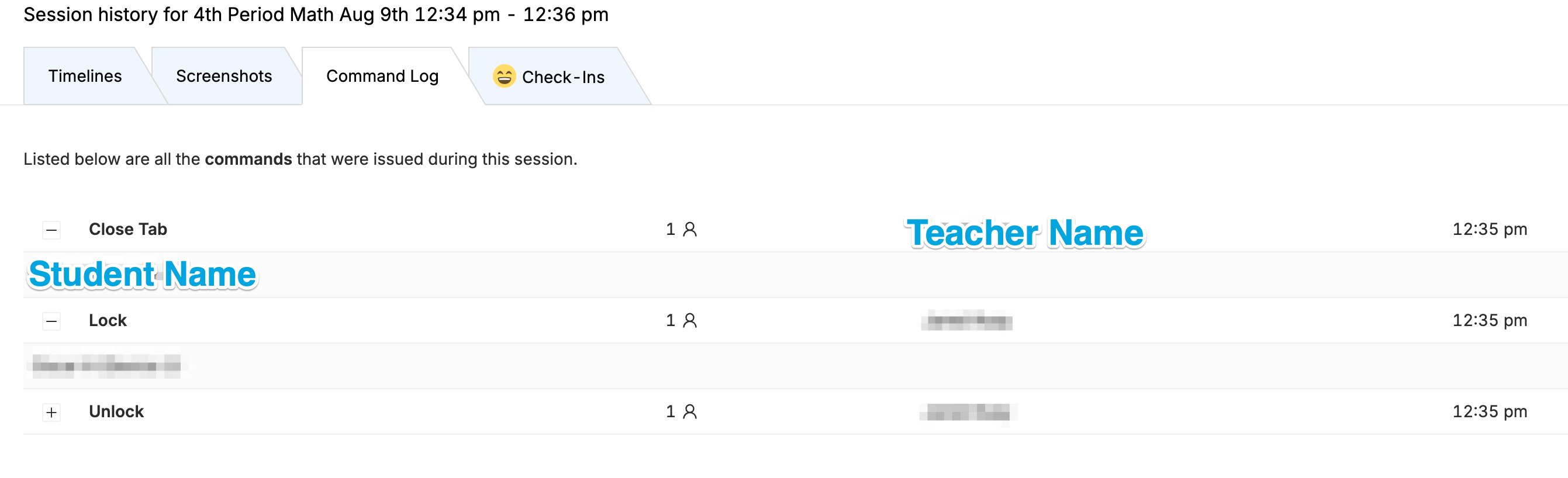
* **Command Log**: All commands sent during the session are stored here indefinitely.
* **Check-Ins**: Any Check-In results submitted by students.
## View Timeline Data
1. Click a classroom tile or choose **View Sessions** from the **Settings** cogwheel, then click **View Session** for the session you want to review.
2. In the **Timeline** tab, click an individual student to see which tabs they had open at any given moment, including the time spent on each tab.
3. Click the arrow or magnifying glass icons above the timeline to move to an earlier or later point in the session. You can also use your device's trackpad to scroll back and forth.
4. Use the **Sort By** filter to sort students by first or last name.
 ## View Commands Sent During a Session
1. In the session view, click the **Command Log** tab.
2. The **Command Log** tab lists all commands used during the class, such as Open Tab, Close Tab, and Lock and Unlock.
3. Click the **+** button next to a command to see the name of the student who received it.
## View Screenshots from a Session
1. In the session view, click the **Screenshots** tab.
2. Use the options at the bottom of the page to download screenshots locally or save them to Google Drive.
## Resources
Capture a screenshot of a student's screen during an active session.
Learn about the commands available during a GoGuardian Teacher session.
Receive a summary of session data by email after a class ends.
Review browsing activity reports for individual students.
## View Commands Sent During a Session
1. In the session view, click the **Command Log** tab.
2. The **Command Log** tab lists all commands used during the class, such as Open Tab, Close Tab, and Lock and Unlock.
3. Click the **+** button next to a command to see the name of the student who received it.
## View Screenshots from a Session
1. In the session view, click the **Screenshots** tab.
2. Use the options at the bottom of the page to download screenshots locally or save them to Google Drive.
## Resources
Capture a screenshot of a student's screen during an active session.
Learn about the commands available during a GoGuardian Teacher session.
Receive a summary of session data by email after a class ends.
Review browsing activity reports for individual students.