> ## Documentation Index
> Fetch the complete documentation index at: https://docs.goguardian.com/llms.txt
> Use this file to discover all available pages before exploring further.
# Allow Access to Blocked Sites
> Unblock a site for your entire class during a session when a student's Scene is blocking something they need.
When a website is blocked by your Scene during a class session, you can update the Scene immediately to allow the site for your entire class.
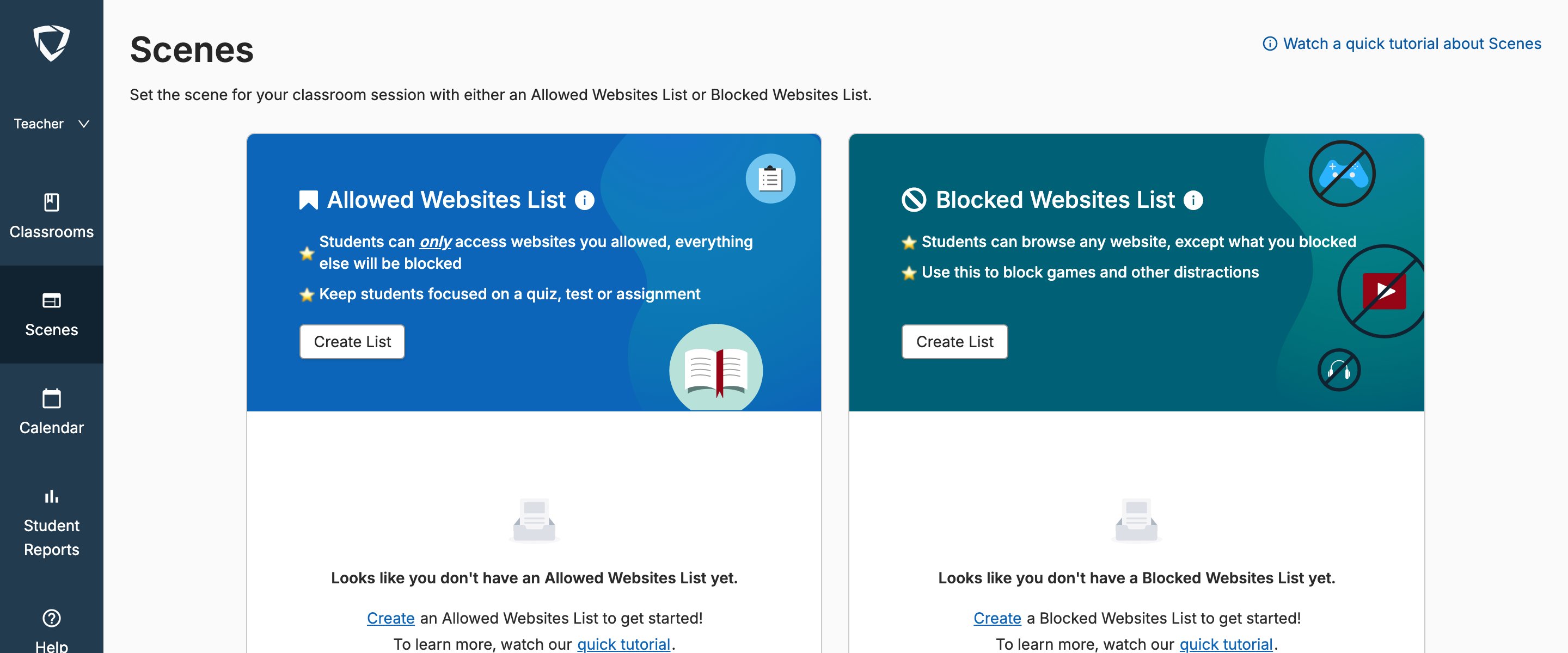 This workflow only works for sites blocked by a teacher's Scene. Sites blocked by GoGuardian Admin policy require your IT administrator or GoGuardian administrator to make the change. See the GoGuardian block page types article for help identifying which type of block a student is seeing.
## Allow a Blocked Site
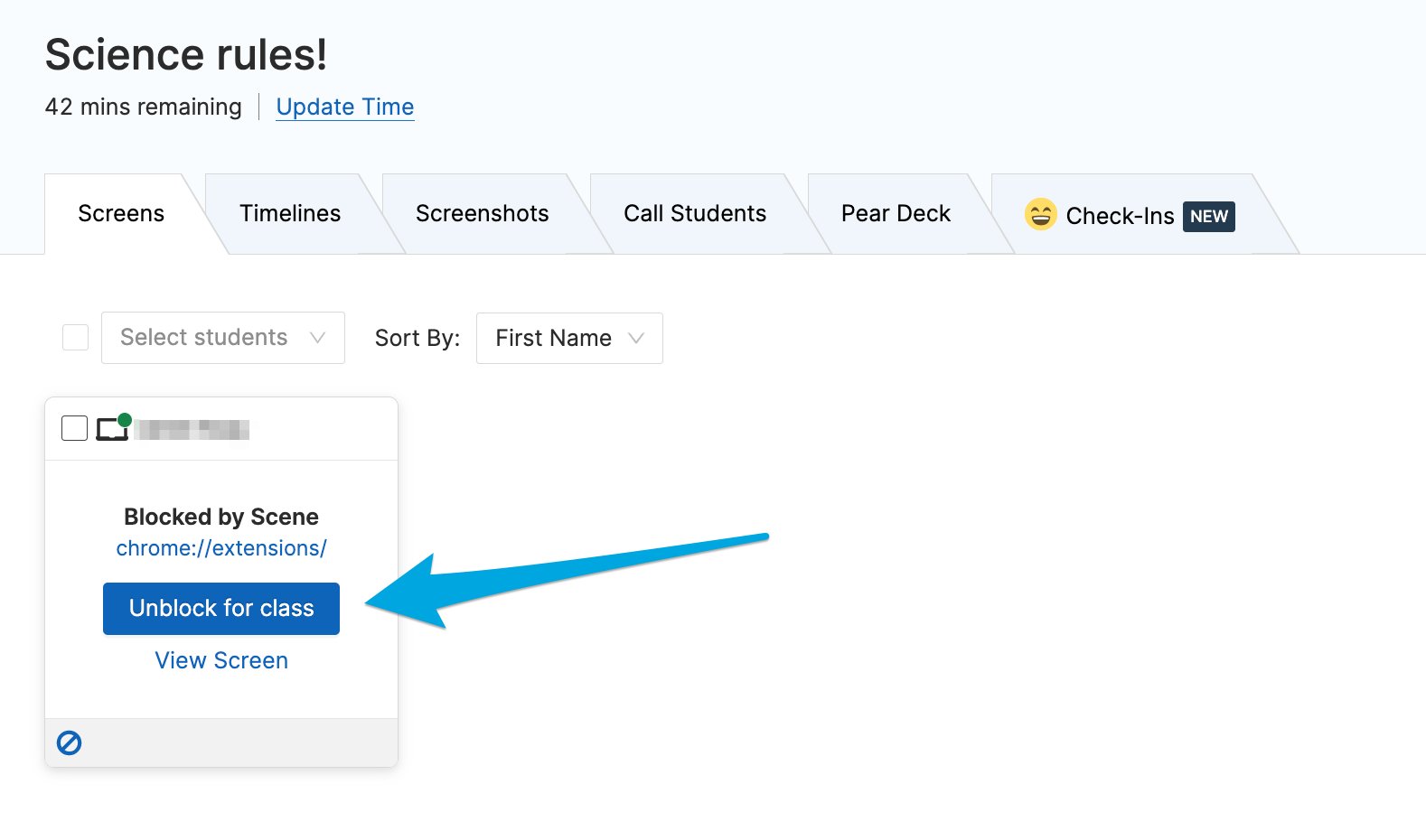
1. Locate the student tile showing the "Blocked by Scene" indicator.
2. Click the **Unblock for class** button on the student's tile.
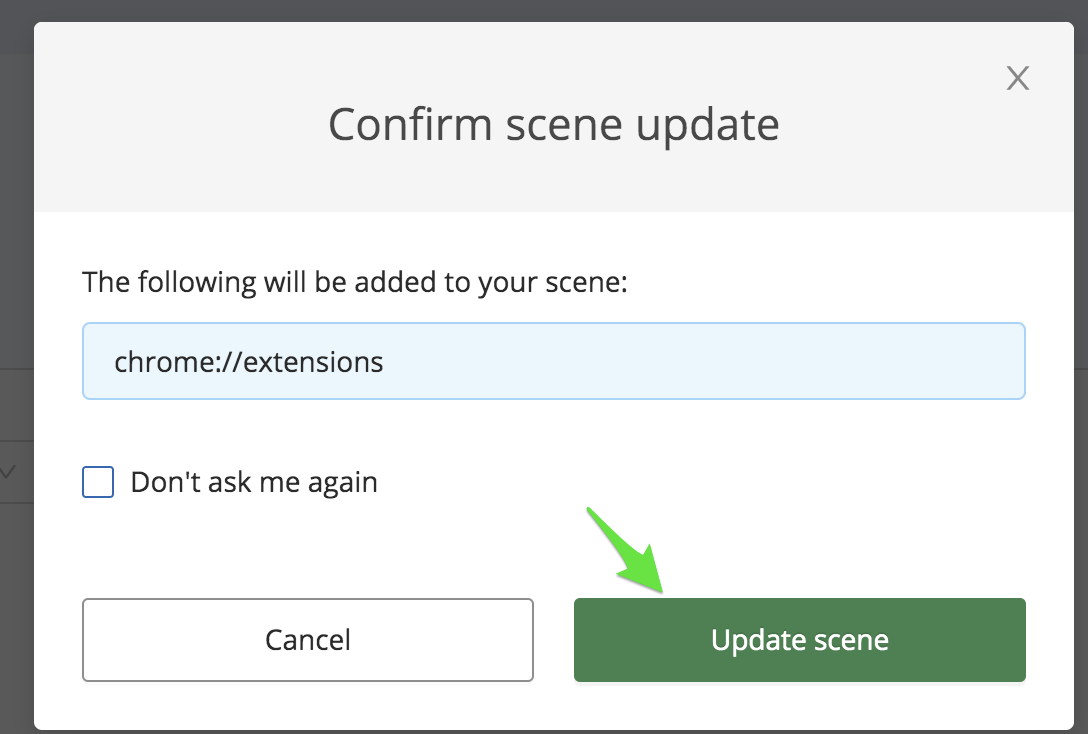
3. On the **Confirm Scene Update** dialog, click **Update Scene**. This adds an allow rule for the blocked URL directly to your active Scene.
4. Confirm that the student can now access the site. If the site remains blocked, ask the student to enter `chrome://restart` in the address bar and press Enter to restart Chrome, then try again.
Only the Scene's owner, the teacher who originally created the Scene, can use the **Unblock for class** option. If you are using a shared Scene that was created by another teacher, contact the Scene owner to update the rules.
This workflow only works for sites blocked by a teacher's Scene. Sites blocked by GoGuardian Admin policy require your IT administrator or GoGuardian administrator to make the change. See the GoGuardian block page types article for help identifying which type of block a student is seeing.
## Allow a Blocked Site
1. Locate the student tile showing the "Blocked by Scene" indicator.
2. Click the **Unblock for class** button on the student's tile.
3. On the **Confirm Scene Update** dialog, click **Update Scene**. This adds an allow rule for the blocked URL directly to your active Scene.
4. Confirm that the student can now access the site. If the site remains blocked, ask the student to enter `chrome://restart` in the address bar and press Enter to restart Chrome, then try again.
Only the Scene's owner, the teacher who originally created the Scene, can use the **Unblock for class** option. If you are using a shared Scene that was created by another teacher, contact the Scene owner to update the rules.
 ## Resources
Review how Allow List and Block List Scenes work.
Edit an existing Scene to add or remove sites.
Resolve conflicts when more than one teacher's Scene is active for the same students.
## Resources
Review how Allow List and Block List Scenes work.
Edit an existing Scene to add or remove sites.
Resolve conflicts when more than one teacher's Scene is active for the same students.