> ## Documentation Index
> Fetch the complete documentation index at: https://docs.goguardian.com/llms.txt
> Use this file to discover all available pages before exploring further.
# Archive, Restore, or Delete a Classroom
> Archive a GoGuardian Teacher classroom to preserve session history, restore it later, or permanently delete a classroom you no longer need.
GoGuardian Teacher gives you 2 options for removing a class you no longer need: archive it or delete it.
| Action | What Happens |
| ----------- | ---------------------------------------------------------------------------------------------------------------------------------------------------- |
| **Archive** | Moves the class to the **Archived** tab. Session history, student reports, and screenshots are preserved. The classroom can be restored at any time. |
| **Delete** | Permanently removes the class and all of its session history, screenshots, and student reports. This action cannot be undone. |
Archive classes at the end of a semester or school year rather than deleting them. Archiving preserves your session history and student data.
## Archive a Classroom
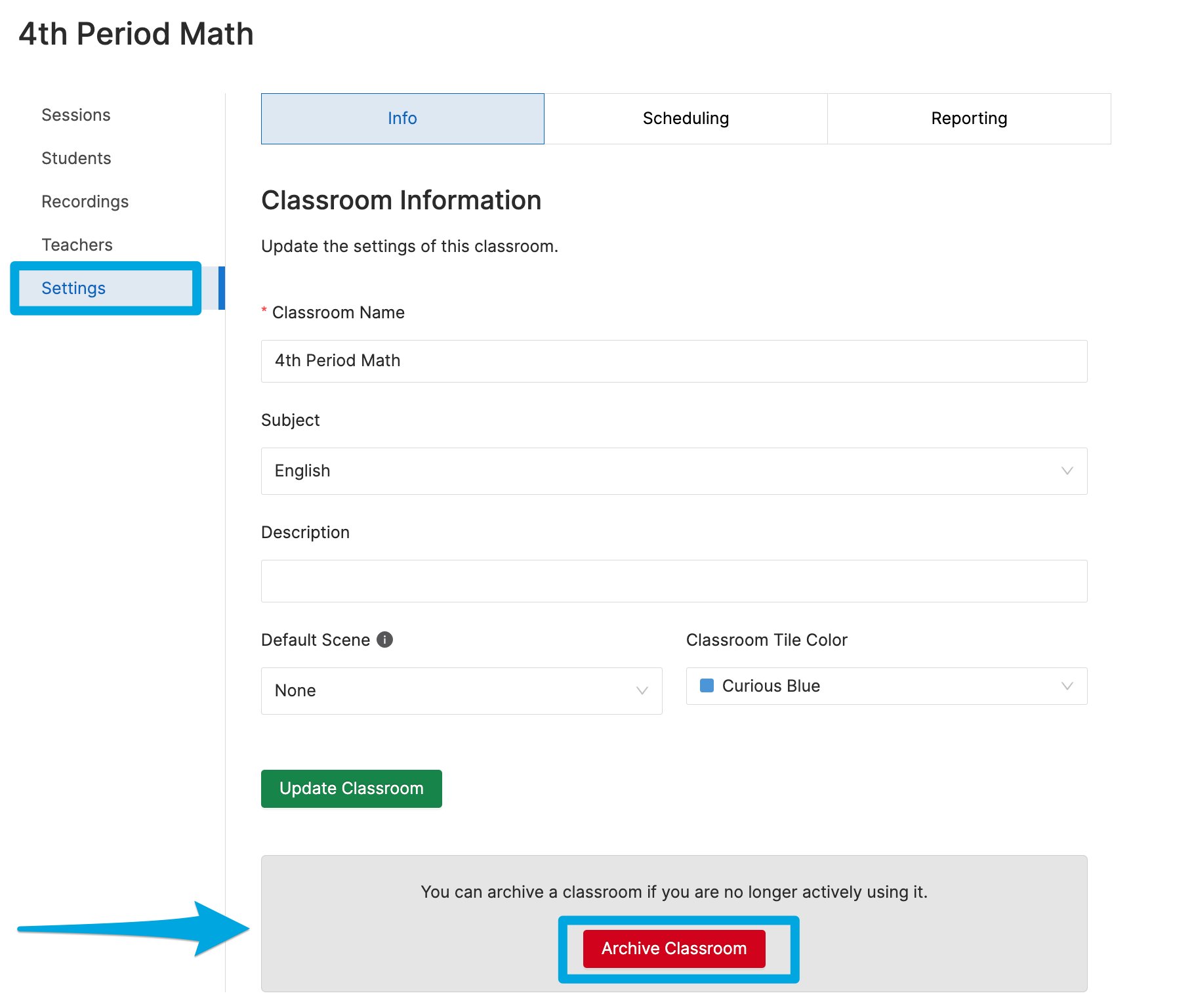
**Method 1, from class settings:**
1. Click the class you want to archive.
2. Select **Settings**.
3. Click **Archive Classroom**.
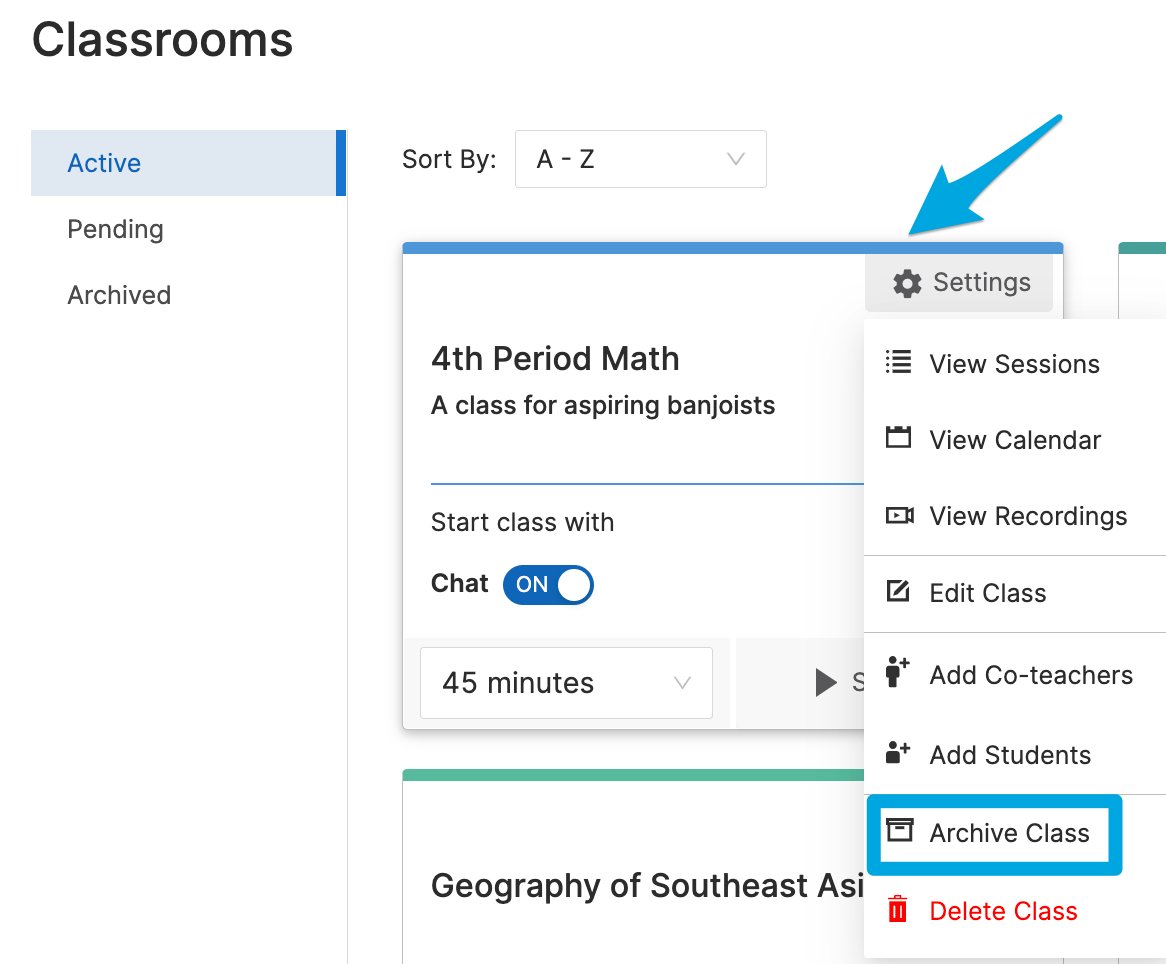
**Method 2, from the class tile:**
Click the **Settings cogwheel** in the top-right corner of the class tile and select **Archive Class**.
 ## Restore an Archived Classroom
1. Go to the [Archived classes](https://teacher.goguardian.com/classrooms/archived) page.
## Restore an Archived Classroom
1. Go to the [Archived classes](https://teacher.goguardian.com/classrooms/archived) page.
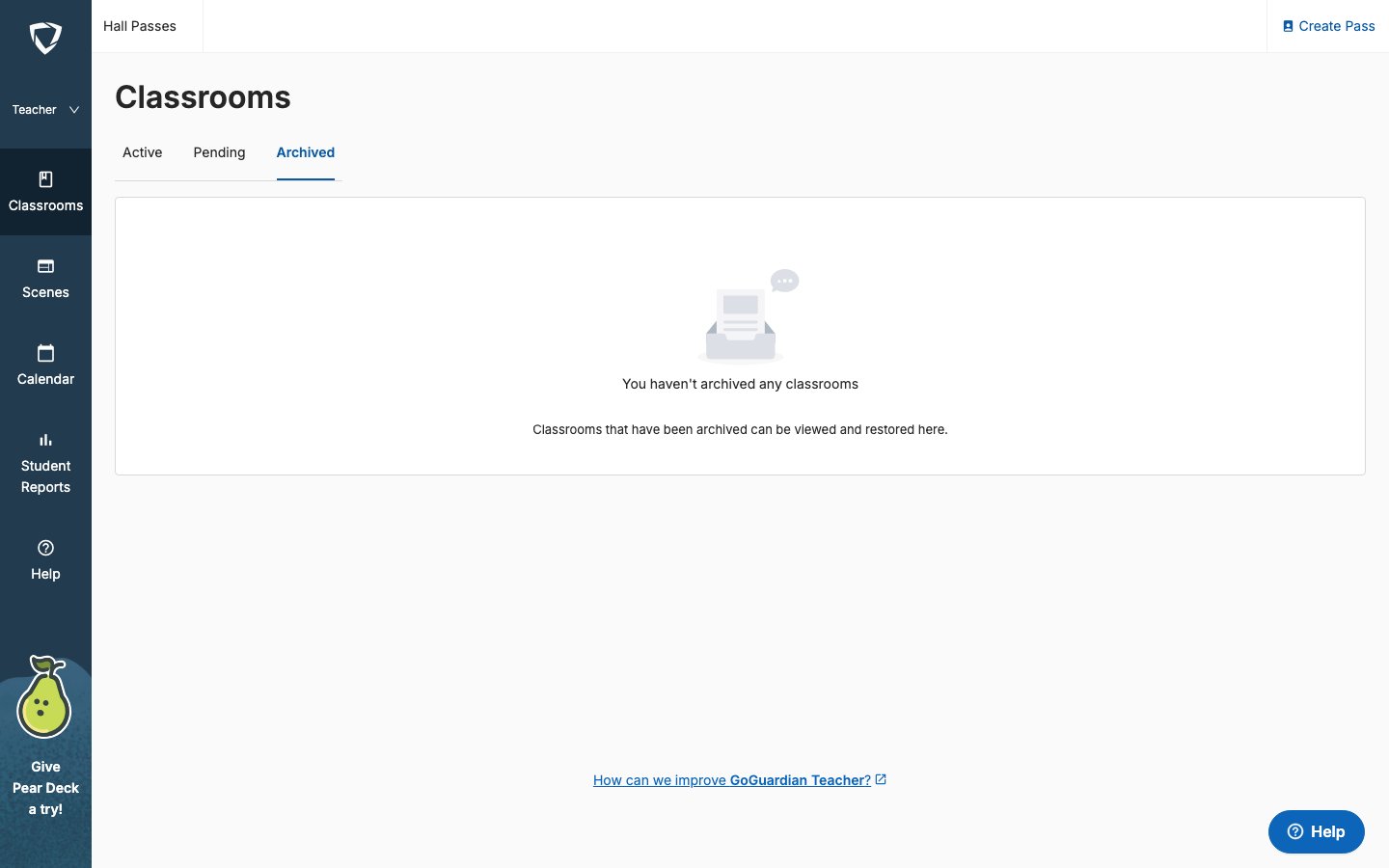 2. Find the classroom you want to restore.
3. Click **Restore Class**.
2. Find the classroom you want to restore.
3. Click **Restore Class**.
 ## Delete a Classroom
Deleting a classroom permanently removes all screenshots, session history, and student reports associated with it. Only the classroom owner can delete a classroom. Classes synced from Clever or ClassLink can be archived but not deleted.
**Remove a Google Classroom class:** Click **Settings** then **Remove Class**. This removes the class from GoGuardian Teacher without deleting it in Google Classroom. The class can be reimported at any time.
**Delete any other class:**
1. Sign in at [teacher.goguardian.com](https://teacher.goguardian.com) and find the classroom.
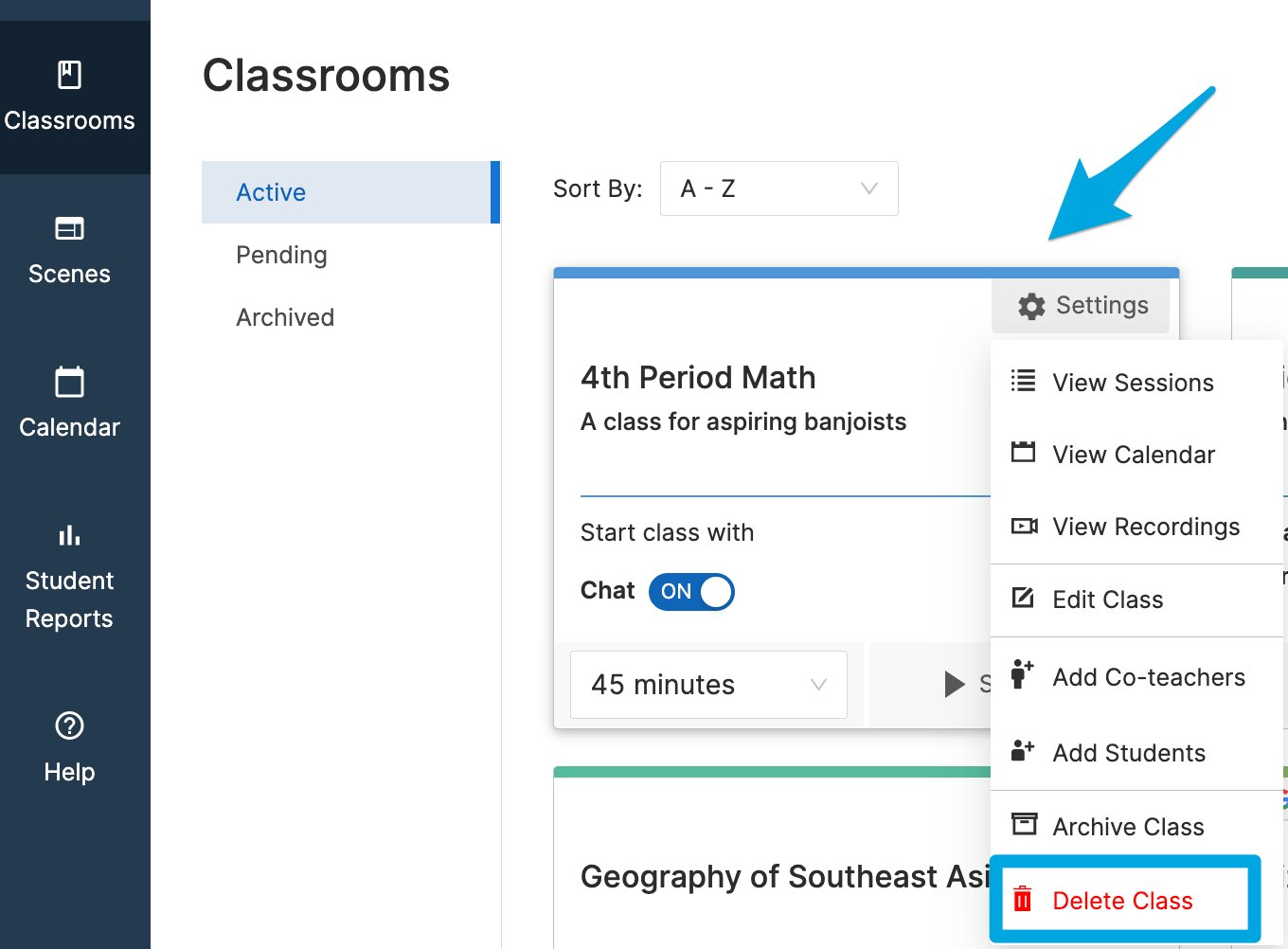
2. Click the **Settings cogwheel** in the top-right corner of the class tile and select **Delete Class**.
## Delete a Classroom
Deleting a classroom permanently removes all screenshots, session history, and student reports associated with it. Only the classroom owner can delete a classroom. Classes synced from Clever or ClassLink can be archived but not deleted.
**Remove a Google Classroom class:** Click **Settings** then **Remove Class**. This removes the class from GoGuardian Teacher without deleting it in Google Classroom. The class can be reimported at any time.
**Delete any other class:**
1. Sign in at [teacher.goguardian.com](https://teacher.goguardian.com) and find the classroom.
2. Click the **Settings cogwheel** in the top-right corner of the class tile and select **Delete Class**.
 3. Enter `DELETE` to confirm.
4. Click **Delete class permanently**.
3. Enter `DELETE` to confirm.
4. Click **Delete class permanently**.
 ## Resources
Review how sessions and session history work.
Archive scheduled classes before they create conflicts at end of year.
## Resources
Review how sessions and session history work.
Archive scheduled classes before they create conflicts at end of year.