> ## Documentation Index
> Fetch the complete documentation index at: https://docs.goguardian.com/llms.txt
> Use this file to discover all available pages before exploring further.
# Chromebook Desks and GoGuardian Teacher
> How GoGuardian Teacher handles students using Chromebook's multiple-desks feature, including what teachers see and how filtering applies across desks.
## Chromebook Desks Feature
Google's **Desks** feature allows Chromebook users to open multiple desktop windows to help with organization and multitasking. For more information on the **Desks** feature, refer to [Google's support article on Desks](https://support.google.com/chromebook/answer/9594869?hl=en#zippy=).
## How GoGuardian Teacher Works With Multiple Desks
The **Desks** feature can't currently be disabled in **Google Admin Console**. GoGuardian will filter and review browsing activity across all open desks.
GoGuardian Teacher displays 1 screen view at a time, whichever window a student is actively focused on. Browsing activity from each desktop is reviewed by GoGuardian, and is subject to GoGuardian Admin filtering and GoGuardian Teacher Scenes.
## Student View
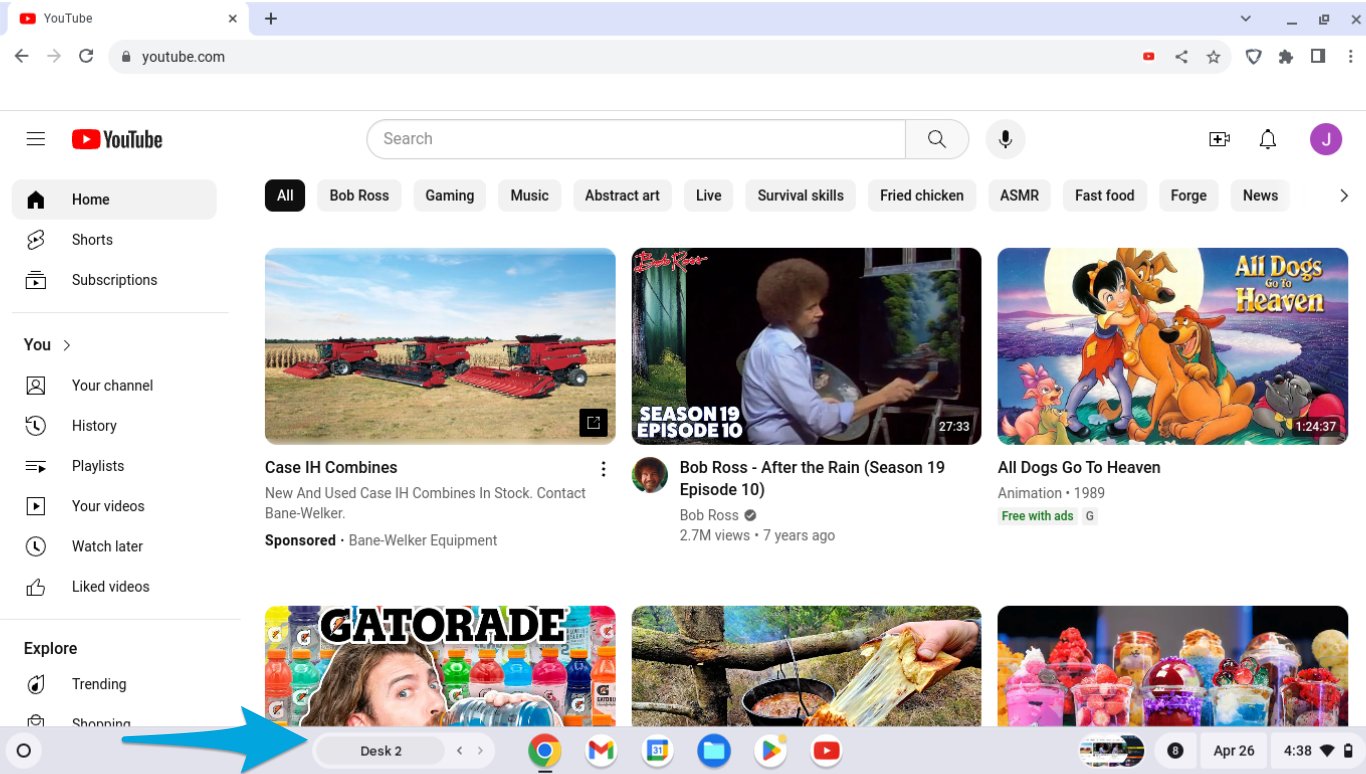
When a student has 2 or more desktops open, their Chromebook displays **Desk 1** and **Desk 2** indicators near the bottom of the screen.

 ## Teacher View
When reviewing a student who's using multiple desktops, teachers see whichever desktop a student is actively using. The screen view updates as a student switches between desks and open tabs.
## Teacher View
When reviewing a student who's using multiple desktops, teachers see whichever desktop a student is actively using. The screen view updates as a student switches between desks and open tabs.
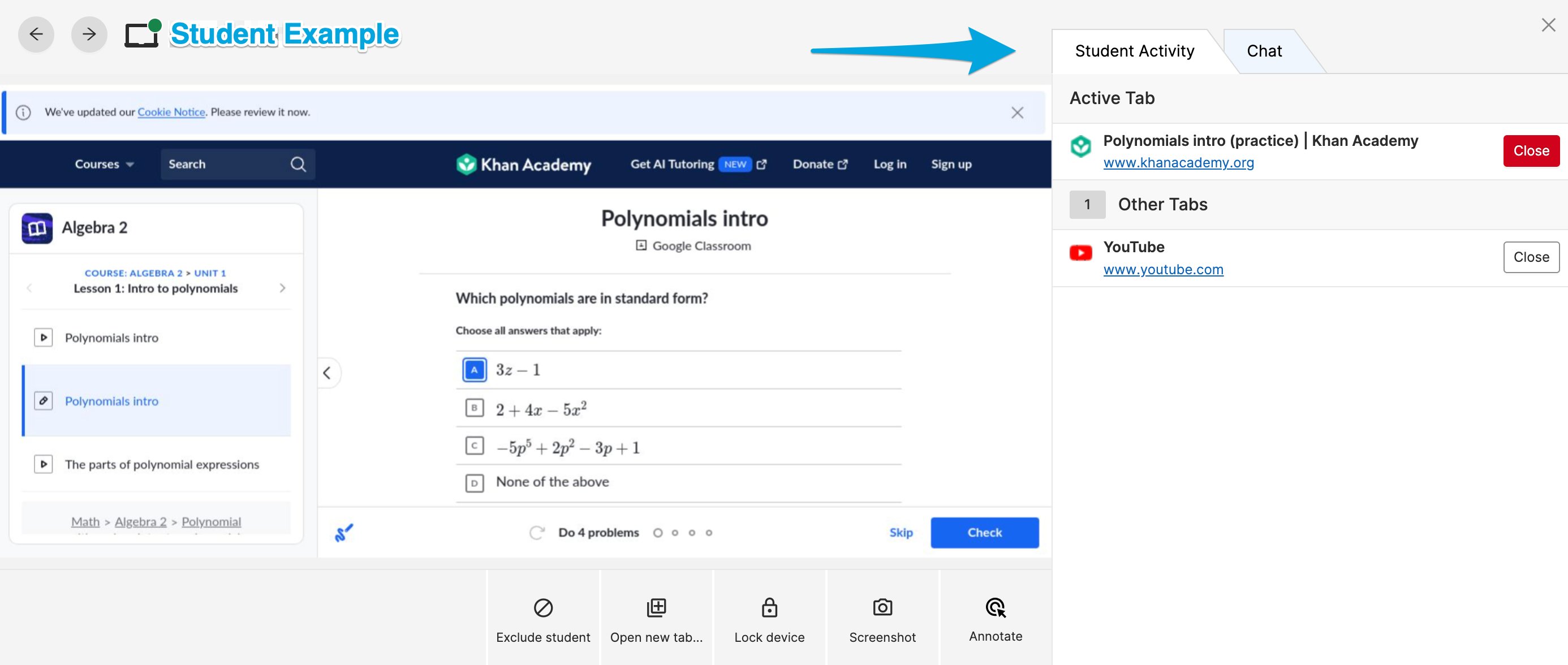
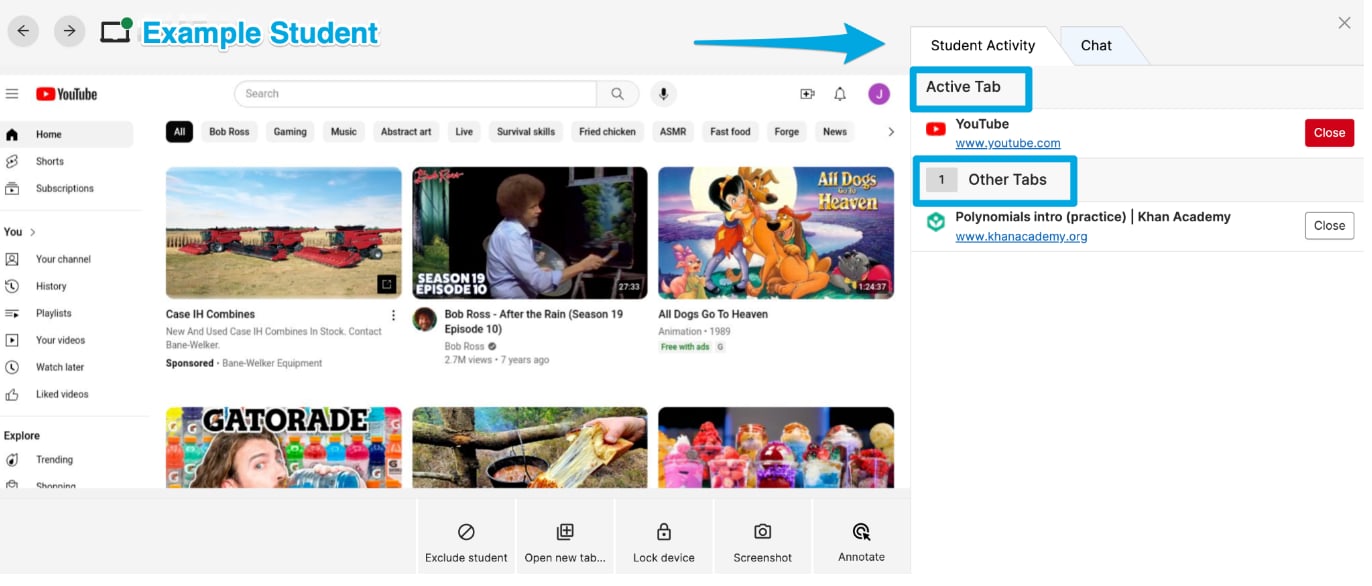 Browsing activity from the window that's actively in use displays as **Active Tab** under the **Student Activity** section. All other browsing activity across multiple desks is listed under **Other Tabs**. The listed **Active Tab** updates to whichever tab the student is currently using.
Both **Active Tab** and **Other Tabs** entries can be closed using the [Close Tab](/products/teacher/commands-overview) command. Each tab is subject to Teacher [Scene](/products/teacher/scenes-overview) filtering rules, including tab limits.
## Resources
Learn about all available Teacher commands, including Close Tab.
Understand how Scenes apply filtering rules across student tabs and desks.
See how to review active student screens during a session.
Manage which tabs are visible and active for students.
Browsing activity from the window that's actively in use displays as **Active Tab** under the **Student Activity** section. All other browsing activity across multiple desks is listed under **Other Tabs**. The listed **Active Tab** updates to whichever tab the student is currently using.
Both **Active Tab** and **Other Tabs** entries can be closed using the [Close Tab](/products/teacher/commands-overview) command. Each tab is subject to Teacher [Scene](/products/teacher/scenes-overview) filtering rules, including tab limits.
## Resources
Learn about all available Teacher commands, including Close Tab.
Understand how Scenes apply filtering rules across student tabs and desks.
See how to review active student screens during a session.
Manage which tabs are visible and active for students.