> ## Documentation Index
> Fetch the complete documentation index at: https://docs.goguardian.com/llms.txt
> Use this file to discover all available pages before exploring further.
# Troubleshoot Common Scene Problems
> How to resolve the most common issues teachers encounter when applying Scenes, including student conflicts, blocked sign-ins, and YouTube filtering limits.
This article covers common problems you may encounter while using Scenes in GoGuardian Teacher, and how to address them.
 ## Students Blocked by Another Scene or Scene Not Applied to All Students
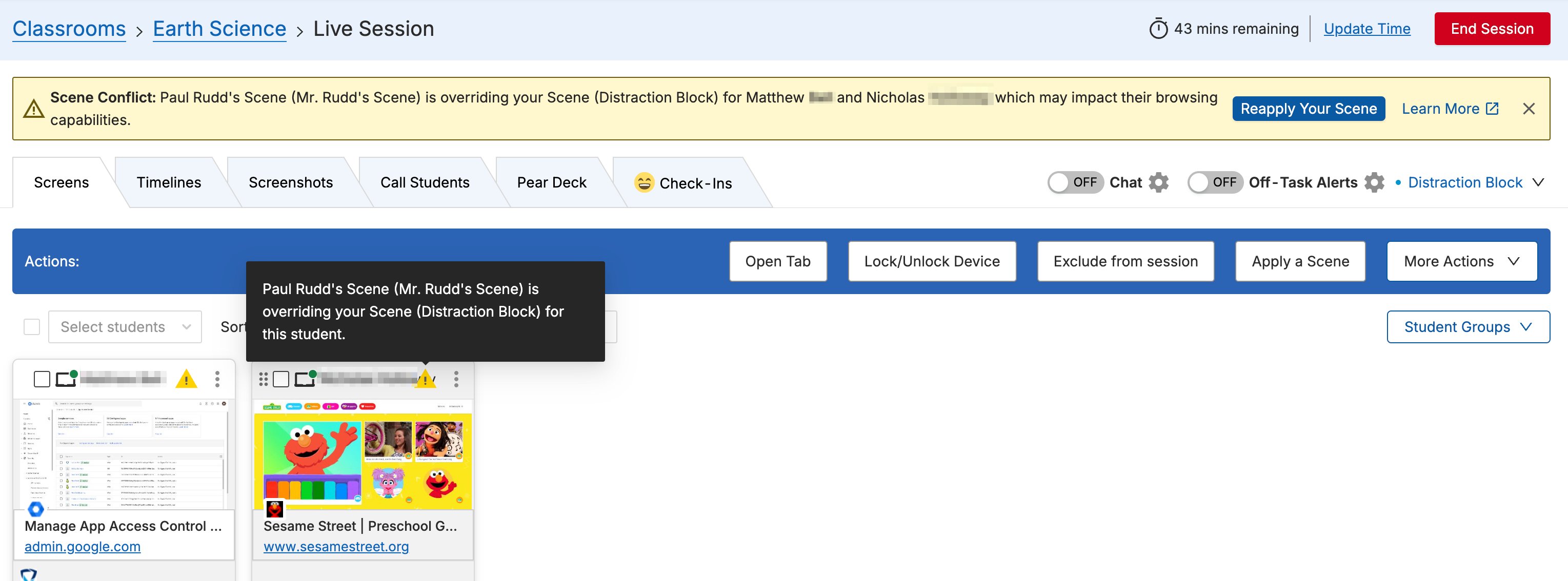
Although students can be in multiple, overlapping class sessions at a time, they can only have 1 Scene applied at any given time. The most recently applied Scene takes priority in the event of a conflict.
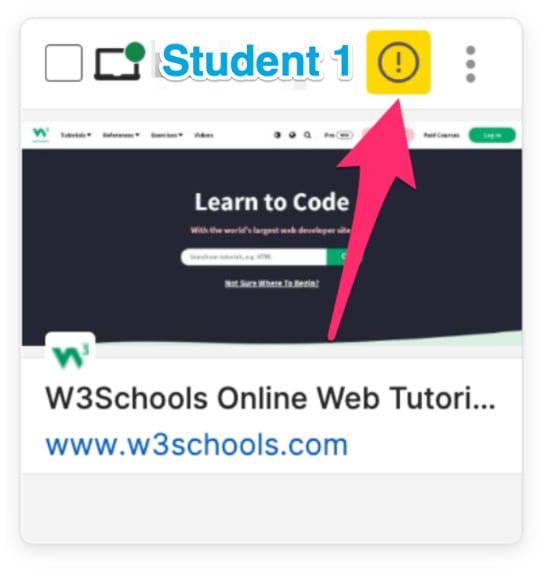
Teacher will see a banner at the top of the page during class if there are students whose current Scene doesn't match the Scene applied to the class.
In addition to using the **Refresh** or **Reapply** buttons displayed in the banner notification, you can manually refresh Scenes for the class by setting the current Scene to **None** and then changing the Scene back to the one you'd like applied.
For more information on Scene statuses and overlapping Scene scenarios, see [Scene Conflicts](/products/teacher/scene-conflicts).
## Students Blocked by Another Scene or Scene Not Applied to All Students
Although students can be in multiple, overlapping class sessions at a time, they can only have 1 Scene applied at any given time. The most recently applied Scene takes priority in the event of a conflict.
Teacher will see a banner at the top of the page during class if there are students whose current Scene doesn't match the Scene applied to the class.
In addition to using the **Refresh** or **Reapply** buttons displayed in the banner notification, you can manually refresh Scenes for the class by setting the current Scene to **None** and then changing the Scene back to the one you'd like applied.
For more information on Scene statuses and overlapping Scene scenarios, see [Scene Conflicts](/products/teacher/scene-conflicts).
 ## Unable to Add a Site to a Scene
Unconventional URLs, such as `chrome://newtab` (used to open a new tab in Chrome), can't be added to the exceptions list in that format. For any URLs that can't be added, add a wildcard (`*`) immediately before and after the URL, then click **Add**.
**Example:** To allow `chrome://newtab` in an Allow Scene, add `*chrome://newtab*` to the allowed list.
For more guidance on using wildcards, see [Use Wildcards in Scenes](/products/teacher/use-wildcards-in-scenes).
## Students Blocked Unexpectedly When Signing Into an Approved Site
Many educational sites use a Single Sign-On (SSO) service to sign in. These sign-on services may temporarily redirect to a login page before the site can be accessed. When using an Allow Mode Scene, the redirect URL may need to be added as an allow rule in addition to the main website.
**Example:** [Kahoot.it](https://kahoot.it) offers a "Sign in with Google" option. Signing in with Google temporarily redirects the student to `accounts.google.com` before sending them back to `kahoot.it`. In this scenario, `accounts.google.com` must also be added to the allowed list.
## YouTube Filtering With Scenes
YouTube.com, or individual YouTube videos, can be allowed or blocked using Scenes. However, Scenes have limited flexibility when it comes to YouTube filtering.
GoGuardian Admin allows administrators to granularly filter YouTube by keyword, category, individual video, and YouTube channel. If a YouTube video is blocked by GoGuardian Admin, a Scene can't override that block.
**Allow Mode Scene:** Adding `youtube.com` allows the main YouTube website. Adding a specific YouTube video URL allows only that individual video.
**Block Mode Scene:** Adding `youtube.com` to the blocked list blocks all of YouTube. Adding a specific YouTube video URL blocks only that individual video.
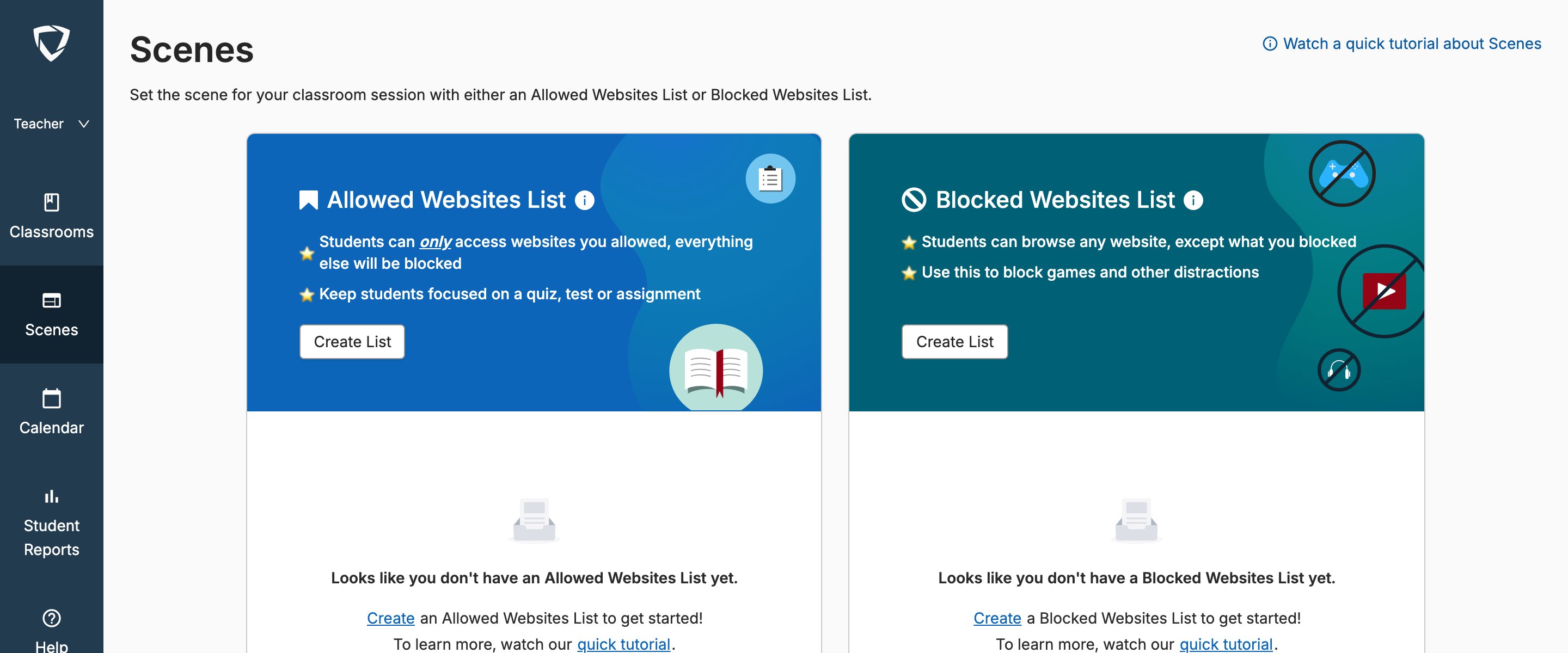
Understand how overlapping Sessions and Scene priority work.
Learn about Allow Mode, Block Mode, and the exceptions list.
Add flexible URL patterns to your allowed or blocked lists.
Set up and apply a Scene to your class.
## Unable to Add a Site to a Scene
Unconventional URLs, such as `chrome://newtab` (used to open a new tab in Chrome), can't be added to the exceptions list in that format. For any URLs that can't be added, add a wildcard (`*`) immediately before and after the URL, then click **Add**.
**Example:** To allow `chrome://newtab` in an Allow Scene, add `*chrome://newtab*` to the allowed list.
For more guidance on using wildcards, see [Use Wildcards in Scenes](/products/teacher/use-wildcards-in-scenes).
## Students Blocked Unexpectedly When Signing Into an Approved Site
Many educational sites use a Single Sign-On (SSO) service to sign in. These sign-on services may temporarily redirect to a login page before the site can be accessed. When using an Allow Mode Scene, the redirect URL may need to be added as an allow rule in addition to the main website.
**Example:** [Kahoot.it](https://kahoot.it) offers a "Sign in with Google" option. Signing in with Google temporarily redirects the student to `accounts.google.com` before sending them back to `kahoot.it`. In this scenario, `accounts.google.com` must also be added to the allowed list.
## YouTube Filtering With Scenes
YouTube.com, or individual YouTube videos, can be allowed or blocked using Scenes. However, Scenes have limited flexibility when it comes to YouTube filtering.
GoGuardian Admin allows administrators to granularly filter YouTube by keyword, category, individual video, and YouTube channel. If a YouTube video is blocked by GoGuardian Admin, a Scene can't override that block.
**Allow Mode Scene:** Adding `youtube.com` allows the main YouTube website. Adding a specific YouTube video URL allows only that individual video.
**Block Mode Scene:** Adding `youtube.com` to the blocked list blocks all of YouTube. Adding a specific YouTube video URL blocks only that individual video.
Understand how overlapping Sessions and Scene priority work.
Learn about Allow Mode, Block Mode, and the exceptions list.
Add flexible URL patterns to your allowed or blocked lists.
Set up and apply a Scene to your class.
