> ## Documentation Index
> Fetch the complete documentation index at: https://docs.goguardian.com/llms.txt
> Use this file to discover all available pages before exploring further.
# Disable Ad Blockers in GoGuardian Teacher
> How to remove, pause, or allow GoGuardian Teacher through ad-blocking browser extensions that may interfere with Teacher features.
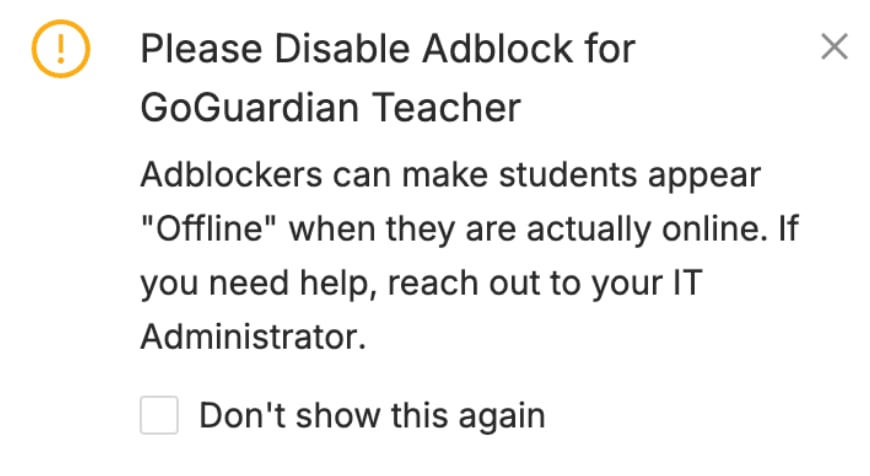
Filtering extensions like AdBlock, uBlock, and AdBlocker Ultimate may interfere with GoGuardian Teacher. If a filtering extension blocks parts of Teacher, you may see students as "Student Offline" and have trouble using Commands like Open Tab or Close Tab.
GoGuardian Teacher notifies you when it detects ad-blocking software in use.
If you suspect an ad blocker is causing trouble, open GoGuardian Teacher in an incognito browser window. Browser extensions typically do not load in incognito mode, so incognito is a good way to test and compare.
## Remove Ad Blockers
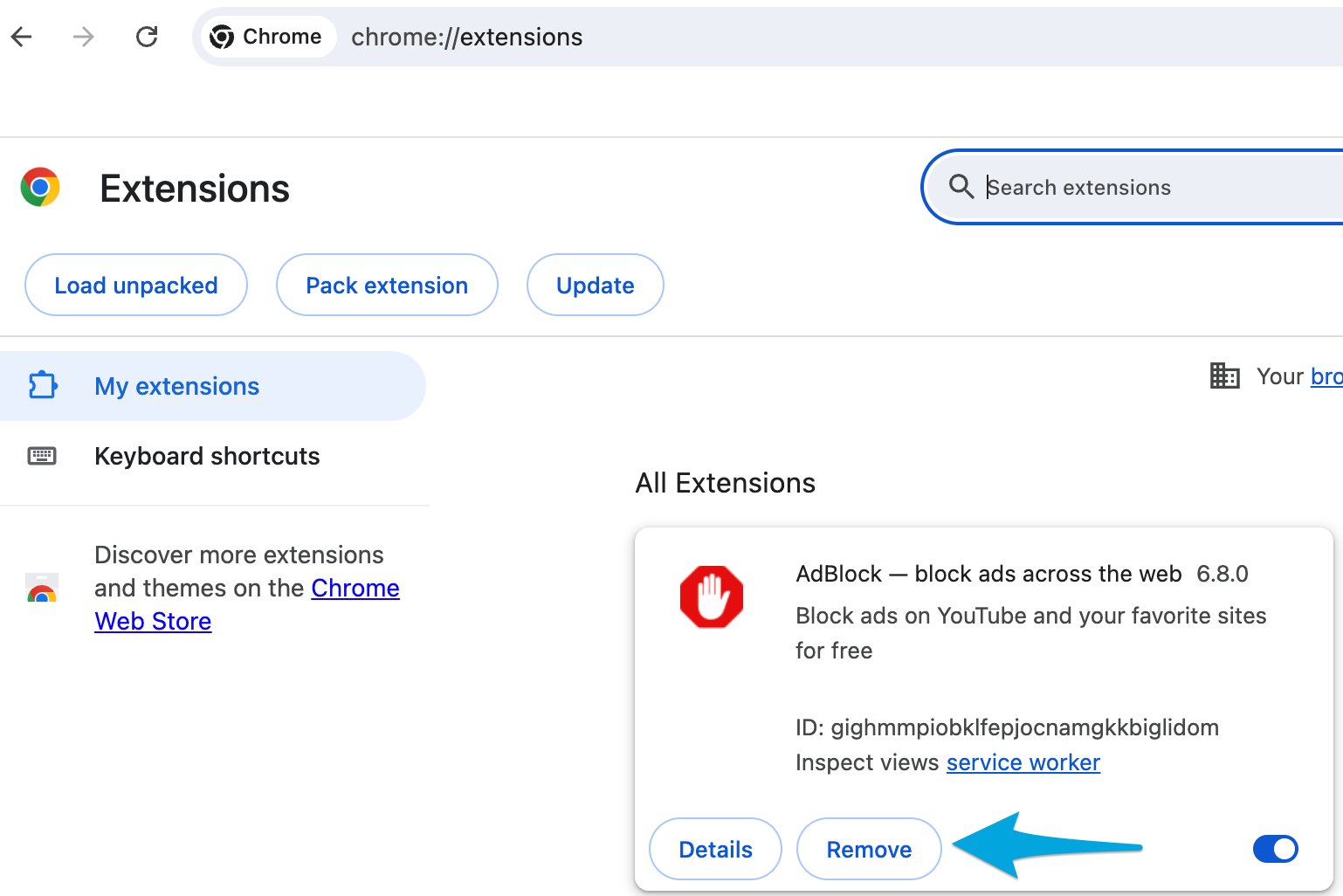
If you manually installed an ad-blocking browser extension, you can remove it through your browser's extensions page.
1. In Google Chrome, type `chrome://extensions` into the address bar, or click the puzzle piece icon in the toolbar.
2. On the **Extensions** page, find the ad-blocking extension and click **Remove**.
3. Reload GoGuardian Teacher and confirm students are showing as online and Commands are functioning correctly.

 ## Pause or Allow GoGuardian Teacher
If your organization installed an ad blocker for you, you may not be able to remove it manually. Some ad-blocking software lets you pause blocking or allow all content on a specific site.
1. Click the ad blocker icon in your Chrome toolbar to open its menu.
2. Select the option to pause blocking or allow content for GoGuardian Teacher. The exact label varies by extension but is typically **Pause on this site** or **Allow on this site**.
3. Reload GoGuardian Teacher and confirm students are showing as online and Commands are functioning correctly.
If your ad-blocking software does not let you pause or allow GoGuardian Teacher, contact your IT department or school administration for help.
## Pause or Allow GoGuardian Teacher
If your organization installed an ad blocker for you, you may not be able to remove it manually. Some ad-blocking software lets you pause blocking or allow all content on a specific site.
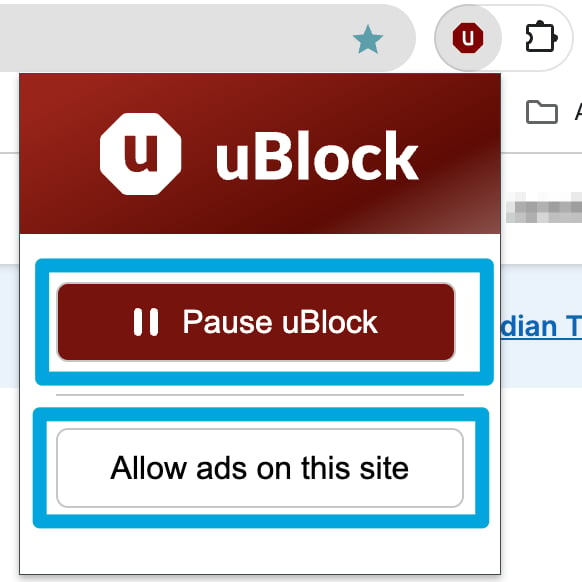
1. Click the ad blocker icon in your Chrome toolbar to open its menu.
2. Select the option to pause blocking or allow content for GoGuardian Teacher. The exact label varies by extension but is typically **Pause on this site** or **Allow on this site**.
3. Reload GoGuardian Teacher and confirm students are showing as online and Commands are functioning correctly.
If your ad-blocking software does not let you pause or allow GoGuardian Teacher, contact your IT department or school administration for help.
 ## Resources
Learn how to use Open Tab, Close Tab, and other Commands in a session.
Troubleshoot students appearing as offline in GoGuardian Teacher.
Steps to launch and manage a GoGuardian Teacher classroom session.
Answers to common questions about GoGuardian Teacher.
## Resources
Learn how to use Open Tab, Close Tab, and other Commands in a session.
Troubleshoot students appearing as offline in GoGuardian Teacher.
Steps to launch and manage a GoGuardian Teacher classroom session.
Answers to common questions about GoGuardian Teacher.