> ## Documentation Index
> Fetch the complete documentation index at: https://docs.goguardian.com/llms.txt
> Use this file to discover all available pages before exploring further.
# Reorganize Classes and Students Using Drag and Drop
> How to rearrange classroom tiles, reorder students, and move students between groups using drag and drop in GoGuardian Teacher.
With drag and drop, teachers can customize their GoGuardian Teacher experience by rearranging students during a class session, reorganizing their active classroom layout by moving classroom tiles, and quickly moving students between Student Groups.
## Reorganize Classroom Tiles
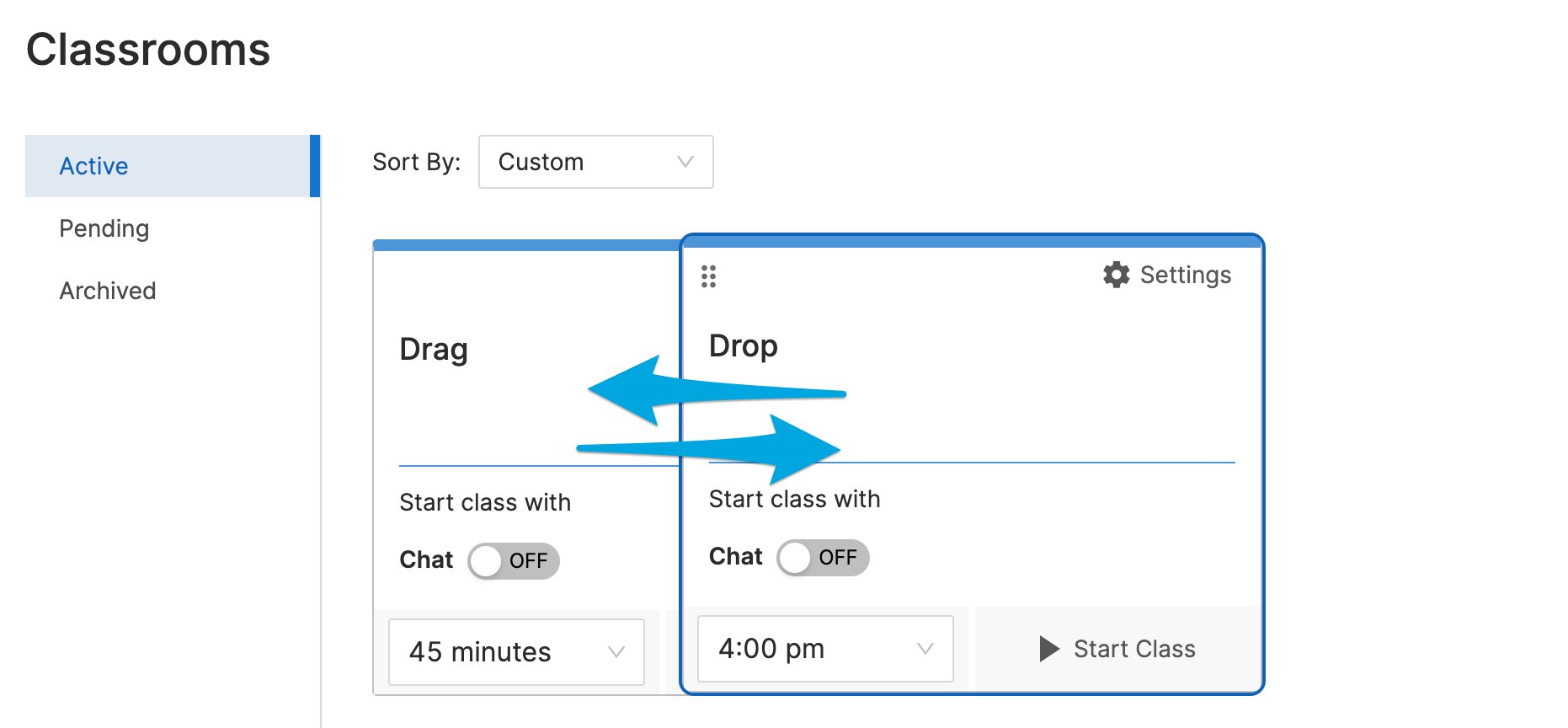
To change the order of classrooms on the active classrooms page, left-click and hold a classroom tile, then drag it to a new location.
 ## Rearrange Students in a Session
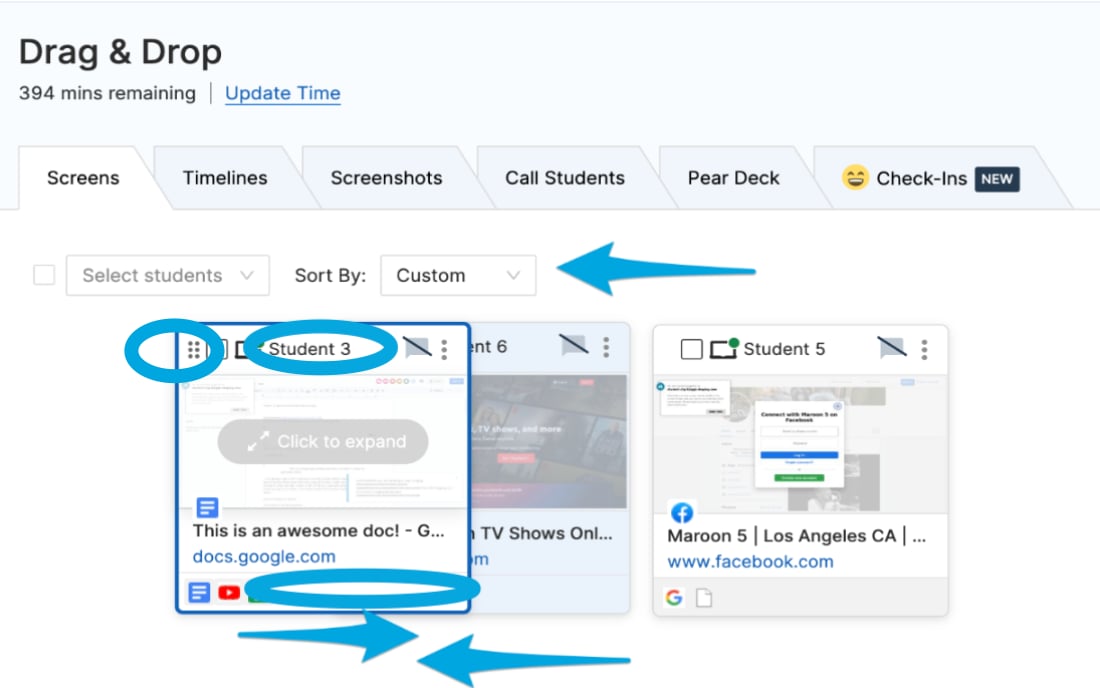
To rearrange students during a class session, click and hold a student's tile near their name, at the bottom of the tile, or on the 6 dots, then drag it to a new tile slot and release. Adjacent tiles will automatically shift to accommodate the repositioned tile.
## Sort by Custom Layout
Drag and drop includes a **Custom** sorting option. Each time tiles are repositioned, the class arrangement is saved as the newest custom layout. Selecting **Custom** from the **Sort By** dropdown returns tiles to their last saved arrangement. Custom tile arrangements are saved at the end of each class session and can be reused for future classes.
## Move Students Between Groups
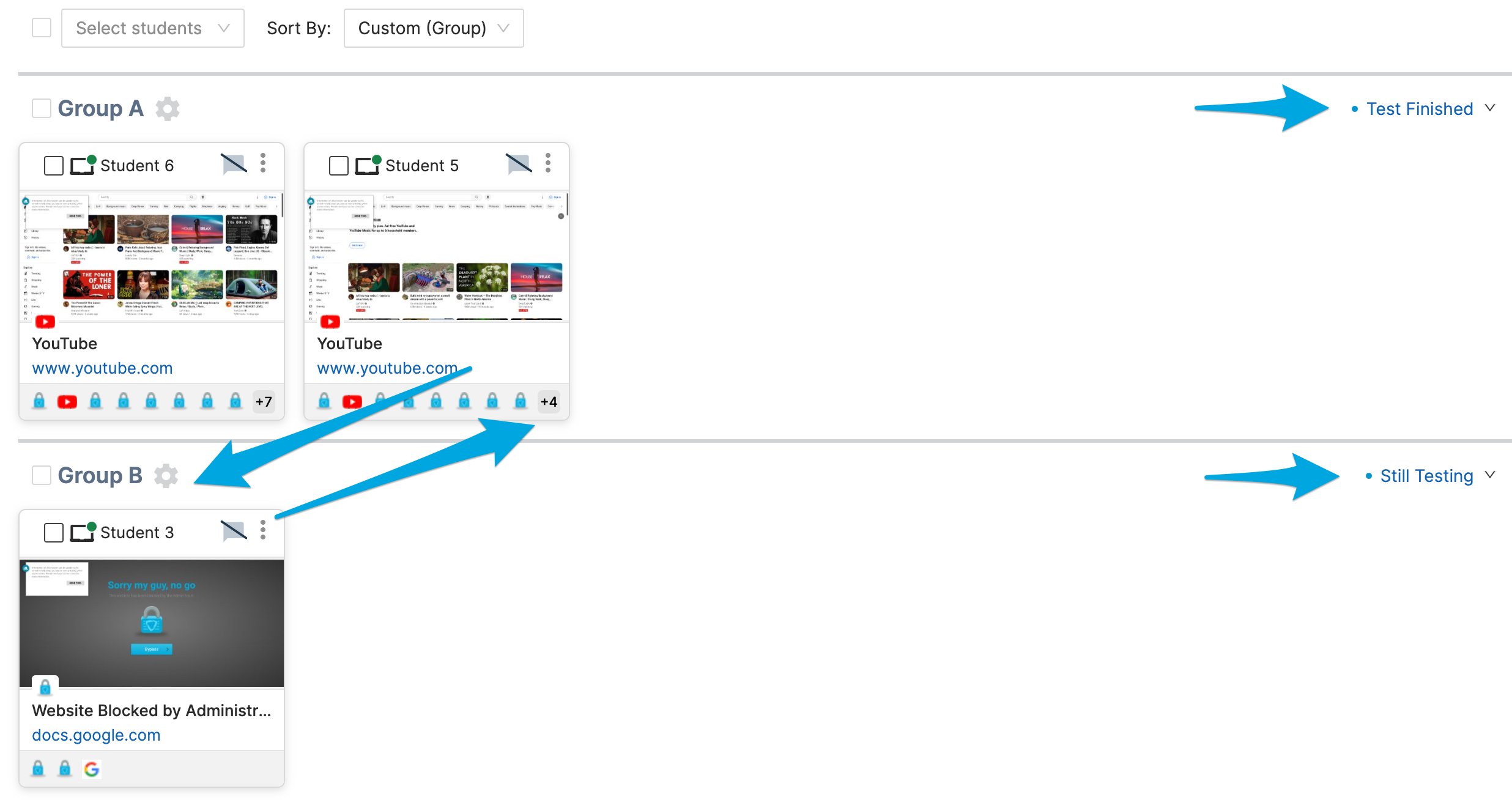
Drag and drop also works within [Student Groups](/products/teacher/student-groups). Drag a student's tile from 1 group to another to quickly adjust their Scene rules and control which websites they can and can't access.
During a test, you can sort students into 2 groups: a testing group with a strict Scene that locks down web browsing, and a completed group with a Scene that allows more websites. As students finish, drag and drop them from the testing group to the completed group.
## Rearrange Students in a Session
To rearrange students during a class session, click and hold a student's tile near their name, at the bottom of the tile, or on the 6 dots, then drag it to a new tile slot and release. Adjacent tiles will automatically shift to accommodate the repositioned tile.
## Sort by Custom Layout
Drag and drop includes a **Custom** sorting option. Each time tiles are repositioned, the class arrangement is saved as the newest custom layout. Selecting **Custom** from the **Sort By** dropdown returns tiles to their last saved arrangement. Custom tile arrangements are saved at the end of each class session and can be reused for future classes.
## Move Students Between Groups
Drag and drop also works within [Student Groups](/products/teacher/student-groups). Drag a student's tile from 1 group to another to quickly adjust their Scene rules and control which websites they can and can't access.
During a test, you can sort students into 2 groups: a testing group with a strict Scene that locks down web browsing, and a completed group with a Scene that allows more websites. As students finish, drag and drop them from the testing group to the completed group.
 ## Resources
Learn how Scenes control website access during class sessions.
Set up and apply a Scene to manage student browsing.
Get a class session running in GoGuardian Teacher.
Review student screens during an active session.
## Resources
Learn how Scenes control website access during class sessions.
Set up and apply a Scene to manage student browsing.
Get a class session running in GoGuardian Teacher.
Review student screens during an active session.