> ## Documentation Index
> Fetch the complete documentation index at: https://docs.goguardian.com/llms.txt
> Use this file to discover all available pages before exploring further.
# Super Users: Enable Video Conferencing and Present to Class
> How Super Users can configure GoGuardian Teacher Conference Call, Presentation, and firewall settings in the management portal.
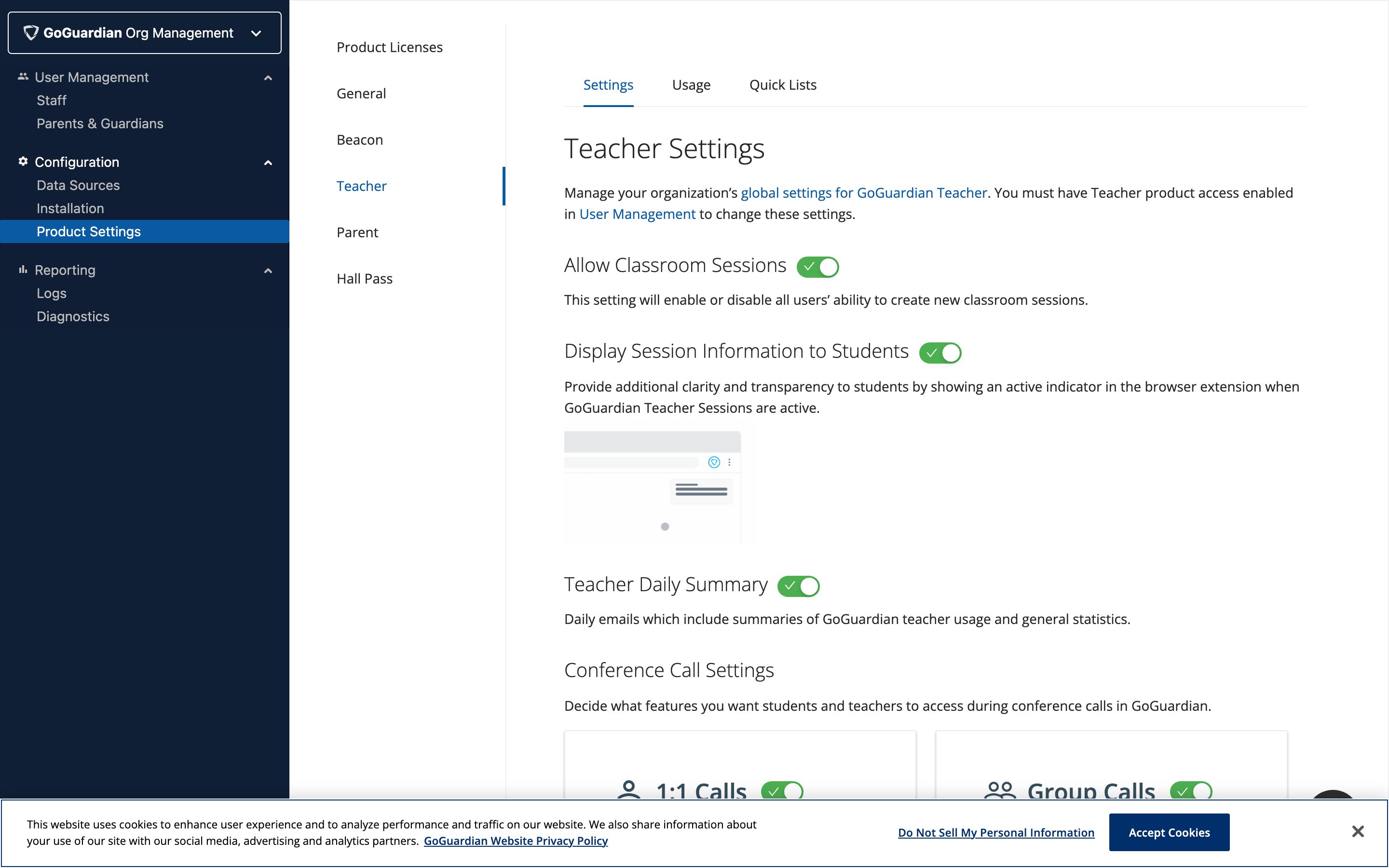
Super Users can manage GoGuardian Teacher Conference Call and Presentation settings in the [Teacher section](https://manage.goguardian.com/products/teacher/settings) of manage.goguardian.com.
 ## Enable Conference Call Settings
Organizations with Conference Call licensing can enable or disable call settings using the available toggles.
Select whether to enable or disable 1:1 calls and group calls, whether students and teachers can use their webcams, and whether calls can be recorded with student consent during classroom sessions.
## Enable Conference Call Settings
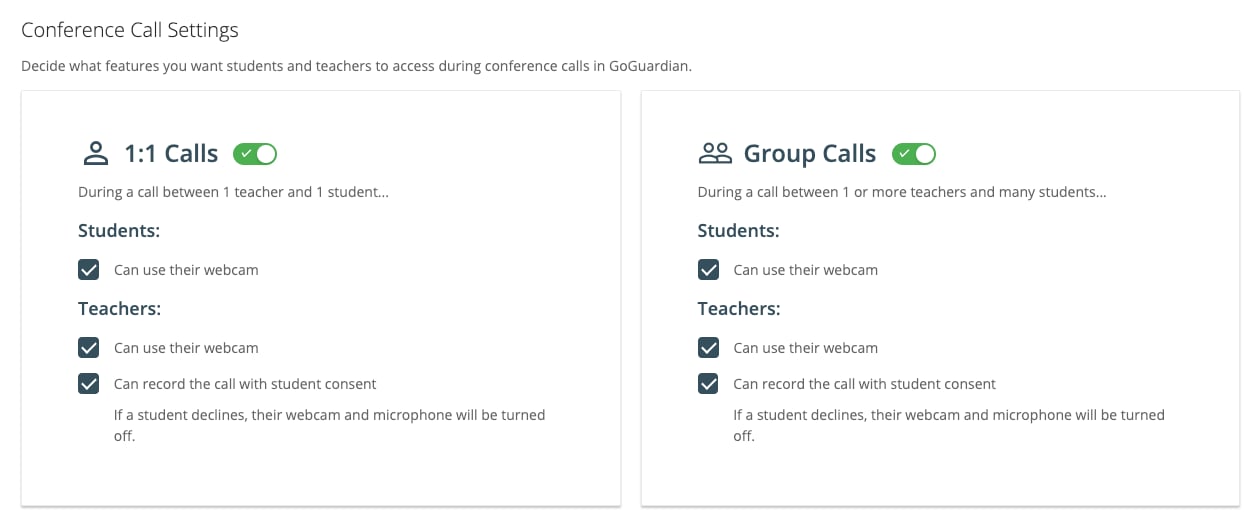
Organizations with Conference Call licensing can enable or disable call settings using the available toggles.
Select whether to enable or disable 1:1 calls and group calls, whether students and teachers can use their webcams, and whether calls can be recorded with student consent during classroom sessions.
 ## Enable Lecture and Presentation Settings
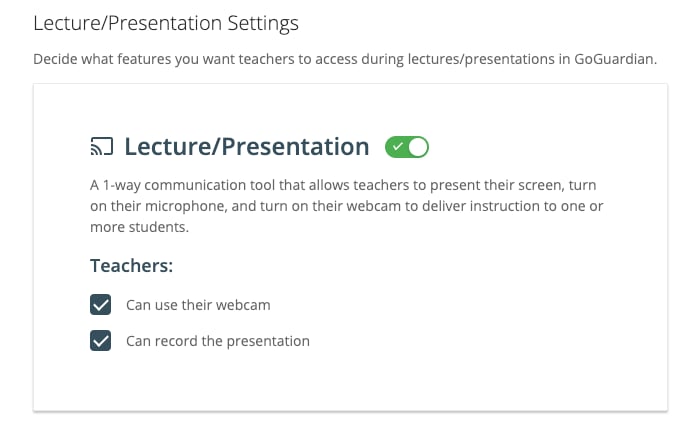
Select whether to enable or disable **Lecture / Presentation** mode. Next, choose whether to allow teachers to use their webcam and record the presentation during classroom sessions.
Recording is only available for organizations with the Video Conferencing add-on.
## Update Firewall and Content Filter Settings
GoGuardian products require open connections to a number of back-end services. Firewalls and other content filters may unintentionally flag and block connections to these services due to the elevated number of active connections or HTTP requests.
If you're experiencing large-scale connection issues, check your firewall or any additional content filters for blocked connection attempts to the services listed below. If connections are being blocked, add the corresponding URL to your firewall or filter's allowed list.
GoGuardian Teacher's Video Conferencing features connect to the following services.
### Video Conferencing and Lecture and Presentation
**On ports: 10,000–60,000 UDP/SRTP/SRTCP**
* 3.235.111.128–3.235.111.255
* 44.234.69.0–44.234.69.127
* 34.203.250.0–34.203.251.255
* 34.203.254.0–34.203.254.255
* 54.172.60.0–54.172.61.255
* 34.216.110.128–34.216.110.159
* 168.86.128.0/18
**On ports: 443 WSS**
* global.vss.twilio.com
* sdkgw\.us1.twilio.com
* voice-js.roaming.twilio.com
**On ports: 443 TCP**
* chunderw-gll.twilio.com
* chunderw-vpc-gll.twilio.com
* chunderw-vpc-gll-us1.twilio.com
## Resources
Learn how teachers use video calls during classroom sessions.
Learn how teachers use voice-only calls during classroom sessions.
Overview of enabling the Video Conferencing feature.
Manage Teacher settings and user permissions as a Super User.
## Enable Lecture and Presentation Settings
Select whether to enable or disable **Lecture / Presentation** mode. Next, choose whether to allow teachers to use their webcam and record the presentation during classroom sessions.
Recording is only available for organizations with the Video Conferencing add-on.
## Update Firewall and Content Filter Settings
GoGuardian products require open connections to a number of back-end services. Firewalls and other content filters may unintentionally flag and block connections to these services due to the elevated number of active connections or HTTP requests.
If you're experiencing large-scale connection issues, check your firewall or any additional content filters for blocked connection attempts to the services listed below. If connections are being blocked, add the corresponding URL to your firewall or filter's allowed list.
GoGuardian Teacher's Video Conferencing features connect to the following services.
### Video Conferencing and Lecture and Presentation
**On ports: 10,000–60,000 UDP/SRTP/SRTCP**
* 3.235.111.128–3.235.111.255
* 44.234.69.0–44.234.69.127
* 34.203.250.0–34.203.251.255
* 34.203.254.0–34.203.254.255
* 54.172.60.0–54.172.61.255
* 34.216.110.128–34.216.110.159
* 168.86.128.0/18
**On ports: 443 WSS**
* global.vss.twilio.com
* sdkgw\.us1.twilio.com
* voice-js.roaming.twilio.com
**On ports: 443 TCP**
* chunderw-gll.twilio.com
* chunderw-vpc-gll.twilio.com
* chunderw-vpc-gll-us1.twilio.com
## Resources
Learn how teachers use video calls during classroom sessions.
Learn how teachers use voice-only calls during classroom sessions.
Overview of enabling the Video Conferencing feature.
Manage Teacher settings and user permissions as a Super User.