> ## Documentation Index
> Fetch the complete documentation index at: https://docs.goguardian.com/llms.txt
> Use this file to discover all available pages before exploring further.
# End-of-Year and End-of-Semester Best Practices
> Recommended steps for teachers and super users to close out a semester or school year in GoGuardian Teacher.
Use these best practices at the end of each semester or school year to keep your GoGuardian Teacher environment clean, current, and ready for the next term.
## For Teachers
### Archive and Update Classroom Settings
1. Archive completed classes. In addition to cleaning up your **Classroom** dashboard, archiving stops any pre-scheduled classes from running and reduces scene overlap with other teachers. See [Archive, Restore, or Delete a Classroom](/products/teacher/archive-restore-delete-a-classroom).
2. Go to the [**Calendar**](https://teacher.goguardian.com/calendar) and confirm that your scheduled class times are current. See [Schedule Classroom Sessions](/products/teacher/schedule-classroom-sessions) for details on adding and editing schedules.
3. Import or create your new classrooms for the upcoming term. See [Add Students to a Class](/products/teacher/add-students-to-a-class) for information on adding and importing classes.

 ## For Super Users
### Update Org Management with Staff and Setting Changes
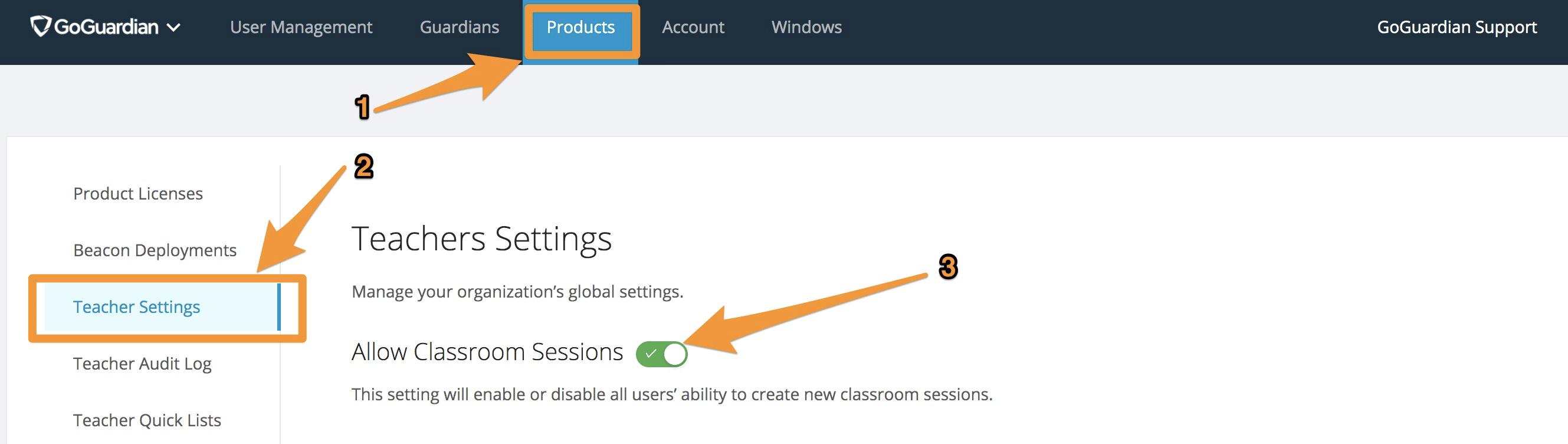
* **Disable sessions over break (optional).** During a break, some districts choose not to allow any classroom sessions. Turning this setting on prevents any session from starting. To configure it, go to **Products** > **Teacher** > **Teacher Settings** in [Org Management](https://manage.goguardian.com/products/teacher/settings).
You must turn this setting back on before the next term begins. Set a reminder so sessions are available when teachers return.
* **Disable accounts for departing staff.** When staff leave your district, archive their account to prevent their classes from running. Changing their name to start with "Z" moves them to the bottom of your list. You can also filter by **Enabled** users at any time. See [Manage Users and Settings](/products/teacher/manage-users-and-settings) and [FAQs](/products/teacher/faqs) for best practices when disabling accounts.
* **Add new staff accounts.** Adding new staff before the semester starts puts you ahead for the new term. Confirm that each user is enabled and has at least 1 product enabled. See [Manage Users and Settings](/products/teacher/manage-users-and-settings) or [Set Up Teacher Accounts](/products/teacher/set-up-teacher-accounts) for bulk import options.
* **Review and update user permissions.** For staff members who have changed roles, update their permissions to confirm they have the appropriate access to products and student information. See [Manage Users and Settings](/products/teacher/manage-users-and-settings).
* **Apply GoGuardian extensions to new organizational units.** Verify that the GoGuardian extensions are applied to any new OUs so incoming students receive the extensions on their first login. See [Set Up Teacher Accounts](/products/teacher/set-up-teacher-accounts) for deployment guidance.
## For Super Users
### Update Org Management with Staff and Setting Changes
* **Disable sessions over break (optional).** During a break, some districts choose not to allow any classroom sessions. Turning this setting on prevents any session from starting. To configure it, go to **Products** > **Teacher** > **Teacher Settings** in [Org Management](https://manage.goguardian.com/products/teacher/settings).
You must turn this setting back on before the next term begins. Set a reminder so sessions are available when teachers return.
* **Disable accounts for departing staff.** When staff leave your district, archive their account to prevent their classes from running. Changing their name to start with "Z" moves them to the bottom of your list. You can also filter by **Enabled** users at any time. See [Manage Users and Settings](/products/teacher/manage-users-and-settings) and [FAQs](/products/teacher/faqs) for best practices when disabling accounts.
* **Add new staff accounts.** Adding new staff before the semester starts puts you ahead for the new term. Confirm that each user is enabled and has at least 1 product enabled. See [Manage Users and Settings](/products/teacher/manage-users-and-settings) or [Set Up Teacher Accounts](/products/teacher/set-up-teacher-accounts) for bulk import options.
* **Review and update user permissions.** For staff members who have changed roles, update their permissions to confirm they have the appropriate access to products and student information. See [Manage Users and Settings](/products/teacher/manage-users-and-settings).
* **Apply GoGuardian extensions to new organizational units.** Verify that the GoGuardian extensions are applied to any new OUs so incoming students receive the extensions on their first login. See [Set Up Teacher Accounts](/products/teacher/set-up-teacher-accounts) for deployment guidance.
 ## Resources
Steps for archiving completed classes at the end of a term.
Add or update scheduled class times on the Teacher calendar.
Disable departing staff, add new users, and update permissions in Org Management.
Deploy GoGuardian Teacher to new staff and organizational units.
## Resources
Steps for archiving completed classes at the end of a term.
Add or update scheduled class times on the Teacher calendar.
Disable departing staff, add new users, and update permissions in Org Management.
Deploy GoGuardian Teacher to new staff and organizational units.