> ## Documentation Index
> Fetch the complete documentation index at: https://docs.goguardian.com/llms.txt
> Use this file to discover all available pages before exploring further.
# Why Is a Student Getting Blocked?
> Explains the two most common reasons a student may be blocked in GoGuardian Teacher and what teachers and administrators can do to resolve it.
Students can be blocked by several GoGuardian features, but the 2 most common sources are a GoGuardian Admin policy or a Teacher scene.
For a full list of block pages, including visual examples, see [Types of GoGuardian Block Pages](/products/teacher/faqs).
## Scenario A: Student Blocked by Admin Policy
If a student is blocked by an Admin policy, you'll see the message **Website Blocked by Administrators** with a padlock symbol on the student's tile.
### How to Fix This
**For teachers** without GoGuardian Admin access: contact one of your organization's GoGuardian administrators (typically IT or administration staff) for help with the blocked website.
**For administrators**: for more information on policy filtering blocks, see [Why Is a Website Blocked? (GoGuardian Admin)](/products/teacher/faqs).
Administrators can also enable [Teacher Override](/products/teacher/allow-access-to-blocked-sites) to let teachers unblock approved websites.

 ## Scenario B: Student Blocked by a Teacher Scene
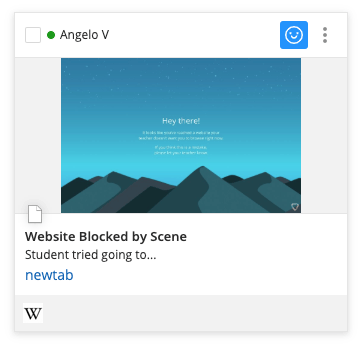
If a student is blocked by a Teacher scene, you'll see the message **Website Blocked by Scene** with the "Hey there" block page on the student's tile.
### How to Fix This
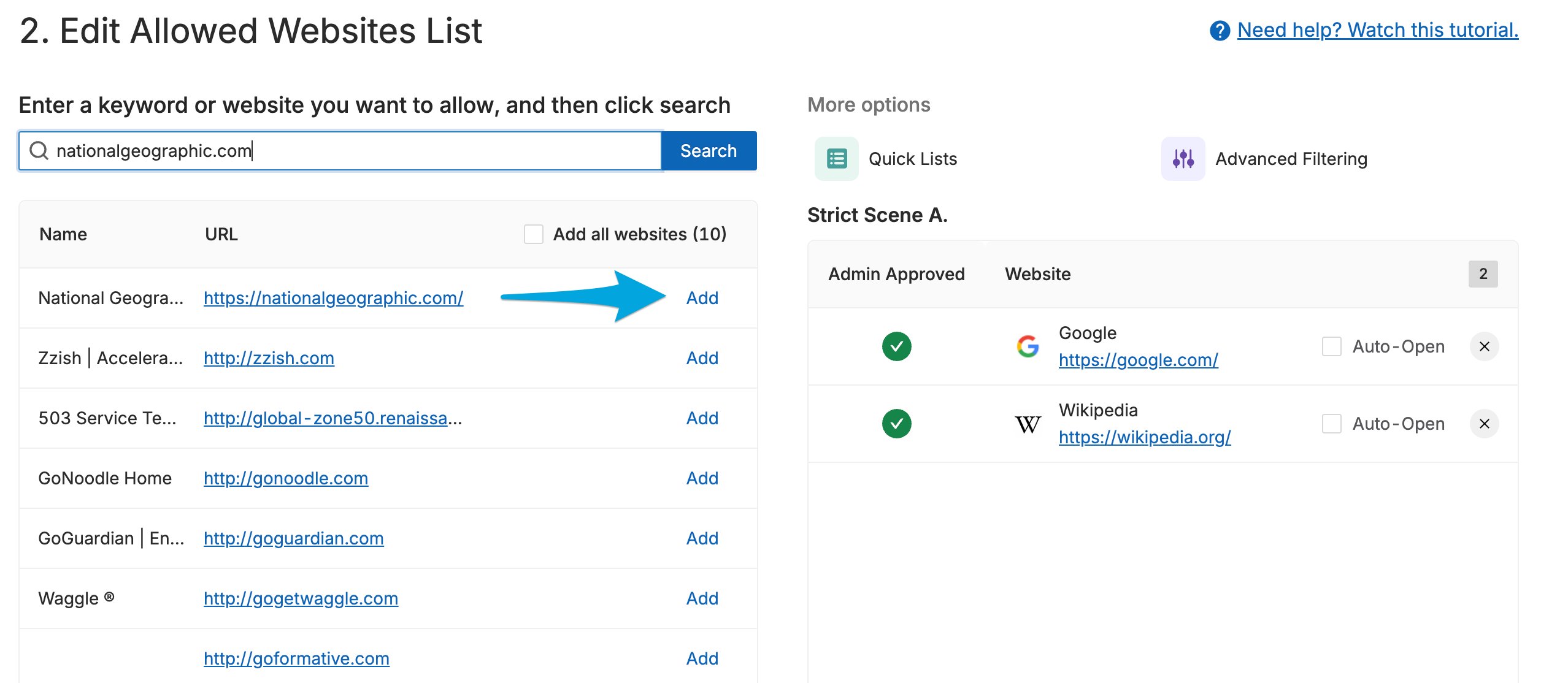
Update your scene to allow the blocked website.
* **Allow Mode scene**: add the website or webpage to the scene's allowed list.
* **Block Mode scene**: remove the website or webpage from the scene's blocked list.
For more information on filtering sites with scenes, including how to update them, see [Create and Apply a Scene](/products/teacher/create-and-apply-a-scene).
## Scenario B: Student Blocked by a Teacher Scene
If a student is blocked by a Teacher scene, you'll see the message **Website Blocked by Scene** with the "Hey there" block page on the student's tile.
### How to Fix This
Update your scene to allow the blocked website.
* **Allow Mode scene**: add the website or webpage to the scene's allowed list.
* **Block Mode scene**: remove the website or webpage from the scene's blocked list.
For more information on filtering sites with scenes, including how to update them, see [Create and Apply a Scene](/products/teacher/create-and-apply-a-scene).
 ## All Other GoGuardian Block Pages
For help with other block pages — including GoGuardian Admin Smart Alert blocks, GoGuardian DNS blocks, or Google Admin Console blocks — contact a GoGuardian administrator for assistance.
***
Learn how to set up and modify scenes to control which websites students can access.
Understand how Teacher Override works and how administrators can enable it.
Review the parts of a scene and how Allow Mode and Block Mode work.
Find out what happens when multiple scenes apply to the same student.
## All Other GoGuardian Block Pages
For help with other block pages — including GoGuardian Admin Smart Alert blocks, GoGuardian DNS blocks, or Google Admin Console blocks — contact a GoGuardian administrator for assistance.
***
Learn how to set up and modify scenes to control which websites students can access.
Understand how Teacher Override works and how administrators can enable it.
Review the parts of a scene and how Allow Mode and Block Mode work.
Find out what happens when multiple scenes apply to the same student.