> ## Documentation Index
> Fetch the complete documentation index at: https://docs.goguardian.com/llms.txt
> Use this file to discover all available pages before exploring further.
# Unlock a Student's Device
> How to unlock a student's device when it is in a Browsing Disabled state during a GoGuardian Teacher classroom session.
If a student joins a classroom session with their device in a **Browsing Disabled** state, any teacher in the session can unlock it using 1 of 2 methods.
## Unlock via Student Tile
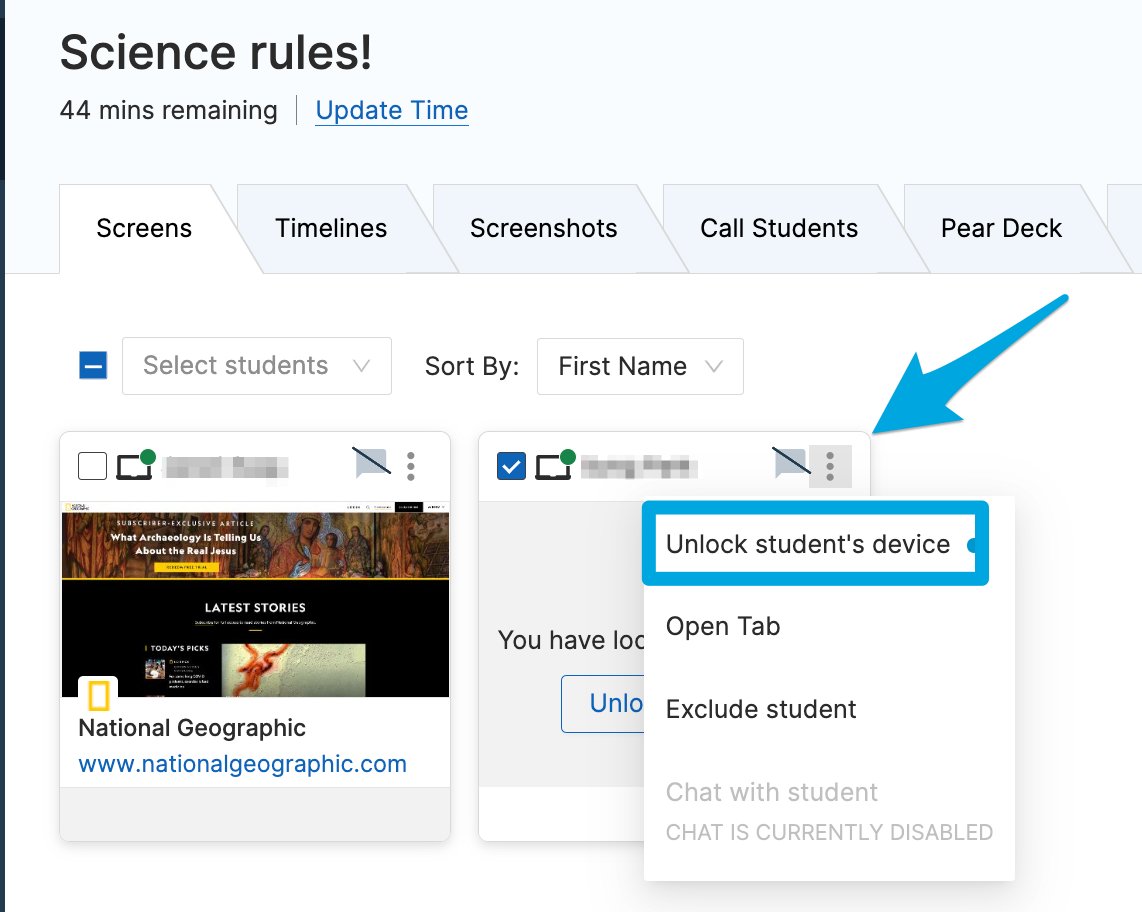
1. Start a classroom session that includes the locked student.
2. Select the 3-dot menu in the upper-right corner of the student's tile.
3. Click **Unlock student's device**.

 ## Unlock via the Unlock Device Command
Use this method to unlock 1 or more students at once.
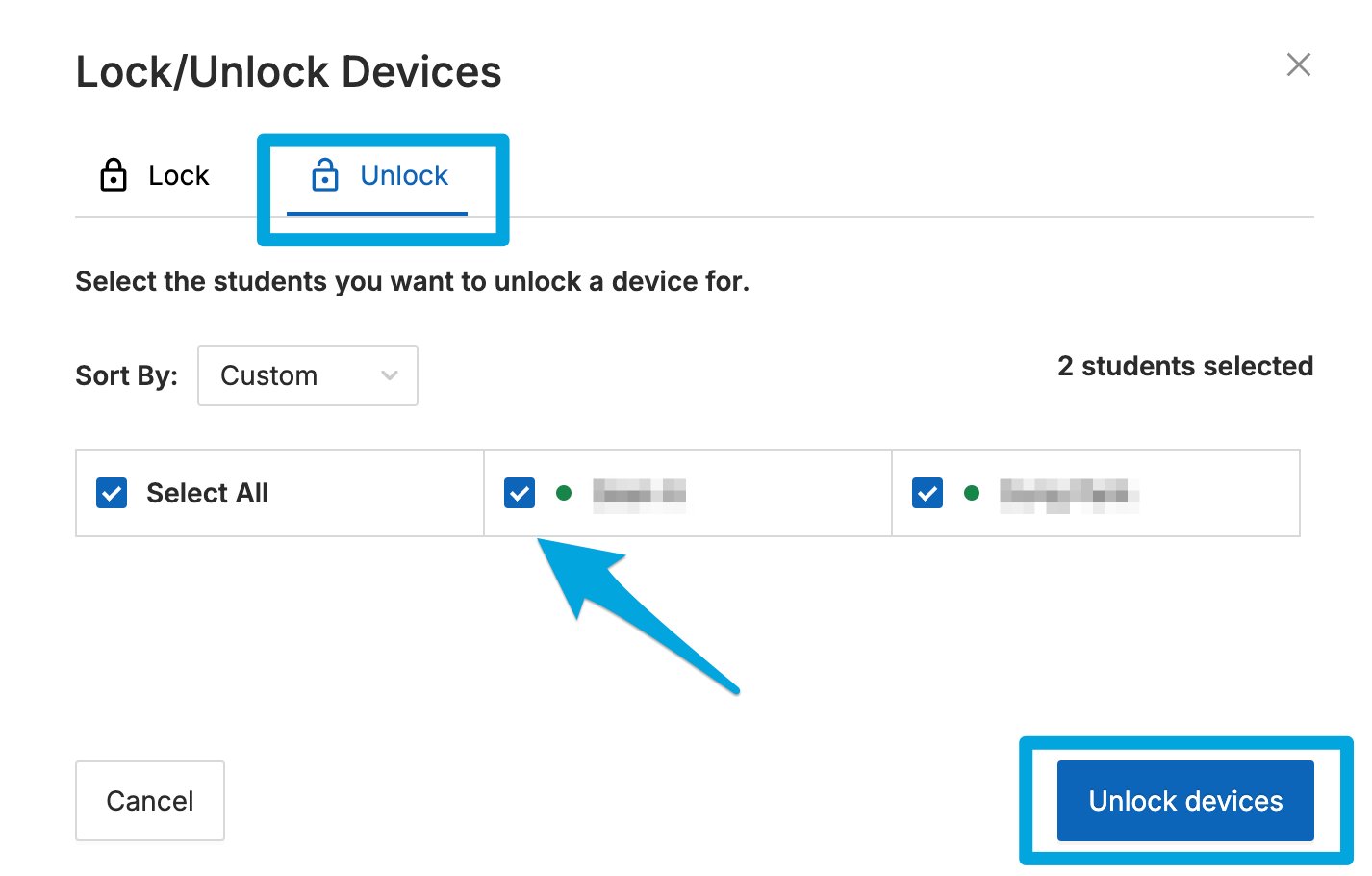
1. Click **Lock/Unlock Device** in the Commands toolbar.
2. On the Lock/Unlock tool page, select the open padlock **Unlock** tab.
3. Select **All** to unlock all students, or check the box next to individual student names.
4. Click **Unlock devices**. The selected students' devices should unlock within a few seconds.
## Troubleshooting
If a student's device does not unlock after 30 seconds, reboot the device and reissue the **Unlock** command.
If the student's screen does not say "Browsing Disabled," their device may be blocked by another source. See [Types of GoGuardian Block Pages](/products/teacher/faqs) for more information.
## Resources
Learn about all available commands in GoGuardian Teacher.
Lock one or more student screens during a session.
Get a classroom session up and running.
Answers to common GoGuardian Teacher questions.
## Unlock via the Unlock Device Command
Use this method to unlock 1 or more students at once.
1. Click **Lock/Unlock Device** in the Commands toolbar.
2. On the Lock/Unlock tool page, select the open padlock **Unlock** tab.
3. Select **All** to unlock all students, or check the box next to individual student names.
4. Click **Unlock devices**. The selected students' devices should unlock within a few seconds.
## Troubleshooting
If a student's device does not unlock after 30 seconds, reboot the device and reissue the **Unlock** command.
If the student's screen does not say "Browsing Disabled," their device may be blocked by another source. See [Types of GoGuardian Block Pages](/products/teacher/faqs) for more information.
## Resources
Learn about all available commands in GoGuardian Teacher.
Lock one or more student screens during a session.
Get a classroom session up and running.
Answers to common GoGuardian Teacher questions.