> ## Documentation Index
> Fetch the complete documentation index at: https://docs.goguardian.com/llms.txt
> Use this file to discover all available pages before exploring further.

# Focus and Reorder Tabs

> Use Make Active, Focus, and Make Active and Focus to manage student browser tabs and keep students on the right page during a GoGuardian Teacher session.

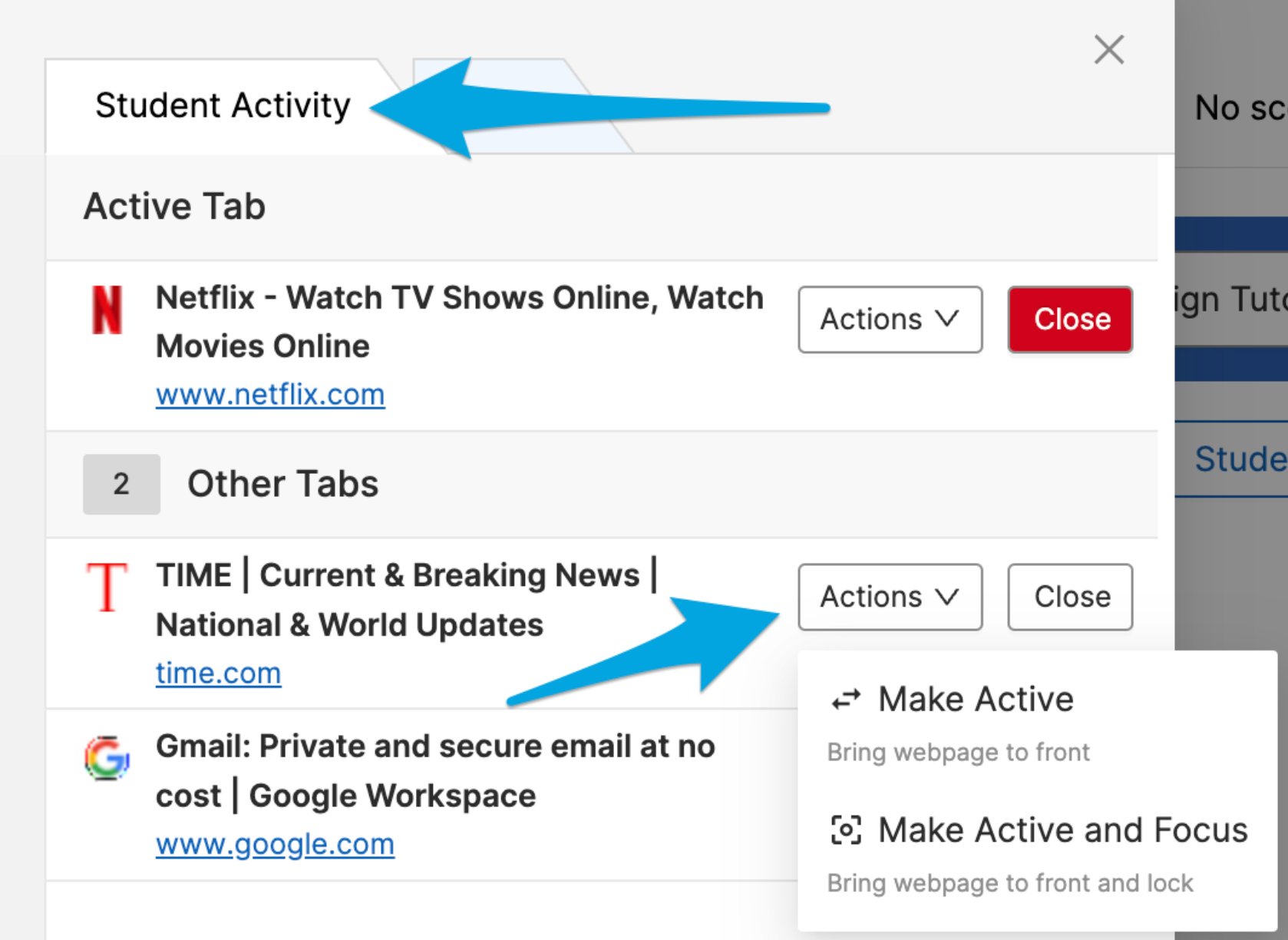
GoGuardian Teacher gives you 3 tab management actions to help students stay on task: **Make Active**, **Focus**, and **Make Active and Focus**. These features are available in each student's **Student Activity** section — accessible by clicking on and expanding a student's screen view.

<Note>
  Focus and Make Active are supported on Chromebooks only.
</Note>

## Tab Actions

| Action                    | What It Does                                                                                                                                                                                                                                    |
| ------------------------- | ----------------------------------------------------------------------------------------------------------------------------------------------------------------------------------------------------------------------------------------------- |
| **Make Active**           | Moves a background tab to become the student's active (frontmost) tab. Available only for tabs that are not already active.                                                                                                                     |
| **Turn Focus On**         | Sets the active tab as the focused tab. Other tabs are temporarily hidden for the student and cannot be closed while Focus is on. Available only for tabs that are already active. Focus applies to 1 webpage at a time, not an entire website. |
| **Make Active and Focus** | Moves a background tab to active and immediately focuses it in one action.                                                                                                                                                                      |

<Note>
  Focus applies to 1 student at a time. Applying Focus to an entire classroom is not currently supported. Focus clears automatically when the session ends.
</Note>

## Use Make Active

1. Click a student's tile to expand their screen view.
2. Go to the **Student Activity** section.
3. Find the background tab you want to move to active.
4. Click **Actions** and select **Make Active**.

## Turn Focus On

1. Click a student's tile to expand their screen view.
2. Go to the **Student Activity** section.
3. Find the tab that is already the student's active tab.
4. Click **Actions** and select **Turn Focus On**.

## Turn Focus Off

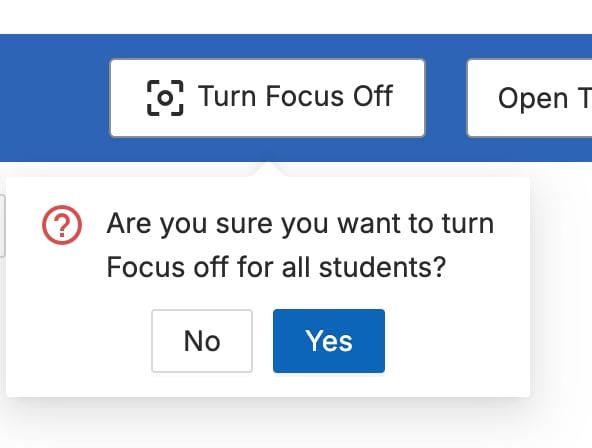
**Turn off Focus for all students:** Click the **Turn Focus Off** button in the command bar and confirm by clicking **Yes**.

**Turn off Focus for one student:**

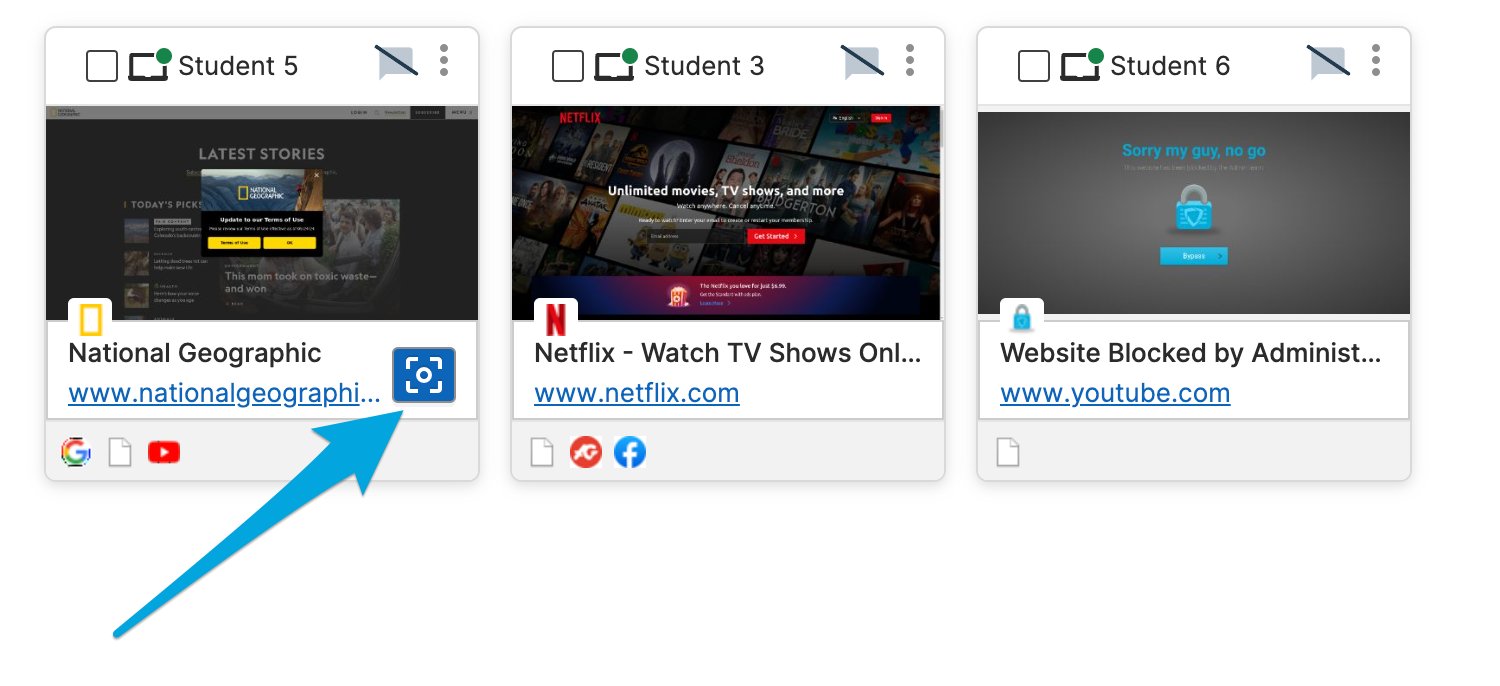
* Click the **Unfocus** button in the lower corner of the student's tile in the Screens grid.
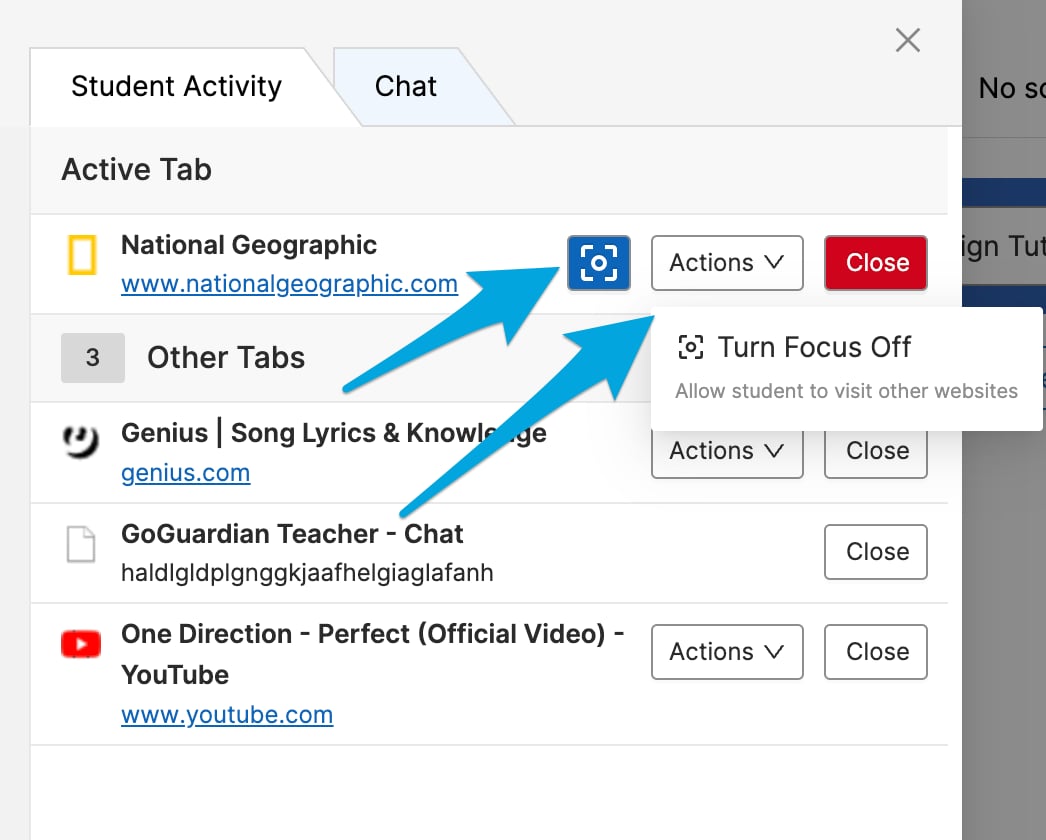
* Or expand the student's screen view and click **Actions** then **Turn Focus Off**.

## Open a Tab and Focus It Immediately

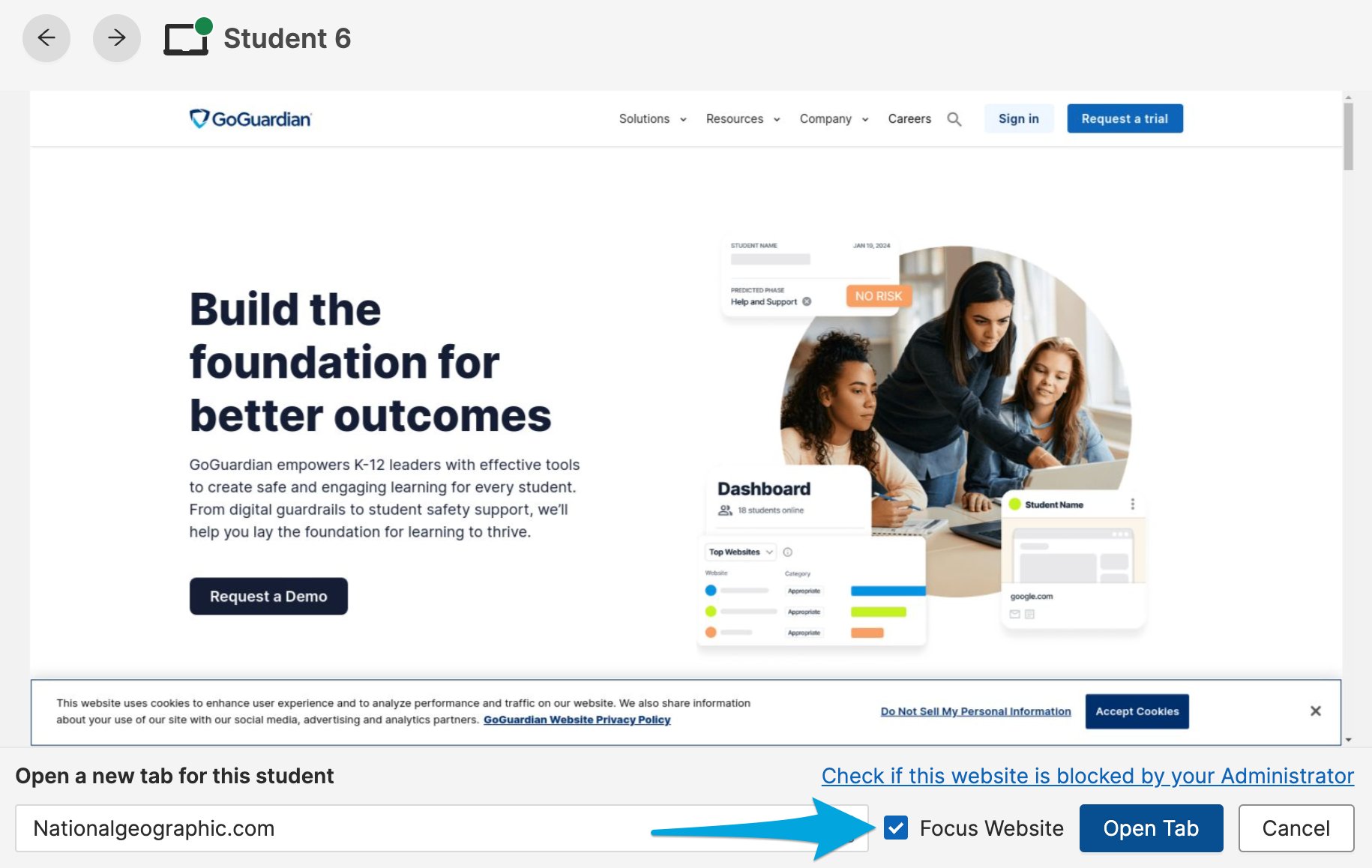
1. Click a student's tile to expand their screen view.
2. Click **Open new tab**.
3. Enter the URL.
4. Turn on the **Focus Website** toggle.
5. Click **Open Tab**.

<img src="https://mintcdn.com/goguardian/6oeTNHuO5gzC1O1Y/images/screenshots/focus-and-reorder-tabs/step-01.png?fit=max&auto=format&n=6oeTNHuO5gzC1O1Y&q=85&s=2fdc1bc6085c016984c8057c6458ae4d" alt="Open a Tab and Focus It Immediately" width="546" height="514" data-path="images/screenshots/focus-and-reorder-tabs/step-01.png" />

<img src="https://mintcdn.com/goguardian/6oeTNHuO5gzC1O1Y/images/screenshots/focus-and-reorder-tabs/step-02.png?fit=max&auto=format&n=6oeTNHuO5gzC1O1Y&q=85&s=e265ccf0e7303b5694e6b64b92e13cd1" alt="Open a Tab and Focus It Immediately" width="1678" height="1224" data-path="images/screenshots/focus-and-reorder-tabs/step-02.png" />

<img src="https://mintcdn.com/goguardian/6oeTNHuO5gzC1O1Y/images/screenshots/focus-and-reorder-tabs/step-03.png?fit=max&auto=format&n=6oeTNHuO5gzC1O1Y&q=85&s=1767e9cbfca2e51f528b998ad9970fd8" alt="Open a Tab and Focus It Immediately" width="946" height="876" data-path="images/screenshots/focus-and-reorder-tabs/step-03.png" />

<img src="https://mintcdn.com/goguardian/fZFZb2zvl2cqCpv6/images/screenshots/focus-and-reorder-tabs/step-04.png?fit=max&auto=format&n=fZFZb2zvl2cqCpv6&q=85&s=ff0a2f85d3a7605d5b60dc650766c959" alt="Open a Tab and Focus It Immediately" width="498" height="150" data-path="images/screenshots/focus-and-reorder-tabs/step-04.png" />

<img src="https://mintcdn.com/goguardian/fZFZb2zvl2cqCpv6/images/screenshots/focus-and-reorder-tabs/step-05.png?fit=max&auto=format&n=fZFZb2zvl2cqCpv6&q=85&s=95a5b7248572066a765b8ff5208a8161" alt="Open a Tab and Focus It Immediately" width="592" height="448" data-path="images/screenshots/focus-and-reorder-tabs/step-05.png" />

<img src="https://mintcdn.com/goguardian/fZFZb2zvl2cqCpv6/images/screenshots/focus-and-reorder-tabs/step-06.png?fit=max&auto=format&n=fZFZb2zvl2cqCpv6&q=85&s=26e1dfdce50697fe9f4c3a2a09e23d83" alt="Open a Tab and Focus It Immediately" width="150" height="118" data-path="images/screenshots/focus-and-reorder-tabs/step-06.png" />

<img src="https://mintcdn.com/goguardian/fZFZb2zvl2cqCpv6/images/screenshots/focus-and-reorder-tabs/step-07.png?fit=max&auto=format&n=fZFZb2zvl2cqCpv6&q=85&s=fd1cf9889921be17757740ebf291526e" alt="Open a Tab and Focus It Immediately" width="1500" height="686" data-path="images/screenshots/focus-and-reorder-tabs/step-07.png" />

<img src="https://mintcdn.com/goguardian/fZFZb2zvl2cqCpv6/images/screenshots/focus-and-reorder-tabs/step-08.png?fit=max&auto=format&n=fZFZb2zvl2cqCpv6&q=85&s=23ce1253f378e4c0ea53295a306070ea" alt="Open a Tab and Focus It Immediately" width="1046" height="840" data-path="images/screenshots/focus-and-reorder-tabs/step-08.png" />

<img src="https://mintcdn.com/goguardian/fZFZb2zvl2cqCpv6/images/screenshots/focus-and-reorder-tabs/step-09.png?fit=max&auto=format&n=fZFZb2zvl2cqCpv6&q=85&s=f383594962fbcee6d561a40bbea25e07" alt="Open a Tab and Focus It Immediately" width="198" height="182" data-path="images/screenshots/focus-and-reorder-tabs/step-09.png" />

<img src="https://mintcdn.com/goguardian/fZFZb2zvl2cqCpv6/images/screenshots/focus-and-reorder-tabs/step-10.png?fit=max&auto=format&n=fZFZb2zvl2cqCpv6&q=85&s=1a9586a344a231c315c8c5e61d96123c" alt="Open a Tab and Focus It Immediately" width="1830" height="1158" data-path="images/screenshots/focus-and-reorder-tabs/step-10.png" />

## Resources

<CardGroup cols={2}>
  <Card title="Commands Overview" href="/products/teacher/commands-overview">
    Review all teacher commands, including Open Tab and Close Tab.
  </Card>

  <Card title="Active Screens View" href="/products/teacher/active-screens-view">
    Navigate the full Screens view and Student Activity section.
  </Card>
</CardGroup>