> ## Documentation Index
> Fetch the complete documentation index at: https://docs.goguardian.com/llms.txt
> Use this file to discover all available pages before exploring further.
# Import Teachers from Google Directory
> Use Google Directory to automatically create and sync GoGuardian Teacher accounts from Google Admin Console Organizational Units.
Google Directory lets GoGuardian Super Users sync teacher accounts from Google Admin Console Organizational Units (OUs). When accounts are created through this integration, GoGuardian Teacher access is enabled automatically.
Google Directory Provisioning also supports provisioning administrator accounts from Google. See the Provisioning Admins from Google article for details.
## Requirements
* A Google account with Google Super Admin permissions to run the sync
* GoGuardian app services enabled in Google Admin Console — specifically the Google OU Sync app (the second ID in the app list). See the Enable GoGuardian as a Third-Party App article for setup instructions.
## Link Google Directory
1. Go to [manage.goguardian.com/integrations](https://manage.goguardian.com/integrations).
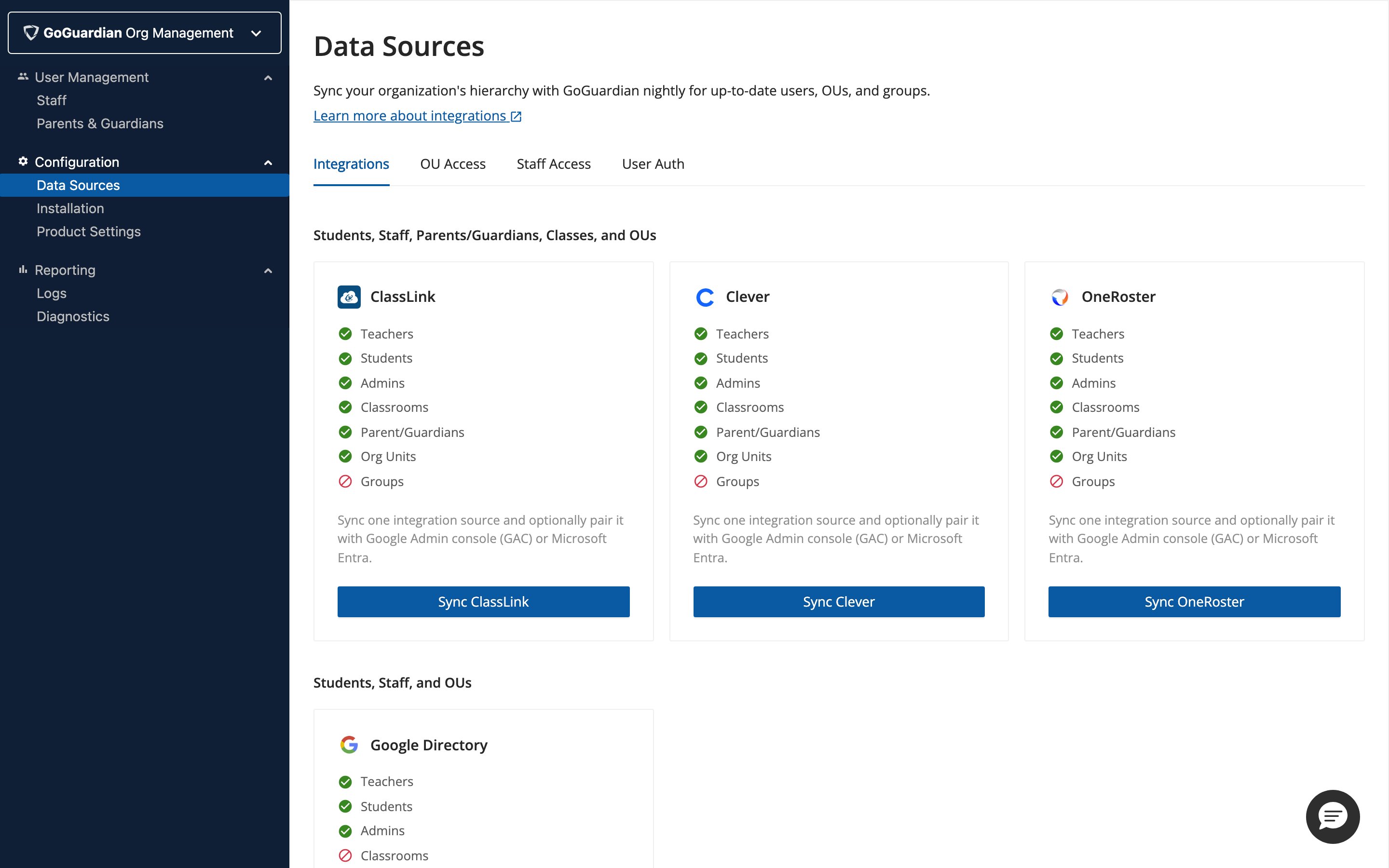 2. Click **Sync Google Directory**.
3. Sign in with a Google account that has Super Admin access to Google Admin Console. This step is required only during the initial setup.
If the Google account used to set up the integration loses Super Admin access, syncs will fail. The account must regain Super Admin access, or the integration must be deleted and recreated using another Super Admin Google account.
## Create a Sync Group
Each Sync Group defines which Google OU to pull teachers from, and optionally restricts those teachers' access to a specific set of students.
1. Go to the **Google Directory** tab in Integrations.
2. Click **Sync Google Directory**.
3. Sign in with a Google account that has Super Admin access to Google Admin Console. This step is required only during the initial setup.
If the Google account used to set up the integration loses Super Admin access, syncs will fail. The account must regain Super Admin access, or the integration must be deleted and recreated using another Super Admin Google account.
## Create a Sync Group
Each Sync Group defines which Google OU to pull teachers from, and optionally restricts those teachers' access to a specific set of students.
1. Go to the **Google Directory** tab in Integrations.
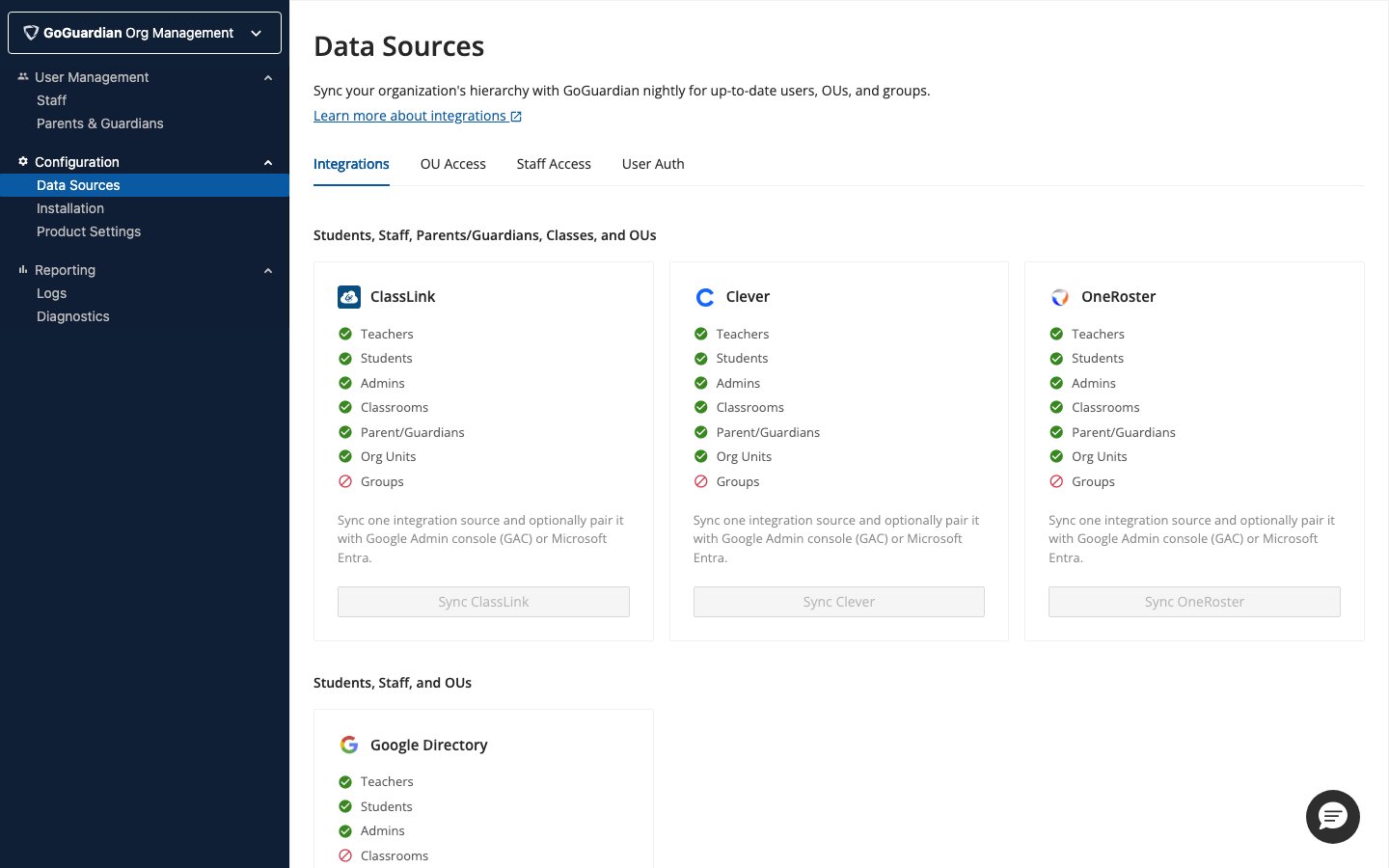 2. Click **New Sync Group**.
 3. Configure the 3 options:
### Teacher Directory
Select the Google OU path where your teacher accounts are stored. GoGuardian creates or updates GoGuardian Teacher accounts for all users in that OU.
If you select an OU that contains sub-OUs, all users in those sub-OUs are included in the sync. Only one OU path can be selected per Sync Group, but you can create multiple Sync Groups for different paths.
**Important:** Confirm that only teacher email addresses are in the selected OU. All email addresses in the OU will receive GoGuardian Teacher access. Accidentally including student accounts will grant them access.
### Restrict Access to Student Directories (Optional)
Turn on this toggle to limit which students the synced teachers can access. Select a Student Directory OU to automatically assign teachers access to students in that OU.
If you select **No Restrictions**, teachers receive full OU access and can view the activity of all students in the school.
Teachers who already have OU access assigned will have their current OU access replaced by the Student Directory OU selection after their first sync. OU access can be adjusted manually afterward without subsequent syncs overriding those changes.
### Sync Group Nickname
Enter a name or ID for this Sync Group. Nicknames help you track different groups, especially if access changes throughout the school year.
## Run a Sync
Syncs run automatically each night. To sync immediately, click the **Sync All** button in the Google Directory tab.
## Review Sync Results
When a sync completes, the results and completion time appear in the **Integrations** tab under the Teachers drop-down menu. Full sync history is also available in the **Audit Log**, which can be filtered by integration source using the cogwheel.
## What Happens When Teachers Move OUs
If a synced teacher's account is moved to a Google OU that is outside the Sync Group's Teacher Directory, the teacher loses GoGuardian Teacher access the next time a sync runs. The same applies if you change a Sync Group's Teacher Directory to a different OU — teachers no longer included in any Sync Group lose access at the next sync.
## Resources
Create accounts individually or by CSV if Google sync is not available.
Edit account permissions and access after provisioning.
3. Configure the 3 options:
### Teacher Directory
Select the Google OU path where your teacher accounts are stored. GoGuardian creates or updates GoGuardian Teacher accounts for all users in that OU.
If you select an OU that contains sub-OUs, all users in those sub-OUs are included in the sync. Only one OU path can be selected per Sync Group, but you can create multiple Sync Groups for different paths.
**Important:** Confirm that only teacher email addresses are in the selected OU. All email addresses in the OU will receive GoGuardian Teacher access. Accidentally including student accounts will grant them access.
### Restrict Access to Student Directories (Optional)
Turn on this toggle to limit which students the synced teachers can access. Select a Student Directory OU to automatically assign teachers access to students in that OU.
If you select **No Restrictions**, teachers receive full OU access and can view the activity of all students in the school.
Teachers who already have OU access assigned will have their current OU access replaced by the Student Directory OU selection after their first sync. OU access can be adjusted manually afterward without subsequent syncs overriding those changes.
### Sync Group Nickname
Enter a name or ID for this Sync Group. Nicknames help you track different groups, especially if access changes throughout the school year.
## Run a Sync
Syncs run automatically each night. To sync immediately, click the **Sync All** button in the Google Directory tab.
## Review Sync Results
When a sync completes, the results and completion time appear in the **Integrations** tab under the Teachers drop-down menu. Full sync history is also available in the **Audit Log**, which can be filtered by integration source using the cogwheel.
## What Happens When Teachers Move OUs
If a synced teacher's account is moved to a Google OU that is outside the Sync Group's Teacher Directory, the teacher loses GoGuardian Teacher access the next time a sync runs. The same applies if you change a Sync Group's Teacher Directory to a different OU — teachers no longer included in any Sync Group lose access at the next sync.
## Resources
Create accounts individually or by CSV if Google sync is not available.
Edit account permissions and access after provisioning.