> ## Documentation Index
> Fetch the complete documentation index at: https://docs.goguardian.com/llms.txt
> Use this file to discover all available pages before exploring further.
# Lock Screen
> Lock and unlock student browser windows during a GoGuardian Teacher class session.
The Lock Screen command mutes and disables all browser windows on a student's device. Use it to redirect student attention or prevent access to content during a class session.
The lock clears automatically when the session in which the student was locked ends. Any teacher with an active session can also unlock the student manually.
Lock Screen only disables browser windows. Applications running outside of the browser are not affected. If a locked student joins another session before the original session ends, the lock carries over to the new session.
## Lock a Student's Screen
**Lock one student:**
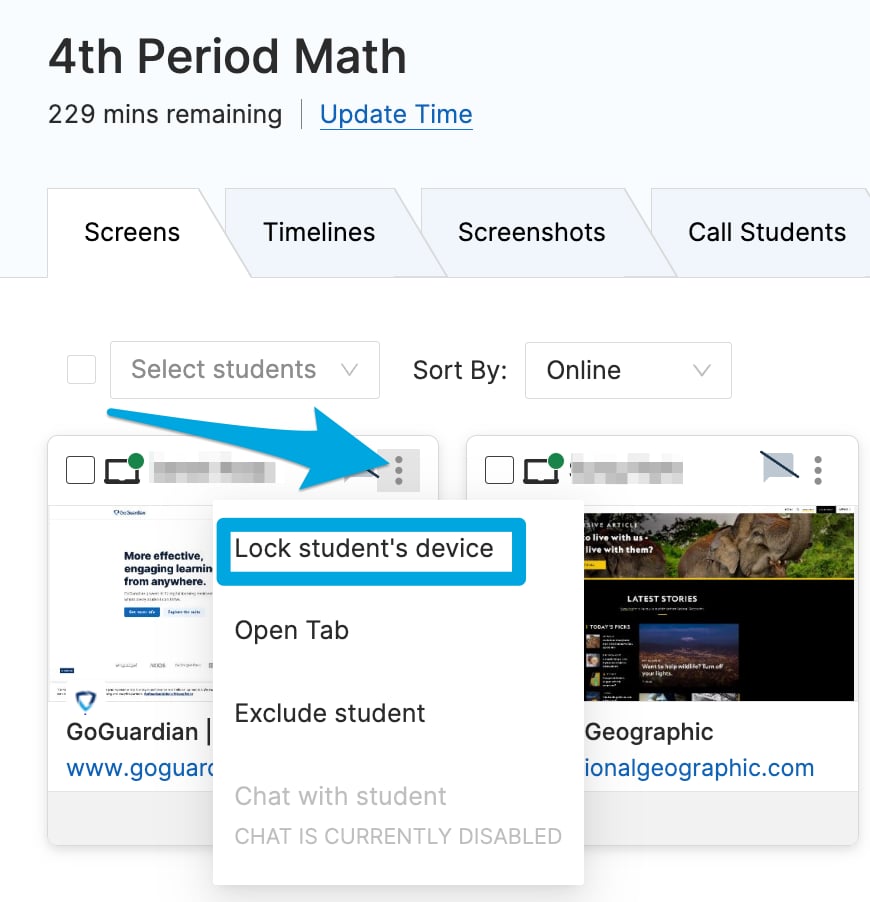
Click the 3-dot menu on the student's tile and select **Lock student's device**.
**Lock multiple students:**
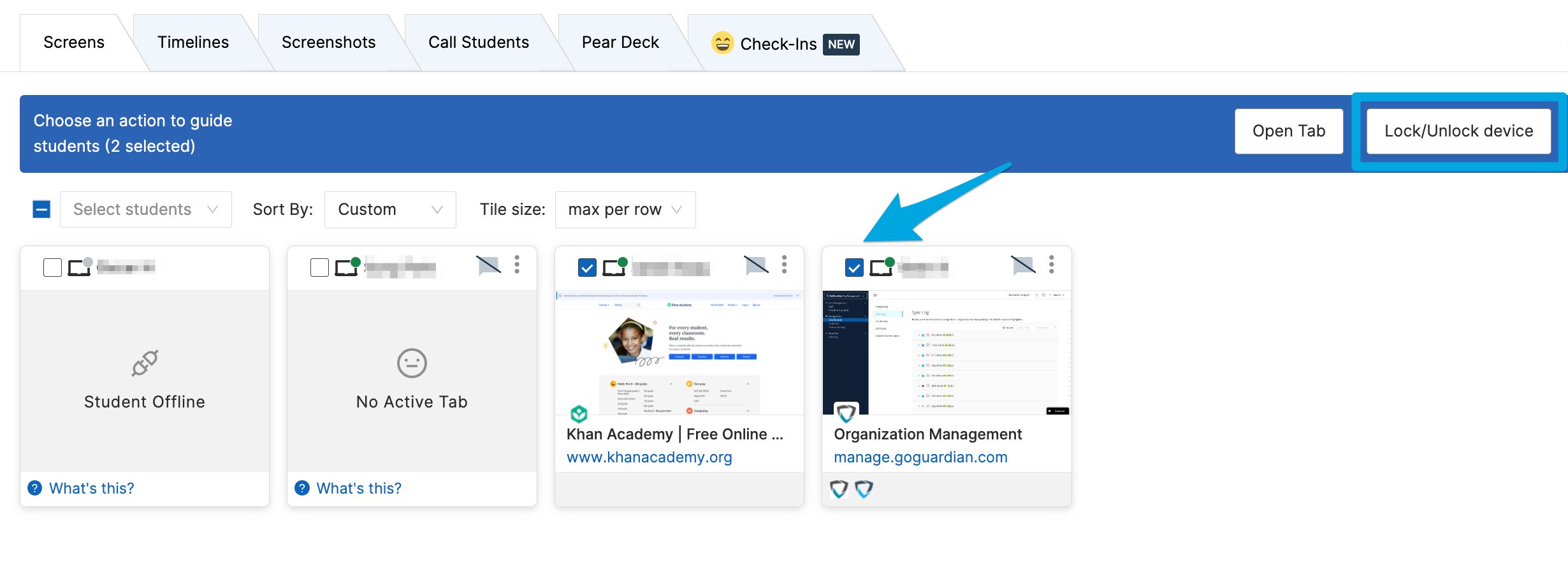
1. Check the boxes next to each student you want to lock.
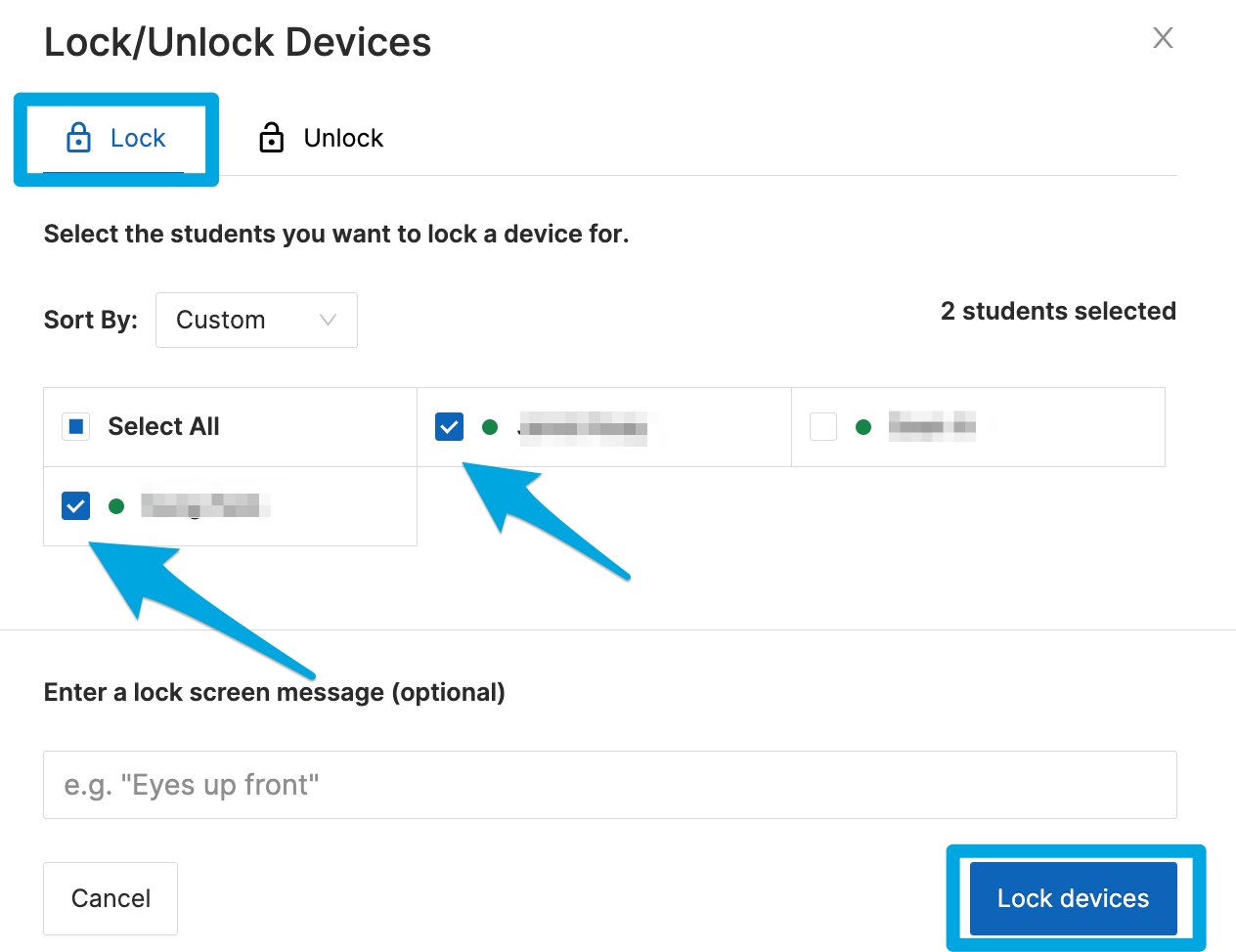
2. Click the **Lock / Unlock device** button.
3. Enter a custom message to display on the locked screen. This step is optional.
4. Click **Lock devices** on the confirmation dialog.
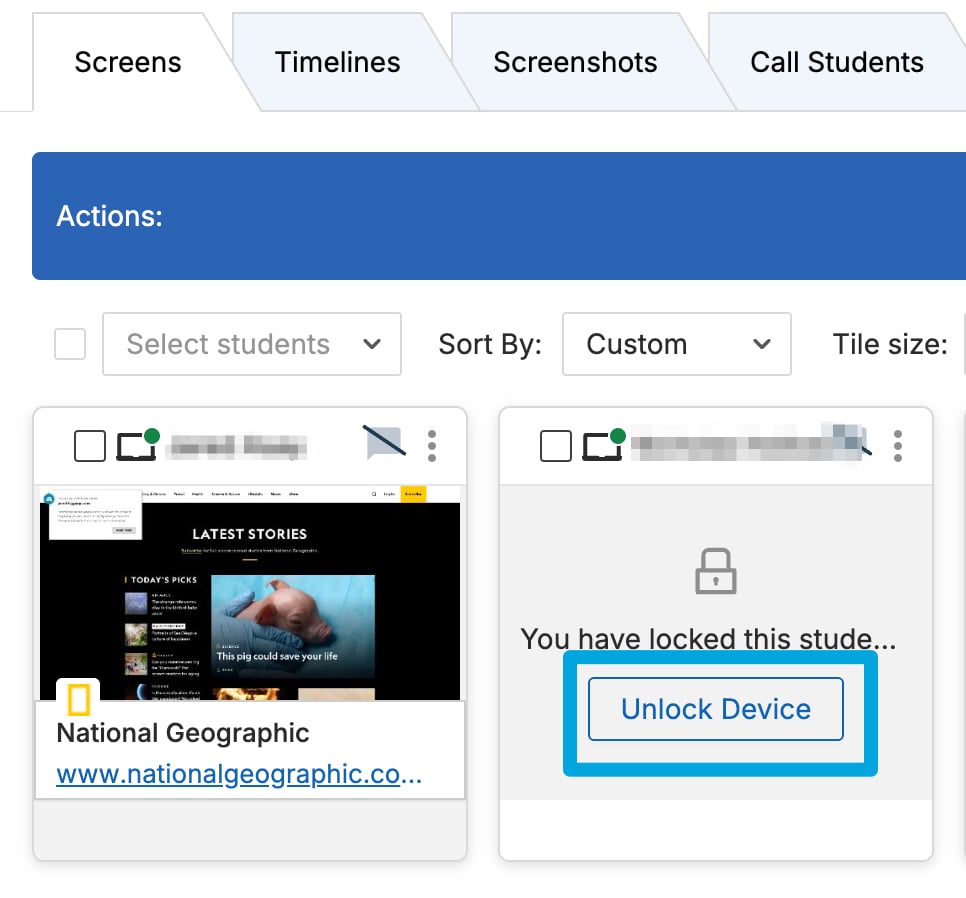
 5. Confirm that the locked students' tiles show the "You have locked this student's screen" message.
 ## Unlock a Student's Screen
 1. Check the boxes next to each locked student.
2. Click the **Lock / Unlock device** button.
3. Click **Unlock**, then confirm by clicking **Unlock devices**.
4. Confirm that the students' tiles return to showing their active tabs.
A locked student's tile always shows "You have locked this student's screen" regardless of which teacher originally issued the lock. Any teacher in an active session with the student can unlock them.
## Troubleshoot a Device That Stays Locked
If a student's device does not unlock within 30 seconds:
1. Restart the student's device.
2. Wait for the student to reconnect to the session.
3. Issue the unlock command again.
If the student's screen does not show "browsing disabled," a different source may be blocking their browser. See the GoGuardian block page types article for more information.
## Resources
Review all available teacher commands and how to issue them.
Navigate the Screens view controls, including the command bar.
1. Check the boxes next to each locked student.
2. Click the **Lock / Unlock device** button.
3. Click **Unlock**, then confirm by clicking **Unlock devices**.
4. Confirm that the students' tiles return to showing their active tabs.
A locked student's tile always shows "You have locked this student's screen" regardless of which teacher originally issued the lock. Any teacher in an active session with the student can unlock them.
## Troubleshoot a Device That Stays Locked
If a student's device does not unlock within 30 seconds:
1. Restart the student's device.
2. Wait for the student to reconnect to the session.
3. Issue the unlock command again.
If the student's screen does not show "browsing disabled," a different source may be blocking their browser. See the GoGuardian block page types article for more information.
## Resources
Review all available teacher commands and how to issue them.
Navigate the Screens view controls, including the command bar.