> ## Documentation Index
> Fetch the complete documentation index at: https://docs.goguardian.com/llms.txt
> Use this file to discover all available pages before exploring further.
# Manage Users and Organization Settings
> Edit teacher accounts, manage product licenses, and configure GoGuardian Teacher organization-wide settings in Org Management. Requires Super User permissions.
Super Users can manage teacher accounts and GoGuardian Teacher product settings in Organization Management at [manage.goguardian.com](https://manage.goguardian.com).
 ## Manage Teacher Accounts
### Add a Teacher
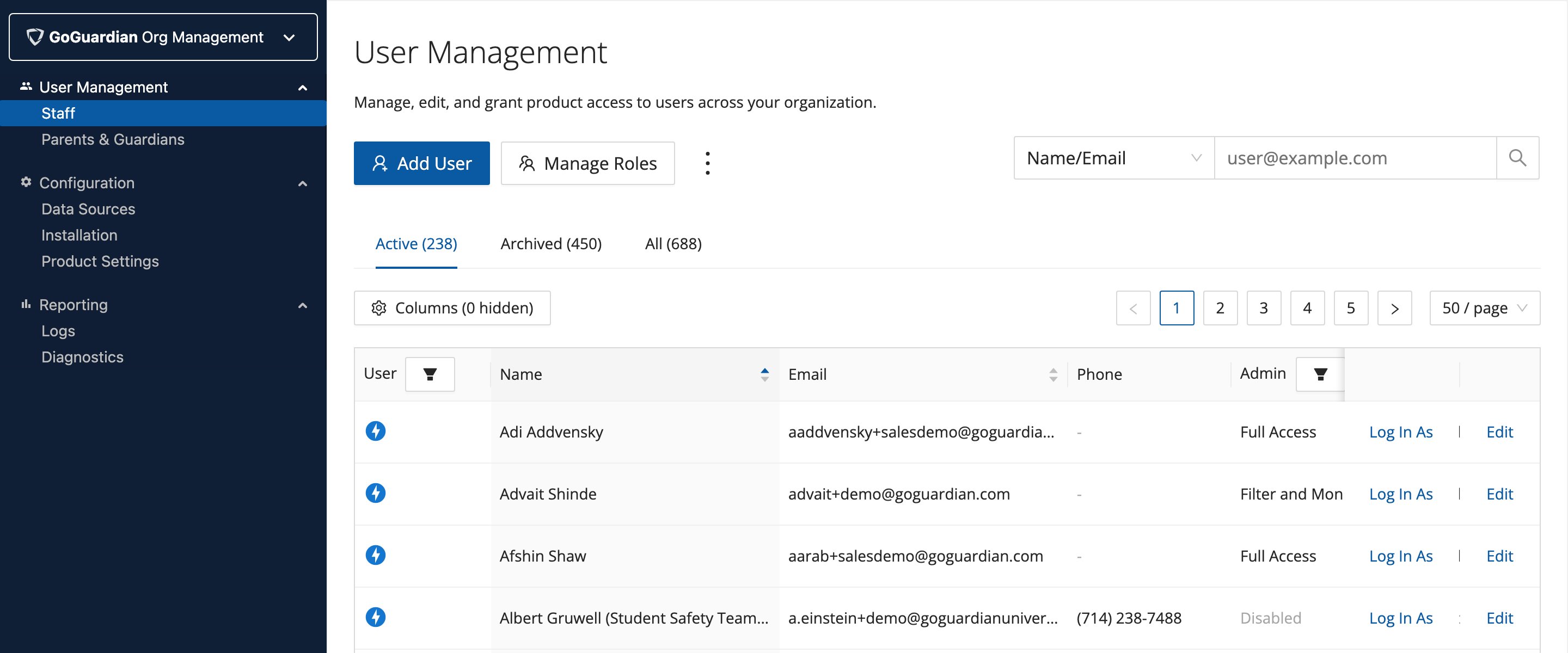
Click **Add User**, enter the teacher's name and email address, set GoGuardian Teacher to **Enabled**, and click **Add User**. The teacher receives an email with password setup instructions.
To add multiple teachers at once, click **Add Multiple Users** and upload a CSV with one teacher entry per line. Bulk uploads let you set permissions for all users at once.
### Disable a Teacher Account
1. Find the user in the list.
2. Click **Edit** next to their name.
3. Turn off the **Enable User** toggle.
4. Click **Save User**.
### Edit a Teacher Account
To update a name, email address, or other account details:
1. Click **Edit** next to the teacher's name.
2. Make the needed changes.
3. Click **Save**.
Changes take effect immediately.
### Reset a Teacher's Password
1. Click **Edit** next to the teacher's name.
2. Click the **Reset Password** link.
An email is sent to the teacher's address with password reset instructions.
## Check Product Licenses
1. Go to [manage.goguardian.com](https://manage.goguardian.com).
2. Click the **Products** tab.
3. Under **Product Licenses** (selected by default), view expiration dates for active licenses and products available for a free trial.
## Configure GoGuardian Teacher Product Settings
To access GoGuardian Teacher product settings:
1. Go to [manage.goguardian.com](https://manage.goguardian.com).
2. Click the **Products** tab.
3. Click **Teacher** in the left sidebar.
4. Click the **Settings** sub-tab (selected by default).
### Allow Classroom Sessions
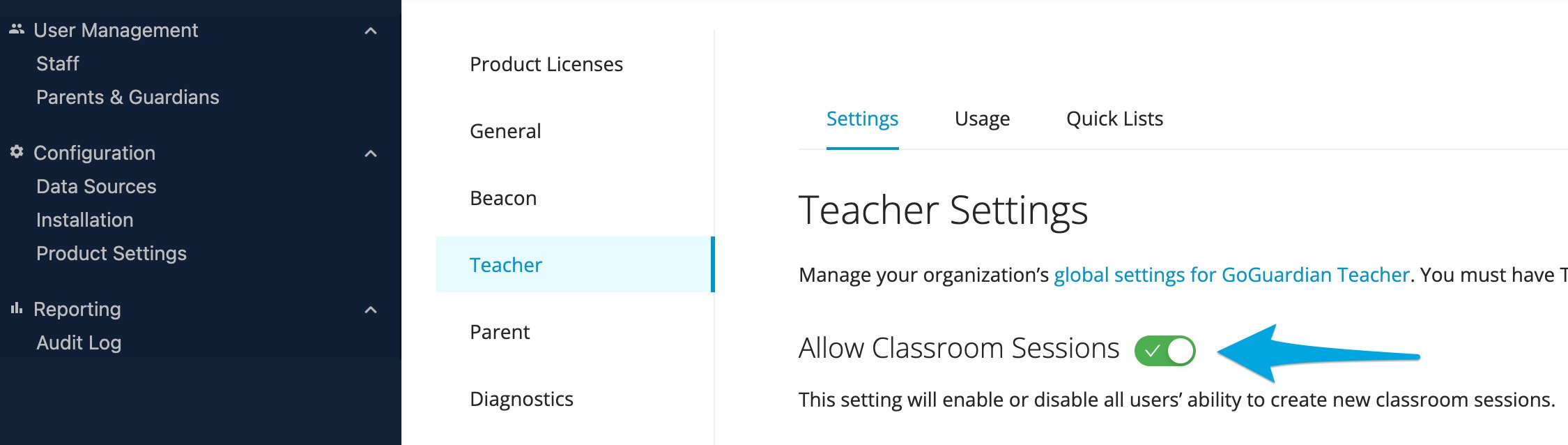
Turn this toggle on or off to control whether teachers can create sessions at all. Turning it off prevents any teacher from starting a classroom session.
Turn off classroom sessions during extended breaks, such as winter break or summer break, if no GoGuardian classrooms run during those periods.
## Manage Teacher Accounts
### Add a Teacher
Click **Add User**, enter the teacher's name and email address, set GoGuardian Teacher to **Enabled**, and click **Add User**. The teacher receives an email with password setup instructions.
To add multiple teachers at once, click **Add Multiple Users** and upload a CSV with one teacher entry per line. Bulk uploads let you set permissions for all users at once.
### Disable a Teacher Account
1. Find the user in the list.
2. Click **Edit** next to their name.
3. Turn off the **Enable User** toggle.
4. Click **Save User**.
### Edit a Teacher Account
To update a name, email address, or other account details:
1. Click **Edit** next to the teacher's name.
2. Make the needed changes.
3. Click **Save**.
Changes take effect immediately.
### Reset a Teacher's Password
1. Click **Edit** next to the teacher's name.
2. Click the **Reset Password** link.
An email is sent to the teacher's address with password reset instructions.
## Check Product Licenses
1. Go to [manage.goguardian.com](https://manage.goguardian.com).
2. Click the **Products** tab.
3. Under **Product Licenses** (selected by default), view expiration dates for active licenses and products available for a free trial.
## Configure GoGuardian Teacher Product Settings
To access GoGuardian Teacher product settings:
1. Go to [manage.goguardian.com](https://manage.goguardian.com).
2. Click the **Products** tab.
3. Click **Teacher** in the left sidebar.
4. Click the **Settings** sub-tab (selected by default).
### Allow Classroom Sessions
Turn this toggle on or off to control whether teachers can create sessions at all. Turning it off prevents any teacher from starting a classroom session.
Turn off classroom sessions during extended breaks, such as winter break or summer break, if no GoGuardian classrooms run during those periods.
 ### Display Active Session Status to Students
When turned on, the GoGuardian extension on student devices turns lime green when the student is in an active classroom session. This gives students a visible indicator that a session is active.
### Display Active Session Status to Students
When turned on, the GoGuardian extension on student devices turns lime green when the student is in an active classroom session. This gives students a visible indicator that a session is active.

 ### Conference Call Settings
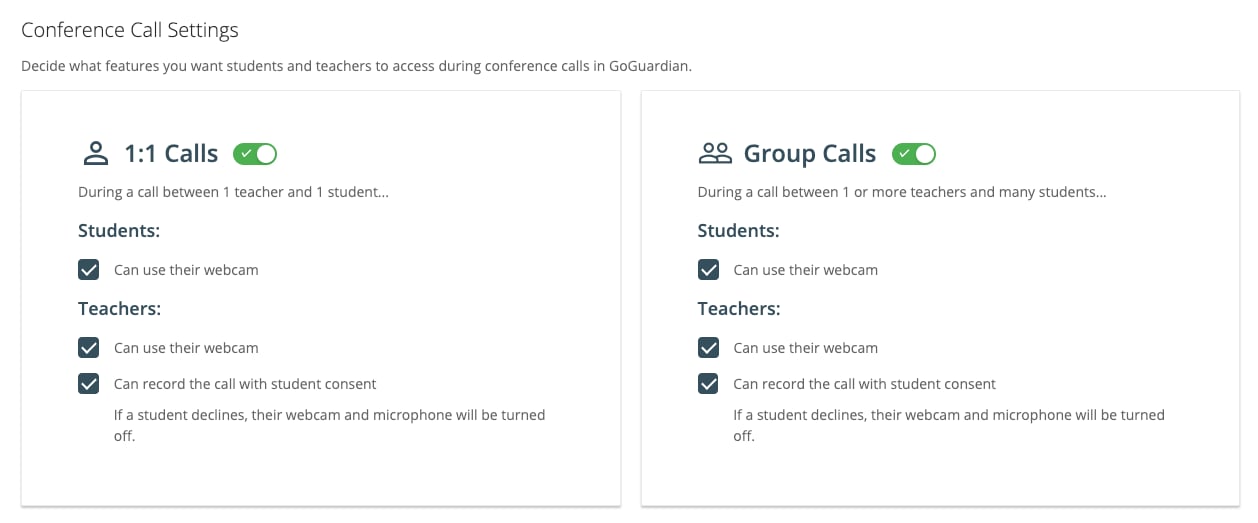
Control which call features are available during class sessions:
* Enable or disable 1-on-1 calls and group calls
* Allow or prevent students and teachers from using webcams
* Allow or prevent call recording (with student consent)
### Conference Call Settings
Control which call features are available during class sessions:
* Enable or disable 1-on-1 calls and group calls
* Allow or prevent students and teachers from using webcams
* Allow or prevent call recording (with student consent)
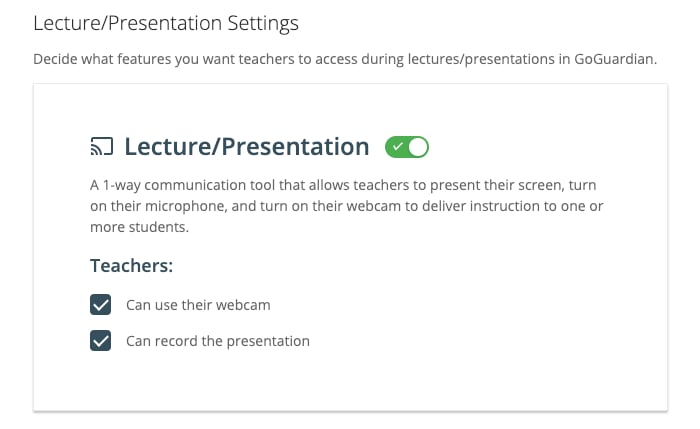
 ### Lecture and Presentation Settings
Control the Lecture / Presentation (Present to Class) mode:
* Enable or disable Lecture / Presentation mode
* Allow or prevent teachers from using webcams during presentations
* Allow or prevent presentation recording
### Lecture and Presentation Settings
Control the Lecture / Presentation (Present to Class) mode:
* Enable or disable Lecture / Presentation mode
* Allow or prevent teachers from using webcams during presentations
* Allow or prevent presentation recording
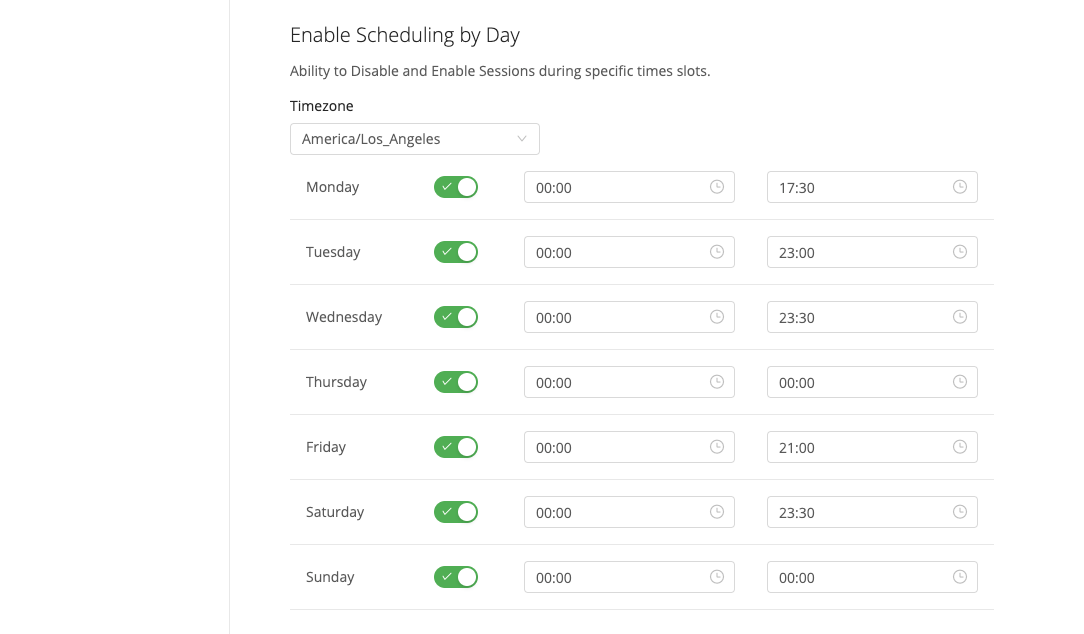
 ### Enable Scheduling by Day
When turned on, teachers can only start class sessions during specified days and time windows. Before enabling this setting, confirm the **Timezone** is set correctly. Select the days and time ranges when sessions are allowed. Disabling a day prevents teachers from starting any session on that day.
### Enable Scheduling by Day
When turned on, teachers can only start class sessions during specified days and time windows. Before enabling this setting, confirm the **Timezone** is set correctly. Select the days and time ranges when sessions are allowed. Disabling a day prevents teachers from starting any session on that day.
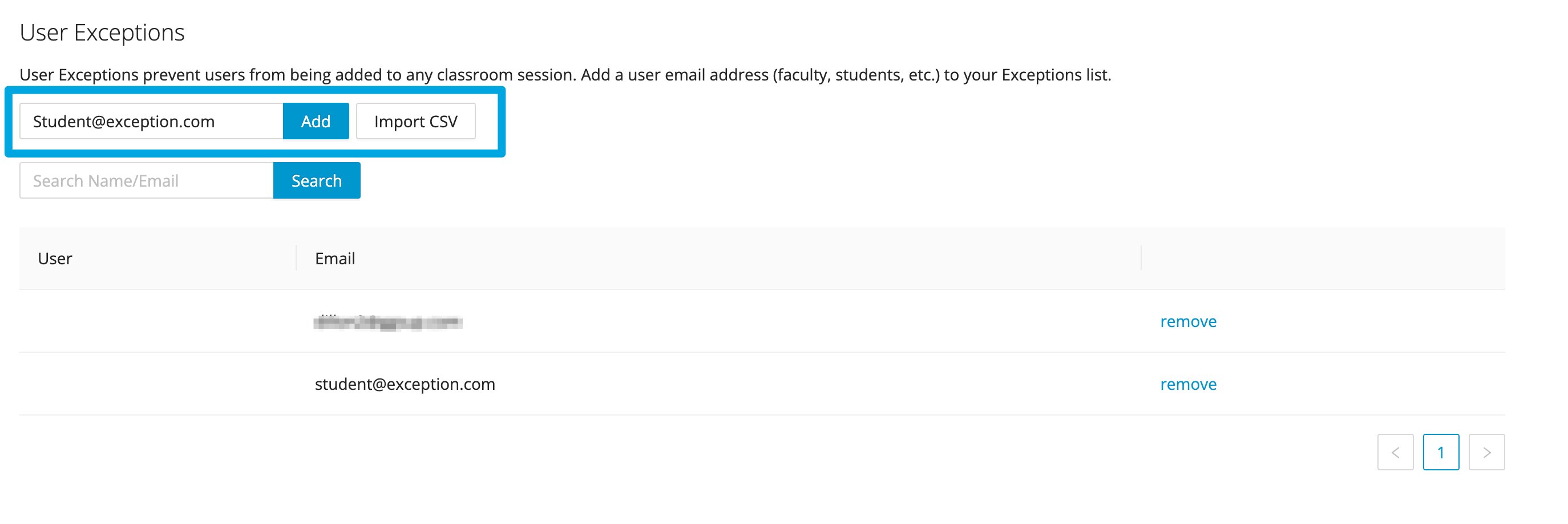
 ### User Exceptions
Add specific users whose devices are never included in classroom sessions regardless of any other setting. Enter an email address and click **Add**, or import multiple users via CSV.
CSV uploads for User Exceptions are limited to 100 users at a time. Break larger lists into separate files if you have more than 100 users to add.
To remove a user from exceptions, click **Remove** next to their name.
### User Exceptions
Add specific users whose devices are never included in classroom sessions regardless of any other setting. Enter an email address and click **Add**, or import multiple users via CSV.
CSV uploads for User Exceptions are limited to 100 users at a time. Break larger lists into separate files if you have more than 100 users to add.
To remove a user from exceptions, click **Remove** next to their name.
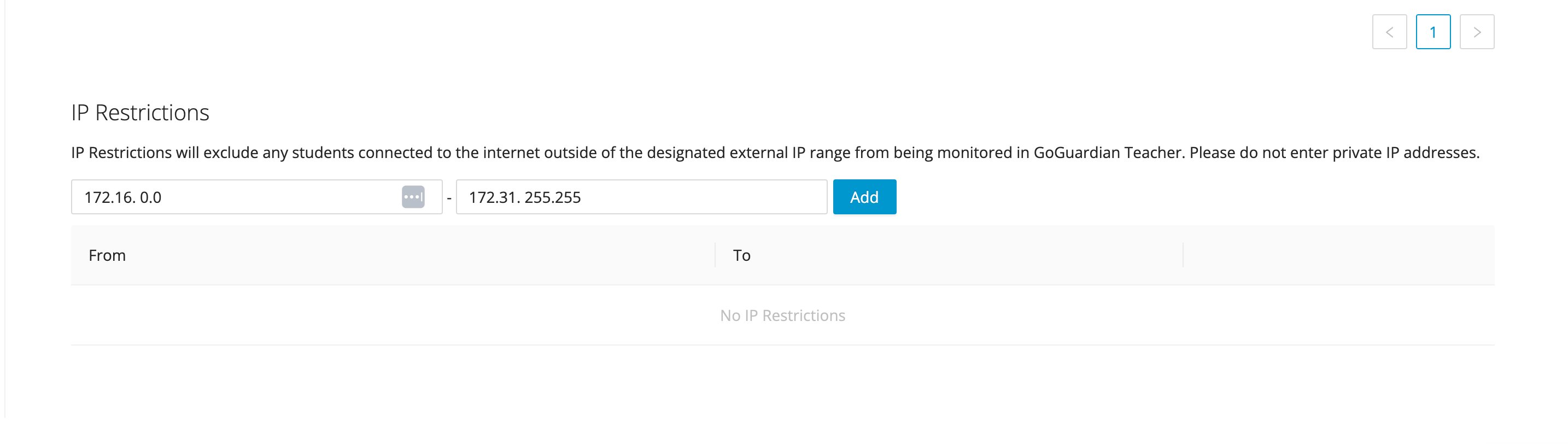
 ### IP Restrictions
Define an allowed IP address range to restrict students from joining classroom sessions from outside the school network. Enter the IP range and click **Add**. Multiple ranges are supported for organizations with more than one campus or network.
To remove a restriction, click **Remove** next to the IP range.
### IP Restrictions
Define an allowed IP address range to restrict students from joining classroom sessions from outside the school network. Enter the IP range and click **Add**. Multiple ranges are supported for organizations with more than one campus or network.
To remove a restriction, click **Remove** next to the IP range.
 ## Resources
Create new teacher accounts individually, by CSV, or through an integration.
Configure video conferencing settings for your organization.
Automate teacher account creation and management through Google.
## Resources
Create new teacher accounts individually, by CSV, or through an integration.
Configure video conferencing settings for your organization.
Automate teacher account creation and management through Google.