> ## Documentation Index
> Fetch the complete documentation index at: https://docs.goguardian.com/llms.txt
> Use this file to discover all available pages before exploring further.
# Seeing Multiple Student Screens
> Explains why a student may appear as more than 1 tile during a classroom session and how to resolve it.
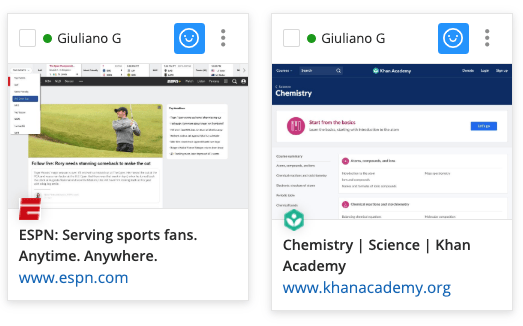
During classroom sessions, GoGuardian Teacher creates a new screen tile for each device a student uses. There are 2 common scenarios that cause a student to display more than 1 tile.
## Scenario 1: Multiple Screens, Different Content
In this scenario, the student's account is likely signed into their school account on more than 1 device. The student may still be signed into a personal device at home, or they may have shared their account information with another student.
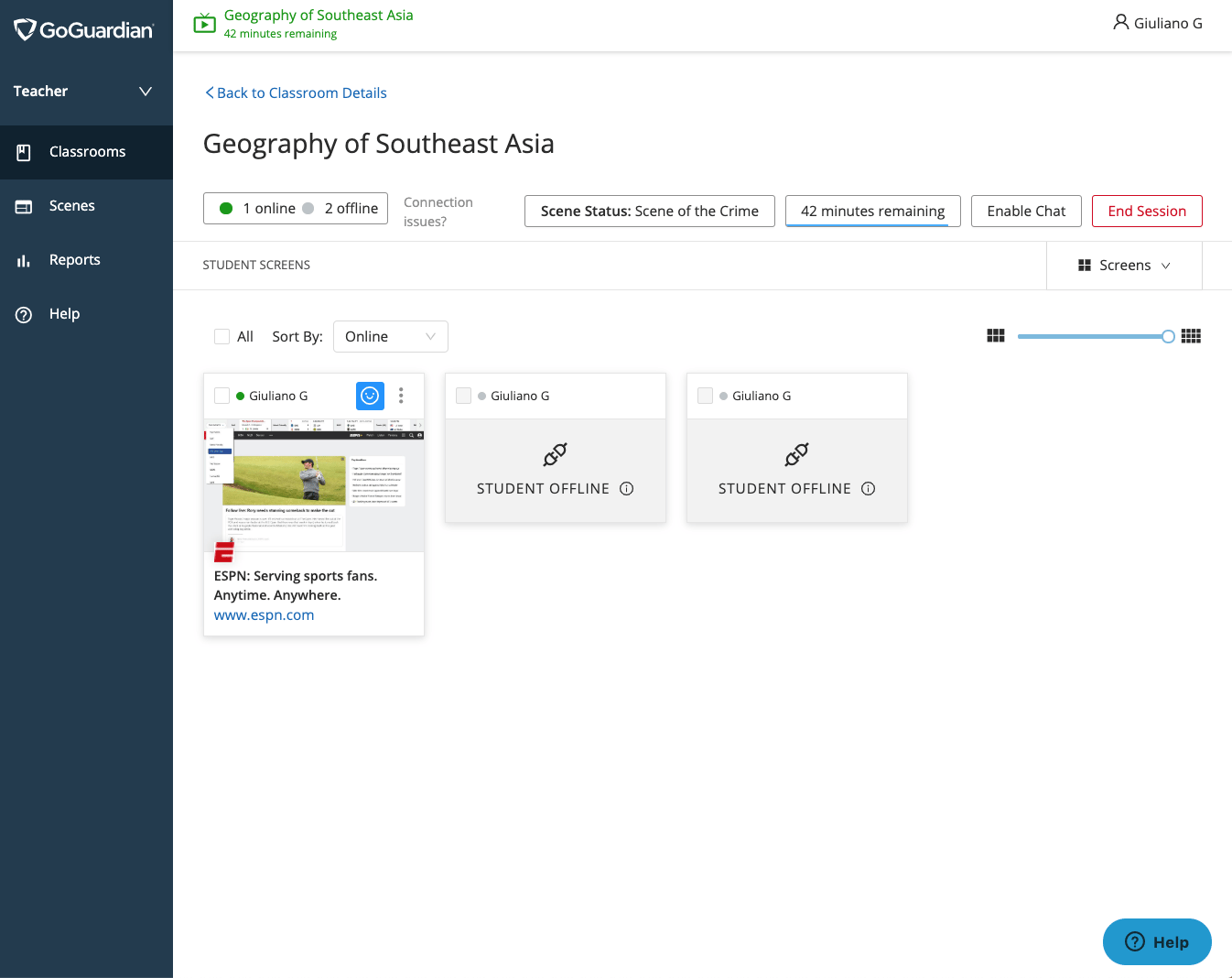
 ## Scenario 2: Multiple Screens, Only 1 Is Online
Multiple offline devices usually indicate that the student switched devices during the classroom session. They may have also:
* Cleared their browsing history or data
* Deleted their user profile from their Chromebook and signed in again
None of these actions affect the online instance of the student. Duplicate tiles for the same student are cleared at the end of the session, or you can clear them by restarting the session.
If this regularly happens to students during class, contact your IT department or a Google Workspace administrator and ask them to enable ephemeral mode. [Ephemeral mode](https://support.google.com/chrome/a/answer/3538894?hl=en) deletes all locally saved user data when a user signs out of the device, which prevents a student from appearing as multiple tiles during class.
## Scenario 2: Multiple Screens, Only 1 Is Online
Multiple offline devices usually indicate that the student switched devices during the classroom session. They may have also:
* Cleared their browsing history or data
* Deleted their user profile from their Chromebook and signed in again
None of these actions affect the online instance of the student. Duplicate tiles for the same student are cleared at the end of the session, or you can clear them by restarting the session.
If this regularly happens to students during class, contact your IT department or a Google Workspace administrator and ask them to enable ephemeral mode. [Ephemeral mode](https://support.google.com/chrome/a/answer/3538894?hl=en) deletes all locally saved user data when a user signs out of the device, which prevents a student from appearing as multiple tiles during class.
 ## Resources
Learn how to launch and manage a classroom session in GoGuardian Teacher.
Understand why a student tile shows as offline and what to do about it.
Get an overview of the active screens view and student tiles during a session.
Troubleshoot issues where a student does not appear in your classroom session.
## Resources
Learn how to launch and manage a classroom session in GoGuardian Teacher.
Understand why a student tile shows as offline and what to do about it.
Get an overview of the active screens view and student tiles during a session.
Troubleshoot issues where a student does not appear in your classroom session.