> ## Documentation Index
> Fetch the complete documentation index at: https://docs.goguardian.com/llms.txt
> Use this file to discover all available pages before exploring further.
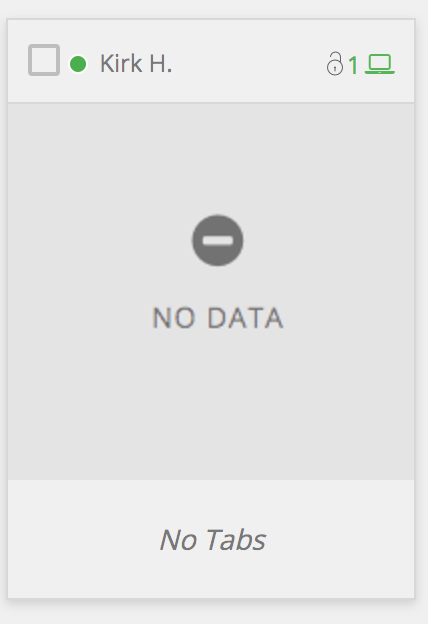
# Fix "No Data" on Students Screen
> How to resolve the "No Data" message that appears on a student's screen during a GoGuardian Teacher classroom session.
The **No Data** message appears when a student's device experiences network interference or trouble connecting to a classroom session.
## Resolve No Data Error
1. On the student's device, go to [checkup.goguardian.com](http://checkup.goguardian.com/) to log the error.
2. In the address bar of the student's device, enter `chrome://restart` and press **Enter**. This resets the device's internet connection and background processes.
3. After Chrome reopens, confirm the student appears online with screen data in your Teacher session.
 ## Resources
Troubleshoot students who appear offline in a classroom session.
Resolve the "Waiting for Activity" status on a student's screen.
Steps to launch a new Teacher classroom session.
Fix issues with students not appearing in your class roster.
## Resources
Troubleshoot students who appear offline in a classroom session.
Resolve the "Waiting for Activity" status on a student's screen.
Steps to launch a new Teacher classroom session.
Fix issues with students not appearing in your class roster.