> ## Documentation Index
> Fetch the complete documentation index at: https://docs.goguardian.com/llms.txt
> Use this file to discover all available pages before exploring further.
# Off-Task Alerts
> Use Off-Task Alerts to automatically detect when students are off task during a GoGuardian Teacher class session, and review historical off-task behavior.
Off-Task Alerts is a GoGuardian Teacher feature that uses artificial intelligence to automatically detect when a student appears to be off task based on the classroom subject. Off-Task Alerts can identify students who are off task even when they're on seemingly productive sites like Google Docs.
Off-Task Alerts currently supports the following class subjects: English, History, Math, and Science.
## How It Works
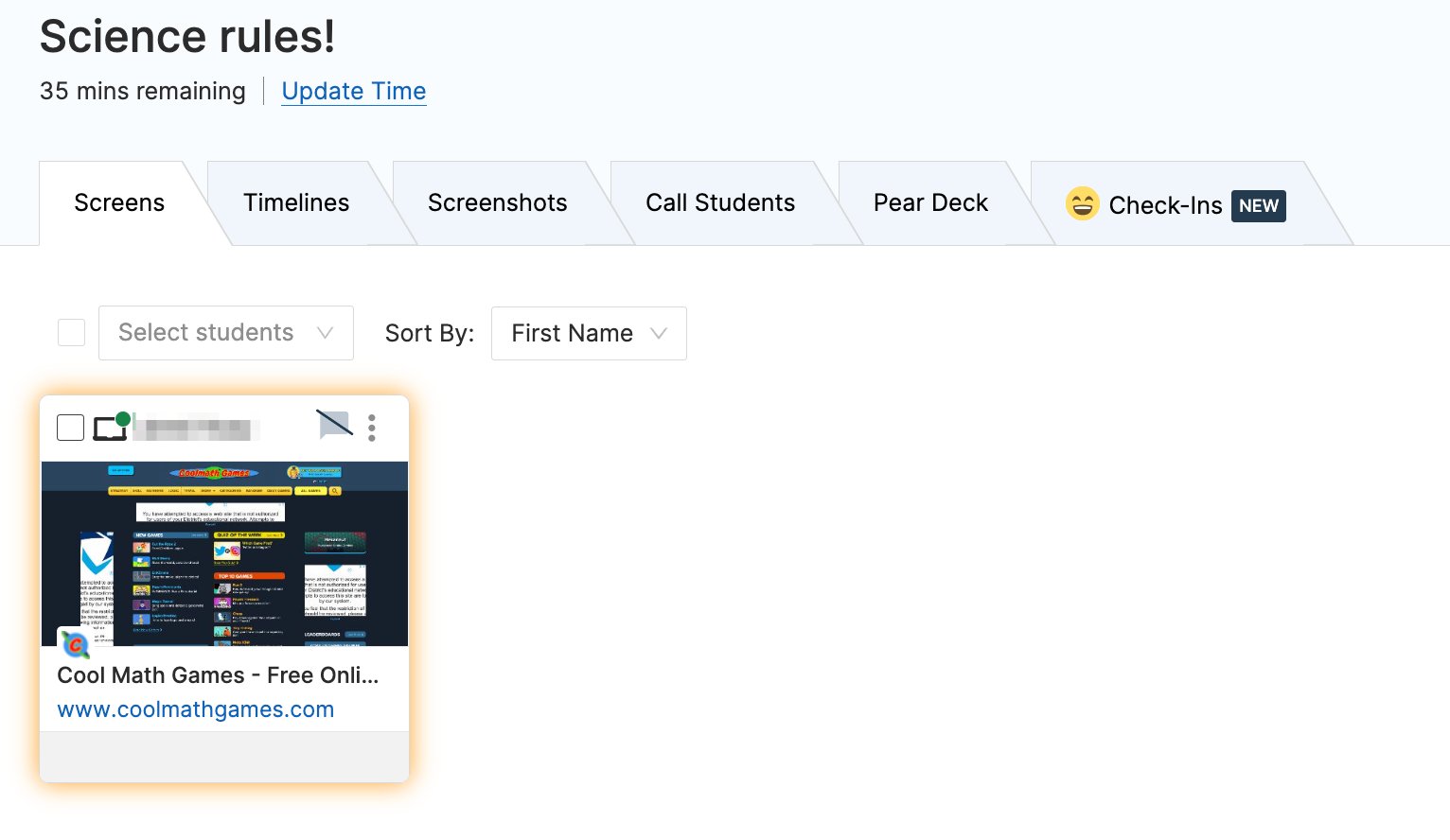
Off-Task Alerts analyzes the content of each student's current webpage and compares it against the selected classroom subject. When a student is actively engaged with content that appears off task, a yellow border appears around their tile in the Screens view.
### Sensitivity Levels
Sensitivity controls how long a student must appear off task before their tile is highlighted.
| Level | Threshold |
| ------------ | --------------------------------- |
| **Lenient** | Off task for more than 60 seconds |
| **Moderate** | Off task for more than 30 seconds |
| **Strict** | Off task for more than 15 seconds |
## Enable Off-Task Alerts
During an active class session:
1. Set the **Off Task Alerts** toggle to **On**.
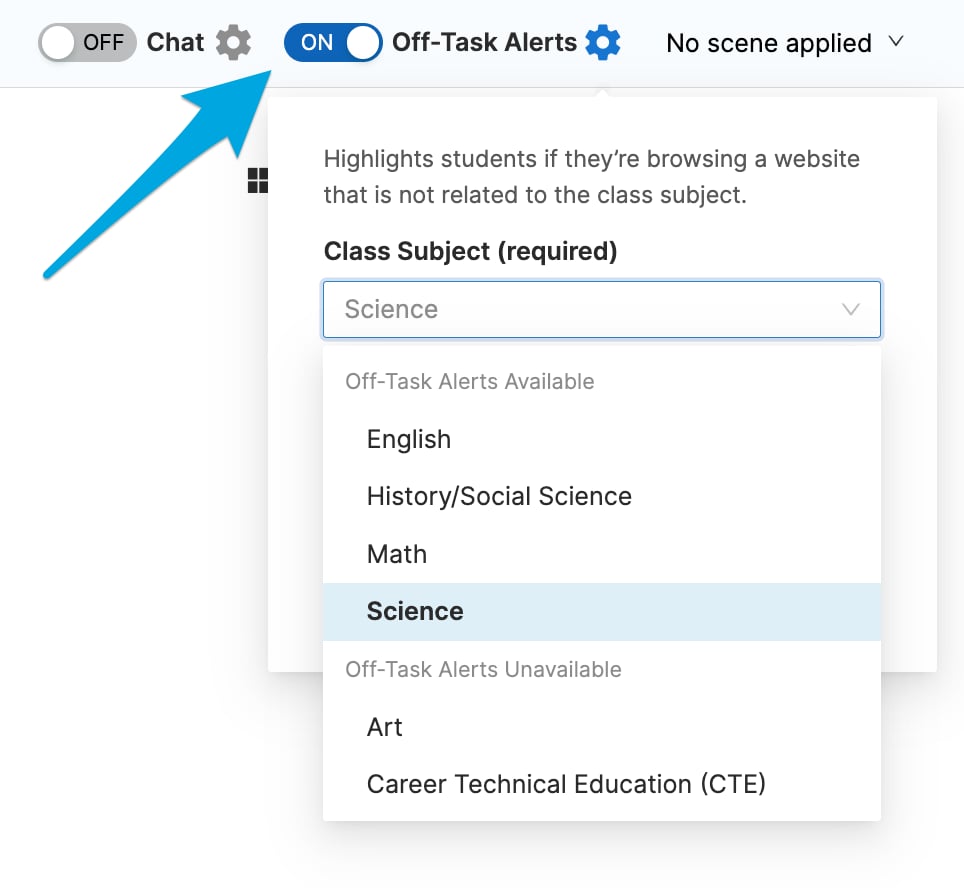
2. Select the appropriate class subject.
3. Adjust the **Sensitivity** slider to match your preference.
To turn Off-Task Alerts off, set the toggle to **Off**.
### Change the Subject Mid-Session
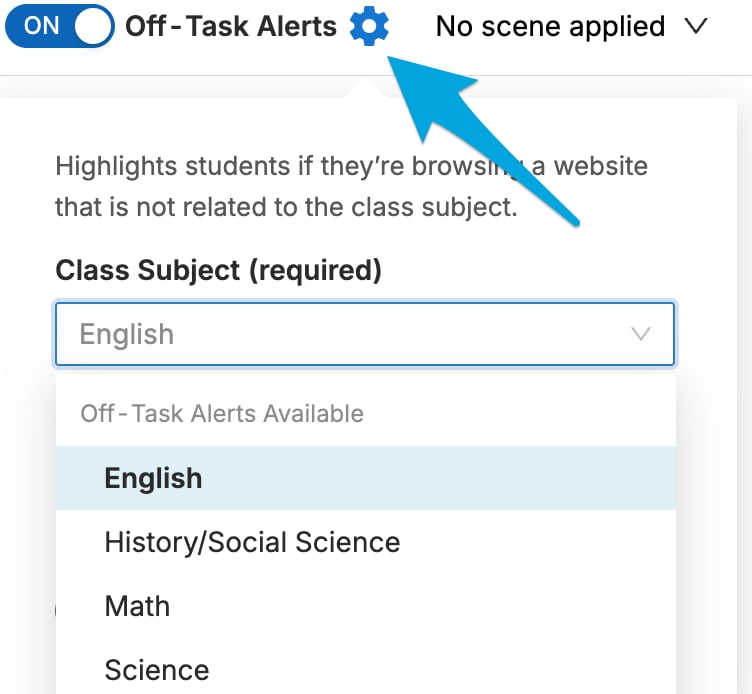
If the subject changes during a session, click the **Off-Task Alerts** cogwheel and select a new subject.
 ## Prevent Alerts for Specific Websites
Off-Task Alerts may flag students who are on task. You can prevent alerts for specific websites:
1. Click the student's screen tile.
2. Click the **Highlight this student...** drop-down menu.
3. Select **Never**.
## Prevent Alerts for Specific Websites
Off-Task Alerts may flag students who are on task. You can prevent alerts for specific websites:
1. Click the student's screen tile.
2. Click the **Highlight this student...** drop-down menu.
3. Select **Never**.
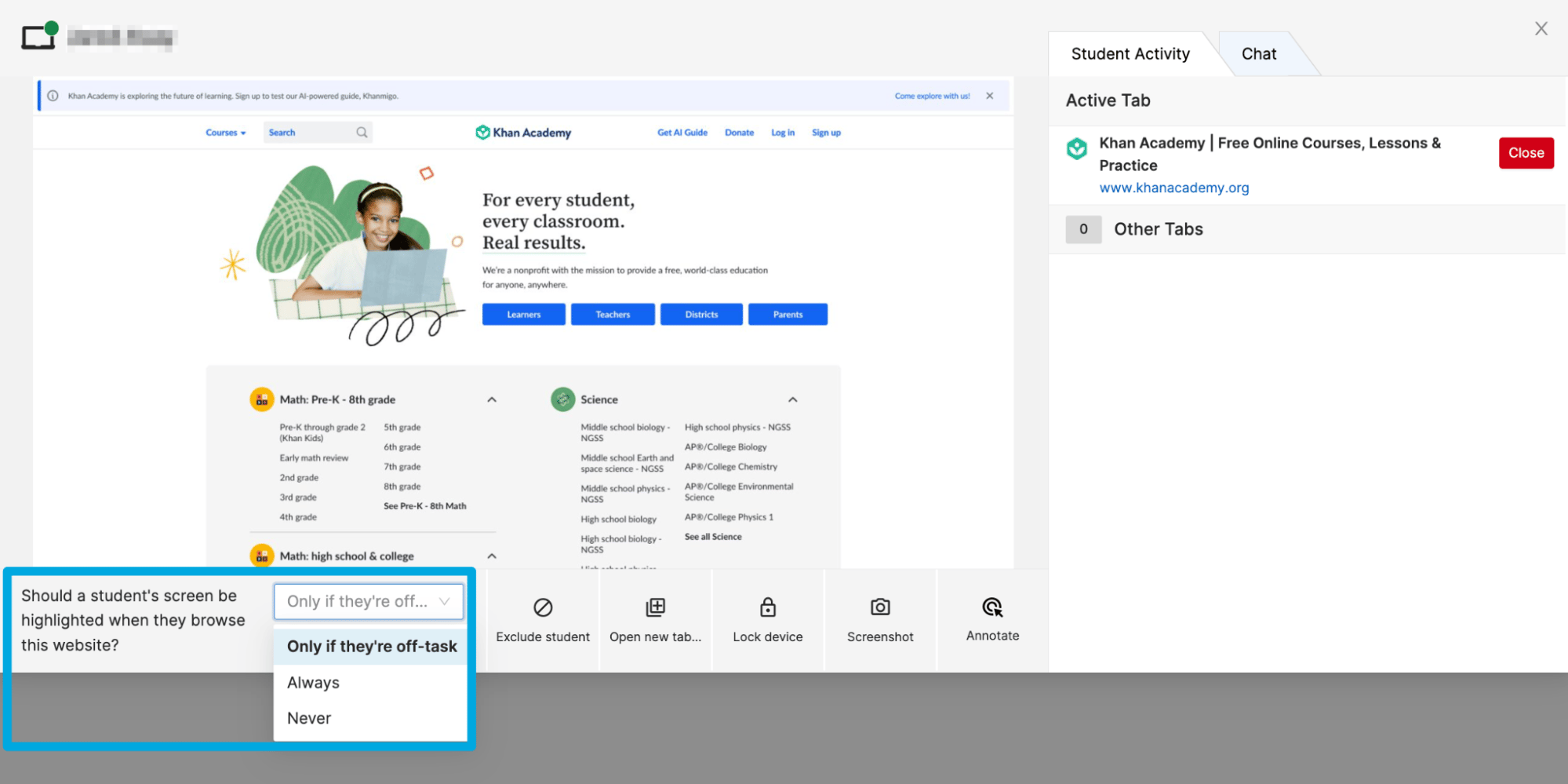 GoGuardian Teacher uses teacher feedback to improve off-task detection over time.
## Review Off-Task History
If Off-Task Alerts were active during a session, off-task behavior is saved for up to 1 calendar year.
1. From the GoGuardian Teacher dashboard, click the classroom tile.
2. Click the date and time of the session you want to review.
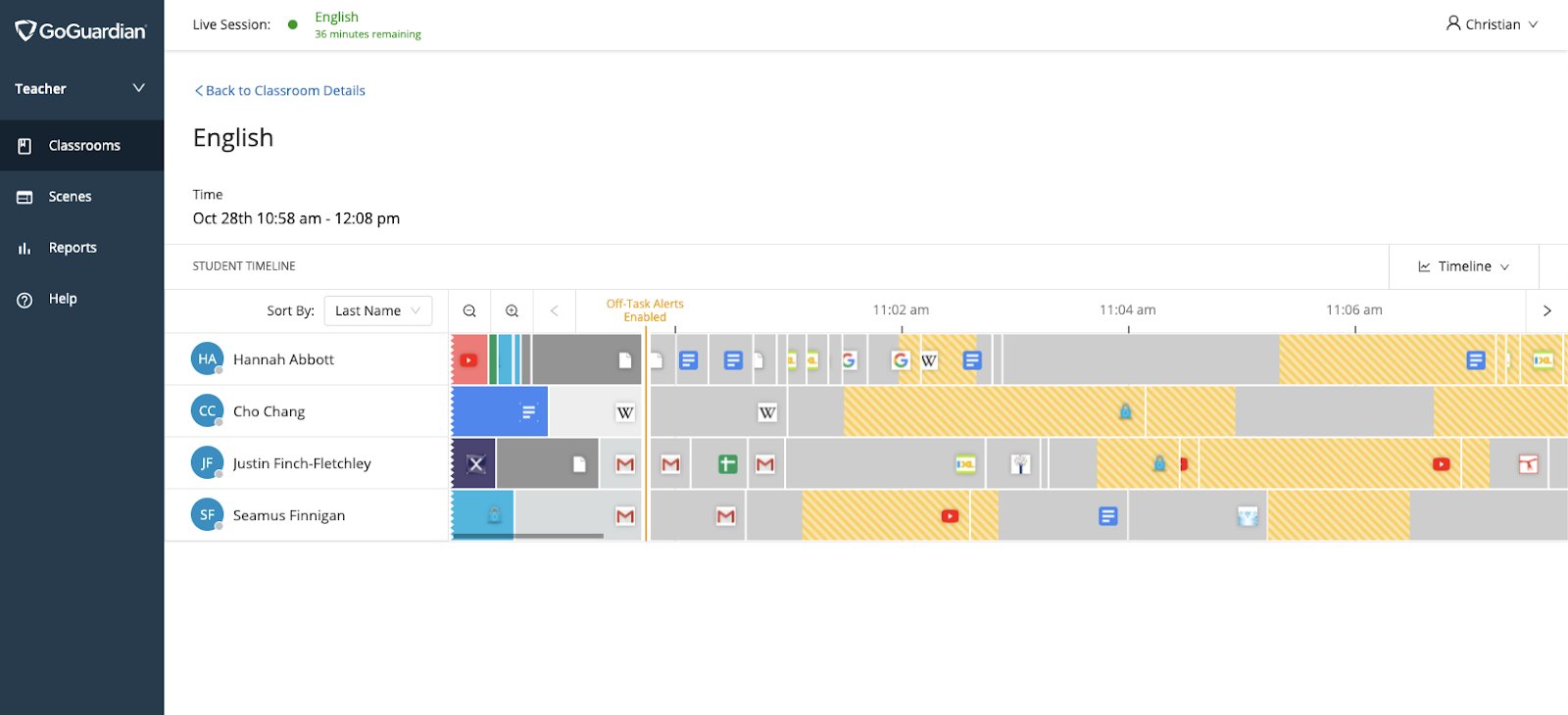
3. Scroll through the timeline view. Off-task periods are highlighted in gold. The points at which Off-Task Alerts were enabled or disabled appear as gold vertical lines through all student timelines.
## Resources
Review the Screens view controls where Off-Task Alerts highlights appear.
Access detailed individual student activity for a session.
GoGuardian Teacher uses teacher feedback to improve off-task detection over time.
## Review Off-Task History
If Off-Task Alerts were active during a session, off-task behavior is saved for up to 1 calendar year.
1. From the GoGuardian Teacher dashboard, click the classroom tile.
2. Click the date and time of the session you want to review.
3. Scroll through the timeline view. Off-task periods are highlighted in gold. The points at which Off-Task Alerts were enabled or disabled appear as gold vertical lines through all student timelines.
## Resources
Review the Screens view controls where Off-Task Alerts highlights appear.
Access detailed individual student activity for a session.