> ## Documentation Index
> Fetch the complete documentation index at: https://docs.goguardian.com/llms.txt
> Use this file to discover all available pages before exploring further.
# Open Tab
> Learn how to use the Open Tab command to direct students to a specific web page during a class session.
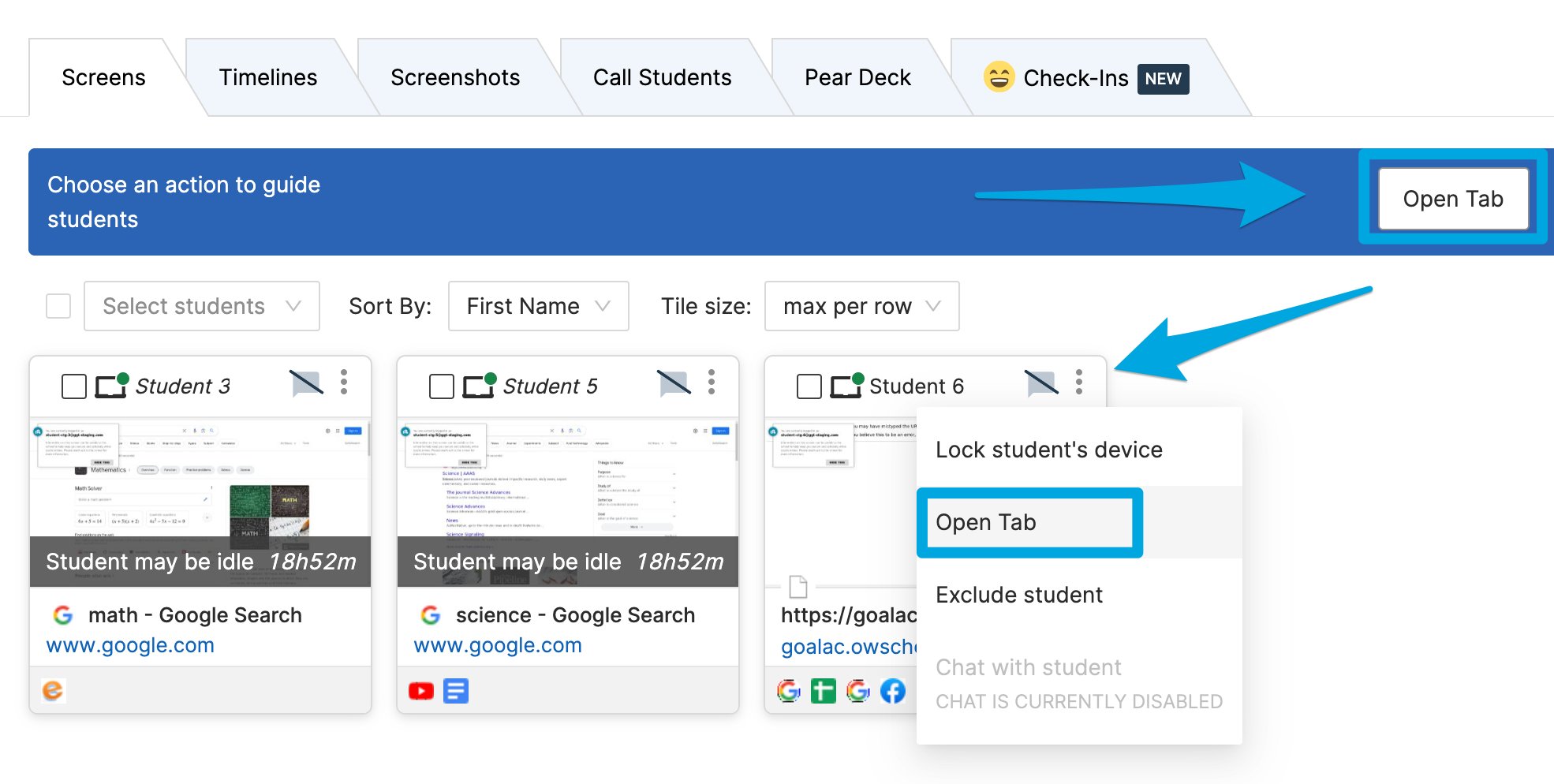
The Open Tab command lets teachers direct students to any web page by pushing a URL to their screens. You can open a tab for all students at once or for a single student.
## Open Tab for Multiple Students
1. Click the **Open Tab** button on the command bar.
2. Select the boxes next to **Select All** or choose specific students, then click **Next**.
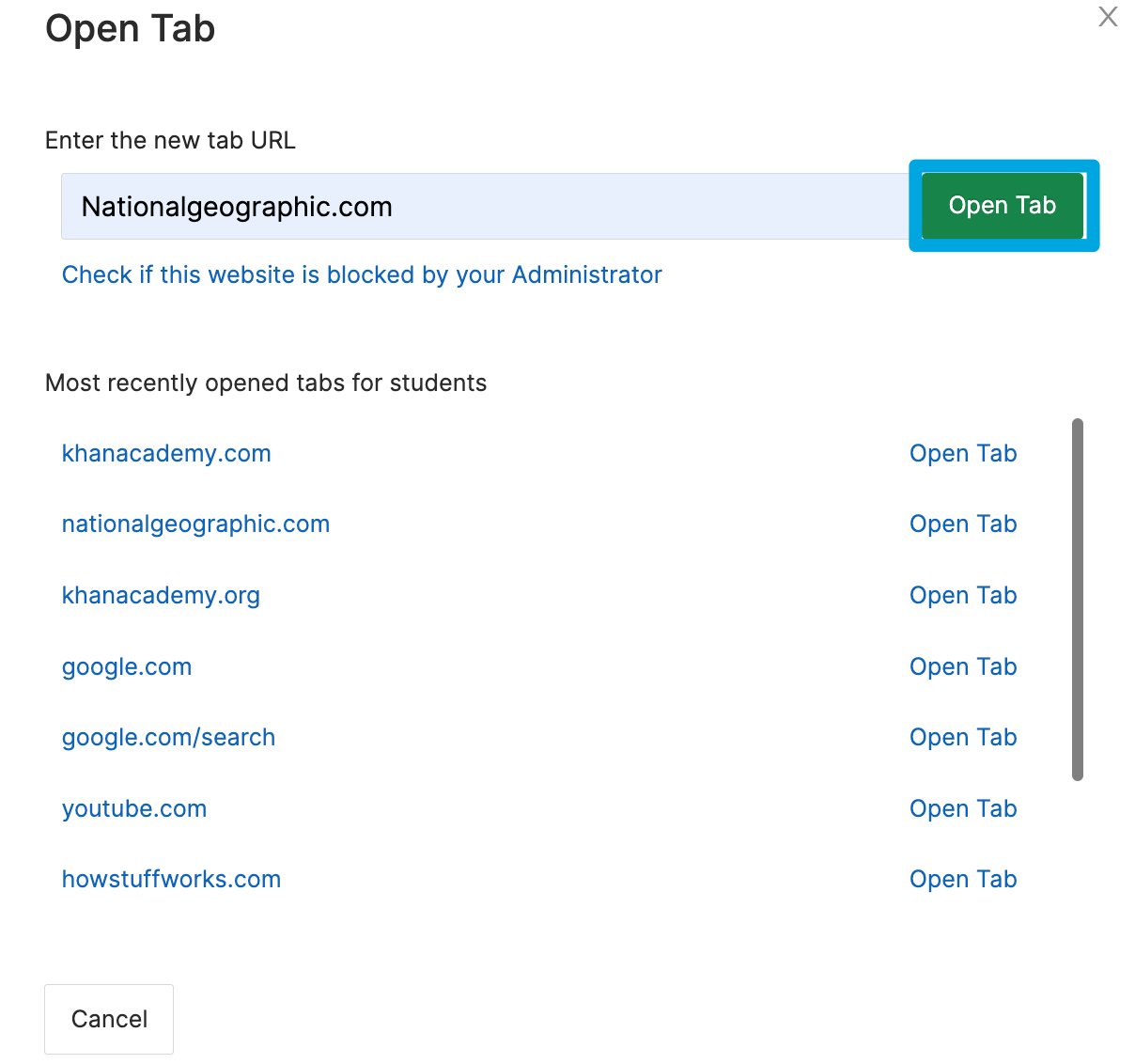
3. Enter a URL in the **Open Tab** interface and click **Open Tab** to push the page to all selected students.
## Open Tab for 1 Student
1. Click the 3-dot button in the corner of the student's tile.
2. Select the **Open Tab** button.
3. Enter a URL in the **Open Tab** interface and click **Open Tab** to push the page to the student.
 Due to limitations in Chrome's API, a student must have a browser window open for Teacher to push a tab to them. If the student's screen shows a **No Active Tab** message, have the student open a web browser before you open a tab.
 ## Resources
Review all available Teacher commands and when to use them.
Use the Lock Screen command to pause student browsing.
Get a class session running before using commands.
See all student screens in one place during a session.
## Resources
Review all available Teacher commands and when to use them.
Use the Lock Screen command to pause student browsing.
Get a class session running before using commands.
See all student screens in one place during a session.