> ## Documentation Index
> Fetch the complete documentation index at: https://docs.goguardian.com/llms.txt
> Use this file to discover all available pages before exploring further.
# Reviewing Activity Is Restricted
> Troubleshoot the 'Reviewing Activity Is Restricted' status on a student's tile in GoGuardian Teacher.
The "Reviewing Activity Is Restricted" status means GoGuardian Teacher is connected to the student's account but the current session settings prevent access to their activity on this device or at this time.
The settings that control this status are configured in Org Management at [manage.goguardian.com](https://manage.goguardian.com). Only Super Users have access to these settings. Contact your IT department or GoGuardian administrators for help adjusting them.
## Student Showing 2 Tiles
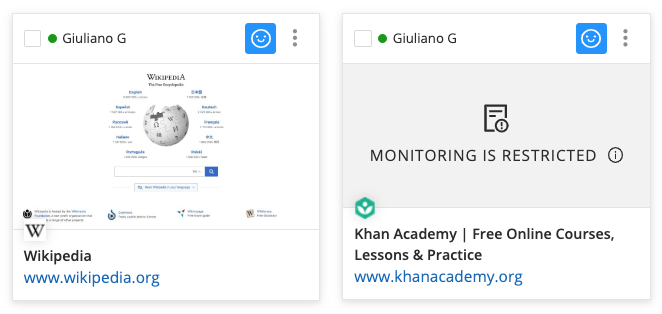
If you see 2 tiles for the same student — one with activity and one showing "Reviewing Activity Is Restricted" — the student is signed into their school account on more than one device. The restricted tile is likely a personal device or home computer.
To remove the duplicate tile, the student must sign out of their school account on the non-school device.
 ## Cause 1: Chromebooks-Only Restriction Is Enabled
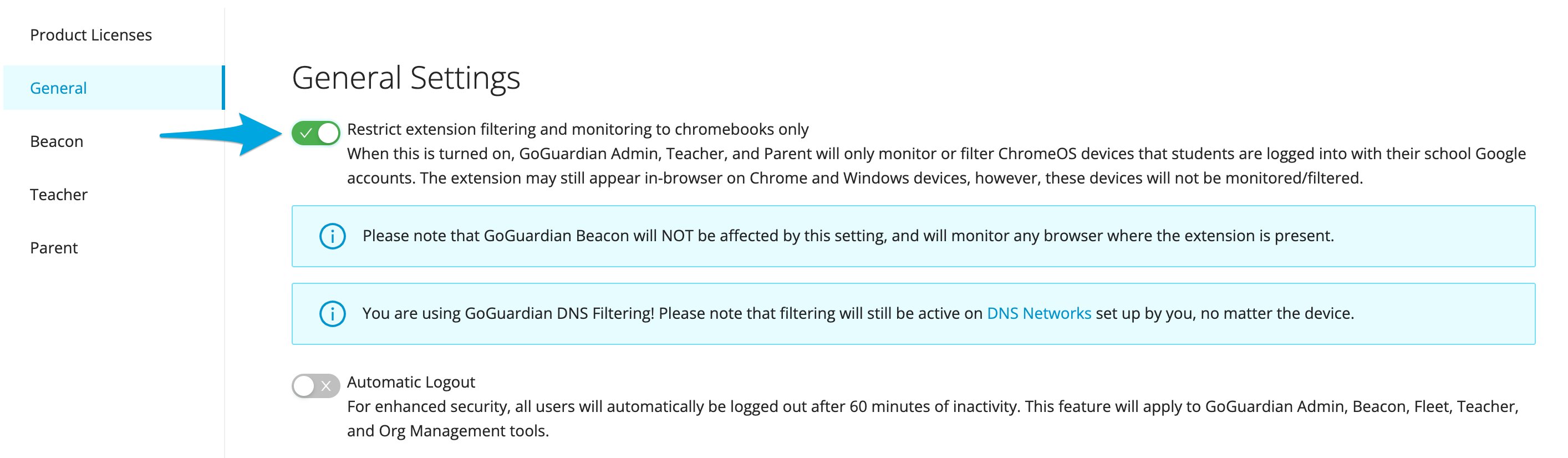
In the Products section of Org Management, the **Restrict extension filtering and reviewing activity to Chromebooks only** setting is enabled. The student is currently signed into a non-Chromebook device, such as a macOS or Windows computer.
**Fix:** If you want GoGuardian Teacher to work on non-Chromebook devices (for example, in a computer lab), ask your Super User to disable this setting in the Products section of Org Management.
## Cause 1: Chromebooks-Only Restriction Is Enabled
In the Products section of Org Management, the **Restrict extension filtering and reviewing activity to Chromebooks only** setting is enabled. The student is currently signed into a non-Chromebook device, such as a macOS or Windows computer.
**Fix:** If you want GoGuardian Teacher to work on non-Chromebook devices (for example, in a computer lab), ask your Super User to disable this setting in the Products section of Org Management.
 ## Cause 2: Out of School Mode Settings
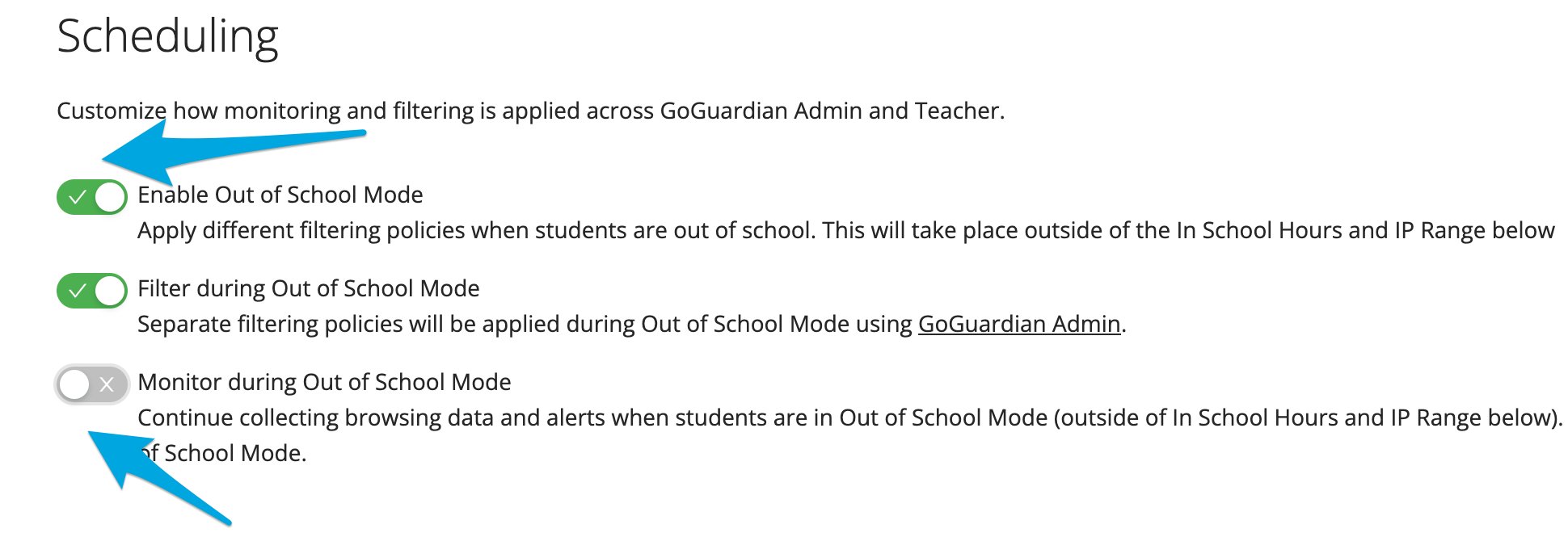
Out of School Mode allows your organization to apply different settings based on the time of day, day of the week, or the student's IP address.
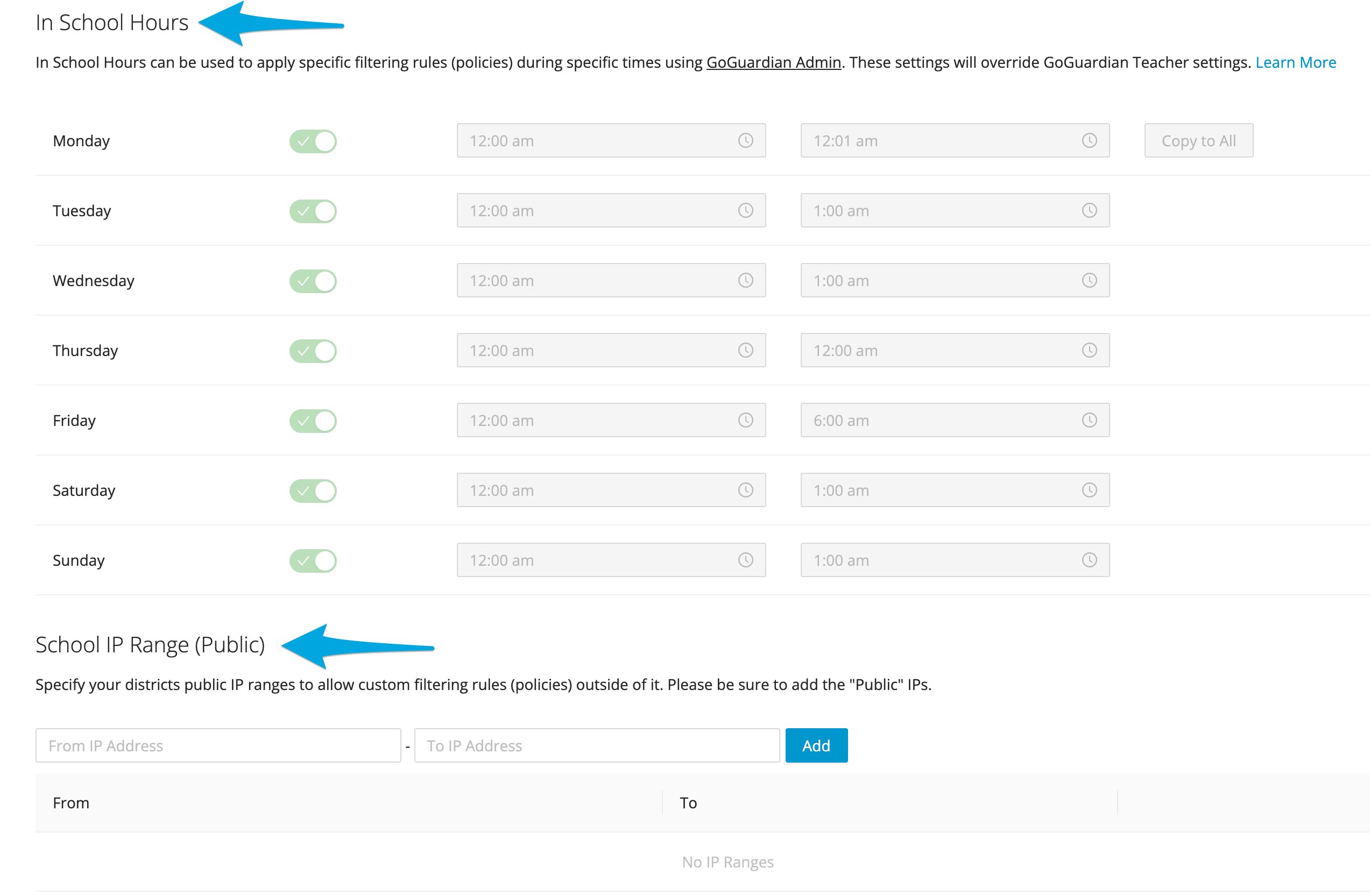
If Out of School Mode is enabled and **reviewing activity during Out of School Mode** is disabled, students who are connected outside of "in school hours" or from outside the designated IP range will show this status.
**Fix:** Contact your Super User to review and adjust the Out of School Mode settings in the Products section of Org Management, including the "in school hours" schedule or IP range.
## Cause 2: Out of School Mode Settings
Out of School Mode allows your organization to apply different settings based on the time of day, day of the week, or the student's IP address.
If Out of School Mode is enabled and **reviewing activity during Out of School Mode** is disabled, students who are connected outside of "in school hours" or from outside the designated IP range will show this status.
**Fix:** Contact your Super User to review and adjust the Out of School Mode settings in the Products section of Org Management, including the "in school hours" schedule or IP range.
 ## Resources
Troubleshoot the "Student Offline" status.
Troubleshoot the "Student Not Found" status.
Review GoGuardian Teacher organization-wide settings (Super Users).
## Resources
Troubleshoot the "Student Offline" status.
Troubleshoot the "Student Not Found" status.
Review GoGuardian Teacher organization-wide settings (Super Users).